
> This is part 1 of 2 of the full documentation (pages 1–100 of 142).
> The content is paginated: fetch every part to see all of it.
> Next part: https://docs.bulkemailsetup.com/llms-full.txt/1
> Page index: https://docs.bulkemailsetup.com/llms.txt

# Welcome to BulkEmailSetup

### 🎉 BulkEmailSetup: Your Ultimate Email Marketing Solution!

At **BulkEmailSetup**, we’re all about simplifying email marketing while delivering **powerful tools** at **affordable costs**. Whether you're a startup or an enterprise, **BulkEmailSetup** has everything you need to create, send, and manage email campaigns that drive results.

### 🚀 Why Choose BulkEmailSetup?

#### **1. Your Own SMTP Server**

We will create your own SMTP in this bulk email setup solution according to your server setup plan. No need to rely on external services—stay in full control of your email deliverability and costs!

#### **2. Cost-Effective Email Marketing**

We offer **low-cost plans** without compromising on features. With BulkEmailSetup, you get enterprise-grade tools at a fraction of the price. No hidden fees—just straightforward pricing that lets you scale with ease.

#### **3. Drag-and-Drop Email Builder**

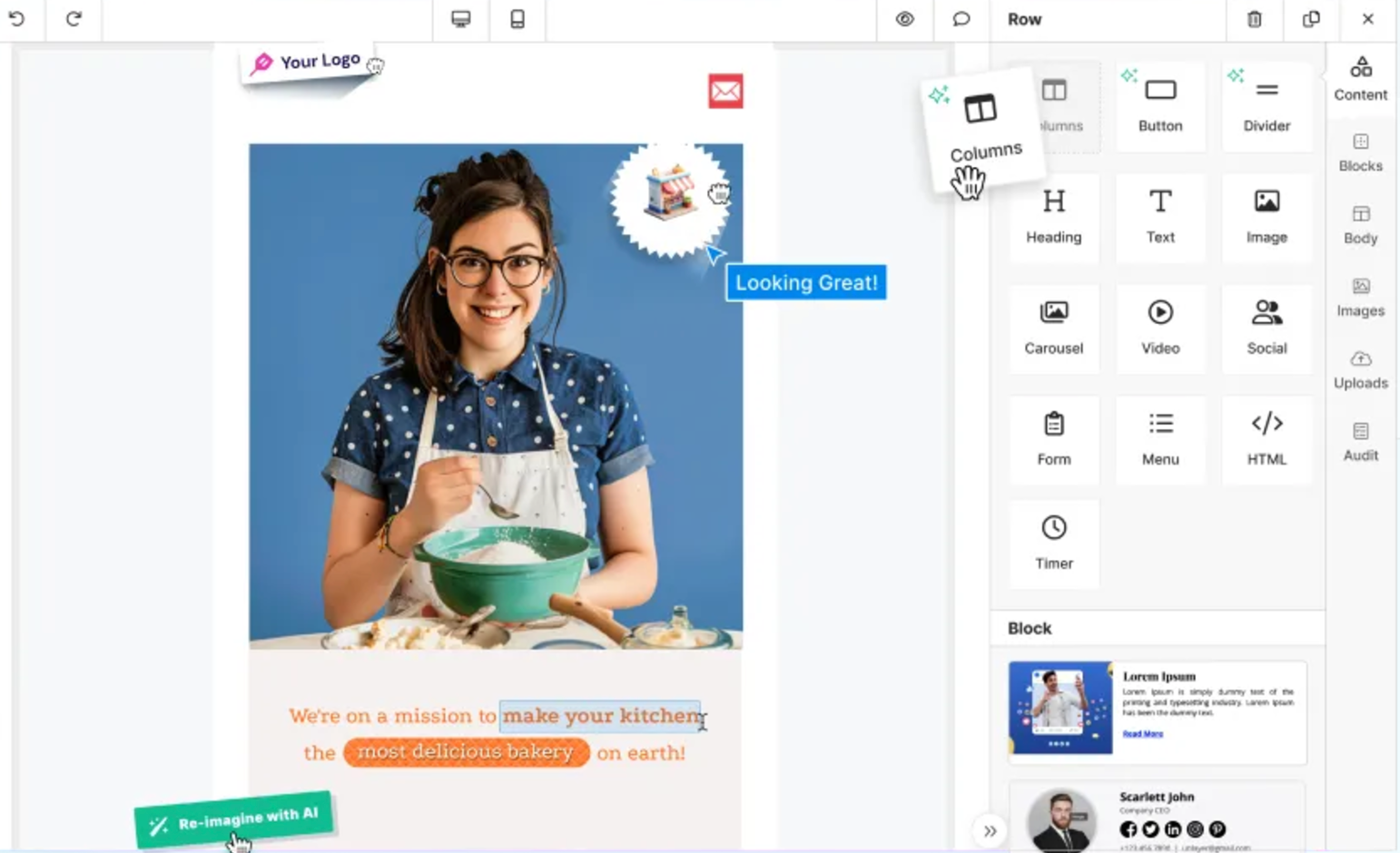
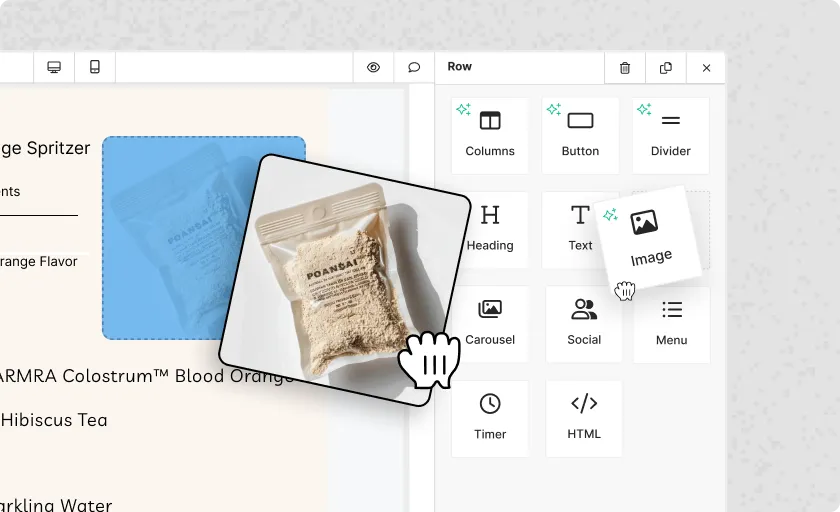
Design stunning emails in minutes with our **Drag-and-Drop Email Template Builder**. No coding required! Choose from a library of beautiful templates or customize your own with just a few clicks. You’ll love how easy it is to create professional-looking emails that engage your audience.

### 📌 Key Features

* **📊 Campaign Management**: Easily manage your campaigns with detailed reports on opens, clicks, and more.
* **📋 Contact Lists**: Segment your audience for more personalized campaigns.
* **🗂 Templates**: Save time with ready-made, customizable email templates.
* 🌐**SMTP Servers**: Manage your own SMTP servers for reliable email delivery and better control over your sending reputation.
* ⛔ **Blacklist Management**: Keep track of unwanted recipients and protect your sender reputation.
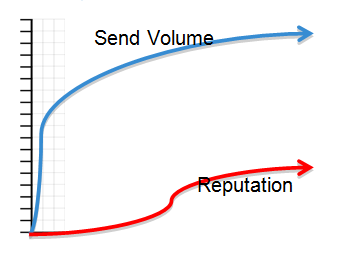
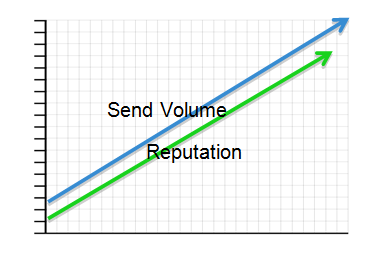
* 📈 **IPs Warmup**: Gradually increase your email sending volume to establish a positive sender reputation and improve deliverability.

With **BulkEmailSetup**, email marketing is not just a task—it’s a **powerful, automated, and scalable** process designed to grow your business. 🌟

***

### Ready to Get Started? 😎

Head over to the dashboard and start exploring the full potential of BulkEmailSetup today!

<table data-view="cards"><thead><tr><th></th><th></th><th data-type="files"></th><th></th><th data-card-target data-type="content-ref"></th><th data-hidden data-card-cover data-type="files"></th><th data-hidden data-type="content-ref"></th></tr></thead><tbody><tr><td><strong>Getting Started</strong></td><td>Start your email marketing</td><td></td><td></td><td><a href="/getting-started/quickstart">Quickstart</a></td><td><a href="https://content.gitbook.com/content/OkewfSKAYkGLToZXJWoJ/blobs/PFShOh1SOUFdkrUyXR5H/Getting-Started.png">Getting-Started.png</a></td><td></td></tr><tr><td><strong>Common Queries</strong></td><td>Queries for BulkEmailSetup</td><td></td><td></td><td><a href="/popular-topics/common-queries">Common Queries</a></td><td><a href="https://content.gitbook.com/content/OkewfSKAYkGLToZXJWoJ/blobs/O8xB0ehXeMrjHrQitS9l/Common-Queries.png">Common-Queries.png</a></td><td><a href="/popular-topics/common-queries">Common Queries</a></td></tr><tr><td><strong>FAQs</strong></td><td>FAQs for BulkEmailSetup</td><td></td><td></td><td><a href="/popular-topics/faqs">FAQs</a></td><td><a href="https://content.gitbook.com/content/OkewfSKAYkGLToZXJWoJ/blobs/QVw22b98u4QUmDPOYv2G/FAQs.png">FAQs.png</a></td><td></td></tr></tbody></table>


# Quickstart

Welcome to **BulkEmailSetup**! We're excited to help you start your email marketing journey. This guide will walk you through the key steps to get your account set up, introduce you to the dashboard, and help you send your first email campaign.

***

### 🌟 What is BulkEmailSetup?

**BulkEmailSetup** is your all-in-one bulk email marketing tool that makes it easy to create, send, and track email campaigns. With features like dynamic templates, automated workflows, and advanced analytics, it's designed to maximize your email marketing success.

***

### 🛠️ How It Works?

Setting up your **BulkEmailSetup** server is a simple and structured process:

1️⃣ **Purchase Infrastructure** 🏗️\
You need to **acquire servers, IP addresses, and domains**. Our team will guide you on where to purchase these resources.

2️⃣ **Server Installation & Configuration** ⚙️\
Once you have the required infrastructure, our team will handle the installation and configuration of your server and create your own SMTP with IP rotation. This setup process typically takes **3-4 days** to complete.

3️⃣ **Email Application Setup & SMTP Integration** 🌐\
We will set up the **email application on your own domain** and connect your SMTP server with the application to enable email sending. After the setup is complete, you can log in to the provided **mailing portal URL** using your **given credentials** and start sending emails.

4️⃣ **IP Warm-up Process** 📊\
To ensure high email deliverability, you must [**warm up your IPs**](/popular-topics/warm-up/warm-up-plan) by gradually increasing your sending volume. This process typically takes **30 days**, starting with a low sending volume and progressively increasing it to reach your desired level.

By following these steps, you’ll have a **fully functional bulk email sending system** optimized for **maximum inbox placement**! 🚀

***

### 🖥️ Dashboard Overview

The dashboard provides a quick glance at essential statistics for managing your email campaigns:

* **Campaigns**: The total number of email campaigns you've created so far.
* **Contact Lists**: The number of contact lists you've set up to organize your subscribers.
* **Subscribers**: The total number of subscribers in your system.
* **Templates**: The available email templates ready for use or customization.

Keep track of how many people have subscribed to your emails and manage their preferences.

***

### 🔑 Key Sections of BulkEmailSetup

#### 👤 [Contacts](/popular-topics/contacts)

This is where you manage all your contact lists. Add new subscribers, categorize them into segments for targeted campaigns, and track your audience growth.

#### 🚀 [Campaigns](/popular-topics/campaigns)

Your campaign creation hub! Choose a pre-made template or create your own, then send or schedule emails to specific contact lists.

#### 🤖 [Autoresponder](/popular-topics/campaigns/autoresponder)

Set up automatic replies or email sequences that are triggered when a subscriber completes an action (like signing up). It's a great way to keep your audience engaged!

#### 🎨 [Templates](/popular-topics/templates)

Design or customize your own email templates to use in your campaigns. You can create a personalized touch with **dynamic fields** to engage your audience.

#### ⛔ [Blacklist](/popular-topics/contacts/blacklist)

The **Blacklist** section allows you to manage email addresses or domains that you do not want to send campaigns to. By adding these to your blacklist, you can avoid sending to unwanted recipients and protect your domain's reputation.

#### 🌐 [Servers](/popular-topics/servers)

Easily configure your SMTP servers or integrate external delivery services (like Amazon SES or Mailgun). This ensures your emails land where they should.

#### 📈[Warmup](/popular-topics/warm-up)

Warm up new IP addresses or domains to avoid spam filters. Start small and gradually increase your email sending volume to ensure a high deliverability rate.

***

### 👤 Creating Your First Contact List

Here’s how to create your first contact list in BulkEmailSetup.

{% content-ref url="/pages/IvmbE2KVmDLWLksFVLaT" %}
[Contact List](/popular-topics/contacts/contact-list)
{% endcontent-ref %}

### 🎨 Creating Your First Email Template

Here’s how to create your first email template in BulkEmailSetup.

{% content-ref url="/pages/fLmNUcBHjuEw9NtCF1BY" %}
[Email Template](/popular-topics/templates/email-template)
{% endcontent-ref %}

### 🚀 Send Your First Campaign

Here’s how to create your first BulkEmailSetup campaign.

{% content-ref url="/pages/IG4aerdZOxvcz5kx4SmE" %}
[Email Campaign](/popular-topics/campaigns/email-campaign)
{% endcontent-ref %}


# Contacts

Manage and organize contacts in our app effortlessly with tools for importing, exporting, segmentation, custom fields, forms, and list hygiene.

<div align="left"><figure><img src="https://content.gitbook.com/content/OkewfSKAYkGLToZXJWoJ/blobs/7fqn4x3ZSWLtiObeb9bp/image.png" alt=""><figcaption></figcaption></figure></div>

### Contact Management

Welcome to the **Contacts** section of our app. Here, you’ll find all the tools and resources needed to manage and organize your contact lists effectively. With our app, managing contacts is simple, helping you reach the right audience with personalized communication. Below, we’ll guide you through each option available in this section.

## Ready to Manage Your Contacts? 📝

Start organizing, importing, and customizing your contacts to maximize your email marketing efforts!

<table data-view="cards"><thead><tr><th></th><th></th><th data-type="content-ref"></th><th data-card-target data-type="content-ref"></th><th data-type="content-ref"></th><th data-hidden></th><th data-hidden data-card-cover data-type="files"></th></tr></thead><tbody><tr><td><strong>Contact List</strong></td><td>An overview of how to manage, view, and organize your contact list.</td><td></td><td><a href="/popular-topics/contacts/contact-list">Contact List</a></td><td></td><td></td><td></td></tr><tr><td><strong>Import Contacts</strong></td><td>Learn how to import contacts seamlessly from external sources to build your list.</td><td></td><td><a href="/popular-topics/contacts/import-contacts">Import Contacts</a></td><td></td><td></td><td></td></tr><tr><td><strong>Export Contacts</strong></td><td>Find out how to export contacts for use in other platforms or for backup.</td><td></td><td><a href="/popular-topics/contacts/export-contacts">Export Contacts</a></td><td></td><td></td><td></td></tr><tr><td><strong>Search Contacts</strong></td><td>Quickly locate specific contacts using advanced search filters and options.</td><td></td><td><a href="/popular-topics/contacts/search-contacts">Search Contacts</a></td><td></td><td></td><td></td></tr><tr><td><strong>Segment</strong></td><td>Understand how to create segments within your contact list for targeted communication.</td><td></td><td><a href="/popular-topics/contacts/segment">Segment</a></td><td></td><td></td><td></td></tr><tr><td><strong>Custom Fields</strong></td><td>Customize contact data fields to capture the most relevant information.</td><td></td><td><a href="/popular-topics/contacts/custom-fields">Custom Fields</a></td><td></td><td></td><td></td></tr><tr><td><strong>Pages</strong></td><td>Organize and design the pages where your contacts interact with your brand.</td><td></td><td><a href="/popular-topics/contacts/pages">Pages</a></td><td></td><td></td><td></td></tr><tr><td><strong>Forms</strong></td><td>Create and manage forms to capture new contacts or gather additional information.</td><td></td><td><a href="/popular-topics/contacts/forms">Forms</a></td><td></td><td></td><td></td></tr><tr><td><strong>Tools</strong></td><td>Discover additional tools to enhance your contact list management.</td><td></td><td><a href="/popular-topics/contacts/tools">Tools</a></td><td></td><td></td><td></td></tr><tr><td><strong>Blacklist</strong></td><td>Manage blacklisted contacts to improve deliverability and list hygiene.</td><td></td><td><a href="/popular-topics/contacts/blacklist">Blacklist</a></td><td></td><td></td><td></td></tr></tbody></table>

***

***

#### Conclusion

Effectively managing your contact list is essential for successful email campaigns and meaningful engagement with your audience. With these tools, you can tailor and organize your contacts to ensure each communication is relevant, targeted, and impactful. Use these resources to keep your contact list well-maintained, optimized, and ready for any campaign.


# Contact List

Learn how to create, manage, and organize your contact lists. Keep your subscribers well-structured and optimize your email marketing efforts with our comprehensive guide.

The **Contact List** is a crucial element of your email marketing strategy. It's the repository of your audience's details that you will use for your email campaigns. Understanding how to effectively manage your contact list will ensure your messages are sent to the right people.

<figure><img src="https://content.gitbook.com/content/OkewfSKAYkGLToZXJWoJ/blobs/sPBcSMm9pICHOOMHY5Kt/image.png" alt=""><figcaption></figcaption></figure>

### What is a Contact List?

A **Contact List** is a collection of your subscribers’ details such as their name, email address, and other important information. This list is essential as it serves as the foundation of your email campaigns, allowing you to segment and target specific groups of people effectively.

### How to Create a Contact List

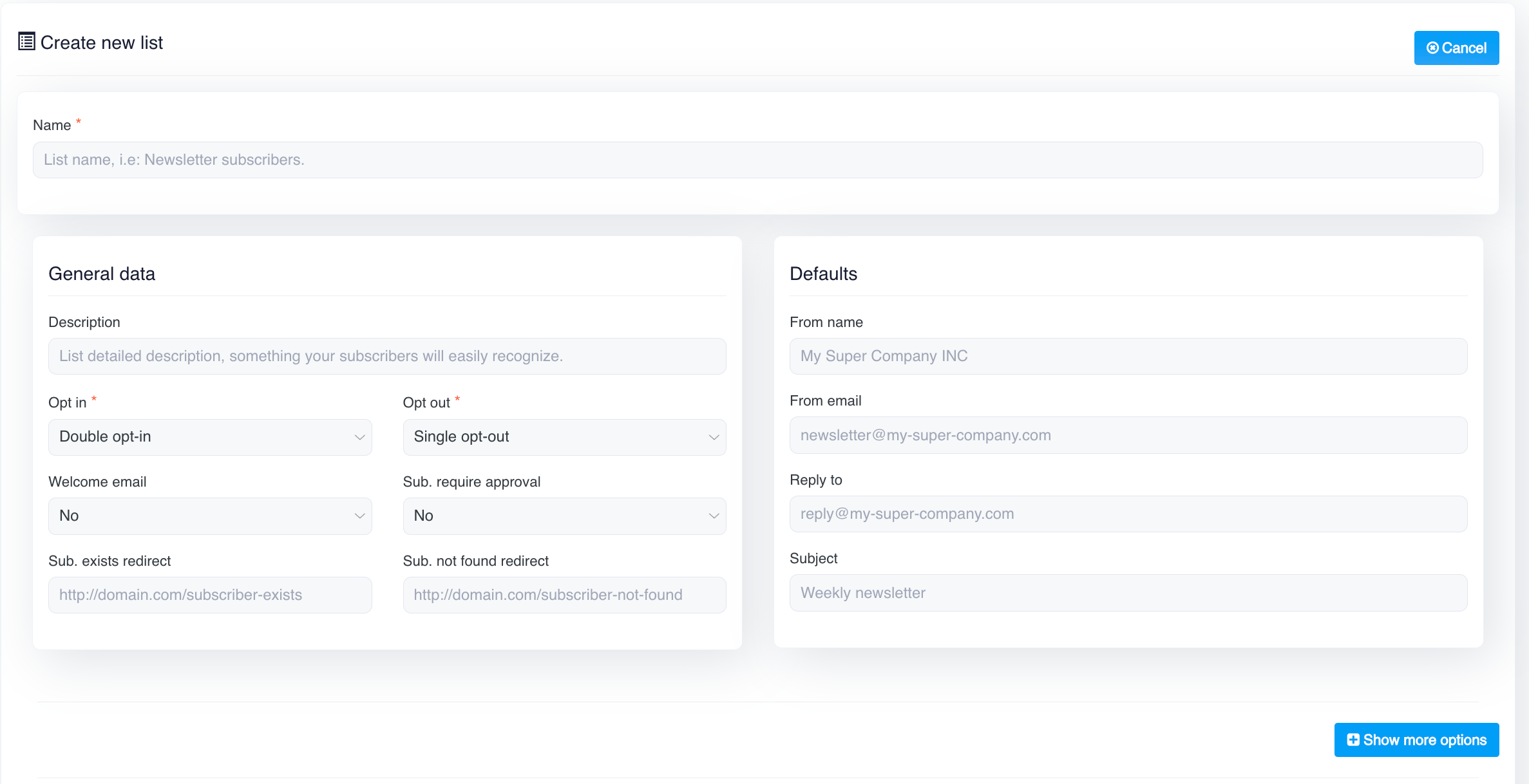
Creating a contact list in our Email App is straightforward and intuitive. Follow these steps to create your first email list:

1. Log in to Email App and navigate to the **Contacts** section.
2. Click on **Create New button**. <img src="https://content.gitbook.com/content/OkewfSKAYkGLToZXJWoJ/blobs/12CytSgnJKds76bexuma/image.png" alt="" data-size="line">
3. Name your list and provide any necessary details (e.g., description).
4. Click **Save**, and your list will be ready to use.

<figure><img src="https://1066064866-files.gitbook.io/~/files/v0/b/gitbook-x-prod.appspot.com/o/spaces%2FOkewfSKAYkGLToZXJWoJ%2Fuploads%2FKV5V4v3k0t7yDg9h09f9%2Fimage.png?alt=media&amp;token=32c97f73-a5aa-4cd8-aa52-d82bf5c1ec41" alt=""><figcaption></figcaption></figure>

***

#### **1. General Data**

This section contains essential options related to the behavior and attributes of the contact list.

* **Name**: This is a required field (marked with an asterisk `*`). You must provide a name for your contact list. The name should clearly indicate the purpose of the list, making it easy to identify. For example, you might name it something like "Newsletter Subscribers" or "Product Launch List." This helps differentiate between various lists you may create for different campaigns or audiences.
* **Display name**: Your mail list display name. This name will be used in subscription forms and template tags parsing for campaigns.
* **Description**: This is an optional field where you can provide a detailed description of the list. The description should be something that helps you or your team understand the purpose of the list, or it can be helpful for subscribers if exposed in a sign-up form. It’s good practice to include information that makes the list’s purpose easily recognizable.
* **Opt-in**: This dropdown allows you to select the opt-in method for your list. The opt-in process determines how subscribers are added to your list:
  * **Double opt-in** (Default setting): Requires a user to confirm their subscription via email after submitting their details. This is considered best practice as it ensures the subscriber's consent.
  * **Single opt-in**: Immediately adds the user to your list after they submit their information, without requiring additional confirmation.
* **Opt-out**: This dropdown determines how subscribers can unsubscribe from your list:
  * **Single opt-out** (Default setting): Allows users to unsubscribe immediately upon clicking an unsubscribe link.
  * **Double opt-out:** Requires users to confirm their unsubscription with an additional step to prevent accidental opt-outs.
* **Welcome Email**: This option sends a welcome email automatically when a user subscribes through a subscription form. It works only for form-based subscriptions and does not apply to contacts added via import.
* **Subscriber Requires Approval**: This option allows you to manually approve each subscriber before they are added to the list. Setting this to "Yes" is useful when you want more control over who gets added, such as for exclusive membership lists.
* **Subscriber Exists Redirect**: In this field, you can provide a URL to which subscribes will be redirected if they attempt to subscribe to the list but are already a subscriber. This can be a custom page thanking them or providing further instructions.
* **Subscriber Not Found Redirect**: Similarly, this field allows you to input a URL where subscribes will be redirected if they attempt to unsubscribe but their email is not found in the list. This can help clarify why they weren’t able to unsubscribe, or give them an option to reach out for assistance.

***

#### **2. Defaults**

This section contains the default settings for your email campaigns. These defaults will automatically apply when you send emails from this list unless otherwise changed in the campaign settings.

* **From Name**: The name that will appear in the "From" field when your recipients receive your email. It’s important to use a recognisable name here to build trust with your subscribers. For example, you might use your company name or the name of a specific department.
* **From Email**: The email address that will be used as the sender's address. Ensure that this email is from a domain your subscribers recognise.
* **Reply To**: The email address where replies from your subscribers will be sent. It can be the same as the "From Email" or a different address if you want replies to be directed elsewhere.
* **Subject**: This is the default subject line for the emails sent to the list. You can modify this later for individual campaigns, but having a default subject line ensures that there’s always a placeholder, reducing errors when setting up campaigns.

***

#### **3.** Notifications

The **Notifications** section provides additional customization when creating or managing a contact list. Here’s a summary of the available options:

* **Notifications**:
  * **Subscribe**: Choose whether you or a team member should receive an email notification when a new subscriber is added to the list.
  * **Unsubscribe**: Choose whether you want notifications when someone unsubscribes from the list.
  * **Subscribe/Unsubscribe to**: Specify the email address where these notifications should be sent.
* **Subscriber Actions**:
  * **Actions when Subscribe**: Allows you to automatically unsubscribe a subscriber from other lists if they subscribe to this list. This is useful for keeping your lists clean and preventing duplicate subscriptions.
  * **Actions when Unsubscribe**: You can select lists from which a subscriber will be unsubscribed when they unsubscribe from this list. The unsubscribe action is silent, meaning no email notification is sent to the subscriber.

<figure><img src="https://1066064866-files.gitbook.io/~/files/v0/b/gitbook-x-prod.appspot.com/o/spaces%2FOkewfSKAYkGLToZXJWoJ%2Fuploads%2FvEyiG8GlmSqXTBLoPmiG%2Fimage.png?alt=media&amp;token=2a2155c1-69a2-4f9d-9cf7-e110a3225ee8" alt=""><figcaption></figcaption></figure>

***

#### **4.** Subscriber actions

The **Subscriber Actions** section in the **Contact List** settings allows you to automate actions when a subscriber joins or unsubscribes from a list. This helps manage contacts more efficiently and ensures better segmentation and email deliverability.

* **Actions when Subscribe**
  * When a subscriber joins this list, they can be **automatically unsubscribed** from selected lists.
  * The unsubscription is **silent** (no notification sent).
  * Options:
    * **Select All** – Unsubscribes from all listed lists.
    * **Choose Specific Lists** – Unsubscribes only from selected lists.
* **Actions when Unsubscribe**
  * When a subscriber **unsubscribes** from this list, they can be **automatically unsubscribed** from selected lists.
  * The unsubscription is **silent** (no notification sent).
  * Options:
    * **Select All** – Unsubscribes from all listed lists.
    * **Choose Specific Lists** – Unsubscribes only from selected lists

<figure><img src="https://1066064866-files.gitbook.io/~/files/v0/b/gitbook-x-prod.appspot.com/o/spaces%2FOkewfSKAYkGLToZXJWoJ%2Fuploads%2FoBuqo3NLnMfldLdUoNBg%2Fimage.png?alt=media&amp;token=d1536f91-77a7-44ca-9142-e058b6a8cbb2" alt=""><figcaption></figcaption></figure>

***

#### **5. Company Details**

The **Company Details** section allows users to define their company information, which can be used in email footers, personalization tags, and compliance settings.

**Fields in Company Details**

* **Name (*****Required*****)** – The company's official name.
* **Country (*****Required*****)** – Select the company's country.
* **Type/Industry** – Choose the business category or industry.
* **Address 1 (*****Required*****)** – Primary business address.
* **Address 2** – Additional address details (optional).
* **Zone** – Select the region or state.
* **Zone Name** – Alternative field for specifying a region.
* **City (*****Required*****)** – The city where the business is located.
* **Zip Code (*****Required*****)** – Postal code for the address.
* **Phone** – Contact phone number.
* **Website** – The company's website URL.

**Address Format & Tags**

* Users can customize the **Address Format** using predefined tags such as:
  * `[COMPANY_NAME]` – Inserts the company name.
  * `[COMPANY_ADDRESS_1] [COMPANY_ADDRESS_2]` – Includes full address.
  * `[COMPANY_CITY] [COMPANY_ZONE] [COMPANY_ZIP]` – Displays city, zone, and zip code.
  * `[COMPANY_COUNTRY]` – Shows the country.
  * `[COMPANY_WEBSITE]` – Inserts the company website.

This section ensures proper branding, compliance, and email personalization in campaigns.

<figure><img src="https://1066064866-files.gitbook.io/~/files/v0/b/gitbook-x-prod.appspot.com/o/spaces%2FOkewfSKAYkGLToZXJWoJ%2Fuploads%2F5mWb6LCz5HFGnFsKUkW3%2Fimage.png?alt=media&amp;token=2fc59e08-08cf-4775-8562-bbc38f9af132" alt=""><figcaption></figcaption></figure>

***

#### **6. Cancel Button**

At the top right of the screen, there is a **Cancel** button. Clicking this will exit the "Create New List" page without saving any changes or creating the list. It’s useful for cases where you want to discard the list creation process altogether.

***

#### **7. Save Button**

The **Save** button on the "Create New Contact List" page is used to finalize and store all the details of the new contact list you’ve set up. After entering all the required information (such as list name, description, and settings), clicking **Save** will create the list and make it available for use in your email campaigns. All selected preferences, such as opt-in options, notifications, and subscriber actions, will be applied to the list.

***

### What is a Contact/Subscriber?

A **Contact** or **Subscriber** is any individual whose email address and personal information are stored in your contact list. Each contact represents someone who can receive your email campaigns. Keeping your contact data organised helps improve the effectiveness of your email marketing efforts.

### Understanding the Contact List Dashboard

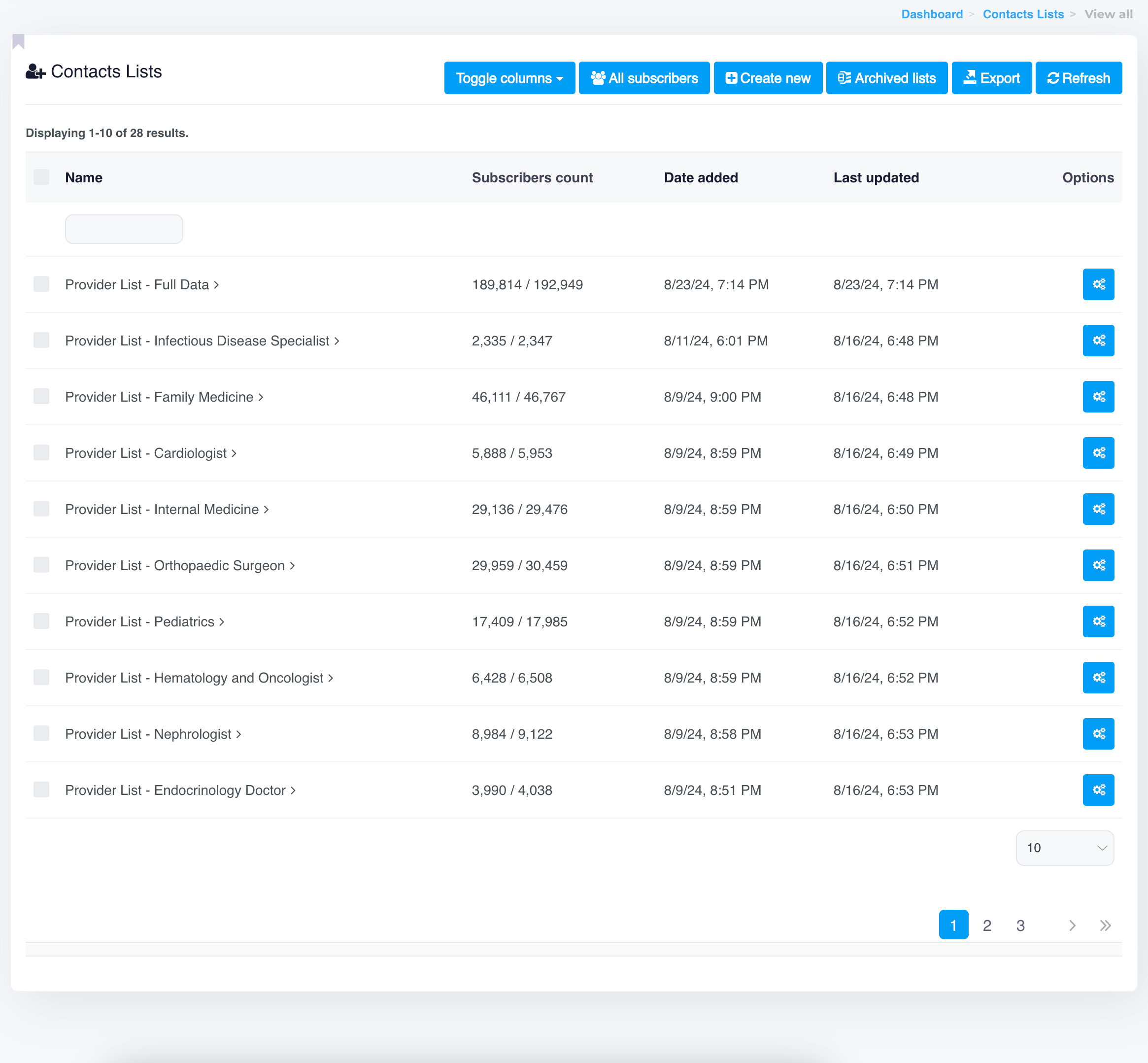
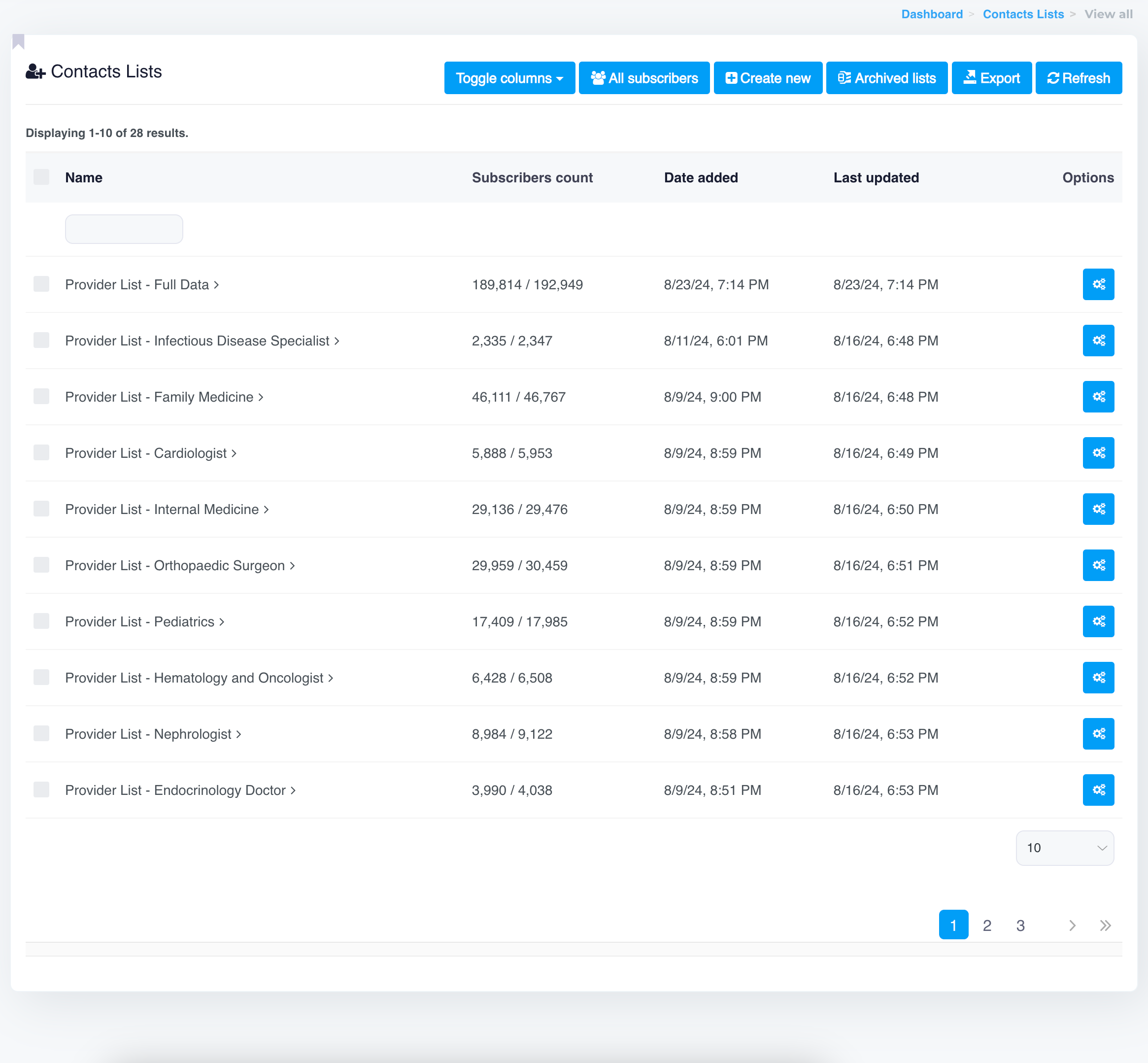
The Contact List dashboard offers various options to manage your lists effectively. Below is a breakdown of each element visible in the dashboard:

<figure><img src="https://content.gitbook.com/content/OkewfSKAYkGLToZXJWoJ/blobs/nAHJf4jYvsAn6FYv8Wqi/image.png" alt=""><figcaption></figcaption></figure>

1. **Unique ID**: This column displays the unique identifier for each contact list, helping you quickly distinguish between lists. This ID is auto-generated and cannot be modified by the user.
2. **Name**: The name of each contact list appears in this column. Clicking on the list name will open more detailed information about that specific contact list, including subscriber details, activity reports, segments, custom fields, option for import/export etc.
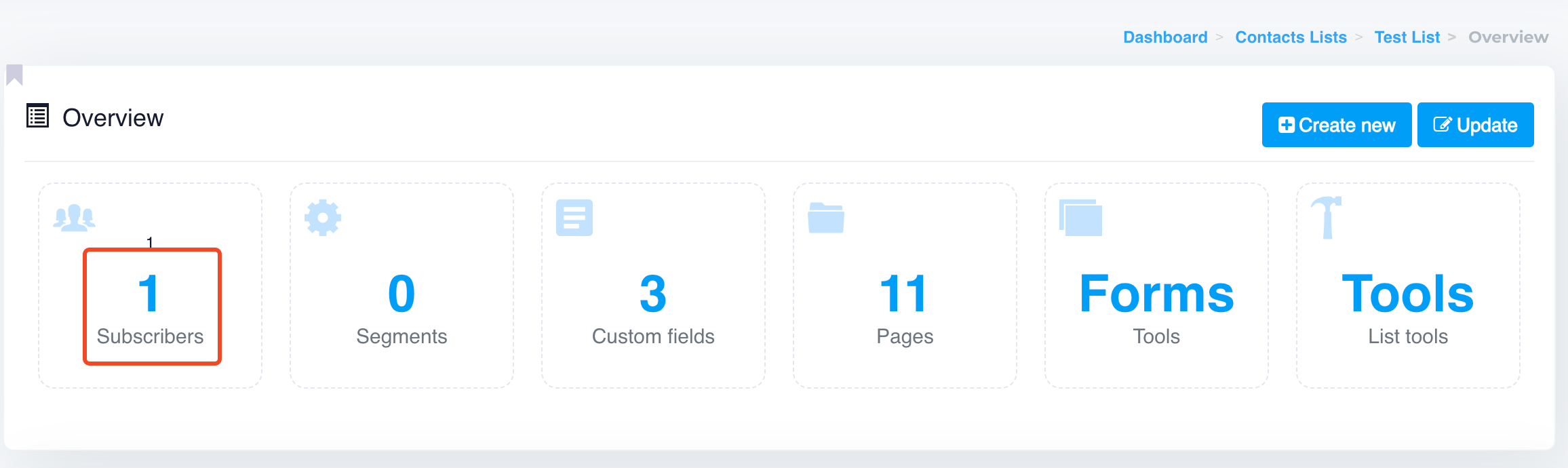
3. **Subscribers Count**: This column shows the number of subscribers in each contact list. It displays the total number of subscribers and the number of active subscribers (e.g., `1 / 1`, `2 / 3`). This count helps in keeping track of how many contacts are active and reachable.
4. **Date Added**: The Date Added column shows when the contact list was created. This information is useful for understanding how long a list has been in use, which can help in evaluating its performance over time.
5. **Last Updated**: This column shows the last time the contact list was modified, such as when subscribers were added, removed, or edited. Keeping this information visible helps you stay informed about the recent activity on each list.
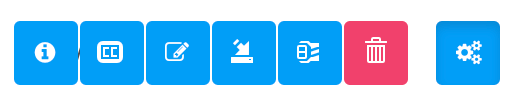
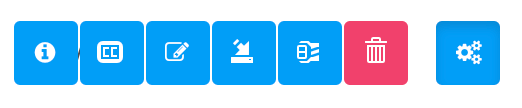
6. **Options** (Gear Icon): Each contact list has a gear icon on the far right of its row. Clicking this icon will give you a variety of management options, including:

<div align="center" data-full-width="false"><figure><img src="https://content.gitbook.com/content/OkewfSKAYkGLToZXJWoJ/blobs/aEUbFEAPostePN472puW/image.png" alt="" width="392"><figcaption></figcaption></figure></div>

* **Overview Button** (i Icon)**:**

  This button provides an overview of the selected contact list. When clicked, it shows detailed information such as the total number of subscribers, list creation date, and recent activity. It helps you quickly get a summary of the key data related to the list without navigating deeper into the settings.
* **Copy Button** (cc Icon):

  Clicking this button allows you to create a duplicate of the selected contact list. This is particularly useful when you want to replicate a list for a new campaign without manually recreating all the settings and contacts. The duplicated list can then be edited or modified as needed.
* **Update Button** (Pencil icon):

  The update button allows you to edit or update the existing details of the contact list. You can change the name, description, or other settings associated with the list. This is helpful when modifications are needed after the list has already been created.
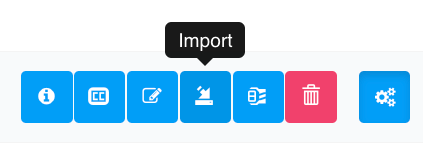
* **Import Button** (Import icon):

  The import button lets you bring in new contacts into the existing list. Clicking this will allow you to import contacts from a file (such as a CSV) or a third-party source. It simplifies the process of adding large numbers of contacts in one action.
* **Archive Button** (Box icon):

  This button archives the contact list, meaning it will no longer be active for sending campaigns, but it is not deleted. Archiving is useful for preserving the data while keeping the list out of the active view. You can restore archived lists at any time if needed.
* **Delete Button** (Trash Bin icon):

  This button permanently deletes the contact list from your account. Once deleted, the action cannot be undone, so be cautious when using this option. It is designed to remove lists that are no longer needed.
* **Options Button** (Gear icon):

  The gear icon reveals additional settings for the contact list, such as advanced options to show or hide certain fields in the list view. It helps in customizing the list layout to your preferences and optimising how the data is displayed in your dashboard.

### Buttons and Actions

At the top of the dashboard, you’ll find several buttons for managing your contact lists:

<figure><img src="https://content.gitbook.com/content/OkewfSKAYkGLToZXJWoJ/blobs/x6d4fiPaRjVYjLsPxRuF/image.png" alt=""><figcaption></figcaption></figure>

1. **All Subscribers**: Clicking this button will display a comprehensive view of all the subscribers across all your contact lists. This is useful for seeing your entire subscriber base at a glance, regardless of which list they are part of.
2. **Create New**: Use this button to create a new contact list. Clicking it will open a form where you can name your list, provide additional details, and begin adding contacts.
3. **Archived Lists**: This button takes you to a section where you can view and manage any lists you’ve archived. Archived lists are not active but are stored for potential future use.
4. **Export**: This feature allows you to export your contact lists into a CSV or another file format. This can be useful for data backup or transferring your contact data to another platform.
5. **Refresh**: Clicking the Refresh button will reload the page and update the contact list view, ensuring that any changes made to your lists are reflected in real-time.

With these features, managing your contact lists is both simple and efficient, giving you full control over your audience and ensuring optimal engagement for your email campaigns.


# Contact or Subscriber

Learn about contacts and subscriber statuses in email marketing. Manage confirmed, unsubscribed, blacklisted, and bounced contacts with ease and efficiency.

### **What is a Contact/Subscriber?**

In the context of email marketing, a contact or subscriber refers to an individual whose information (such as email address, name, and other details) is stored in your contact list or database.&#x20;

These individuals have either shown interest in your services or products, signed up to receive updates, or have been added to your database through other legitimate means.&#x20;

The primary goal is to communicate with these contacts through email campaigns to share updates, promotions, or valuable content.

<figure><img src="https://content.gitbook.com/content/OkewfSKAYkGLToZXJWoJ/blobs/xGDVUsL1UE6TIDyE2siL/image.png" alt=""><figcaption></figcaption></figure>

***

### Why Are Subscribers Important?

Subscribers are the foundation of any email marketing strategy. A well-maintained subscriber list ensures better engagement, higher conversion rates, and improved deliverability.&#x20;

By segmenting and managing your subscribers effectively, you can create personalized email campaigns that resonate with your audience and meet their specific needs.

***

### **Subscriber Statuses: What Do They Mean?**

Subscribers in an email marketing platform can have various statuses, each indicating their level of engagement or eligibility to receive emails. Here's a detailed overview:

1. **Confirmed**
   * **Definition**: Active subscribers who have confirmed their email addresses by completing a double opt-in process or have been manually verified or imported for CSV.
   * **Behavior**: These subscribers will receive your email campaigns without restrictions.
2. **Unconfirmed**
   * **Definition**: Subscribers who have not yet confirmed their email addresses after signing up.
   * **Behavior**: They won’t receive any emails until they complete the confirmation process.
3. **Unsubscribed**
   * **Definition**: Subscribers who have opted out of receiving further emails from your campaigns.
   * **Behavior**: They won’t receive any additional emails, ensuring compliance with email marketing laws like GDPR or CAN-SPAM.
4. **Unapproved**
   * **Definition**: Subscribers awaiting manual or automatic approval due to specific criteria set in your email marketing platform.
   * **Behavior**: Emails will not be sent to these subscribers until they are approved.
5. **Blacklisted**
   * **Definition**: Subscribers who are marked as hard bounces or are manually added to the blacklist due to spam complaints or invalid email addresses.
   * **Behavior**: They won’t receive any further emails, ensuring your deliverability rates remain unaffected.
6. **Disabled**
   * **Definition**: Subscribers who have been deactivated manually.
   * **Behavior**: They won’t receive any further emails unless reactivated.
7. **Moved**
   * **Definition**: Subscribers who have been transferred to another list but still remain in your database.
   * **Behavior**: These subscribers won’t receive emails from the original list but can receive emails from the new one.

{% hint style="info" %}
"Subscribers imported manually via a CSV file are automatically assigned the status 'Confirmed' by default."
{% endhint %}

<div align="center"><figure><img src="https://content.gitbook.com/content/OkewfSKAYkGLToZXJWoJ/blobs/RrZZ7xkcO00rcAbIaGxn/image.png" alt="" width="311"><figcaption></figcaption></figure></div>

***

### **Frequently Asked Questions About Contacts/Subscribers**

**1. How Do I Add Contacts to My List?**\
Contacts can be added through sign-up forms, manual uploads (e.g., importing a CSV file), or other tools. Always ensure your contacts are obtained with consent to comply with anti-spam regulations.

**2. What Is the Difference Between a Subscriber and a Contact?**\
While "subscriber" typically refers to individuals who have agreed to receive your emails, "contact" is a broader term that can include subscribers, unconfirmed leads, or even individuals who are no longer active in your campaigns.

**3. Do I have to manually exclude bounces or unsubscribers?**\
No, you don't need to manually exclude bounces or unsubscribers. The system automatically manages these for you. Emails will not be sent to bounced addresses or unsubscribed contacts, ensuring your campaigns are sent only to valid and engaged recipients.

**4. How Can I Keep My Subscriber List Clean?**

Regularly remove invalid email addresses and blacklisted subscribers. Send re-engagement campaigns and use confirmed opt-in processes to ensure list authenticity.

***

### **Tips for Managing Subscriber Status Effectively**

* **Segment Your Lists**: Group subscribers based on their status for targeted campaigns.
* **Automate Workflows**: Use automation to handle unconfirmed, unapproved, or unsubscribed contacts efficiently.
* **Monitor List Health**: Regularly review subscriber statuses to identify trends and maintain high deliverability rates.

***

Effectively managing contacts and understanding their statuses ensures your email campaigns reach the right audience. With automatic handling of bounces and unsubscribes, you can focus on creating impactful campaigns while maintaining a clean and efficient subscriber list.


# Import Contacts

Easily import your contacts using our step-by-step guide. Discover the best practices for ensuring a smooth and accurate contact import process.

Importing contacts into your email marketing system allows you to quickly and efficiently manage your subscribers. Whether you're transitioning from another system or adding new subscribers in bulk, the import feature ensures that your contacts are properly organised.

### 1. How to Import a Contact List

Importing contacts into your contact list is simple and effective. Here are the steps to import a CSV file of contacts:

1. Go to the **Contacts** section.
2. On the right-hand side of each contact list, you will see a **gear icon** under the "Options" column. Click on it, and it will show the **Import** button.

   <figure><img src="https://content.gitbook.com/content/OkewfSKAYkGLToZXJWoJ/blobs/7wME71opCmelgnY5HExo/image.png" alt="" width="216"><figcaption></figcaption></figure>

   Alternatively, you can also access the import option using the following path:\
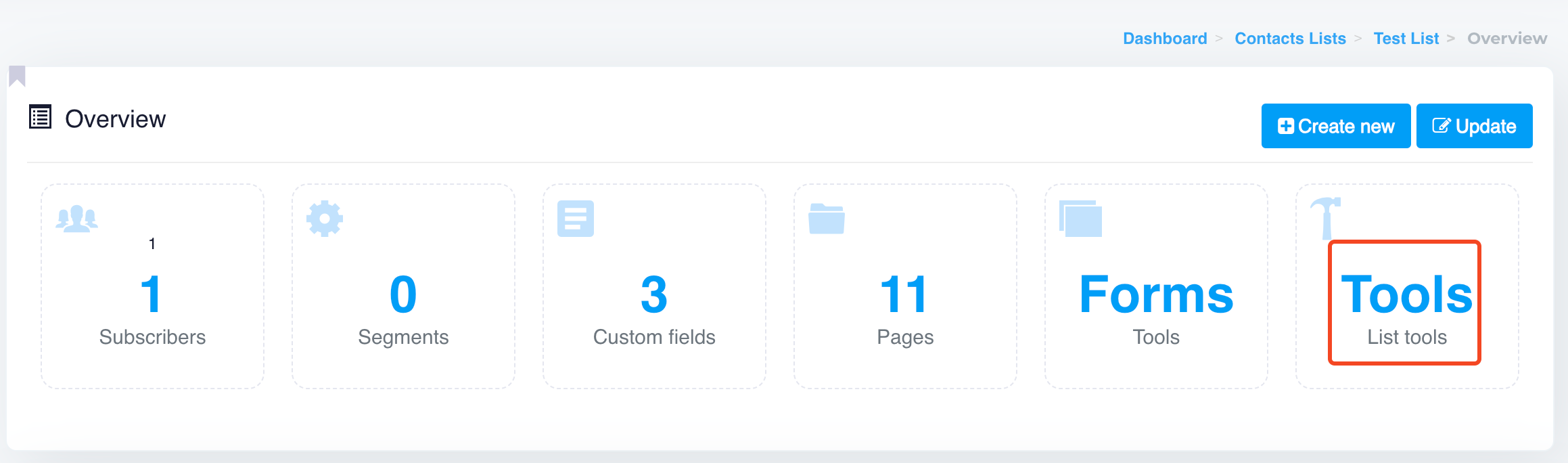
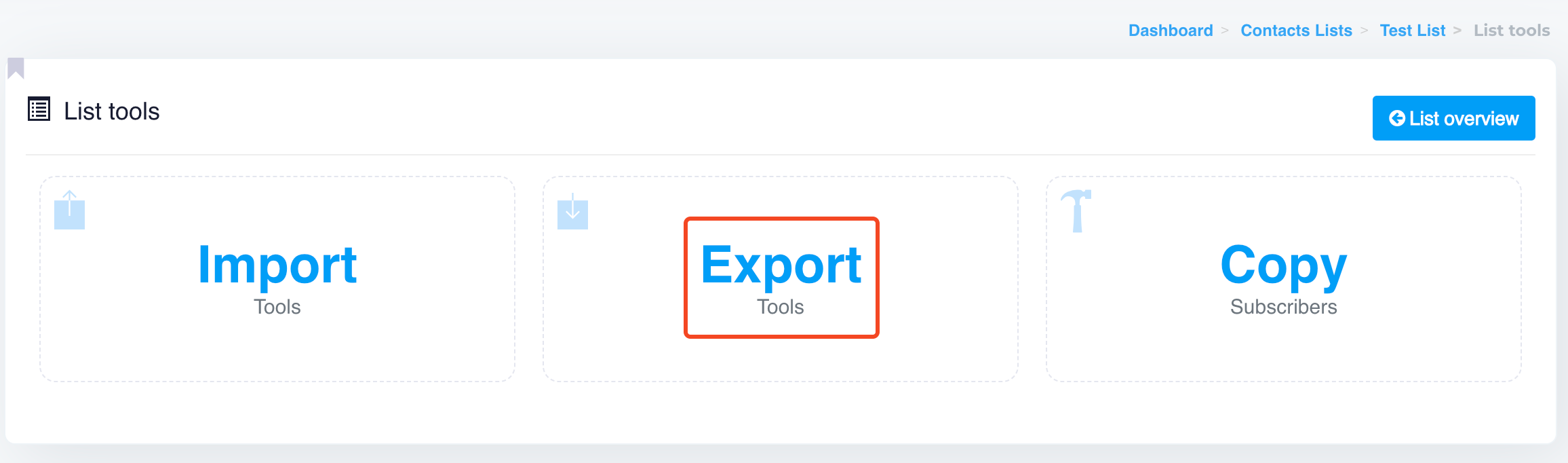
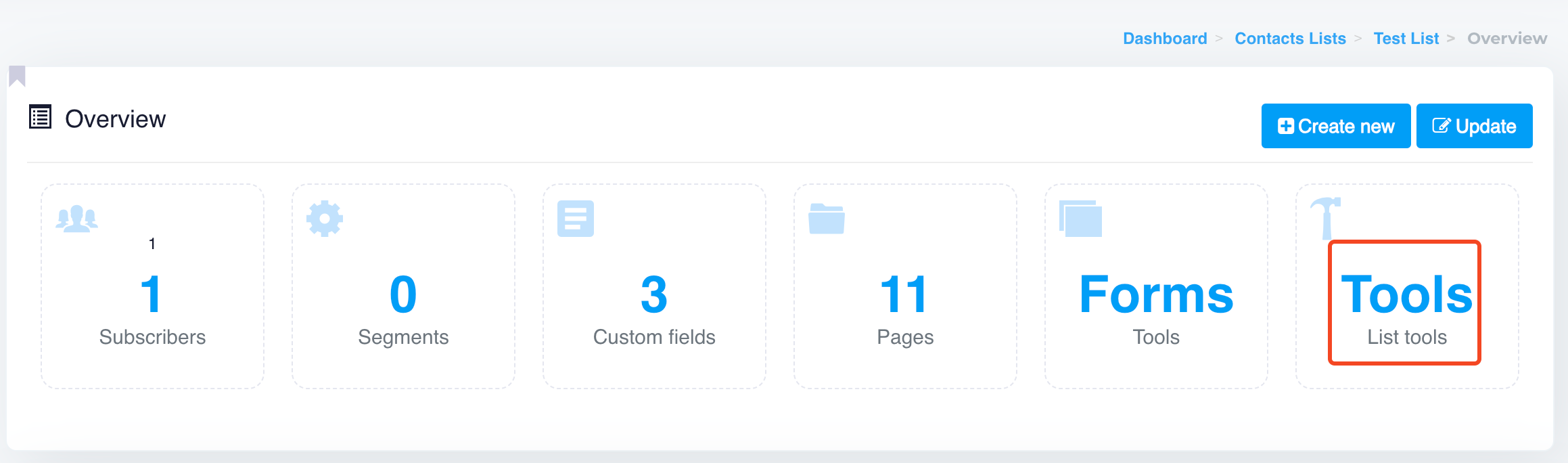
   **Open Contact List** => **Tools** => **Import**.
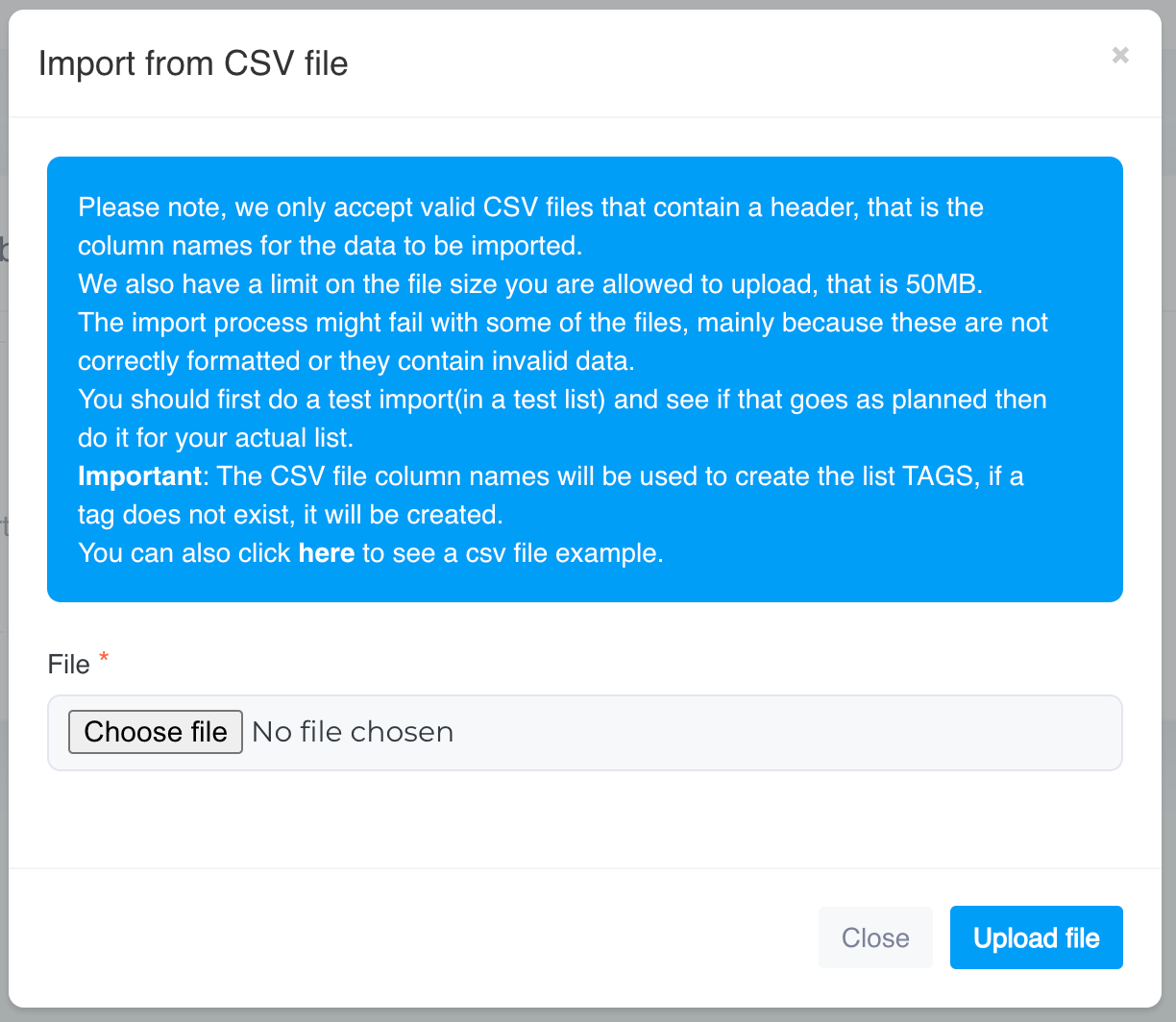
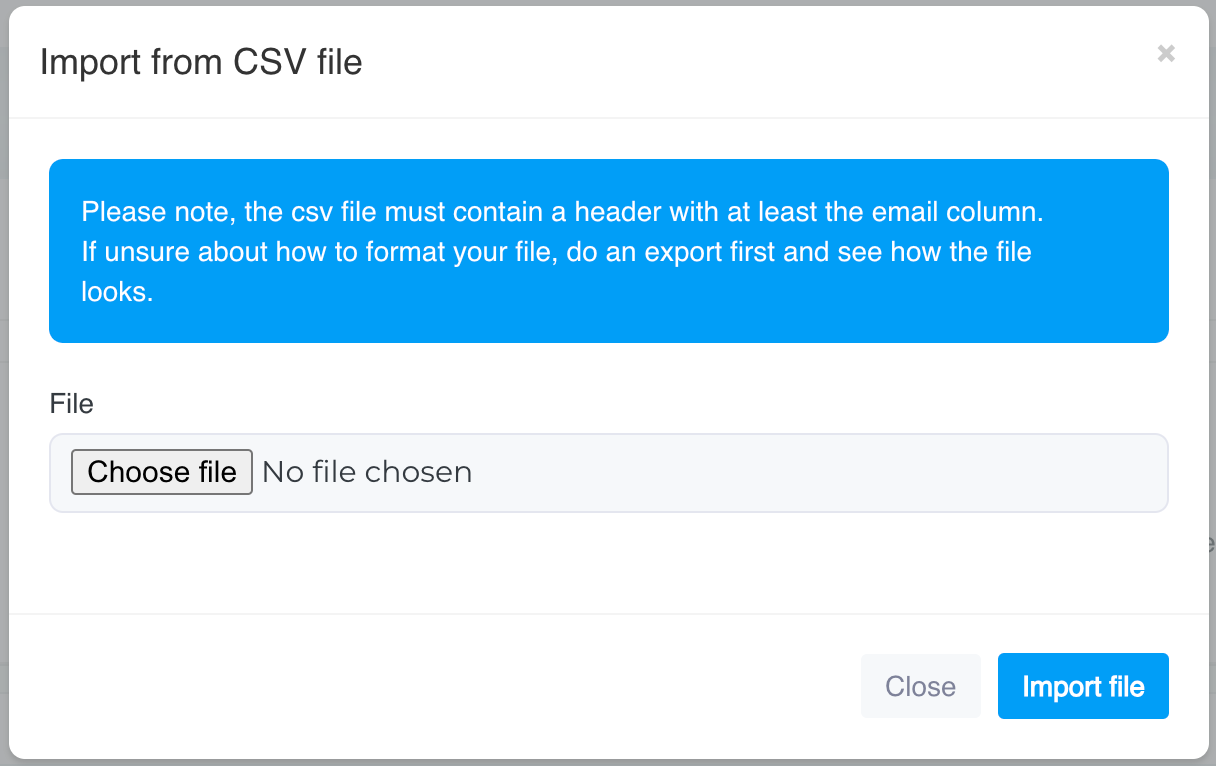
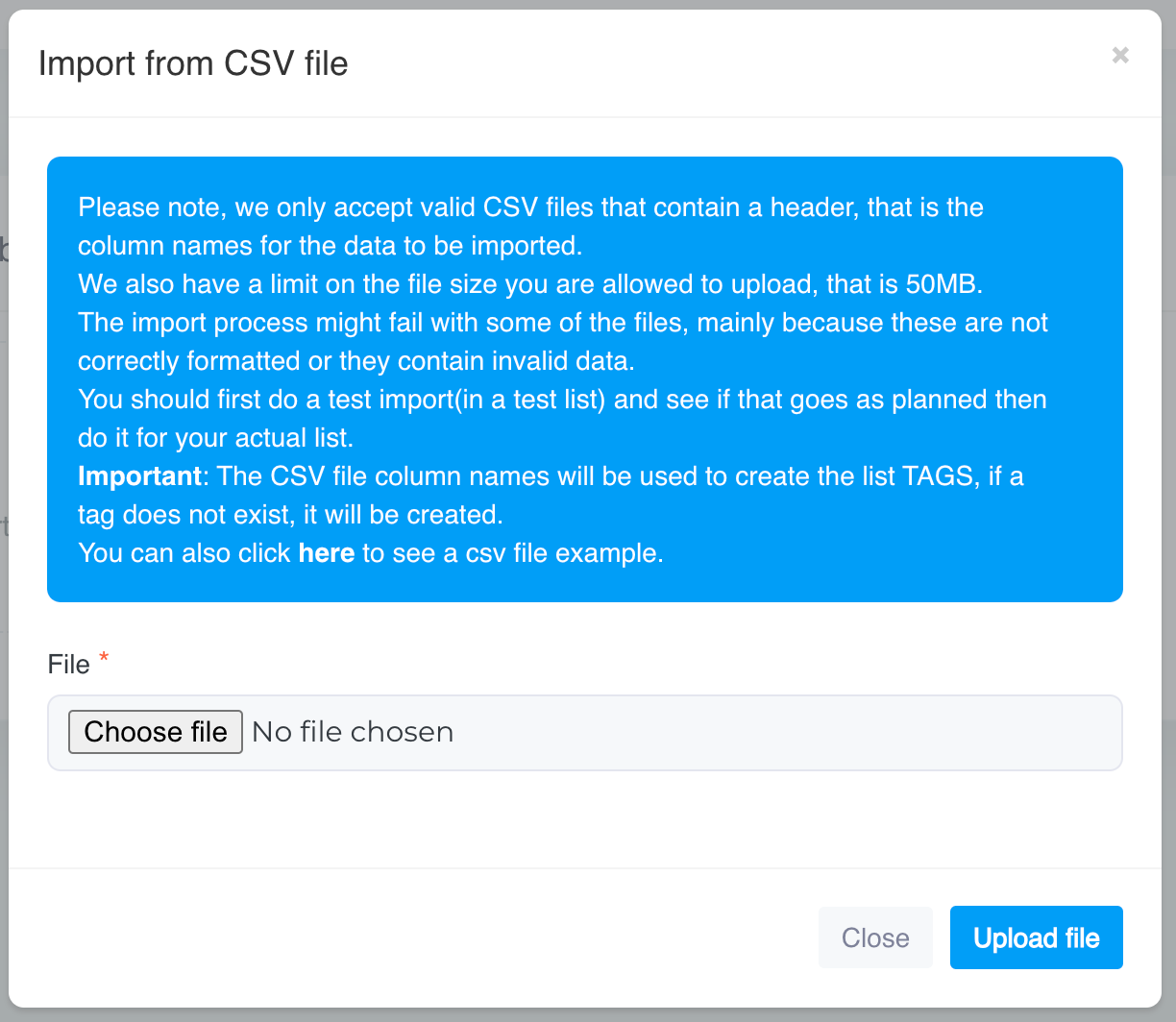
3. Choose your file (CSV format) and map your CSV columns to the system fields.
4. Review and confirm the import.

**File Format**:

* The file must be in CSV format.
* Ensure that each row represents one contact and that all required fields, with correct column name matching your **custom fields** **tag** names.

Once the file is uploaded, the system will automatically detect duplicate records and ensure the data is clean before importing it into your list.

### 2. Manual Add Subscribers

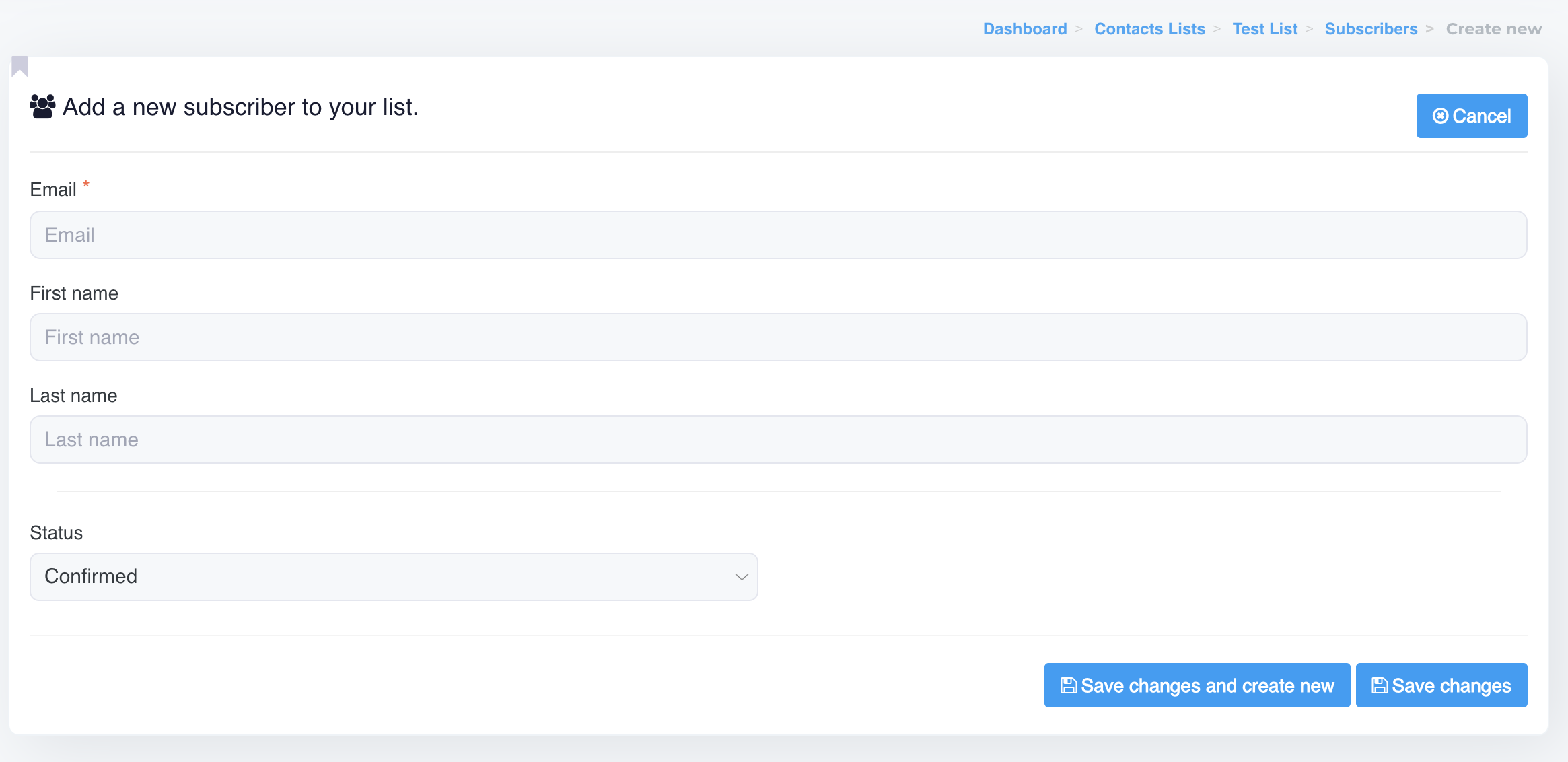
While importing via a file is the most common method, you can also manually add individual subscribers:

1. Open contact list in which you want to add the subscribers.
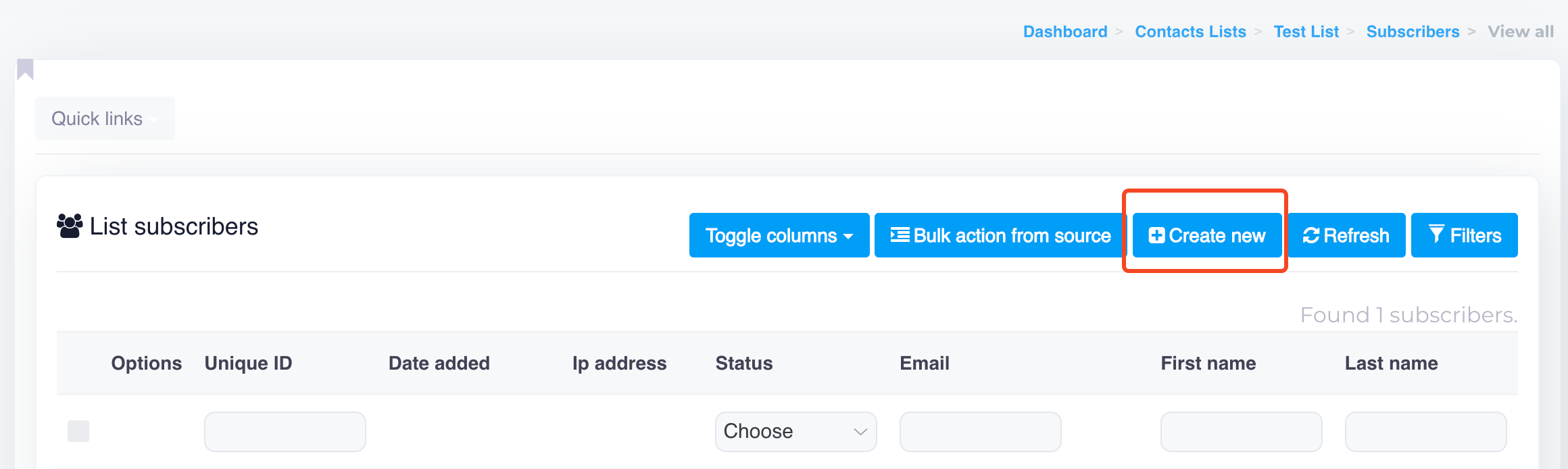
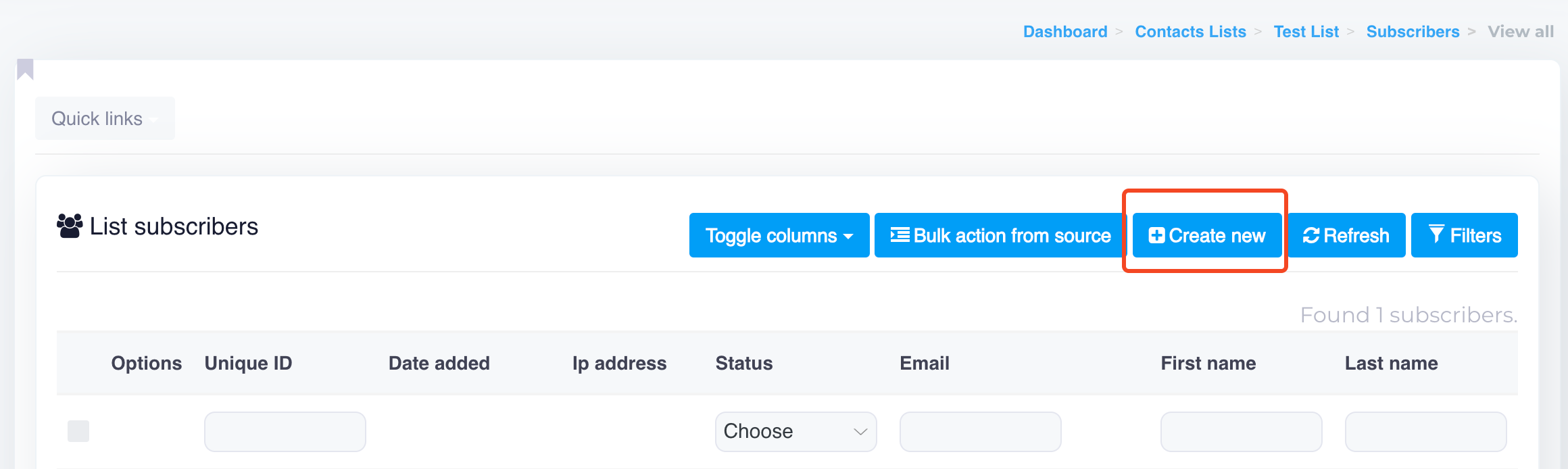
2. Click on **Subscriber**.
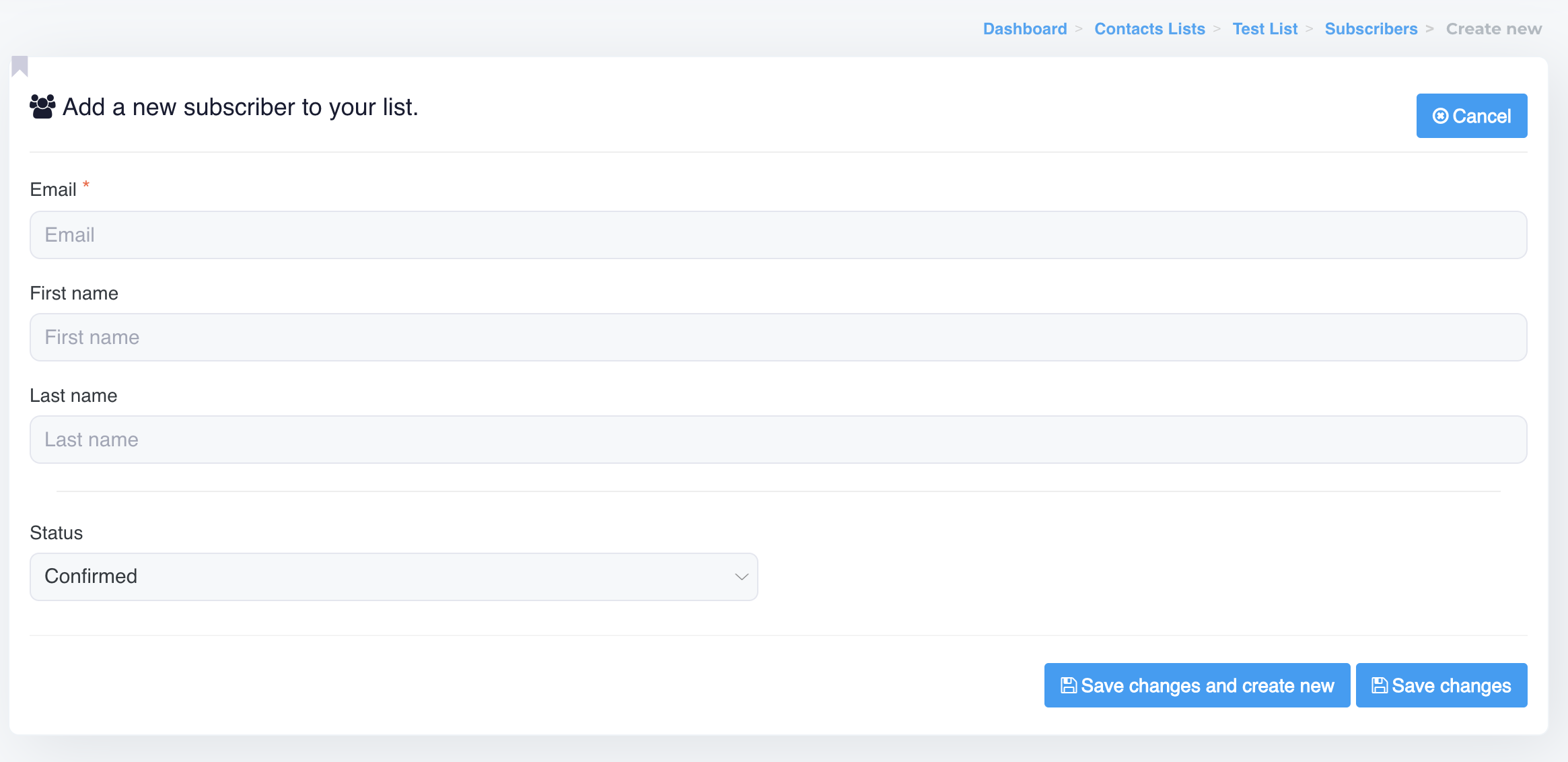
3. Fill in the required fields such as email address, first name, last name, etc.
4. Save the new subscriber to the list.

<figure><img src="https://content.gitbook.com/content/OkewfSKAYkGLToZXJWoJ/blobs/713u81Sn70Nh62FYOGH7/image.png" alt=""><figcaption></figcaption></figure>

<figure><img src="https://content.gitbook.com/content/OkewfSKAYkGLToZXJWoJ/blobs/P45EC3AlduZrCCAcEjqQ/image.png" alt=""><figcaption></figcaption></figure>

<figure><img src="https://content.gitbook.com/content/OkewfSKAYkGLToZXJWoJ/blobs/t9XkJg7G33DN5A77LJ5p/image.png" alt=""><figcaption></figcaption></figure>

This method is ideal for smaller lists or adding individual subscribers on the fly.

***

### 3. Size of the Import List

When importing contacts, it's important to consider the size of your contact list:

* You can import large lists, but for best results, it's recommended to split extremely large lists into smaller batches. This helps avoid timeouts and ensures the system handles the data efficiently.
* You can upload a file with a maximum size of **50 MB** at once. If you have multiple lists to upload to the same contact list, you can do so in separate uploads, keeping each file size under the 50 MB limit. This allows you to import large amounts of data incrementally while staying within the upload size restriction.

The system can handle thousands of records, but make sure the file is formatted correctly and follows size limitations set by your application.

<figure><img src="https://content.gitbook.com/content/OkewfSKAYkGLToZXJWoJ/blobs/A7eZjxAOg3HX97rXUjxx/image.png" alt=""><figcaption></figcaption></figure>

***

### 4. Handling Many Columns&#x20;

You may have contact lists with many columns—sometimes more than 20 or even 100. The good news is that you don't need to create each column manually in your system. Here's how it works:

* **Mapping Fields**: The system allows you to map the columns from your CSV file to the appropriate fields in the system during the import process.
* If your CSV contains extra columns that aren't required, you can choose to skip them by deleting those columns from your CSV file beforehand. This ensures that only the necessary columns are included during the import process, keeping your data clean and organised.
* There's no need to manually create each column, making the import process smoother.

***

### 5. Handling Duplicate Records & Improper Syntax

The system is designed to automatically detect duplicate records and handle improper syntax. Here’s what it does:

* **Duplicate Detection**: During the import process, the system will check for duplicate entries based on email addresses. If a contact already exists, it will either update the existing record or skip the duplicate based on your preferences.
* **Improper Syntax Handling**: If the system detects issues like incorrectly formatted email addresses (e.g., "john\_gmail.com" or "johnat.com"), it will flag these errors and prevent them from being imported. The import will be paused until the errors are corrected.
* **Blacklisted Data**: The system will automatically skip any contacts marked as hard bounces (status set as Blacklisted) during the import process to maintain list integrity and avoid sending emails to invalid addresses.

***

### 6. Matching CSV Columns with Custom Field's tags names

When importing your CSV file, it’s important to match your column names with the fields in the system:

1. Upload your CSV file.
2. The system will automatically attempt to map the CSV column names to the custom fields of that list (e.g., email, fname, lname).
3. If the system can’t match fields, it means your CSV column names don’t match the contact list tags. You’ll need to correct the **column names in your CSV file to match the tag names** in your contact list.
4. You can delete unnecessary columns from your CSV to simplify the import and include only relevant data.

This ensures that all the information is properly organised in the system once the import is complete.

<figure><img src="https://content.gitbook.com/content/OkewfSKAYkGLToZXJWoJ/blobs/VQTo4Cq0FTgusQ9nmF3y/image.png" alt="" width="563"><figcaption></figcaption></figure>

<figure><img src="https://content.gitbook.com/content/OkewfSKAYkGLToZXJWoJ/blobs/B1hHk63JiWieH3v21WjF/image.png" alt=""><figcaption></figcaption></figure>

***

### 7. Importing Multiple Lists

If you need to import multiple lists, the system allows you to upload them one at a time. Follow these steps for each list:

1. Go to the **Contacts** section.
2. Select **Import** and choose your CSV file.
3. Ensure that the fields are mapped correctly for each list.

If you want to **import multiple files into the same contact list**, you can do so by importing them one by one. Make sure the column names are correctly mapped to the custom fields of the contact list during each import.

You can import as many lists as you need, and the system will keep them organised within their respective contact lists.

***

By following these steps, you can easily import contacts into your email marketing system and ensure that your data is clean, organised, and ready to use for your campaigns.


# Export Contacts

Export your contacts in just a few clicks. Learn how to export contact data for analysis, backup, or transferring subscribers to other platforms.

Exporting your contact lists is an essential feature that allows you to back up, analyze, or transfer your data. Our Email App offers multiple ways to export contacts, including normal exports and advanced options. Here's how you can manage your export processes:

### 1. Normal Export

A **Normal Export** allows you to export the entire contact list, including all available fields (e.g., email, name, status). This is useful when you want a complete copy of your list for further analysis or backup.

Steps to perform a normal export:

1. Go to the **Contacts** section.
2. Select and open the contact list you want to export.
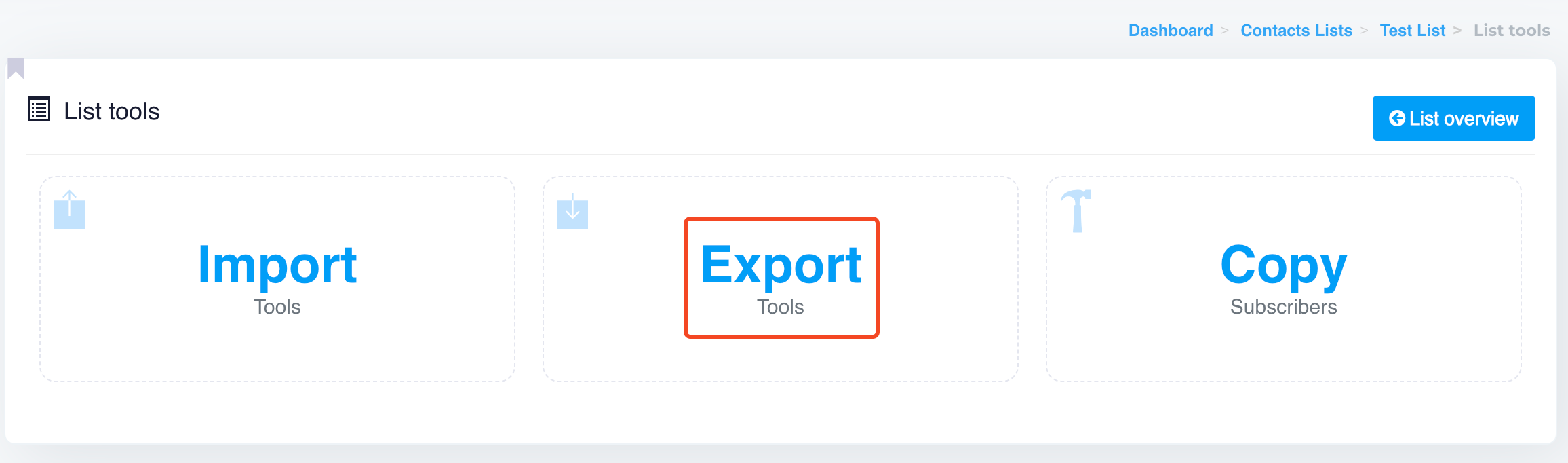
3. Click on the **Tools** and then select the **Export** option.
4. Choose the file format (typically CSV) and confirm the export.

<figure><img src="https://content.gitbook.com/content/OkewfSKAYkGLToZXJWoJ/blobs/vCYfZLI8W667ETxxUrOz/image.png" alt=""><figcaption></figcaption></figure>

<figure><img src="https://content.gitbook.com/content/OkewfSKAYkGLToZXJWoJ/blobs/iysJwCNUaSuRQ29L1BI7/image.png" alt=""><figcaption></figcaption></figure>

This method will include all fields and data associated with the list.

***

### 2. Advanced Export (Email Column Only)

If you need to export just the email addresses without other contact information, you can use the **Advanced Export** option. This is helpful when you want to focus only on the email field for specific uses, like adding these addresses to another list.

Steps for advanced export (email only):

1. Go to the **Contacts** section and click on "**All subscribers**" button. <img src="https://content.gitbook.com/content/OkewfSKAYkGLToZXJWoJ/blobs/mW8dHASj5plJ9LDxfXhT/image.png" alt="" data-size="line">
2. Click on the **Filters** button <img src="https://content.gitbook.com/content/OkewfSKAYkGLToZXJWoJ/blobs/Vuop4yJwyW9FiM7zYuLn/image.png" alt="" data-size="line">, select your desired list (or multiple lists), choose the Status such as Confirmed (for active contacts), Unsubscribes, or Hard Bounces (or multiple choices),
3. Choose Action as **View**, and then click Submit.
4. Confirm and download the CSV file.

This method provides a leaner export, focusing only on the email addresses from your list.

***

### 3. Exporting Unsubscribes and Hard Bounces

{% hint style="info" %}
Note: **You do not have to manually remove unsubscribes or hard bounces** from the system, as the system **handles this automatically**.&#x20;

For any future campaigns, when you use any list, emails will only be sent to active contacts and not to unsubscribed or hard-bounced addresses.
{% endhint %}

Our Email App allows you to export unsubscribes or hard bounces, even across all lists.

To export all unsubscribes or hard bounces:

1. Go to the **Contacts** section and click on "**All subscribers**" button. <img src="https://content.gitbook.com/content/OkewfSKAYkGLToZXJWoJ/blobs/mW8dHASj5plJ9LDxfXhT/image.png" alt="" data-size="line">
2. Click on the **Filters** button <img src="https://content.gitbook.com/content/OkewfSKAYkGLToZXJWoJ/blobs/Vuop4yJwyW9FiM7zYuLn/image.png" alt="" data-size="line"> to search for Unsubscribes or Hard Bounces. Select your desired list, set the Status to Unsubscribes or Hard Bounces (or both), choose Action as **Export**, and then click **Submit**.
3. Download the list of unsubscribed or hard-bounced email addresses.

You can use this export to manage or clean your lists.

***

These export options give you flexibility in managing your contact lists, allowing you to export complete lists, specific fields, or filtered data like unsubscribes or bounces.


# Search Contacts

Quickly find specific subscribers in your contact lists with our advanced search features. Learn how to filter and search contacts to streamline list management.

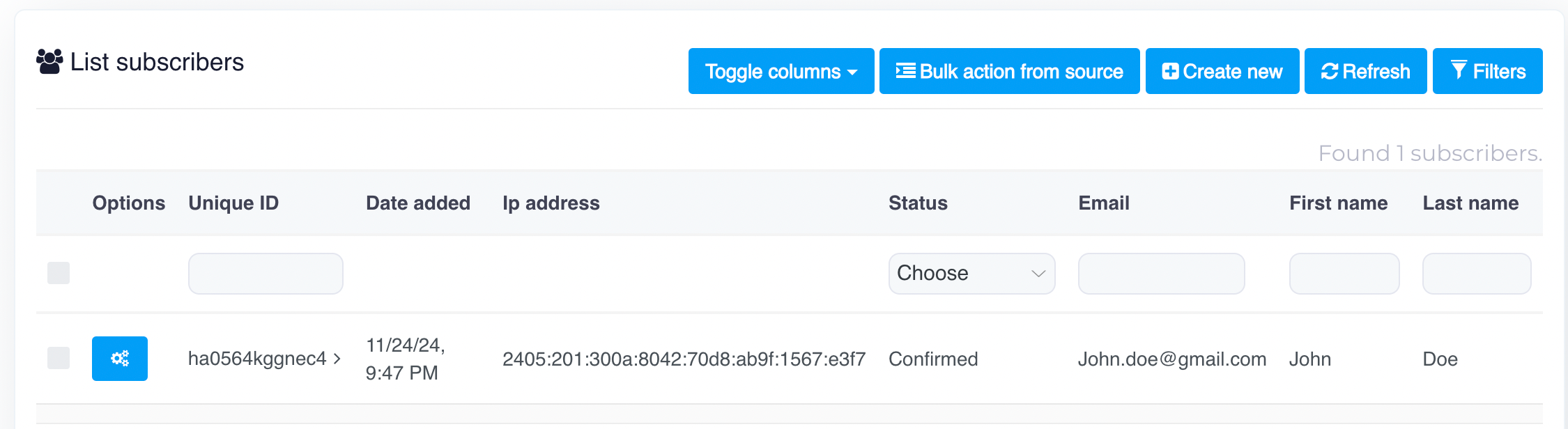
The **Search** feature allows you to quickly locate specific contacts or filter your contact lists based on various criteria.

### 1. How to Search for an Email Address

To search for a specific email address or contact in your list, follow these steps:

* **Navigate to the Contacts**: <img src="https://content.gitbook.com/content/OkewfSKAYkGLToZXJWoJ/blobs/P3fiEUgRAGcb29iIWUsf/image.png" alt="" data-size="line">
  * Start by going to the **Contacts** section in your dashboard. This is where you can manage all your contact lists.
* **Click on the "All Subscribers" Button**: <img src="https://content.gitbook.com/content/OkewfSKAYkGLToZXJWoJ/blobs/mW8dHASj5plJ9LDxfXhT/image.png" alt="" data-size="line">
  * Once you're in the Contacts section, click on the **All Subscribers** button. This will display a list of subscribers across all your contact lists. It allows you to view and manage all subscribers in one place, regardless of which list they belong to.
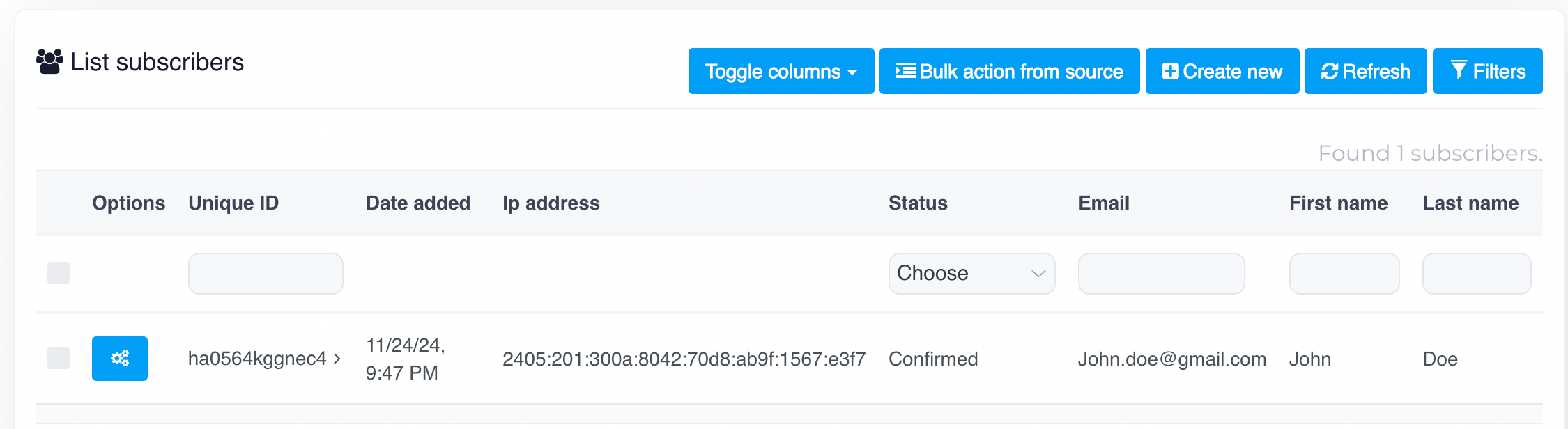
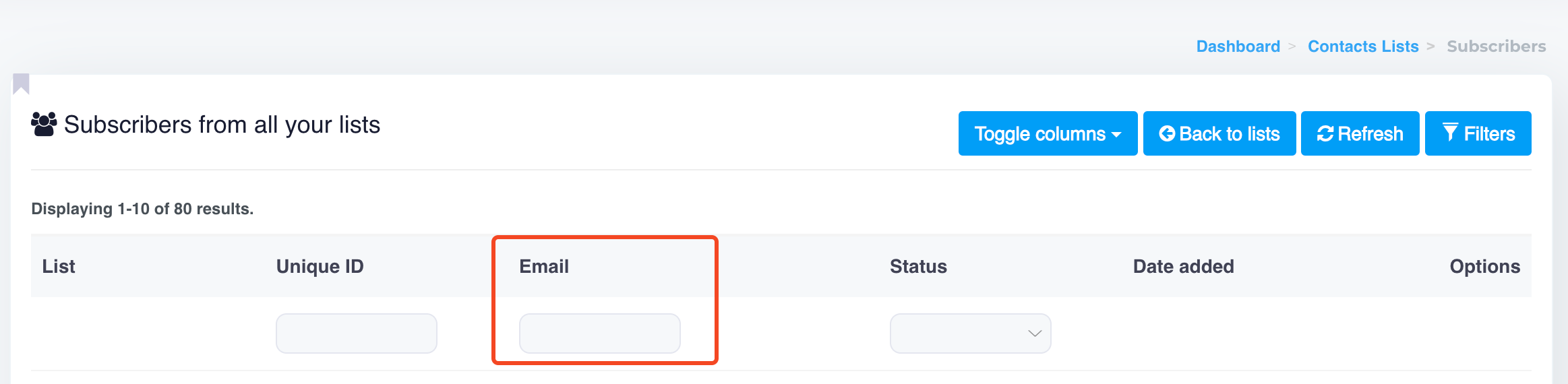
* **Use the Email Search Box**: <img src="https://content.gitbook.com/content/OkewfSKAYkGLToZXJWoJ/blobs/nyd8HcbDBbhluTR39Qlg/image.png" alt="" data-size="line">
  * In the displayed list, locate the **Email** column. Under this column, you will find a search box where you can type in the email address you're looking for.
  * Enter the email address (or part of it) into the search box, and the system will filter the results to show any matching email addresses from all your lists.
* **View the Results**:
  * The filtered list will display all matching subscribers based on the email you entered. You can see other details such as their subscription status, the list they belong to, and the date they were added.

<figure><img src="https://content.gitbook.com/content/OkewfSKAYkGLToZXJWoJ/blobs/uyeI1OWBgAgeXM6LBGGS/image.png" alt=""><figcaption></figcaption></figure>

***

### 2. How to Use Advanced Search Filters

For more refined searches, you can use the **Advanced Search Filters**. This allows you to filter contacts based on a range of criteria such as subscription status, list name, and more. Here's how to use it:

If you need to export just the email addresses without other contact information, you can use the **Advanced Export** option. This is helpful when you want to focus only on the email field for specific uses, like adding these addresses to another list.

Steps for advanced export (email only):

* Go to the **Contacts** section and click on "**All subscribers**" button. <img src="https://content.gitbook.com/content/OkewfSKAYkGLToZXJWoJ/blobs/mW8dHASj5plJ9LDxfXhT/image.png" alt="" data-size="line">
* Click on the **Filters** button <img src="https://content.gitbook.com/content/OkewfSKAYkGLToZXJWoJ/blobs/Vuop4yJwyW9FiM7zYuLn/image.png" alt="" data-size="line">, select your desired list (or multiple lists), choose the Status such as Confirmed (for active contacts), Unsubscribes, or Hard Bounces (or multiple choices), choose Action as **Export**, and then click Submit.
* Confirm and download the CSV file.

<figure><img src="https://content.gitbook.com/content/OkewfSKAYkGLToZXJWoJ/blobs/gWR326m8IuoibljRgXOb/image.png" alt=""><figcaption></figcaption></figure>

This method provides a leaner export, focusing only on the email addresses from your list.

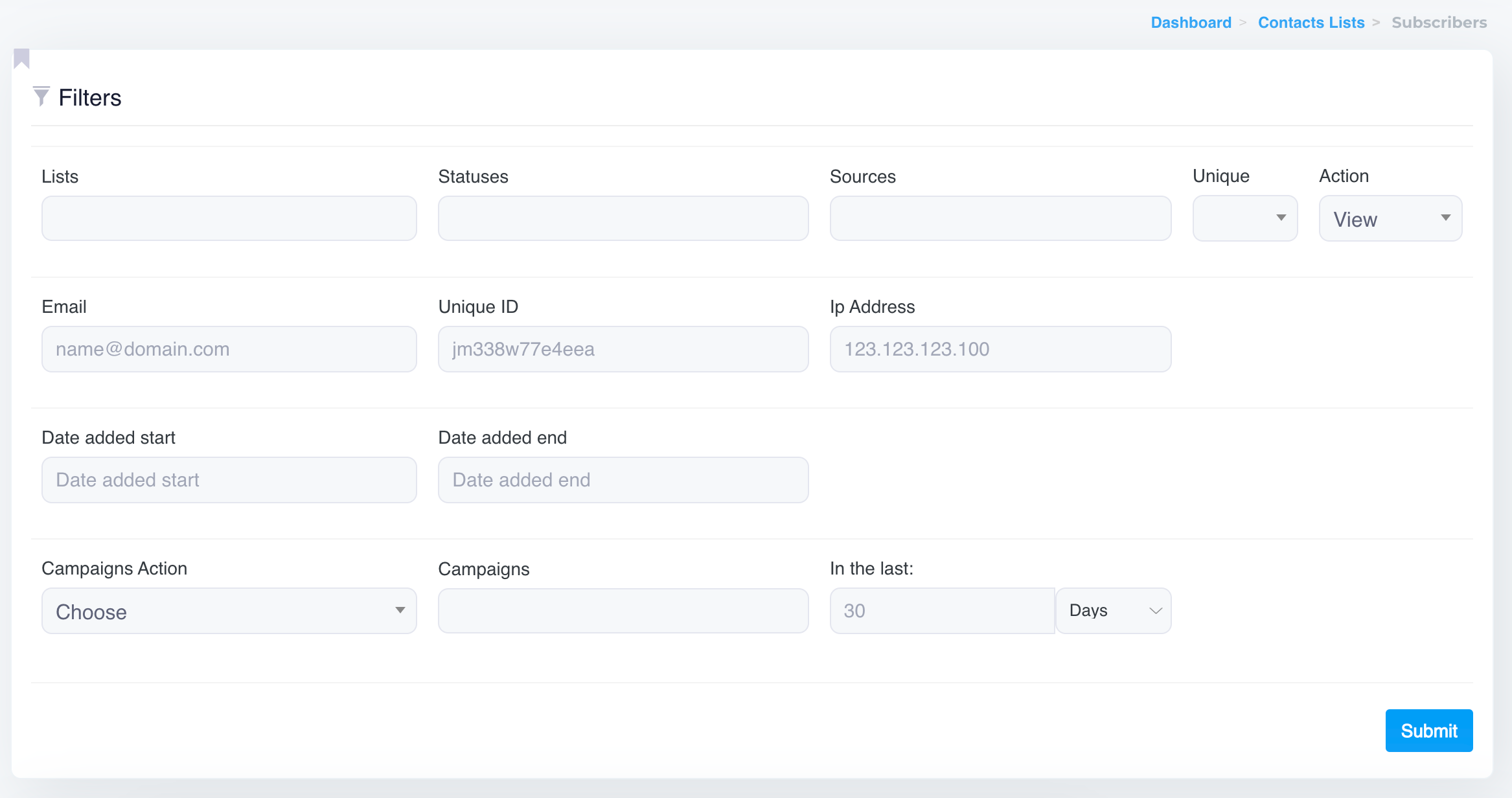
#### Explanation of Filter Options:

1. **Lists**: This allows you to select a specific list (or multiple lists) from which you want to view contacts. You can narrow down your results by selecting one or more contact lists.
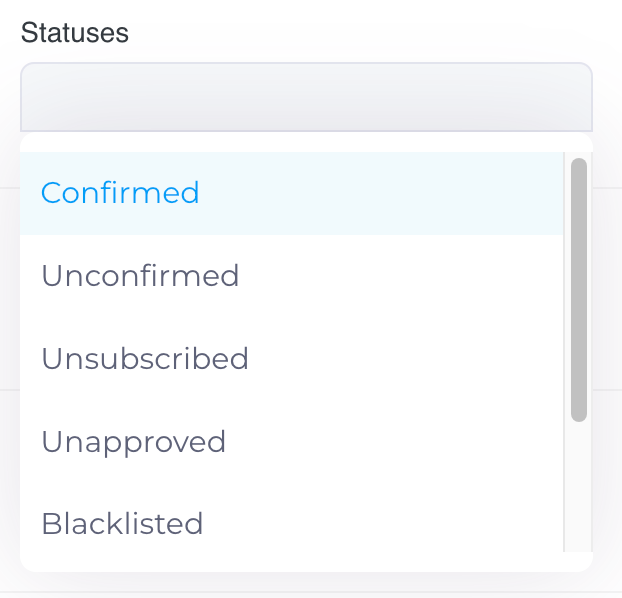
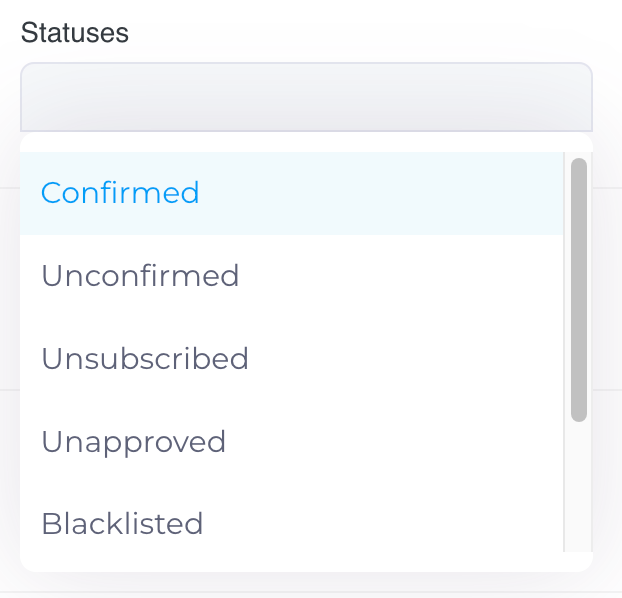
2. **Statuses**: Use this option to choose the status of the contacts you want to view. For example:

   * **Confirmed**: Active subscribers who confirmed their email and will receive emails.
   * **Unconfirmed**: Subscribers who haven't confirmed their email, so they won't receive emails yet.
   * **Unsubscribed**: Opted-out subscribers who won't receive further emails.
   * **Unapproved**: Subscribers awaiting manual or automatic approval.
   * **Blacklisted**: Contacts marked as hard bounces (or added in the blacklist manually), won't receive emails.
   * **Disabled**: Deactivated subscribers, won't receive emails.
   * **Moved**: Subscribers transferred to another list but still in the database.

   <figure><img src="https://content.gitbook.com/content/OkewfSKAYkGLToZXJWoJ/blobs/RrZZ7xkcO00rcAbIaGxn/image.png" alt="" width="311"><figcaption></figcaption></figure>
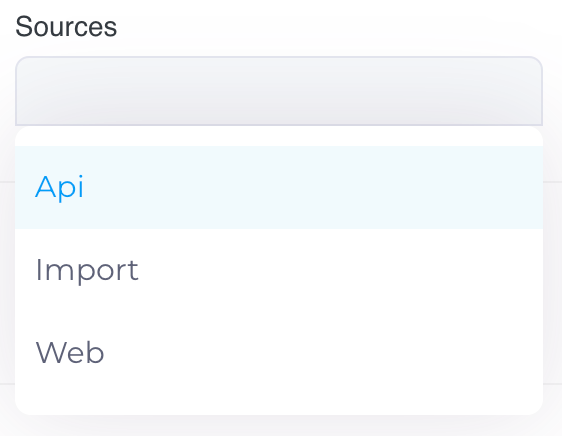
3. **Sources**: This option lets you filter contacts based on how they were added, such as through API integrations, manual imports, or web form submissions. Select all in case of any confusion.

   <figure><img src="https://content.gitbook.com/content/OkewfSKAYkGLToZXJWoJ/blobs/YnI9et4VRrVujx1Zl0W3/image.png" alt="" width="281"><figcaption></figcaption></figure>
4. **Unique**: This allows you to choose whether to show only unique contacts or all contacts.
5. **Action**: Set the action to **View** to display the contacts that match your filter criteria.
6. **Email**: You can enter an email address or part of an email to search for specific subscribers directly.
7. **Unique ID**: Enter the unique identifier of a contact if you're searching for a particular subscriber by their system-generated ID.
8. **IP Address**: Search for subscribers based on their IP address, which can be useful for tracking the geographical origin of sign-ups.
9. **Date Added Start** and **Date Added End**: These fields allow you to filter contacts based on when they were added to your list. You can specify a date range to view only those contacts added within that period.
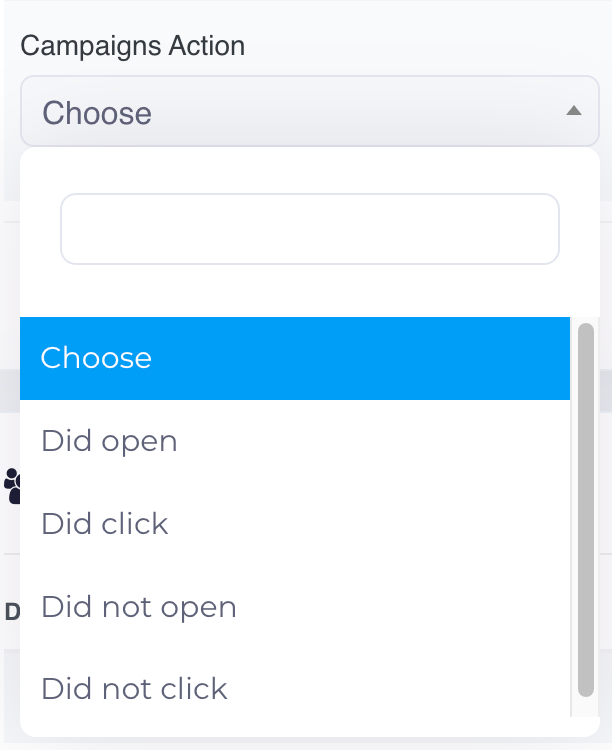
10. **Campaigns Action**: This allows you to filter contacts based on actions taken during a specific campaign, such as opened emails, clicked links, or other engagement metrics.<br>

    <figure><img src="https://content.gitbook.com/content/OkewfSKAYkGLToZXJWoJ/blobs/EP2rybXgA7yMxAR1Xl9S/image.png" alt="" width="306"><figcaption></figcaption></figure>
11. **Campaigns**: Use this to filter contacts by specific campaigns they were involved in.
12. **In the last \[days]**: Filter contacts based on their activity within the last specified number of days. This is useful for finding recent subscribers or contacts who have interacted with recent campaigns.

#### Submit the Filter:

Once you have selected all the necessary criteria for your search, click the **Submit** button. The system will display all contacts that match your chosen filters, allowing you to view and manage them directly.


# Segment

Master the art of email segmentation. Discover how to create targeted contact segments based on custom criteria to increase engagement and campaign success.

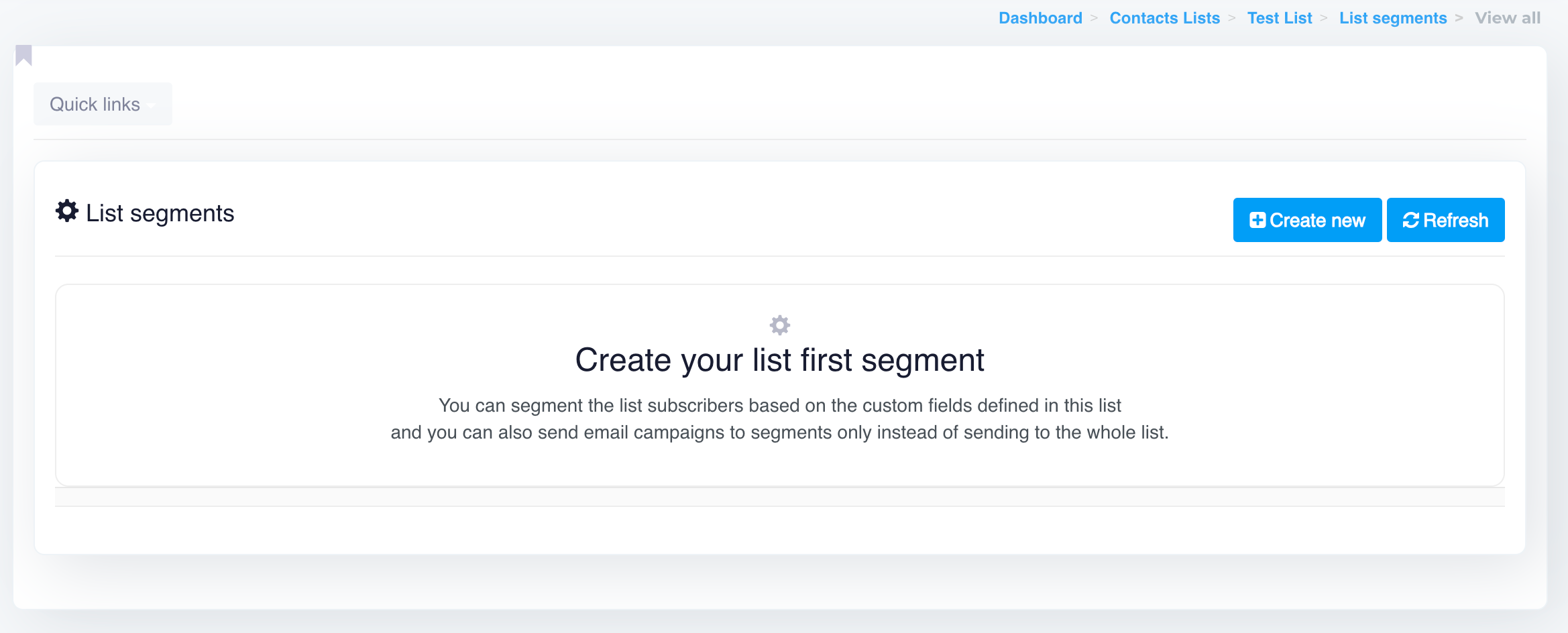
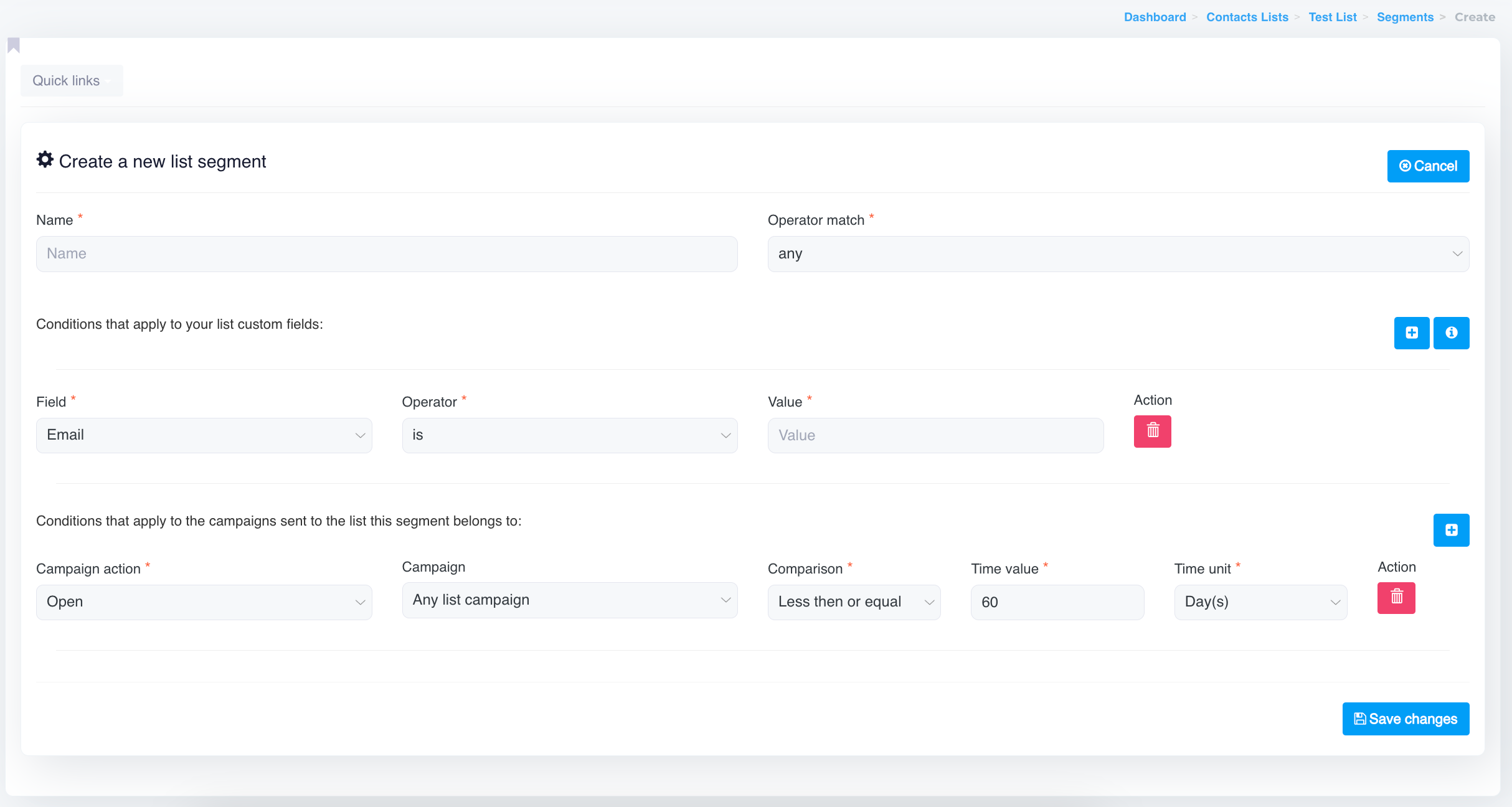
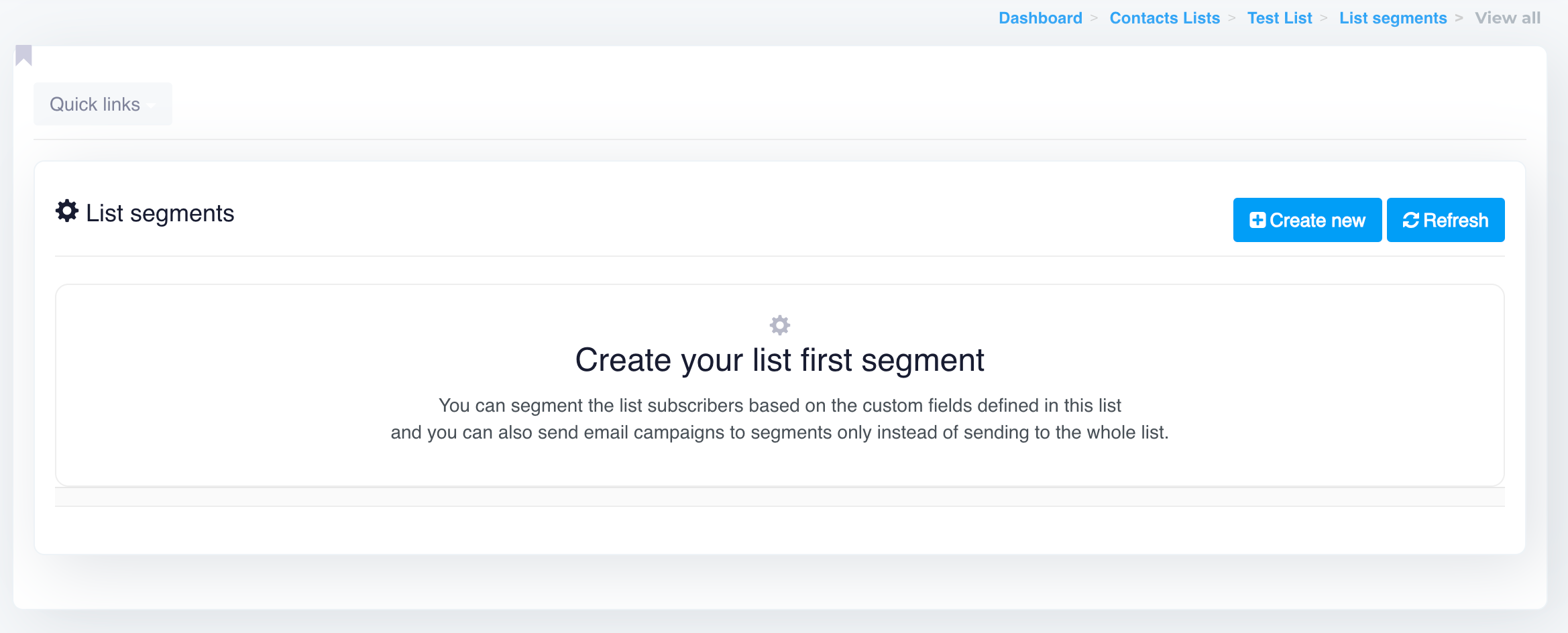
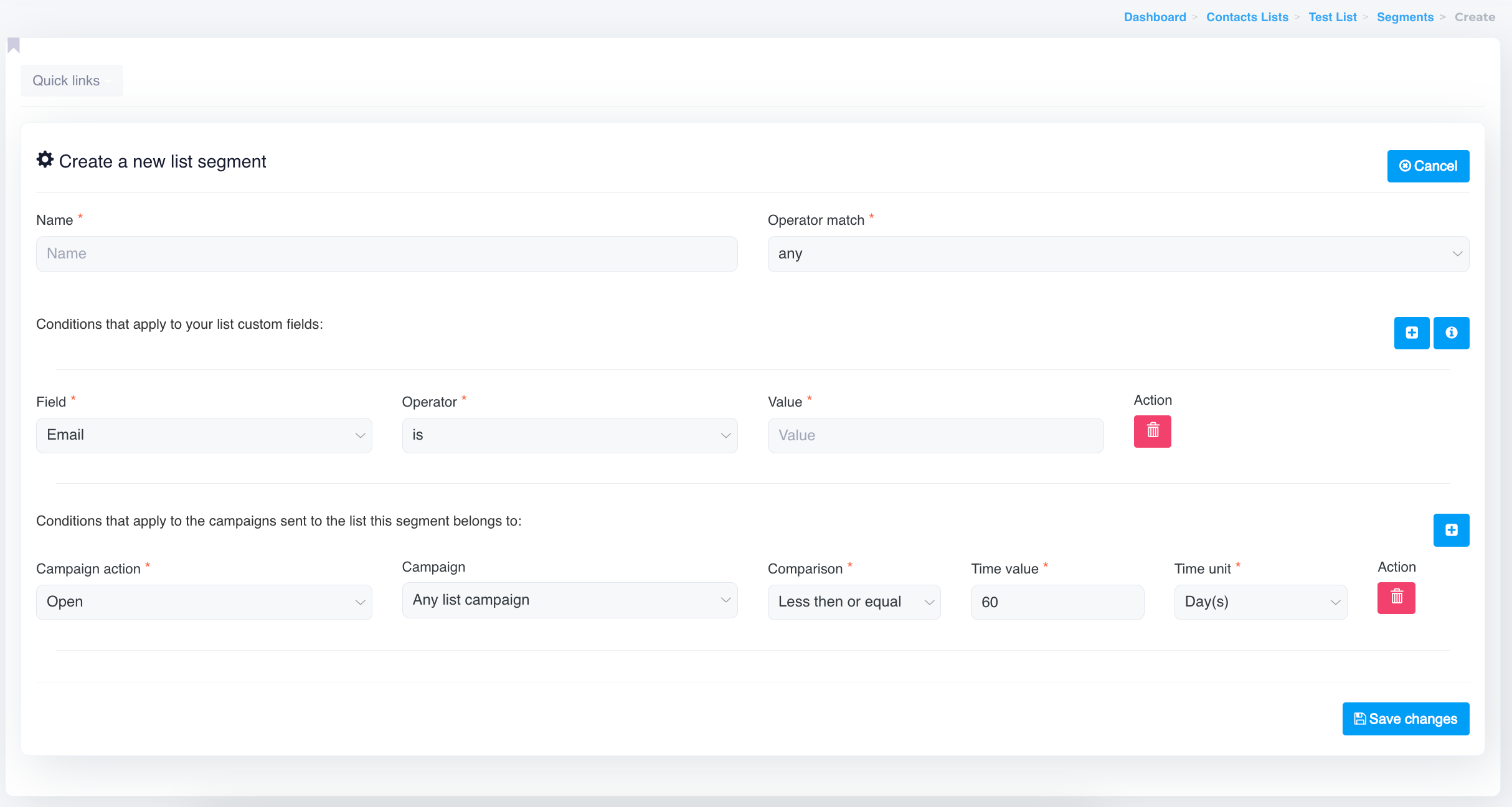
Segments allow you to target specific contacts based on custom conditions. Here's how to create a new list segment using the available options.

Go to the **Contacts** <img src="https://content.gitbook.com/content/OkewfSKAYkGLToZXJWoJ/blobs/P3fiEUgRAGcb29iIWUsf/image.png" alt="" data-size="line"> section, select the desired contact list

Then click on the **Segments** tab. <img src="https://content.gitbook.com/content/OkewfSKAYkGLToZXJWoJ/blobs/YbJACmFskCcm6rm7e77U/image.png" alt="" data-size="line"> From there, you can create or manage segments for that specific list.

<figure><img src="https://content.gitbook.com/content/OkewfSKAYkGLToZXJWoJ/blobs/QUP1IT9Osdd8gmz1AYAr/image.png" alt=""><figcaption></figcaption></figure>

<figure><img src="https://content.gitbook.com/content/OkewfSKAYkGLToZXJWoJ/blobs/DMdcStRnSPMOljBG6E0q/image.png" alt=""><figcaption></figcaption></figure>

<figure><img src="https://content.gitbook.com/content/OkewfSKAYkGLToZXJWoJ/blobs/eU7Lzfk7Ox3rfG6QvQ06/image.png" alt=""><figcaption></figcaption></figure>

### 1. Name Your Segment

* **Name**: Provide a name for your segment to easily identify it later. This is mandatory.

### 2. Define Operator Match

* **Operator Match**: Choose between **any** or **all** conditions.
  * **Any** means that contacts will be included if they meet at least one of the conditions.
  * **All** means contacts must meet all specified conditions to be part of the segment.

### 3. Set Conditions for Custom Fields

Under "Conditions that apply to your list custom fields," you can define filters based on specific fields within your list:

* **Field**: Choose the field to filter by (e.g., Email, Name, or any custom field).
* **Operator**: Select the comparison operator (e.g., "is," "contains," "starts with").
* **Value**: Enter the value for the field (e.g., a specific email address or part of a name).
* **Action**: You can add or remove conditions using the plus (+) and trash bin icons, respectively.

### 4. Set Conditions for Campaigns

Under "Conditions that apply to the campaigns sent to the list this segment belongs to," you can define conditions based on your campaign data:

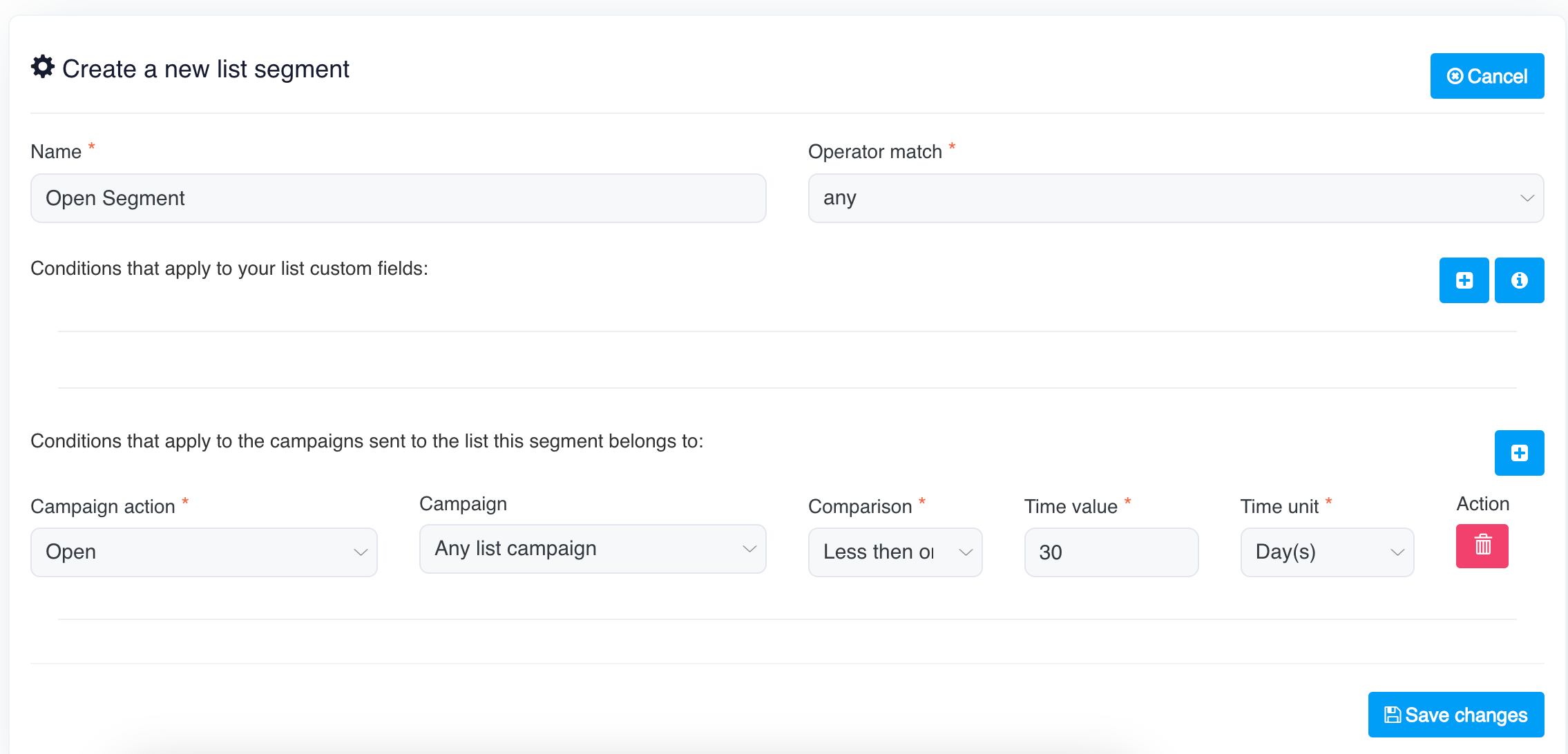
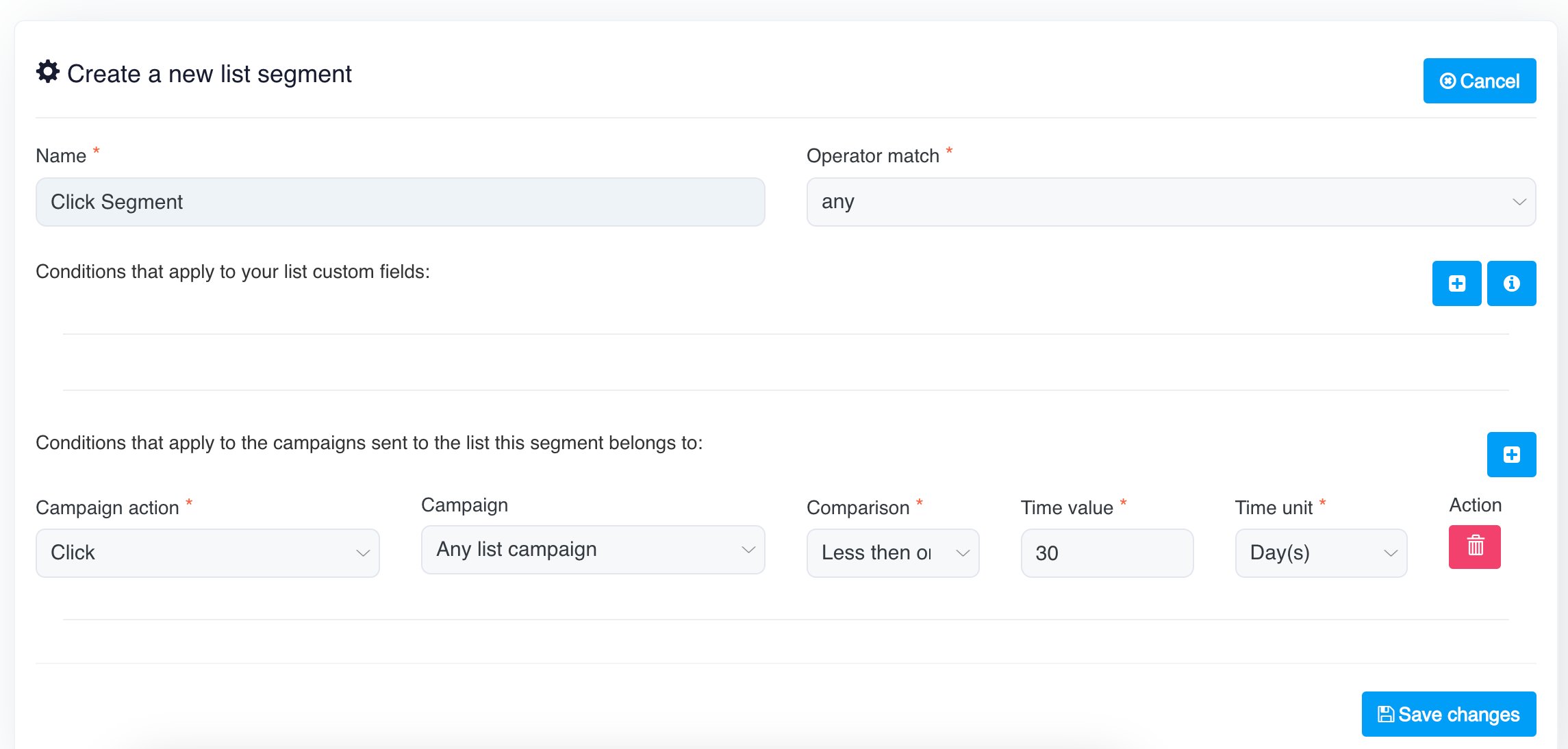
* **Campaign Action**: Choose the action from the campaign data (e.g., Open, Click, Non-).
* **Campaign**: Select the specific campaign or choose "Any list campaign."
* **Comparison**: Choose how you want to compare the results (e.g., "Less than or equal to").
* **Time Value**: Set a numerical time value (e.g., 60).
* **Time Unit**: Choose the time unit (e.g., Days, Hours).

You can also add or remove conditions using the plus (+) and trash bin icons.

### 5. Save Your Segment

Once all conditions are set, click on **Save changes** to create and save the segment. The system will now segment your contact list based on the specified criteria.

***


# Custom Fields

Personalize your email campaigns with custom fields. Learn how to create, manage, and use custom fields to collect and utilize subscriber data effectively.

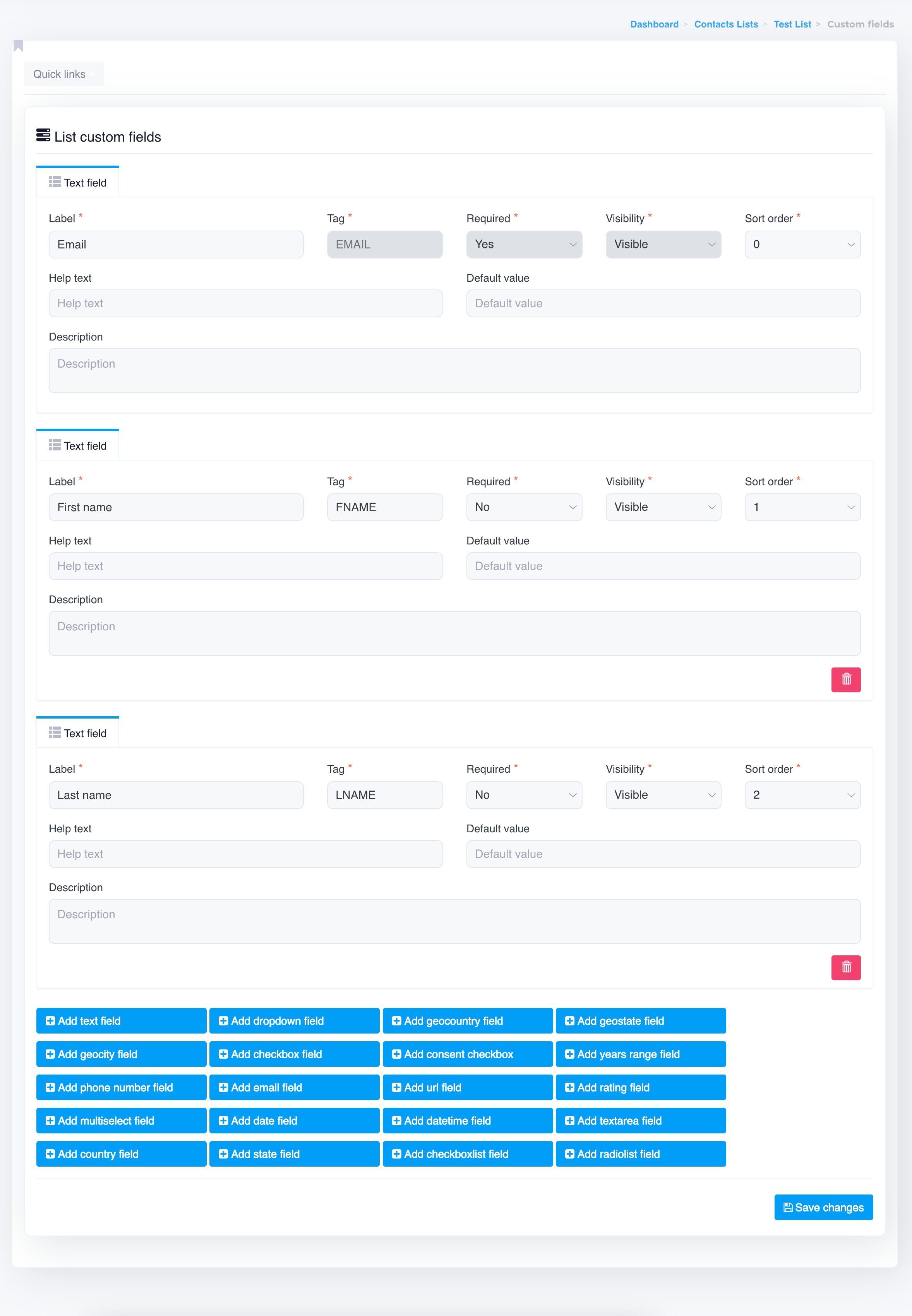
Custom fields allow you to capture additional data for your contacts, and you can easily add or manage these fields in your contact lists. Here's how to create a new list custom fields using the available options.

Go to the **Contacts** <img src="https://docs.senderwiz.com/~gitbook/image?url=https%3A%2F%2F3105319611-files.gitbook.io%2F%7E%2Ffiles%2Fv0%2Fb%2Fgitbook-x-prod.appspot.com%2Fo%2Fspaces%252FC0itf53N6qCT1XIxmRvh%252Fuploads%252FUpsvKmu73sunmqbwlB19%252Fimage.png%3Falt%3Dmedia%26token%3D603acf72-fb2c-4cd5-9554-8f03c59f7d12&#x26;width=117&#x26;dpr=4&#x26;quality=100&#x26;sign=5ba18e2d&#x26;sv=1" alt="" data-size="line"> section, select the desired contact list

Then click on the **Custom Fields** tab.

<figure><img src="https://content.gitbook.com/content/OkewfSKAYkGLToZXJWoJ/blobs/LxbMF8SikXFbifB08vwt/image.png" alt=""><figcaption></figcaption></figure>

### 1. Existing Custom Fields

Each existing custom field is displayed with the following details:

{% hint style="info" %}
By default, three custom fields are created: **Email**, **First name**, and **Last name**. \
The **Email** field is mandatory and cannot be deleted. The other fields can be added, updated, or deleted as needed. You can also choose to make them required based on your preferences.
{% endhint %}

*

```
<figure><img src="/files/IdJkxHL5KV8NYEhxauQf" alt=""><figcaption></figcaption></figure>
```

* **Label**: The name of the field that is visible to the user (e.g., "Email," "First name," "Last name").
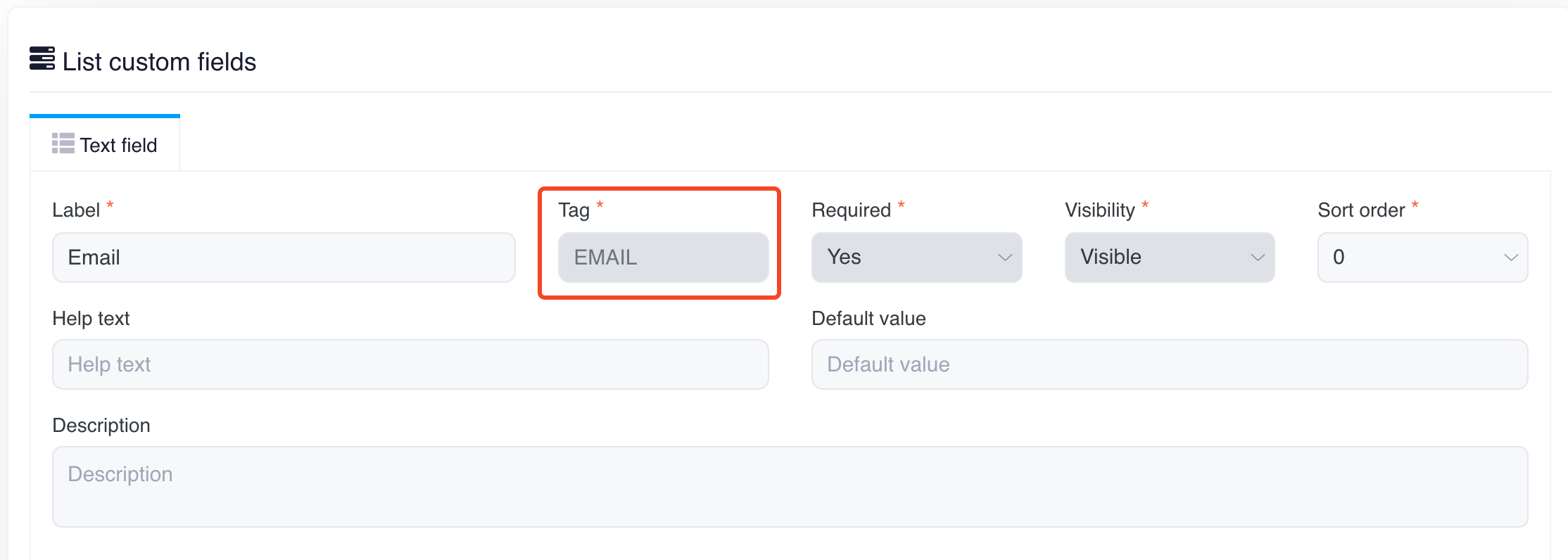
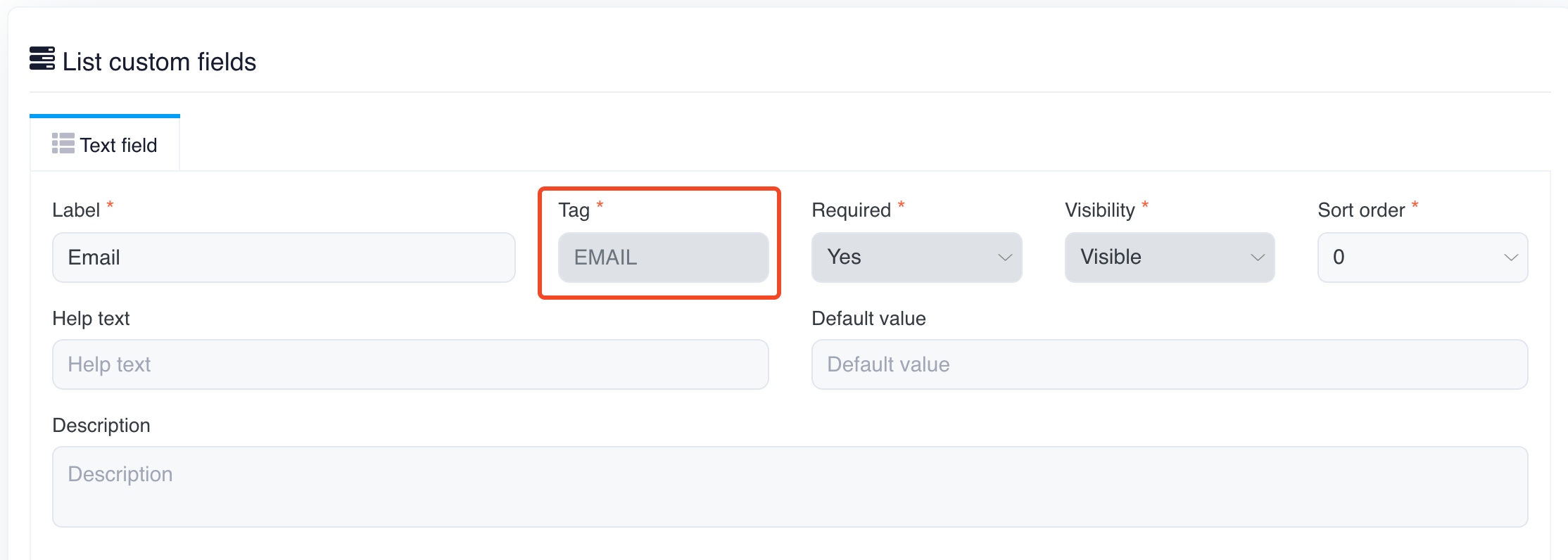
* **Tag**: The system identifier used to reference the field (e.g., "EMAIL," "FNAME," "LNAME"). This is what you'll use when personalising your emails.
* **Required**: Indicates whether the field is mandatory for subscribers (Yes/No).
* **Visibility**: Defines if the field is visible (e.g., Visible or Hidden) when a user interacts with forms.
* **Sort Order**: Determines the order in which the fields will appear in forms or lists (e.g., 0, 1, 2). Lower numbers are displayed first.
* **Help Text**: (Optional) A short description to guide users on what to enter in the field.
* **Default Value**: (Optional) A pre-filled value that appears in the field, useful for fields that often have the same value.
* **Description**: (Optional) A longer explanation of the field, visible to your internal team for clarification.
* **Add or Remove Fields**: Use the **+ (Add)** button to create additional fields, and the **Trash Bin** icon to delete fields that are no longer needed.

### 2. Adding New Custom Fields

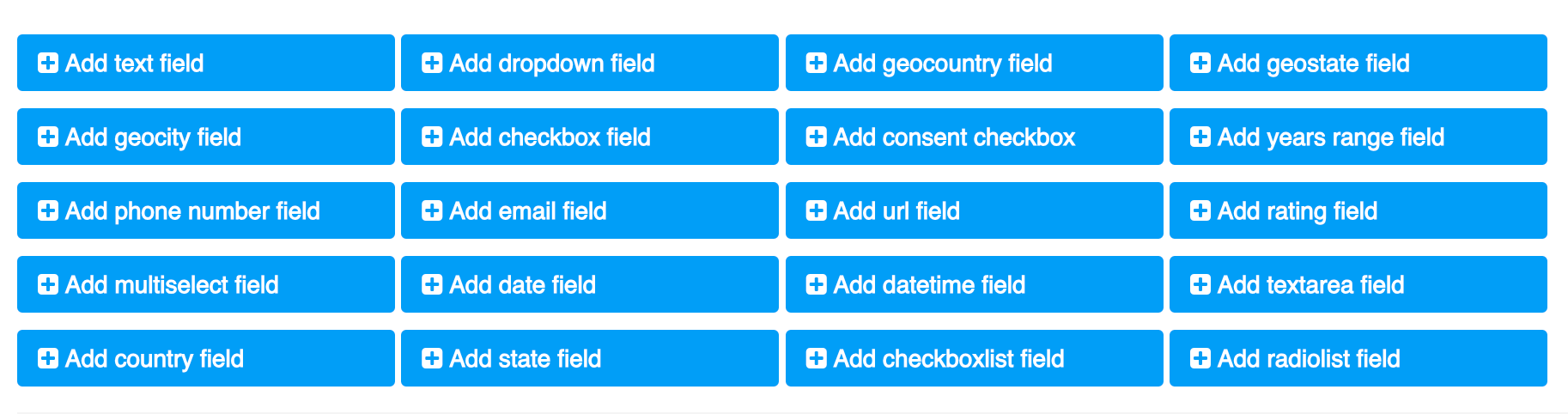
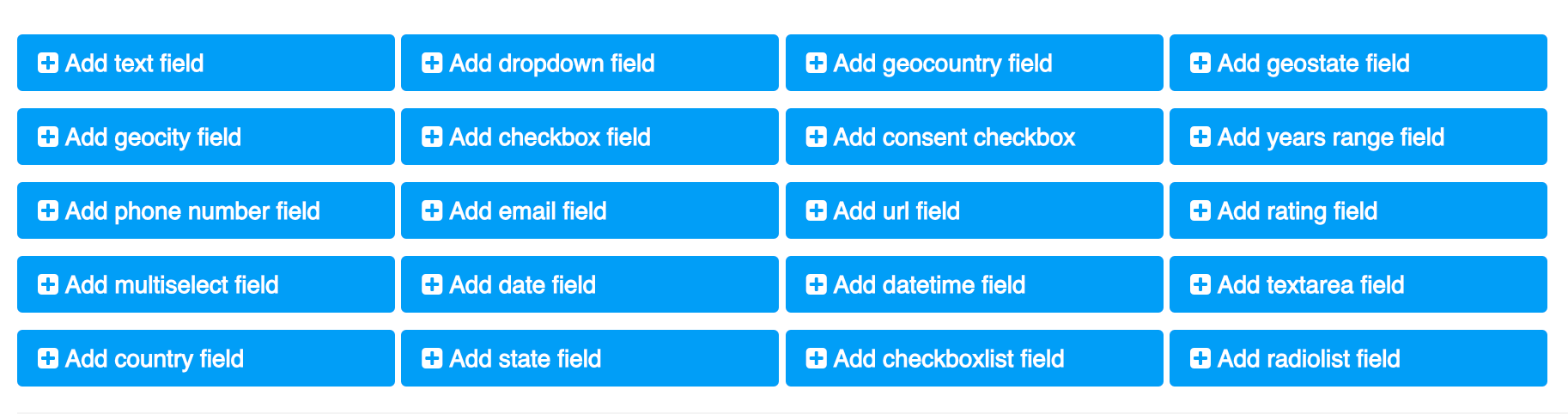
At the bottom of the interface, there are a variety of custom field types you can add to your contact list. You can choose the appropriate field type based on the data you need to collect:

<figure><img src="https://content.gitbook.com/content/OkewfSKAYkGLToZXJWoJ/blobs/unSIo7EvrILVs86spx3v/image.png" alt=""><figcaption></figcaption></figure>

* **Add text field**: Allows input of any text data.
* **Add dropdown field**: Creates a dropdown menu for predefined options.
* **Add checkbox field**: Provides a checkbox for simple yes/no or true/false responses.
* **Add phone number field**: Designed specifically for phone number input.
* **Add date field**: Allows users to enter a date.
* **Add geolocation fields**: Options like country, state, and city fields to gather geographic information.
* **Add consent checkbox**: Useful for GDPR compliance, providing a checkbox for users to give consent.
* **Add email field**: Captures email addresses in a specific format.
* **Add date-time field**: Allows users to enter a date and time.
* **Add years range field**: Collects age ranges or other year-based data.
* **Add checkbox list** and **Add radio list**: Creates a list of checkboxes or radio buttons for multiple options.
* **Add text area field**: Provides a larger input box for detailed text responses.

### 3. Save Changes

After you’ve added, updated, or removed fields, click on the **Save changes** button to apply the updates to your contact list.

### CSV Imports: Column Names Must Match Custom Field Tags

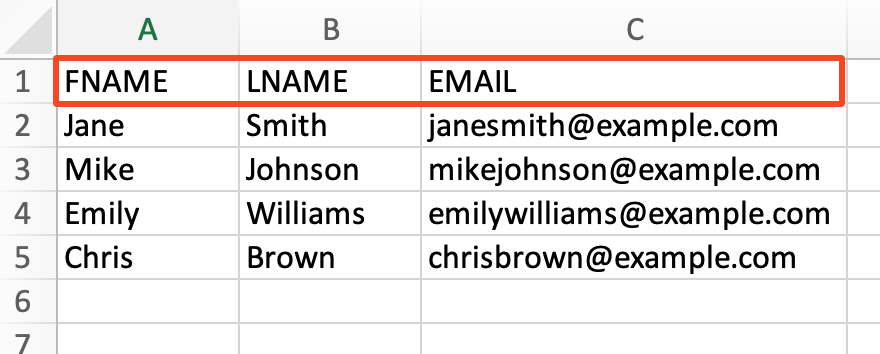
When importing a CSV file into your contact list, it's essential to ensure that the column names in your file match the tag names of the custom fields in the contact list. This ensures smooth data mapping and accurate importing of information.

<figure><img src="https://content.gitbook.com/content/OkewfSKAYkGLToZXJWoJ/blobs/VQTo4Cq0FTgusQ9nmF3y/image.png" alt="" width="563"><figcaption></figcaption></figure>

<figure><img src="https://content.gitbook.com/content/OkewfSKAYkGLToZXJWoJ/blobs/B1hHk63JiWieH3v21WjF/image.png" alt=""><figcaption></figcaption></figure>

#### Description:

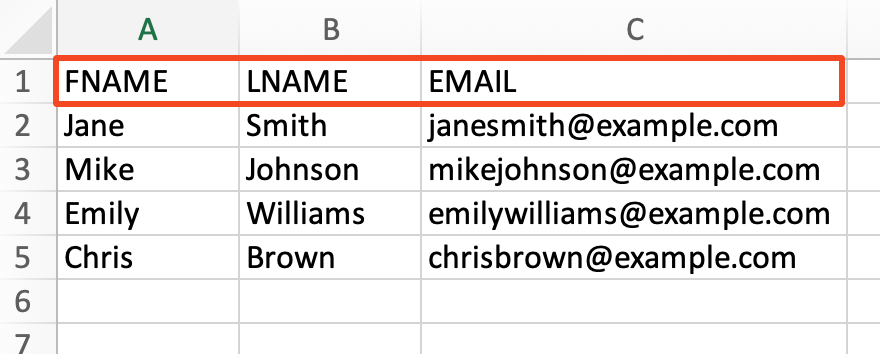
Each custom field in your contact list has a tag, such as **FNAME** for First Name, **LNAME** for Last Name, and **EMAIL** for the Email field. To import data correctly from a CSV file, the column headers in your CSV must exactly match the tag names of the corresponding custom fields in the system. This helps the system correctly map the data from your file to the right fields.

#### Example:

As shown in the image above, your CSV file should be structured as follows:

* **FNAME**: The first column header for First Name.
* **LNAME**: The second column header for Last Name.
* **EMAIL**: The third column header for Email.

Each of these column names corresponds to a tag in the contact list's custom fields. In the CSV file:

* Column **A** contains the first names (FNAME).
* Column **B** contains the last names (LNAME).
* Column **C** contains the email addresses (EMAIL).

#### Important Note:

If the column headers in your CSV file do not match the custom field tags exactly, the system will not be able to map the data correctly. You must ensure that your CSV file uses the exact tag names defined in the custom fields of your contact list.

By following this approach, you’ll ensure a seamless import process and that all contact data is accurately mapped to the correct fields in your list.

***

This interface gives you flexibility in customizing the data you collect from your subscribers, helping you create more personalized and targeted email campaigns.


# Pages

Customize your subscription experience with contact list pages. Learn how to edit and personalize forms, confirmation emails, and profile update pages.

Each contact list comes with a set of customisable pages that control the experience your subscribers have at different stages of the subscription process. These pages allow you to create a consistent, branded experience from the moment someone signs up until they receive confirmation emails or unsubscribe.

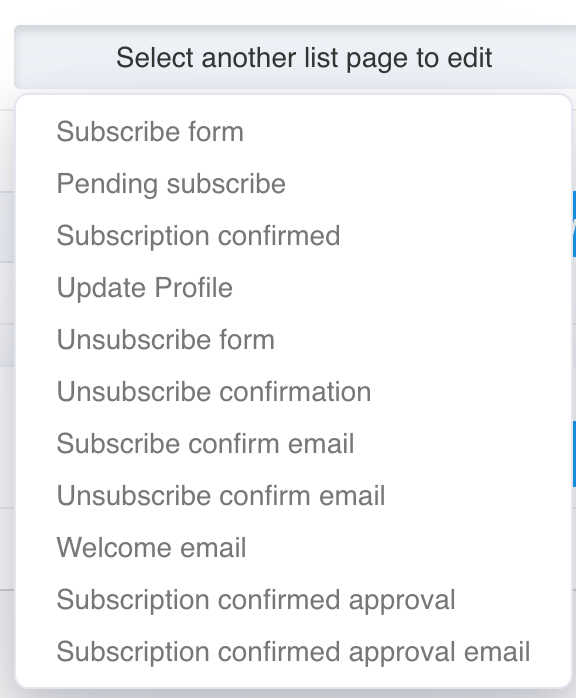
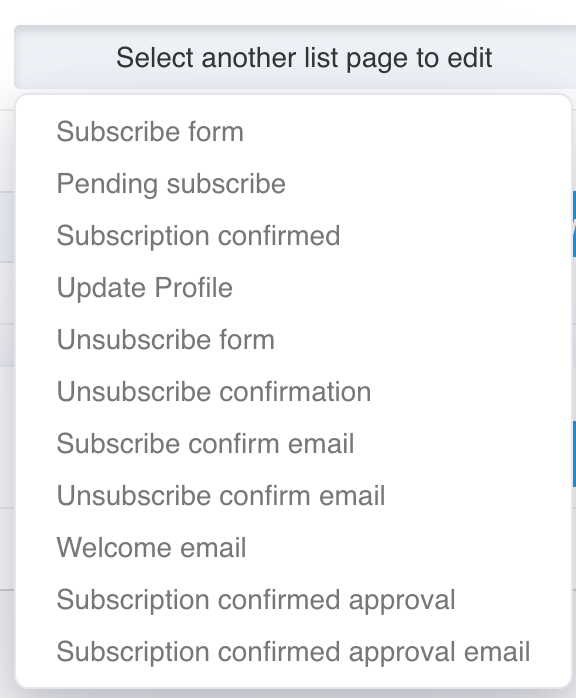
### Available Pages

When you navigate to a contact list's **Pages** section, you'll see a dropdown menu like in the image above. The following pages are available for customisation:

<figure><img src="https://content.gitbook.com/content/OkewfSKAYkGLToZXJWoJ/blobs/slcNPAUNLYzvBHUQojFz/image.png" alt="" width="288"><figcaption></figcaption></figure>

### 1. Subscribe Form

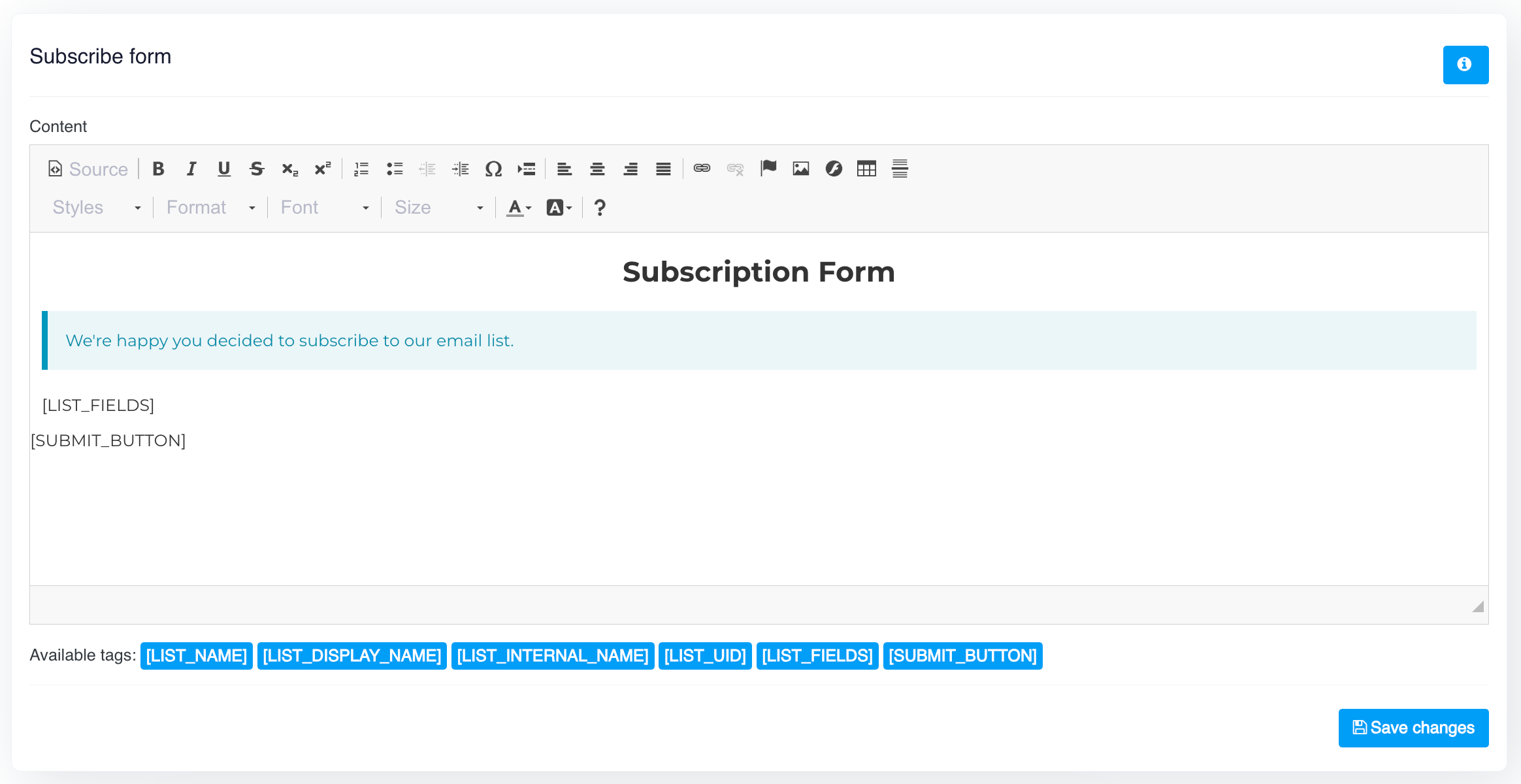
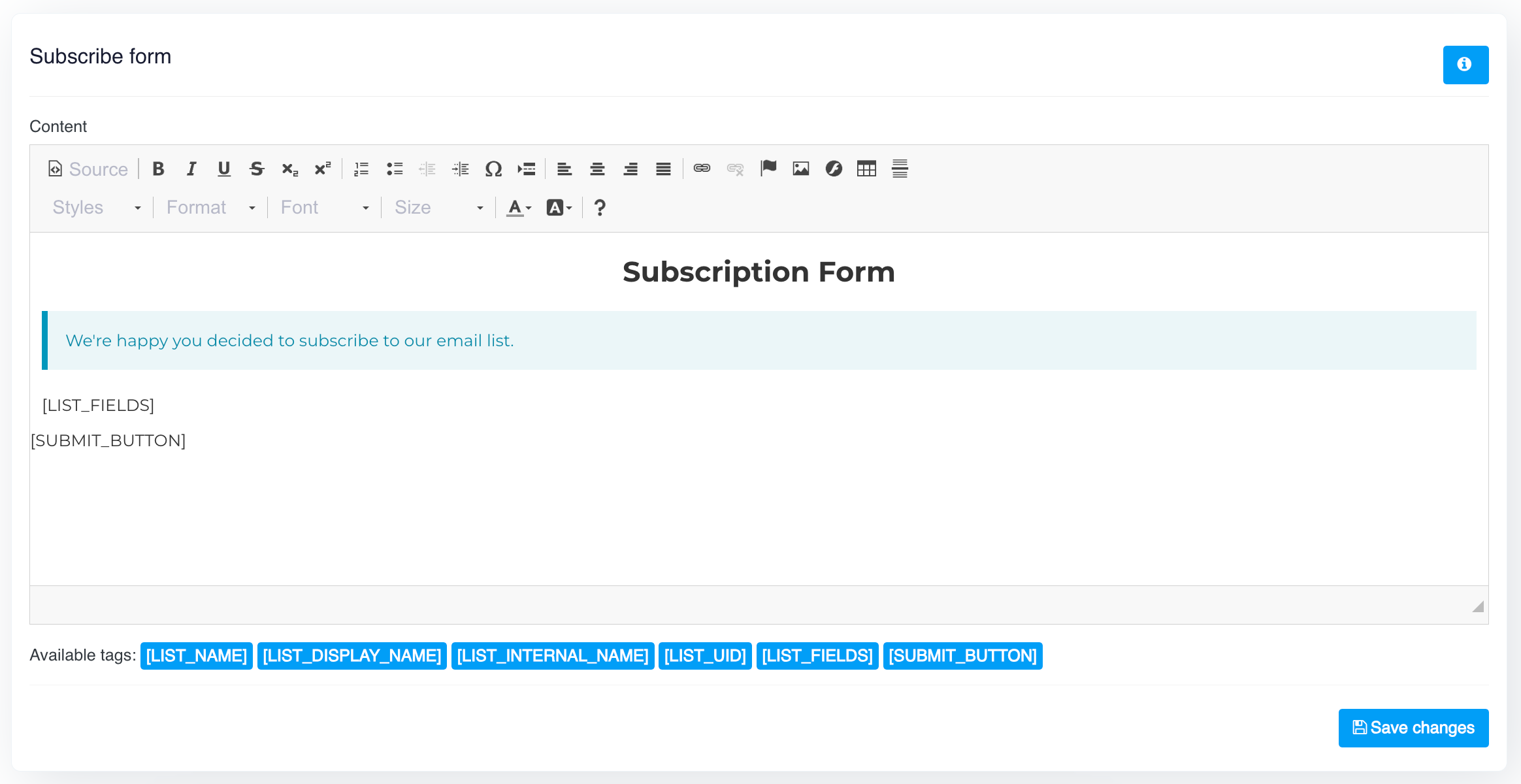
This is the form where users can sign up for your list. You can customize the form’s content and appearance to fit your brand. Fields like \[LIST\_FIELDS] and \[SUBMIT\_BUTTON] are used to automatically generate the input fields and submission button.

<figure><img src="https://content.gitbook.com/content/OkewfSKAYkGLToZXJWoJ/blobs/lBkUUFqYES3sAXrHP2oX/image.png" alt=""><figcaption></figcaption></figure>

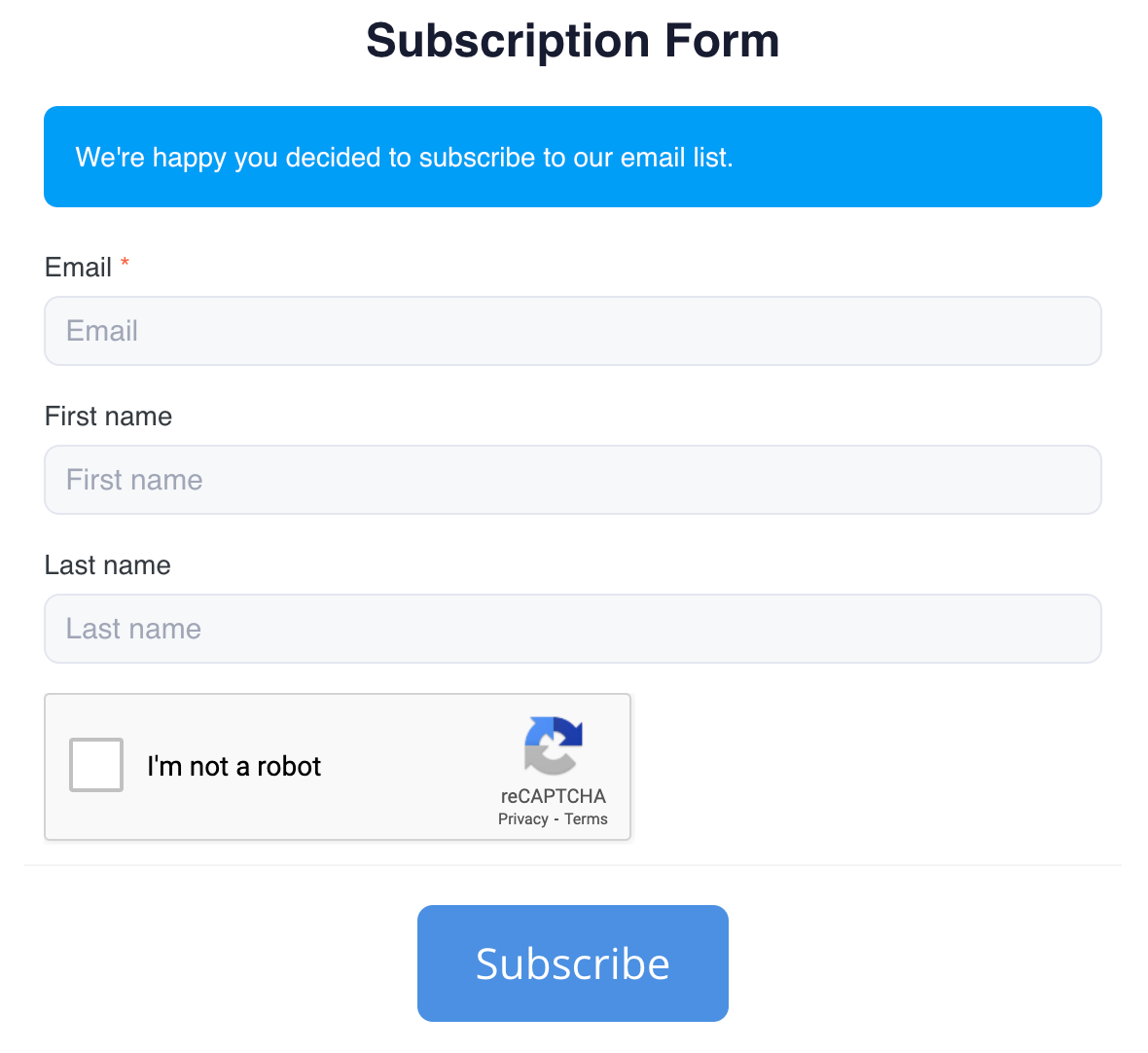
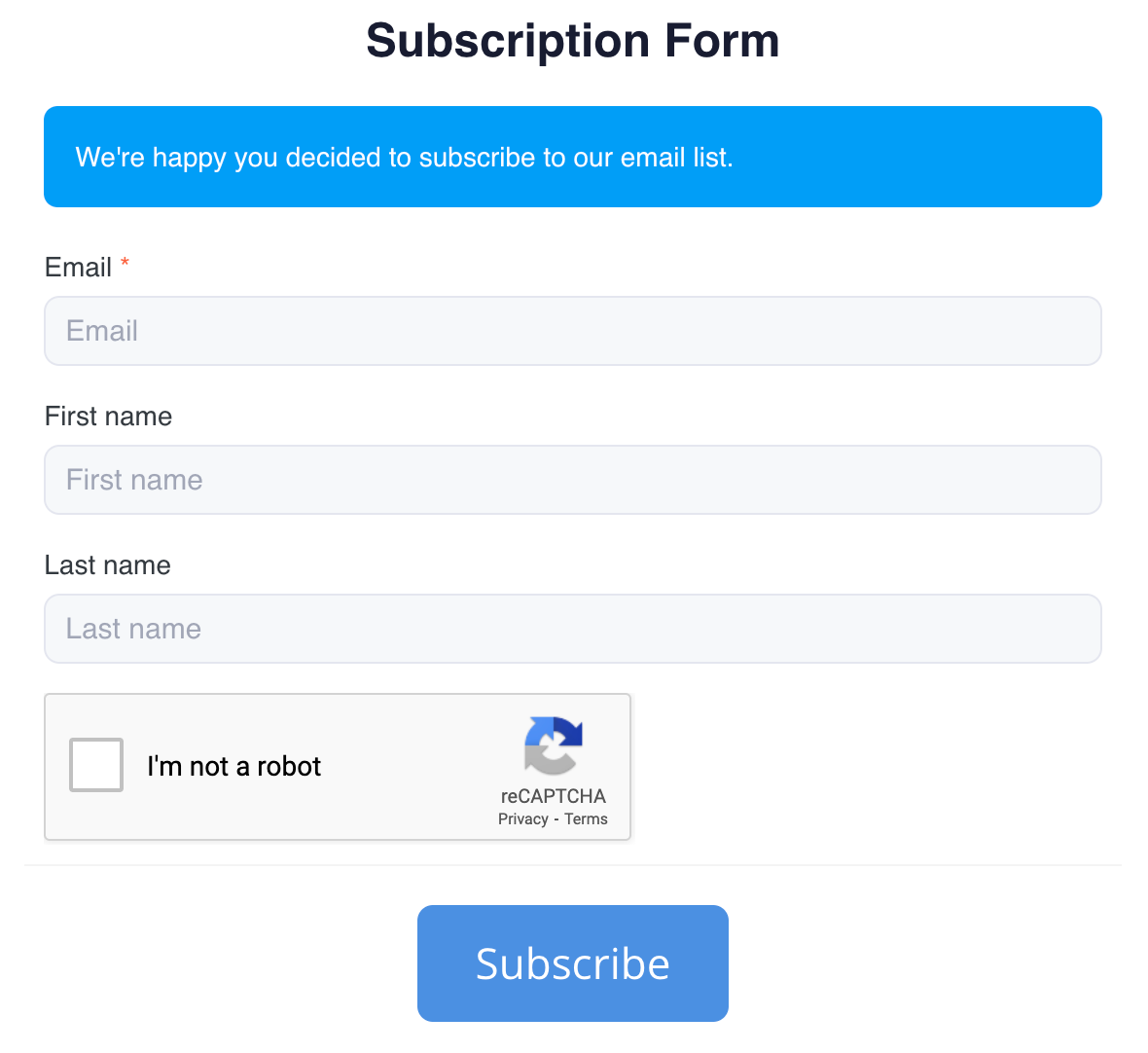
The subscription form appears like this on the web.

<figure><img src="https://content.gitbook.com/content/OkewfSKAYkGLToZXJWoJ/blobs/8npAwWKVuFSip4pNe92r/image.png" alt="" width="563"><figcaption></figcaption></figure>

### 2. Pending Subscribe

This page appears after a user submits the subscription form but before they confirm their email (if double opt-in is enabled). It's a great place to thank the user and instruct them to check their email for a confirmation link.

### 3. Subscription Confirmed

Once the user confirms their subscription, they will be taken to this page. You can customize this page to welcome them to your list and provide further instructions or information.

### 4. Update Profile

This page allows subscribers to update their personal information or preferences. It’s essential for keeping your subscriber data accurate.

### 5. Unsubscribe Form

This is where users can choose to unsubscribe from your list. You can customize the message to provide feedback or give users an option to update their preferences instead of unsubscribing.

### 6. Unsubscribe Confirmation

After the user submits the unsubscribe request, they are directed to this confirmation page. You can use this page to confirm that their request has been processed and offer a chance for re-engagement.

### 7. Subscribe Confirm Email

This email is sent to users after they fill out the subscribe form,


# Forms

Create and manage subscribe and unsubscribe forms. Discover how to embed forms on your website and capture essential subscriber information effortlessly.

You can generate and manage subscribe and unsubscribe forms for your contact lists. These forms can be embedded on your website or used as standalone pages to capture subscriber data or process unsubscribe requests.

### 1. Subscribe Form

The subscription form is the gateway for users to sign up for your mailing list. It contains fields that match your contact list’s custom fields, such as email, first name, and more. These forms are customisable and can be embedded into your website to streamline the signup process.

Here’s a basic example of a subscription form:

```html
<form action="https://app.example.com/lists/{list_id}/subscribe" method="post" accept-charset="utf-8">
    <div class="form-group">
        <label>Email <span class="required">*</span></label>
        <input type="text" class="form-control" name="EMAIL" placeholder="Please type your email address" required />
    </div>
    <div class="clearfix"></div>
    <div class="actions pull-right">
        <button type="submit" class="btn btn-primary btn-flat">Subscribe</button>
    </div>
    <div class="clearfix"></div>
</form>
```

In this example, the **EMAIL** field is required for subscription. This basic HTML form captures the user's email and sends it to the specified URL.

#### iFrame Version for Embedding

For easier integration, you can also use the iframe version of the subscription form. This allows you to embed the form directly into your webpage without needing custom HTML code.

```html
<iframe src="https://app.example.com/lists/{list_id}/subscribe?output=embed&width=400&height=200" width="400" height="200" frameborder="0" scrolling="no"></iframe>
```

### 2. Unsubscribe Form

The **Unsubscribe Form** enables users to opt out of your mailing list. You can provide this form on your website or within your emails to make the unsubscribe process straightforward.

Here’s an example of the unsubscribe form based on the image:

```html
<form action="https://app.example.com/lists/{list_id}/unsubscribe" method="post" accept-charset="utf-8" target="_blank">
    <div class="form-group">
        <label>Email <span class="required">*</span></label>
        <input type="text" class="form-control" name="EMAIL" placeholder="Please type your email address" required />
    </div>
    <div class="clearfix"></div>
    <div class="actions pull-right">
        <button type="submit" class="btn btn-primary btn-flat">Unsubscribe</button>
    </div>
    <div class="clearfix"></div>
</form>
```

In this example, the **EMAIL** field is required for unsubscription. The form action directs the request to the specific list's unsubscribe page.

#### iFrame Version for Unsubscribe Form

Similar to the subscription form, the unsubscribe form can also be embedded using an iframe for easier integration into your website.

```html
<iframe src="https://app.example.com/lists/{list_id}/unsubscribe?output=embed&width=400&height=200" width="400" height="200" frameborder="0" scrolling="no"></iframe>
```

### 3. Customising Forms

You can fully customise these forms by editing the HTML or using CSS to match your brand’s style and design. The key elements like **\[EMAIL]** or **\[SUBMIT\_BUTTON]** can be used to ensure data is captured and processed correctly.

### Why Use Forms?

* **Seamless Integration**: Embed subscription and unsubscribe forms directly into your website to streamline the user experience.
* **Data Collection**: Capture essential subscriber information using custom fields.
* **User-Friendly**: Simplify the process for both subscribing and unsubscribing, keeping your contact lists clean and up-to-date.

By using forms, you create a direct and seamless way for your users to manage their subscription preferences with your mailing list.


# Tools

Manage your contact lists efficiently with tools. Learn how to import, export, and copy subscribers across lists with easy-to-use features.

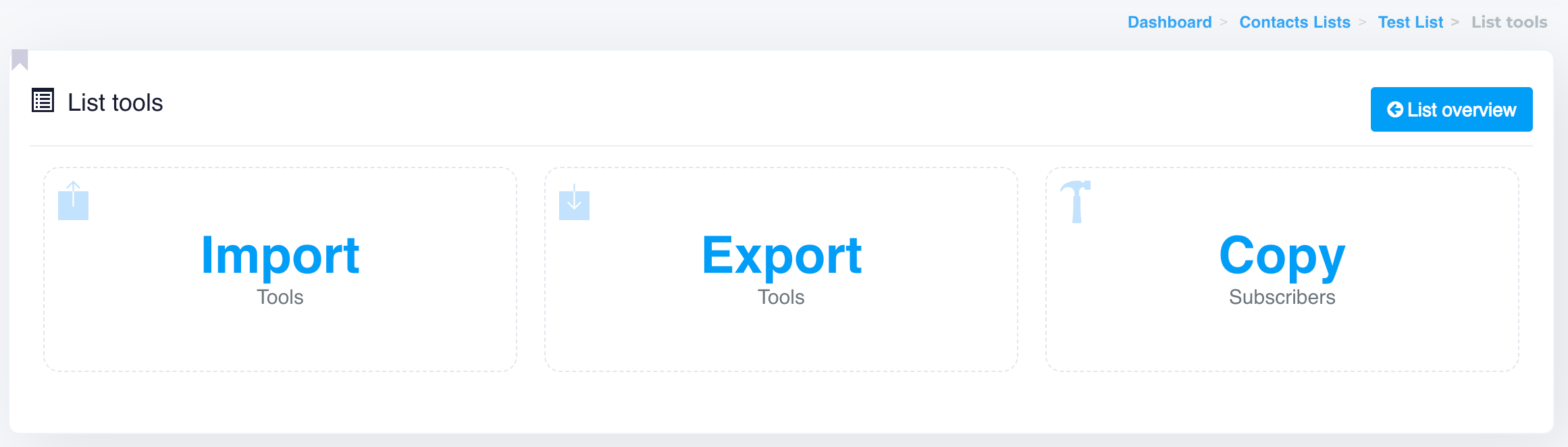
**Tools** options provides essential features to help you manage your contact lists more effectively. These tools enable you to **import**, **export**, and **copy** subscribers across different lists, making contact list management seamless and efficient.

<figure><img src="https://content.gitbook.com/content/OkewfSKAYkGLToZXJWoJ/blobs/T4A8yRqFxjpK3hpOGb4E/image.png" alt=""><figcaption></figcaption></figure>

### 1. Import

The **Import** tool allows you to add new subscribers to your contact list by uploading a CSV file. During the import process, you'll map the CSV columns to the corresponding custom fields in your list, ensuring that the data is properly assigned.

#### Key Features:

* Supports CSV format for importing contacts.
* Automatically detects duplicate records to prevent duplicates.
* Allows mapping of CSV columns to custom fields in your contact list.

This tool is essential for bulk-adding new subscribers or transferring contacts from other sources into your current list.

### 2. Export

The **Export** tool allows you to download a CSV file of your current list of subscribers. You can choose to export all fields or just specific fields like email addresses, depending on your needs.

#### Key Features:

* Export entire contact lists with their columns (or custom fields).
* Useful for backing up your data or analysing subscriber information.
* Can be used to export filtered data, such as active subscribers, unsubscribes, or bounces.

This tool is ideal for analysing your list or moving data to another platform or tool.

### 3. Copy

The **Copy** subscribers tool allows you to duplicate subscribers from one list to another. This is useful when you want to move or copy subscribers between lists without reimporting them.

#### Key Features:

* Easily copy subscribers between lists.
* Helps maintain organisation and segmentation across multiple lists.
* Avoids the need to manually export and re-import subscribers.

This tool simplifies list management when working with multiple contact lists and segmentation strategies.

***

Using these tools, you can efficiently manage your contact lists, ensuring that your subscriber data is organised, up-to-date, and easily transferable between different systems or lists.


# Blacklist

Learn how to manage blacklisted contacts. Easily create, import, and update blacklists to improve email deliverability and prevent unwanted recipients from receiving your emails.

### Introduction

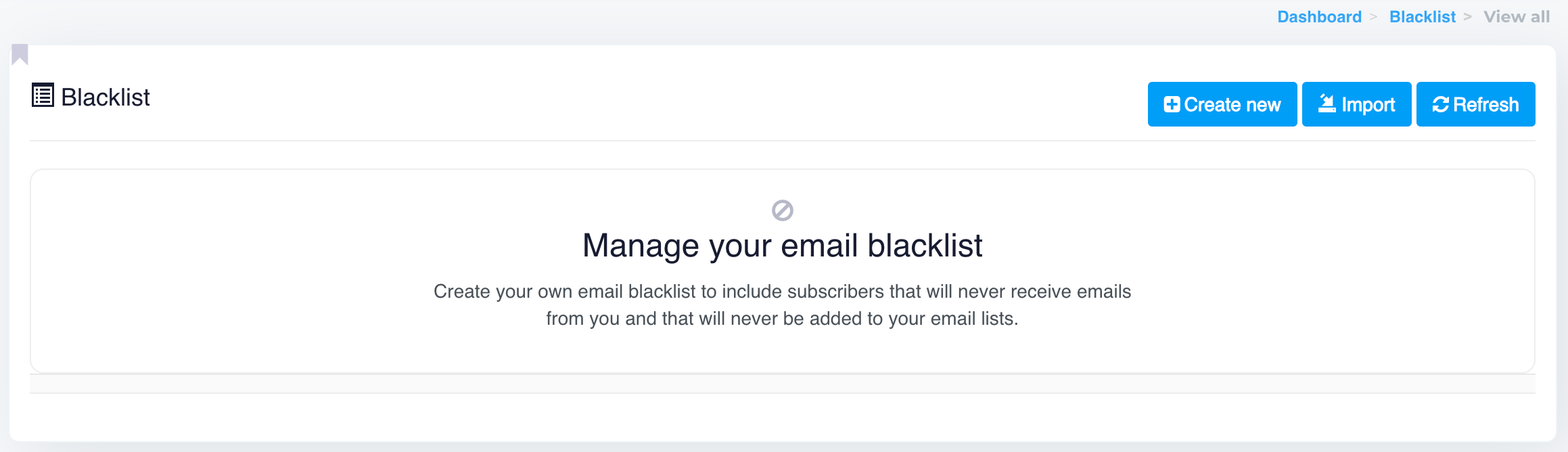
The **Blacklist** feature allows you to manage email addresses that should never receive emails from your system. This helps maintain compliance and ensures better email deliverability by avoiding problematic recipients.

<figure><img src="https://content.gitbook.com/content/OkewfSKAYkGLToZXJWoJ/blobs/qL7rH1Nz74HNA4dRM6Vf/image.png" alt=""><figcaption></figcaption></figure>

### Overview

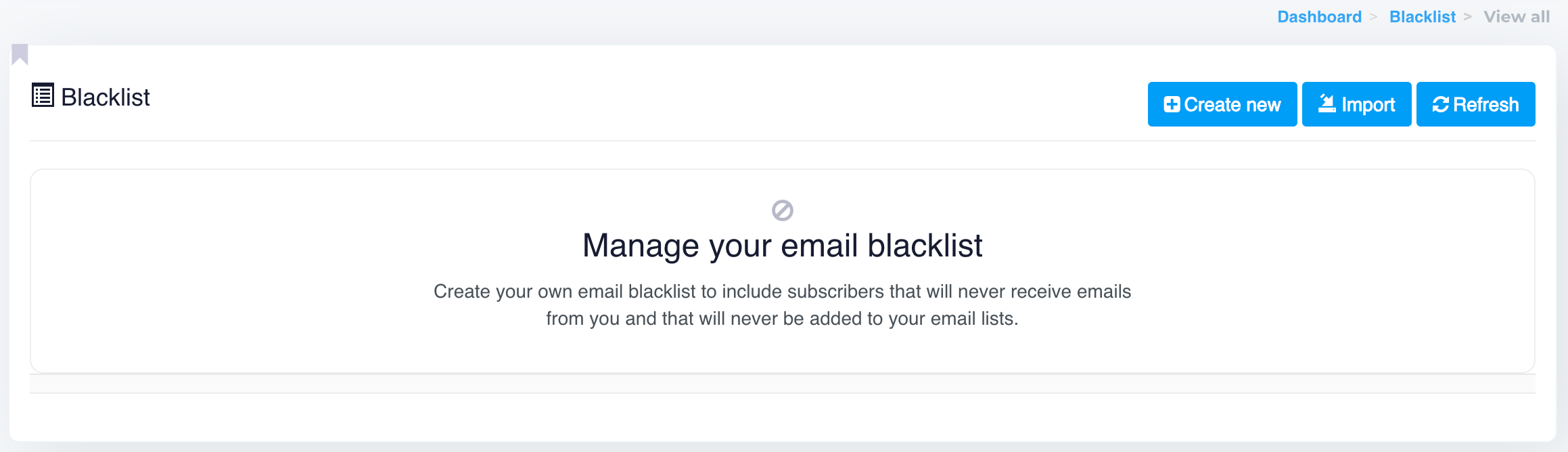
In the Blacklist section, you can:

* Create new blacklist entries.
* Import a blacklist from an external file.
* Refresh the list to reflect any updates.

#### Accessing the Blacklist

To access the Blacklist section:

1. From the dashboard, navigate to **Blacklist**.
2. You will be presented with options to manage your blacklist.

The main screen will display the following options:

#### **1. Create New**

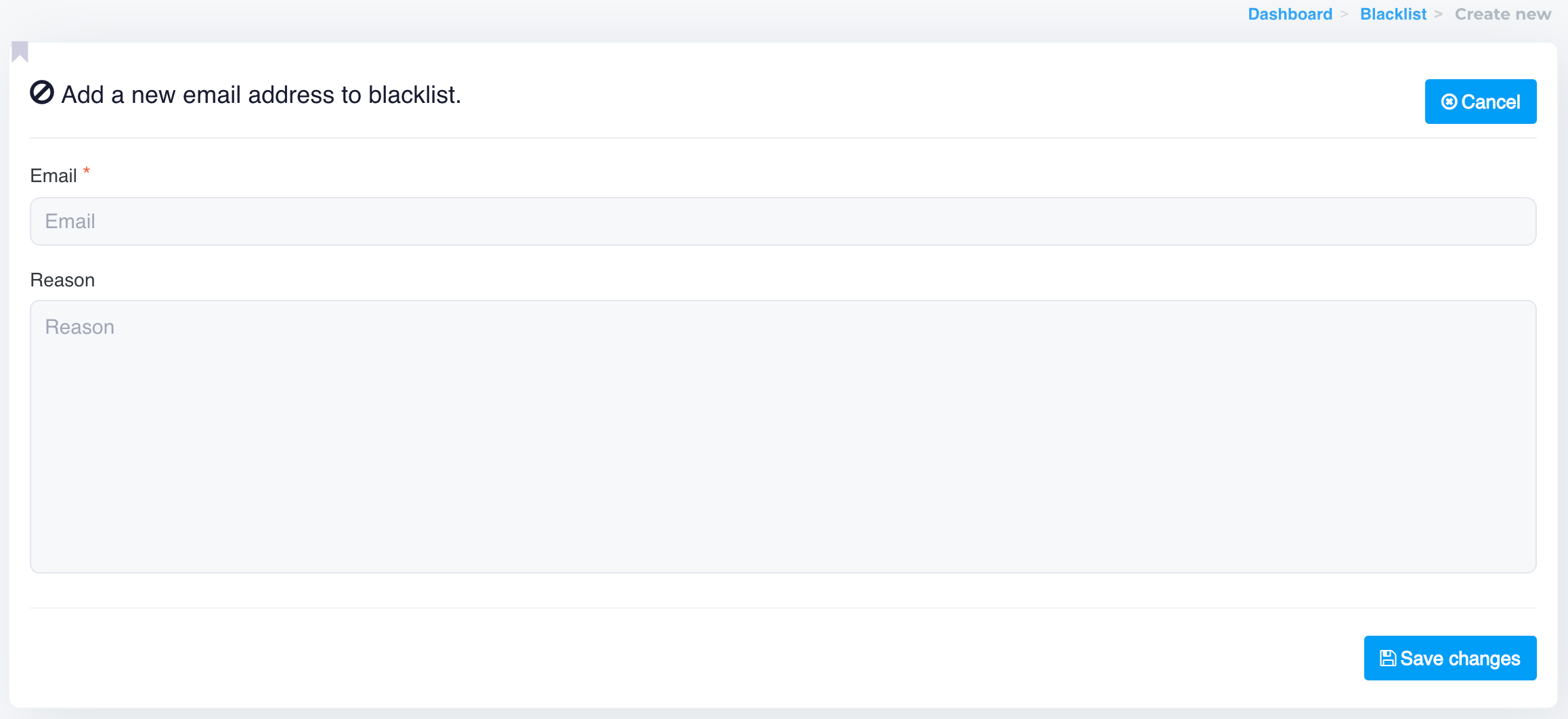
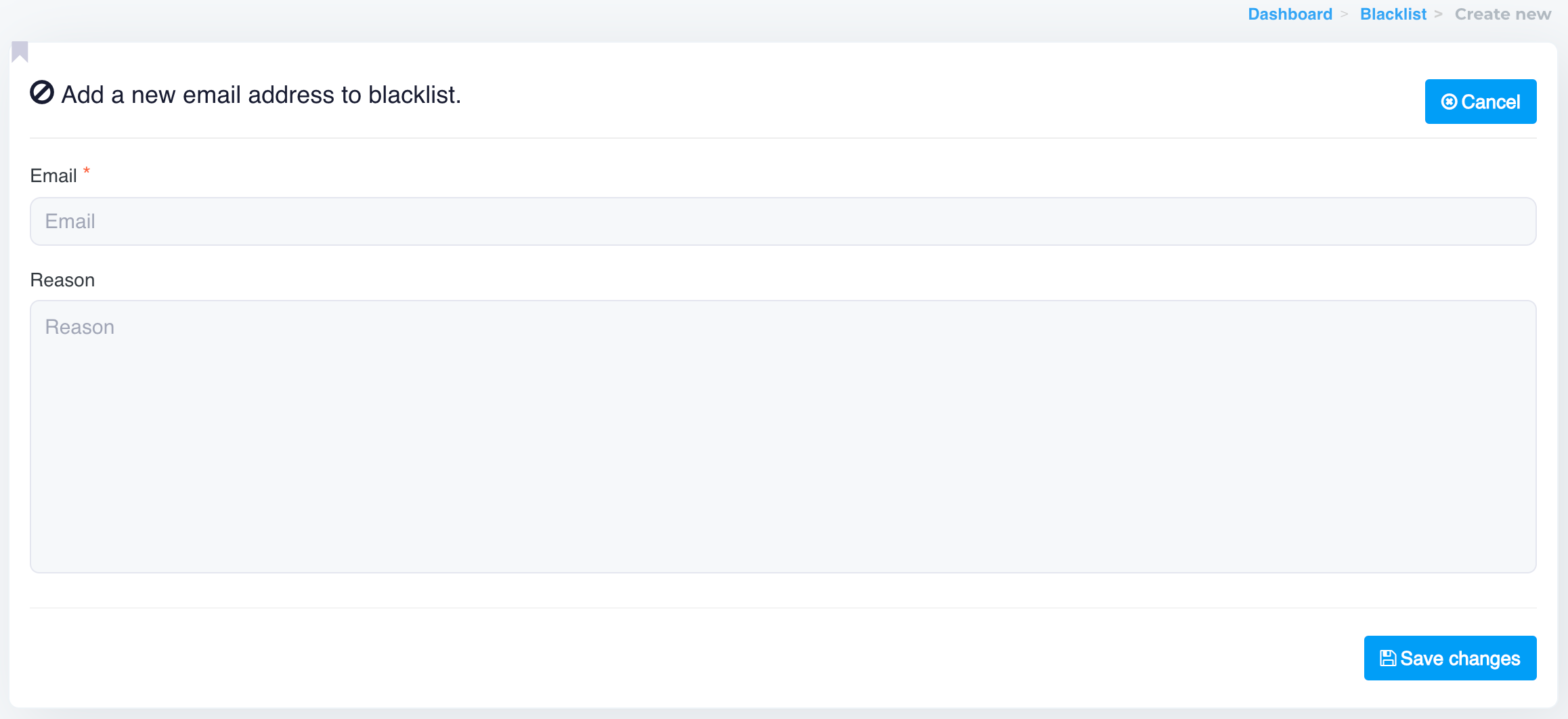
* Use this button to manually add an email to your blacklist.
* This ensures that any future campaigns will not send emails to the listed addresses or domains.

<figure><img src="https://content.gitbook.com/content/OkewfSKAYkGLToZXJWoJ/blobs/uxItz2fYPANWjxGLx54K/image.png" alt=""><figcaption></figcaption></figure>

#### **2. Import**

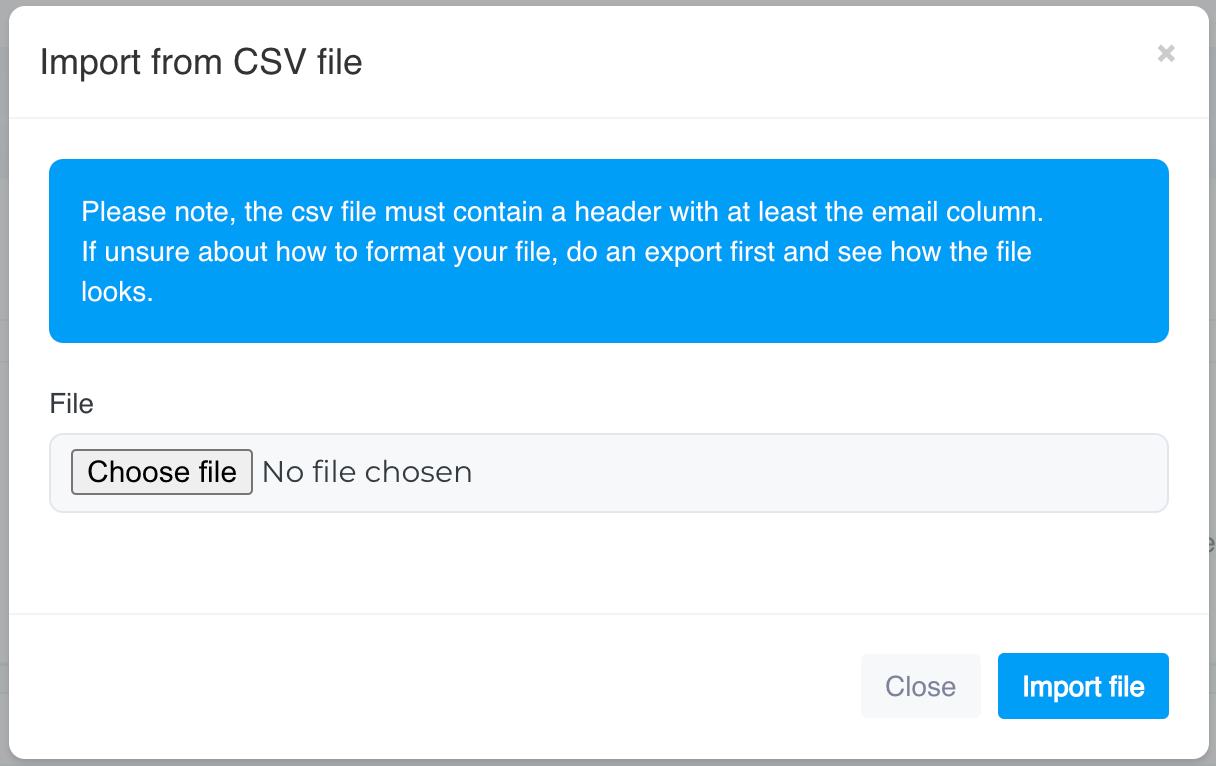
* If you already have a list of email addresses that you wish to blacklist, you can use the **Import** feature.
* Upload a file containing the email addresses in a supported format (`.csv`).
* Once imported, the entries will be added to your blacklist, and future email campaigns will exclude these recipients.

<figure><img src="https://content.gitbook.com/content/OkewfSKAYkGLToZXJWoJ/blobs/nQqH3Xy7Rl6x4DvX8SjX/image.png" alt=""><figcaption></figcaption></figure>

#### Managing Your Blacklist

The blacklist helps you ensure that problematic or unwanted recipients are never added to your campaigns. Recipients in the blacklist:

* Will not receive any future emails.
* If any contact is added to the blacklist, the status of that contact will be updated to **Blacklist** in your contact list.&#x20;
* It will prevent that contact from being added to any of your existing contact lists.

This is particularly useful for preventing emails from being sent to unsubscribed users, emails marked as spam, or email known for hard bounces.


# Campaigns

Optimize email marketing with Campaigns: automate workflows, schedule, segment, and personalize campaigns for targeted audience engagement.

<div align="left"><figure><img src="https://content.gitbook.com/content/OkewfSKAYkGLToZXJWoJ/blobs/aNW2yYAQSMYTsghg4reH/image.png" alt=""><figcaption></figcaption></figure></div>

### Campaigns

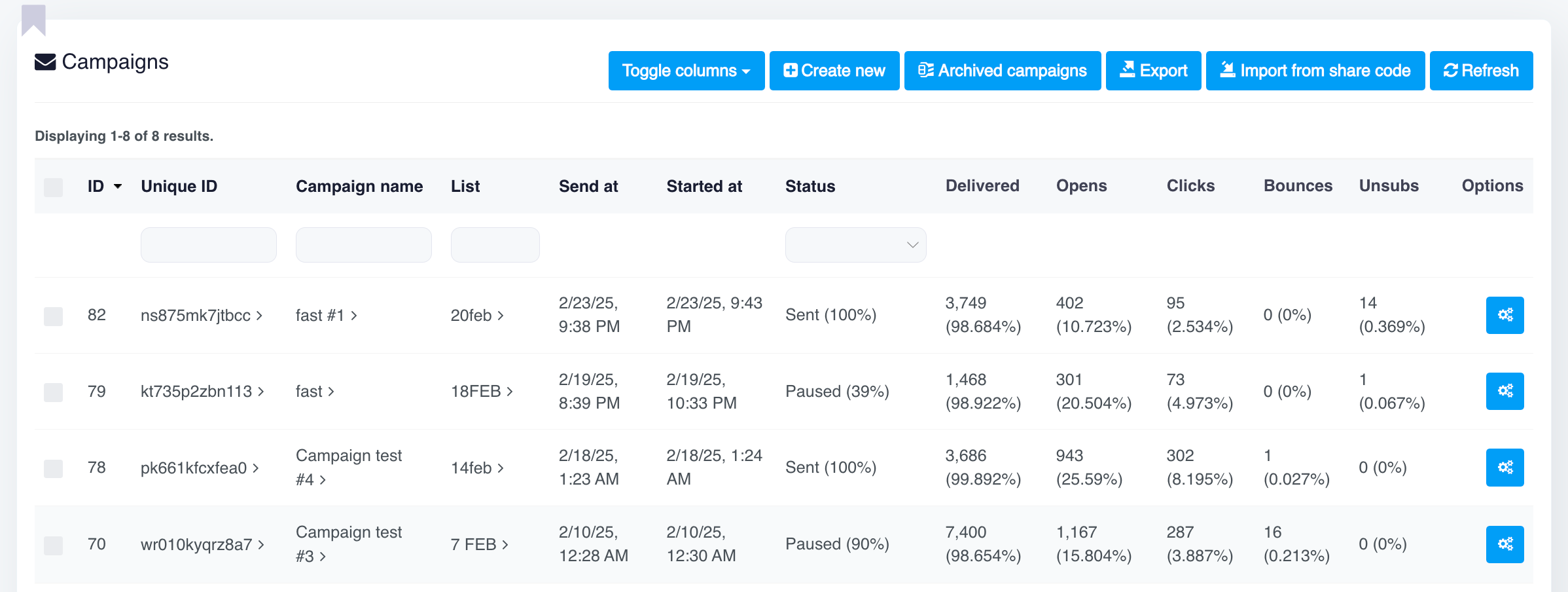
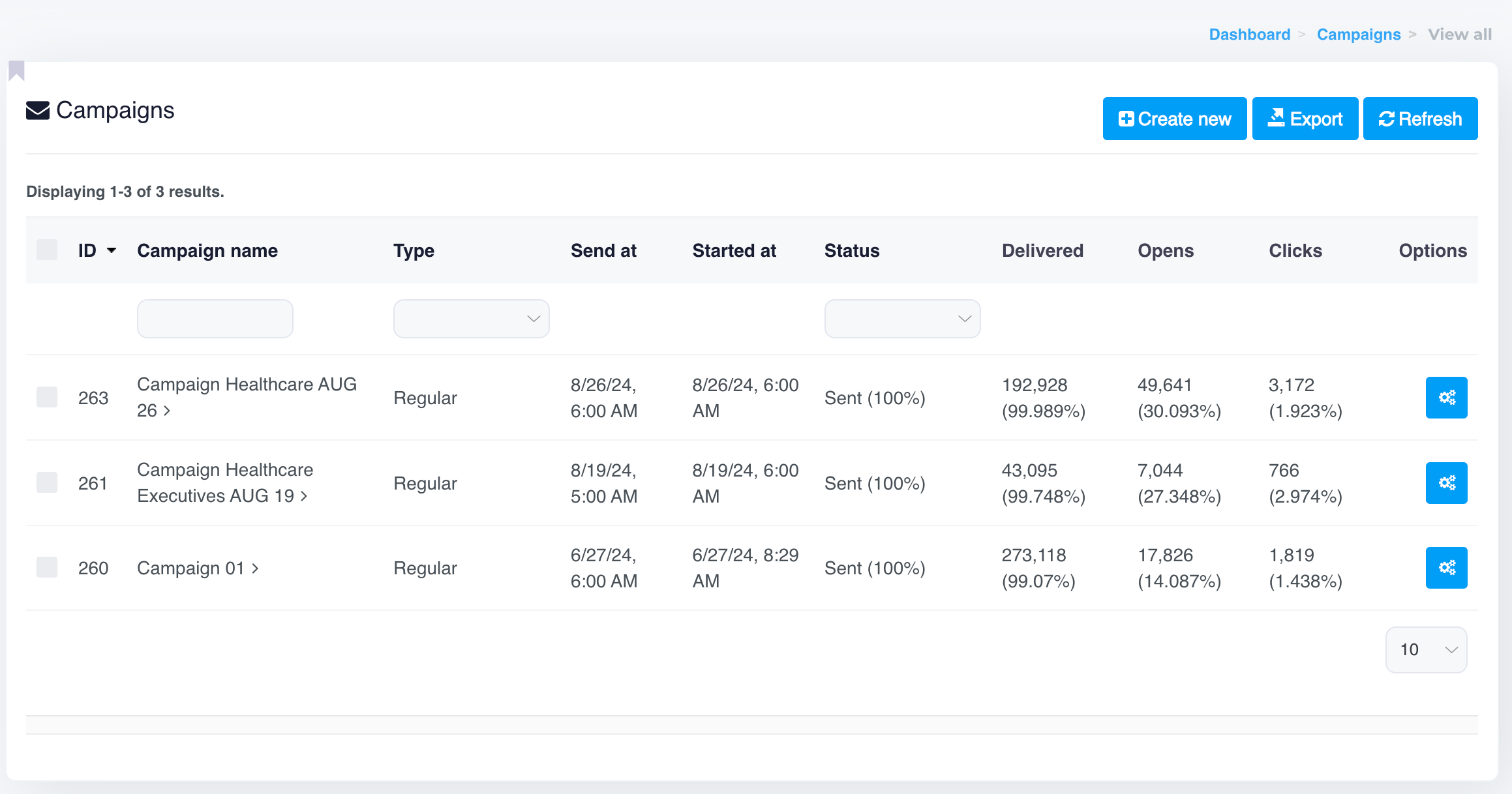
The **Campaigns** section is designed to simplify the process of managing and executing various email marketing strategies. From setting up single campaigns to automating complex workflows, this section provides the tools to create engaging, effective, and highly targeted email communications. Here’s a breakdown of each feature available in the Campaigns menu.

<table data-view="cards"><thead><tr><th></th><th></th><th data-type="content-ref"></th><th data-card-target data-type="content-ref"></th><th data-hidden></th></tr></thead><tbody><tr><td><strong>Email Campaign</strong></td><td>Create and send one-time email campaigns to your audience. Learn about creating, designing, and personalizing messages to enhance engagement.</td><td></td><td><a href="/popular-topics/campaigns/email-campaign">Email Campaign</a></td><td></td></tr><tr><td><strong>Send Groups</strong></td><td>Organize recipients into specific groups for targeted messaging. This feature allows for managing separate groups with customized content or schedules.</td><td></td><td><a href="/popular-topics/campaigns/send-groups">Send Groups</a></td><td></td></tr><tr><td><strong>Advanced Recurring</strong></td><td>Set up recurring campaigns for regular engagement, like weekly newsletters or updates. Define schedules and frequency to maintain continuous communication.</td><td></td><td><a href="/popular-topics/campaigns/advanced-recurring">Advanced Recurring</a></td><td></td></tr><tr><td><strong>Autoresponder</strong></td><td>Automatically send a series of emails to new subscribers or specific user segments. Ideal for nurturing leads or onboarding new customers.</td><td></td><td><a href="/popular-topics/campaigns/autoresponder">Autoresponder</a></td><td></td></tr><tr><td><strong>Automation</strong></td><td>Build automated workflows that trigger emails based on user behavior or events, streamlining communication for a more personalized experience.</td><td></td><td><a href="broken://pages/WyjGNkbtTPEhE1yXaAEp">Broken link</a></td><td></td></tr><tr><td><strong>Email Scheduling</strong></td><td>Schedule campaigns to be sent at optimal times. This feature helps improve open rates and engagement by delivering emails when they’re most likely to be read.</td><td></td><td><a href="/popular-topics/campaigns/email-scheduling">Email Scheduling</a></td><td></td></tr><tr><td><strong>Rotation</strong></td><td>Utilize rotation features to vary email elements like the sender’s name, email address, or subject line, making each email feel unique and personal to recipients.</td><td></td><td><a href="broken://pages/9Ha8D12ceC4BhKkSXuz1">Broken link</a></td><td></td></tr><tr><td></td><td></td><td></td><td></td><td></td></tr><tr><td></td><td></td><td></td><td></td><td></td></tr></tbody></table>

***

#### Conclusion

The Campaigns section equips you with the essential tools to create, manage, and optimize your email marketing efforts. Whether sending one-time campaigns or setting up automated workflows, these features allow you to connect meaningfully with your audience and drive engagement effectively.


# Email Campaign

Learn to create, design, and personalize effective email campaigns. Boost engagement and reach your audience with impactful messaging and automation tools.

This guide explains how to create, configure, and manage an email campaign.&#x20;

<figure><img src="https://1066064866-files.gitbook.io/~/files/v0/b/gitbook-x-prod.appspot.com/o/spaces%2FOkewfSKAYkGLToZXJWoJ%2Fuploads%2FhAazTjjELZ4XBLKdDMdq%2Fimage.png?alt=media&amp;token=59b88c70-4cc3-4526-bdce-4c573f339ad2" alt=""><figcaption></figcaption></figure>

Follow each step to build and execute your email campaigns effectively.

***

## Create Email Campaign

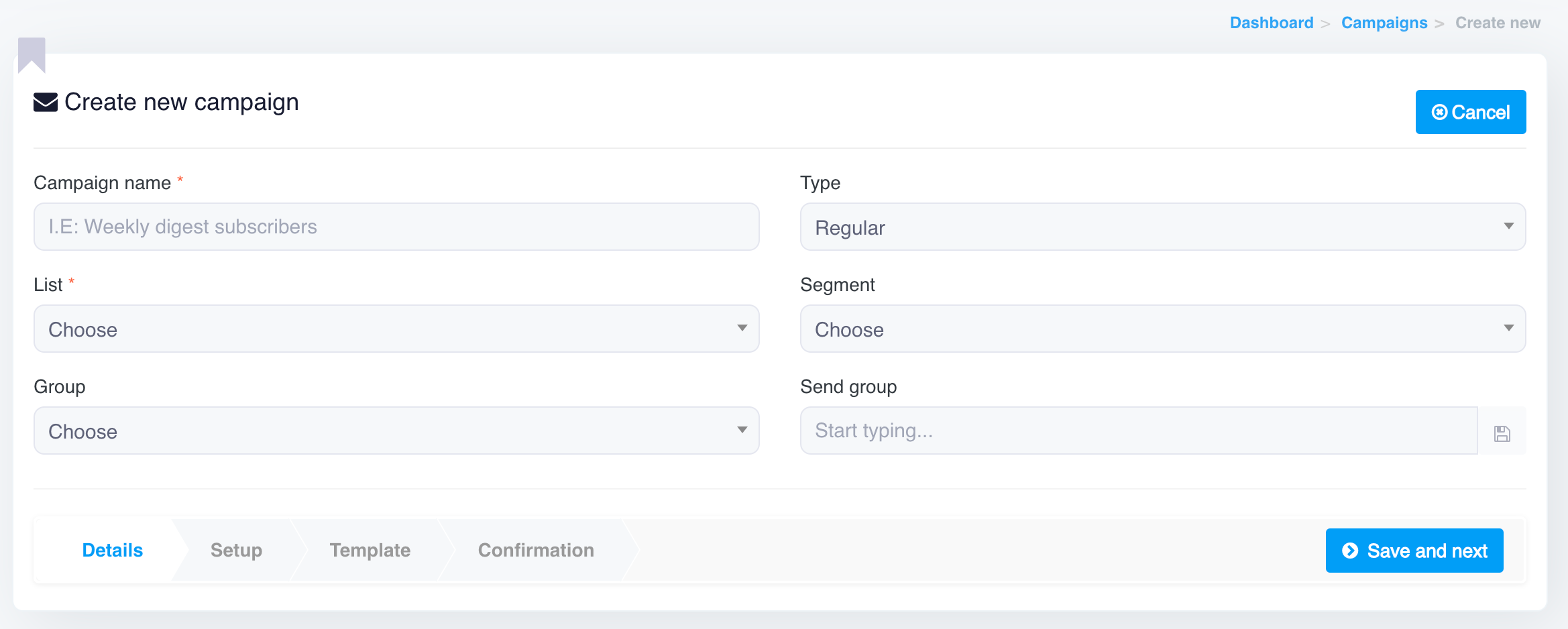
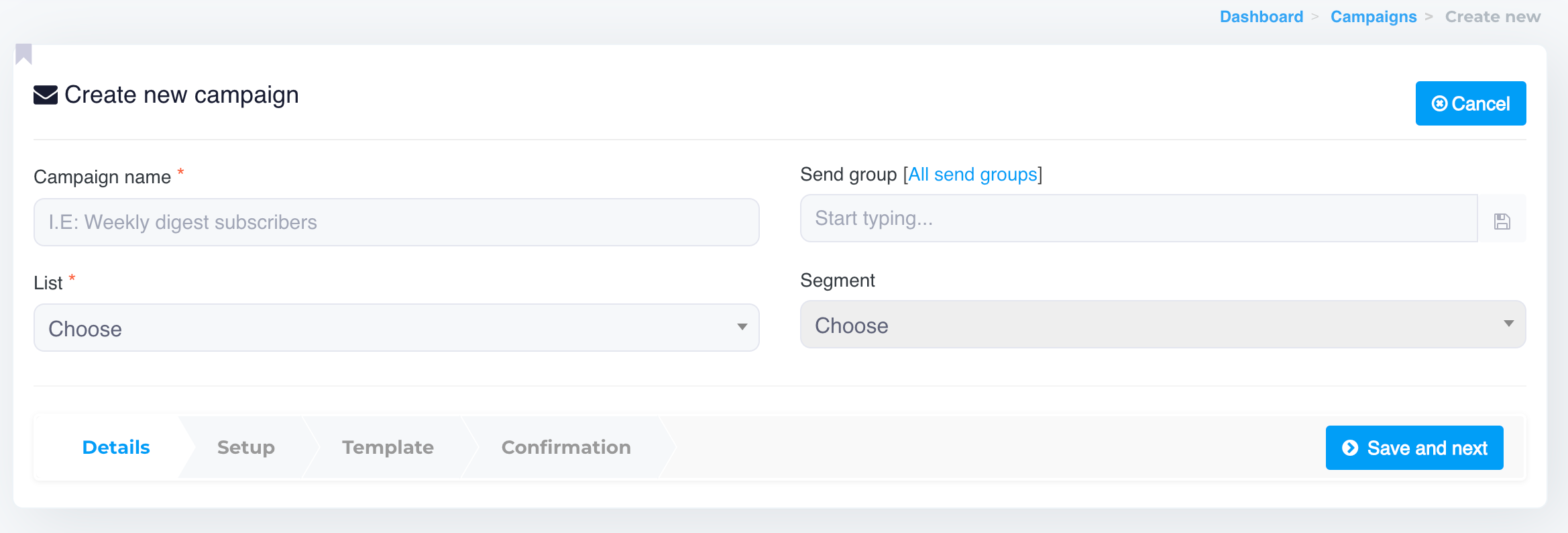
### Step 1: Create a New Campaign

<figure><img src="https://1066064866-files.gitbook.io/~/files/v0/b/gitbook-x-prod.appspot.com/o/spaces%2FOkewfSKAYkGLToZXJWoJ%2Fuploads%2Fm2KgiUMZj0d6No4DhiEC%2Fimage.png?alt=media&amp;token=9bd38730-46a5-45b8-b3d5-7938220c2ff4" alt=""><figcaption></figcaption></figure>

1. **Campaign Name:** (*Required*) Choose a descriptive name for your campaign. Example: *Weekly Digest Subscribers*.
2. **Type:** Select the campaign type. i.e. is **Regular**/**Autoresponder**. Default is **Regular.**
3. **List:** (*Required*) Choose the mailing list to which the campaign will be sent. Lists are crucial for targeting the right audience.
4. **Segment**: (Optional) Select a specific [**segment**](/popular-topics/contacts/segment) within your list to further refine your audience.
5. **Group:** (Optional) Organize the campaign under a specific group for better management.
6. **Send Group**: (Optional) [**Send Groups**](https://docs.senderwiz.com/popular-topics/campaigns/send-groups) help prevent duplicate emails when sending campaigns to multiple lists by ensuring each contact receives the email only once.

Once you've filled in these fields, click **Save and Next** to proceed.

***

### Step 2: Campaign Setup

<figure><img src="https://1066064866-files.gitbook.io/~/files/v0/b/gitbook-x-prod.appspot.com/o/spaces%2FOkewfSKAYkGLToZXJWoJ%2Fuploads%2Fo6l9hGsBNlv7DSmBRGJN%2Fimage.png?alt=media&amp;token=67501e9f-28b3-43cc-aec4-c589738db848" alt=""><figcaption></figcaption></figure>

This section defines the sender details and email subject for the campaign.

1. **From Name**: The sender's name (e.g., company or brand name).
2. **From Email**: Specify the email address that will be used as the sender.
3. **Reply-To Email**: Provide a email address where you want replies to be sent.
4. **To Name:** The recipient’s name or email, customizable using tags.
5. **Subject Line**: Craft an engaging subject line by using dynamic content. You can toggle available tags to personalize your subject with variables like the recipient's name, for example: *"How are you, \[FNAME] \[LNAME]?"*.

#### Campaign Options

<figure><img src="https://1066064866-files.gitbook.io/~/files/v0/b/gitbook-x-prod.appspot.com/o/spaces%2FOkewfSKAYkGLToZXJWoJ%2Fuploads%2FX3WVkVPreuSiPn9mazKC%2Fimage.png?alt=media&amp;token=1503f7a9-0f51-4957-b8a4-e16ceaa5063f" alt=""><figcaption></figcaption></figure>

This section allows users to configure additional settings for the email campaign.

* **Plain Text Email** (*Required*) – Whether to generate the plain text version of the campaign email based on your html email version.
* **Max. Subscribers** – Whether to send only to this number of subscribers instead of sending to the whole list. (0 means to the whole list).
* **Randomize Subscribers** – Enable or disable sending emails in a randomized order.
* **Email Stats Delay Days** – How many days to wait to send second email with campaign stats. First one is sent right after the campaign finishes sending.
* **Email Stats** – Where to send the campaign stats when it finish sending, separate multiple email addresses by a comma. Leave empty to not send the stats.
* **Preheader** – A preheader is the short summary text that follows the subject line when an email is viewed in the inbox. Many mobile, desktop and web email clients provide them to tip you off on what the email contains before you open it.
* **Forward Friend Subject** – The subject line for the email sent when a subscriber will forward this campaign to a friend. Leave empty to use the default: Hey, check out this url, I think you will like it.

These options help fine-tune email delivery, personalization, and reporting.

#### Campaign Tracking Options

<figure><img src="https://1066064866-files.gitbook.io/~/files/v0/b/gitbook-x-prod.appspot.com/o/spaces%2FOkewfSKAYkGLToZXJWoJ%2Fuploads%2FIyx8f0tofSkZXAbNUSDA%2Fimage.png?alt=media&amp;token=f40cc5ff-bf75-41d0-84bf-533733044e78" alt=""><figcaption></figcaption></figure>

This section allows users to enable tracking for email opens and link clicks to measure campaign performance.

* **Open Tracking** (*Required*) – Tracks when a recipient opens an email.
* **URL Tracking** (*Required*) – Tracks when a recipient clicks on a link within the email.
* **Open Tracking from URL Tracking** (*Required*) – Uses link clicks as an additional metric to confirm email opens.
* **Open Tracking - Exclude Crawlers** – Prevents bots and crawlers from triggering false opens.
* **URL Tracking - Exclude Crawlers** – Prevents bots from inflating click metrics.
* **Smart Open Tracking** – Uses advanced detection methods for more accurate open rates.
* **Smart Click Tracking** – Uses enhanced methods to differentiate human clicks from bot activity.

These settings help improve tracking accuracy and provide deeper insights into campaign engagement.

#### **A/B Test**

<figure><img src="https://1066064866-files.gitbook.io/~/files/v0/b/gitbook-x-prod.appspot.com/o/spaces%2FOkewfSKAYkGLToZXJWoJ%2Fuploads%2FZWwDAAfv6ZWAV8m7BQkr%2Fimage.png?alt=media&amp;token=4c8aa243-9a8a-4e8e-8a27-39115b18edfe" alt=""><figcaption></figcaption></figure>

The A/B Testing feature allows users to test different subject lines and determine the best-performing one based on open rates.

* **Enabled** – Toggle A/B testing on or off.
* **Winner Criteria - Opens Count** – Define the minimum number of opens required to determine a winning subject line.
* **Winner Criteria - Operator** – Select **AND/OR** to combine multiple criteria.
* **Winner Criteria - Days Count** – Set the number of days before deciding the winner.
* **Test Subject Lines Button** – Add multiple subject lines to compare performance.

This feature helps improve email engagement by identifying the most effective subject line.

#### **Show More Options" Button – Campaign Setup**

{% hint style="info" %}
To access and configure these following options, simply click **Show more options** button<img src="https://content.gitbook.com/content/OkewfSKAYkGLToZXJWoJ/blobs/TSKo93ZHmTo9dj19wA2G/image.png" alt="" data-size="line"> during the campaign setup process. This expands the available settings and allows for more granular control over how you manage subscriber interactions
{% endhint %}

<figure><img src="https://1066064866-files.gitbook.io/~/files/v0/b/gitbook-x-prod.appspot.com/o/spaces%2FOkewfSKAYkGLToZXJWoJ%2Fuploads%2FcGUkNV5Y6FkJkEKLn04q%2Fimage.png?alt=media&amp;token=d4cc1a75-c1ee-4149-a3e3-fcb4a6485b06" alt=""><figcaption></figcaption></figure>

The **"Show More Options"** button expands additional campaign configuration settings that are not visible by default. Clicking this button allows users to access **advanced options**, such as:

#### Previous opened/unopened campaigns

<figure><img src="https://1066064866-files.gitbook.io/~/files/v0/b/gitbook-x-prod.appspot.com/o/spaces%2FOkewfSKAYkGLToZXJWoJ%2Fuploads%2FyzI2nZN7evBmLZFqjI9j%2Fimage.png?alt=media&amp;token=03133739-da49-4a9a-b144-38c4f9b03742" alt=""><figcaption></figcaption></figure>

{% hint style="info" %}
The **Previous Opened/Unopened Campaigns** section is only visible when you are sending a new campaign to the same list used in any previous campaigns.
{% endhint %}

The **Previous Opened/Unopened Campaigns** feature allows you to take specific actions based on how recipients interacted with previous campaigns. This feature provides the ability to re-engage with contacts based on their previous behavior (whether they opened or didn’t open an earlier campaign).

**Options**:

1. **Action**:
   * **Open**: This option targets contacts who opened a previous campaign. You can choose to send a follow-up or a different message to those who showed interest by opening the previous email.
   * **Unopen**: This option targets contacts who didn’t open the previous campaign. You can use this to re-target or resend the campaign with adjustments to try and get them to engage.
2. **Previous Campaign**:
   * Select the previous campaign you want to reference. This is where the action (open or unopen) will be evaluated, and contacts who match the selected behavior will be targeted.

**Example Usage**:

* If you ran a **promotional campaign** last week, and now you want to follow up with those who didn't open the email, you would select:
  * Action: **Unopen**
  * Previous Campaign: **Promotional Campaign**

By using this feature, you can ensure that your follow-up actions are more personalized and effective, engaging recipients based on their prior interaction with your emails.

#### Custom Actions

<figure><img src="https://content.gitbook.com/content/OkewfSKAYkGLToZXJWoJ/blobs/7o33KNx3Kzwtbc2umevx/image.png" alt=""><figcaption></figcaption></figure>

* **Change Subscriber Custom Field upon Open**: Modify subscriber information when they open your email.
* **Change Subscriber Custom Field upon Send**: Update fields when the campaign is sent.
* **Actions against Subscribers upon Open**: Trigger automated actions, like copy or moving subscribers to another list when they open the email.
* **Actions against Subscribers upon Sent**: Trigger automated actions, like copy or moving subscribers to another list when the campaign is sent.

#### Campaign Delivery Server

<figure><img src="https://content.gitbook.com/content/OkewfSKAYkGLToZXJWoJ/blobs/RurHNzjNxpbdFpxLlLRy/image.png" alt=""><figcaption></figcaption></figure>

Select the **delivery server** that will be used to send the email. Make sure your delivery server is properly configured for the best deliverability.

If a specific delivery server is selected, that server will be used to send emails. You can choose any combination of servers based on your needs.

{% hint style="info" %}
By default, no specific server is selected for a new campaign; if left unselected, all available delivery servers will be used to send the email campaign.\
\
Additionally, when you copy a previous campaign, all settings, including the selected delivery server, are carried over.
{% endhint %}

***

### Step 3: Template

<figure><img src="https://1066064866-files.gitbook.io/~/files/v0/b/gitbook-x-prod.appspot.com/o/spaces%2FOkewfSKAYkGLToZXJWoJ%2Fuploads%2FzbevZtgq9CzvozFmWvdT%2Fimage.png?alt=media&amp;token=972bb0a8-e0e8-4569-adc8-90b64d76aaff" alt=""><figcaption></figcaption></figure>

<figure><img src="https://1066064866-files.gitbook.io/~/files/v0/b/gitbook-x-prod.appspot.com/o/spaces%2FOkewfSKAYkGLToZXJWoJ%2Fuploads%2FTbqb5J7RDJpIFewMisSV%2Fimage.png?alt=media&amp;token=ecde25b0-dd36-4b11-bff1-87d60dd8c639" alt=""><figcaption></figcaption></figure>

#### **Template Name**

You can assign a name to the template for easy reference and reuse in future campaigns. It’s useful to give it a descriptive name based on the campaign's purpose (e.g., *Weekly Newsletter Template*).

#### **Only Plain Text**

Option: Yes/No

* This option allows you to choose whether the template will be plain text only. Plain text emails don’t include any images or HTML formatting.
* If set to **No**, the email will be sent as an HTML email, allowing for rich formatting, images, and other design elements.

#### **Auto Plain Text**

Option: Yes/No

* If this is set to **Yes**, it will automatically generate a plain-text version of your HTML email. This is useful for recipients whose email clients do not support HTML emails, ensuring they still receive a readable version.

#### **Content Editor**

The **Content Editor** is the central workspace where you create and design the body of your email. This area allows you to directly type, paste, or format your email content. You can build your email from scratch or modify pre-existing templates by adding text, images, links, and other elements that align with your campaign's objectives.

Within the content editor, you can also utilize **Available Tags** for dynamic personalization, such as inserting the recipient's first name (\[FNAME]) or other custom fields. This enhances engagement by making each email feel tailored to the individual recipient.

{% hint style="info" %}
Alternatively, you can use the **Change/Select Template** button to switch to a pre-existing template, allowing you to quickly reuse or customize saved designs for your campaign.
{% endhint %}

#### **Buttons and Options**

* **Import HTML from URL**: Import content directly from a web page.
* **Upload Template**: Allows you to upload an HTML template that you have already created. The system only accepts a ZIP file that contains both the HTML file and the associated images for the template.
* **Change/Select Template**: Switch to another pre-made template or a previously saved template.
* **Test Template**: Send a test email to see how it looks before sending it to your whole list.
* **UTM Tags**: Add UTM parameters to track the performance of the links in your email for analytics.
* **Show Plain Text Version**: Display the plain text version of your email.
* **Random Content**: Allows you to insert random content based on your rotation rules.
* **Save Content**: Save your current email design and content for later use.

***

### Step 4: Confirmation

<figure><img src="https://1066064866-files.gitbook.io/~/files/v0/b/gitbook-x-prod.appspot.com/o/spaces%2FOkewfSKAYkGLToZXJWoJ%2Fuploads%2FO10wGLRvRV7dZOqcsoJU%2Fimage.png?alt=media&amp;token=d96356b4-a28c-496d-ac05-cbc160eae8ab" alt=""><figcaption></figcaption></figure>

1. **Send At**: Set the exact date and time for the campaign to be sent.
2. **Advanced Recurring**: If enabled, you can schedule the campaign to recur at regular intervals.
3. **Daily Sending Window**
   * **Start Hour** – Define the daily start time for email delivery.
   * **Interval** – Set time intervals for email batch sending.
4. **Campaign Summary**: Review your campaign settings, including:
   * Campaign name
   * List/Segment
   * From name and email address
   * Reply to address
   * Subject
   * Date added & Last update
   * Recipient count

After reviewing, click **Save Changes and Send** to launch your campaign.

***

### Step 5: Monitoring and Reports

Once your campaign is live, monitor the performance through the analytics section. Track open rates, click-through rates, and bounce statistics to optimize future campaigns.

***

## **Update Email Campaign**

To update a **running campaign**, follow these steps:

### Step 1: Pause the Running Campaign

Before making any updates, the campaign must be paused.

1. **Go to the Campaigns Page**
   * Navigate to **Campaigns** from the dashboard.
2. **Find the Running Campaign**
   * Locate the campaign currently in **Sending** status.
3. **Pause the Campaign**
   * Click the **Pause button** <img src="https://1066064866-files.gitbook.io/~/files/v0/b/gitbook-x-prod.appspot.com/o/spaces%2FOkewfSKAYkGLToZXJWoJ%2Fuploads%2Fra0ToiEnL8Vz2YoDMzMe%2Fimage.png?alt=media&amp;token=8bb57d48-1856-41fb-ae91-b11ee994f204" alt="" data-size="line"> in the **Options** column next to the campaign.
   * Wait for the status to update to **Paused** before proceeding.

### Step 2: Update the Campaign

Once the campaign is paused, you can edit its details.

1. **Open the Campaign**
   * Click on the **Campaign Name** or the **Edit button** <img src="https://1066064866-files.gitbook.io/~/files/v0/b/gitbook-x-prod.appspot.com/o/spaces%2FOkewfSKAYkGLToZXJWoJ%2Fuploads%2F4g7g9fKuemv9EsPMORyp%2Fimage.png?alt=media&amp;token=b2412c62-2849-4f2b-90fc-45e1f2636193" alt="" data-size="line">  in the **Options** column.
2. **Modify Campaign Details**\
   You can now update various campaign settings such as:
   * **Subject Line**
   * **Email Content** (Modify or replace the email template)
   * **From Name, From Email, & Reply-To Email**
   * **Delivery Server**
3. **Save the Changes**
   * Click **Save & Update** to apply the changes.

### Step 3: Resume the Campaign

After updating, you need to restart the campaign.

1. **Go Back to the Campaigns Page**
   * Locate the campaign with the **Paused** status.
2. **Resume/Send the Campaign Again**
   * **Option 1:** On the **Confirmation Page**, click **Send Campaign** to restart sending.
   * **Option 2:** Click the **Unpause sending button** <img src="https://1066064866-files.gitbook.io/~/files/v0/b/gitbook-x-prod.appspot.com/o/spaces%2FOkewfSKAYkGLToZXJWoJ%2Fuploads%2F2Tm2wp0Pnm0n7a3ptz0L%2Fimage.png?alt=media&amp;token=09b088e7-841f-4efc-9ca4-efafed7a41e8" alt="" data-size="line"> in the **Options** column to resume sending instantly.
3. **Monitor the Campaign**
   * Check the **delivery progress and analytics** to ensure the updates are correctly applied.

{% hint style="info" %}
🔹 **You Cannot Change the Contact List or Segment**

* While updating a running campaign, **you cannot modify the assigned contact list or segment**. The campaign will continue sending to the originally selected contacts.

🔹 **Changes Apply Only to Remaining Emails**

* Any updates made (e.g., subject line, email content, sender details) **will only affect the remaining contacts yet to receive the email**. Emails that have already been sent **will not be changed**.
* The campaign will **resume from the exact point where it was paused**, ensuring no duplicate sends.
* While updating a running campaign, **you cannot modify the assigned contact list or segment**. The campaign will continue sending to the originally selected contacts.
  {% endhint %}

By following these steps, you can **pause, update, and resume** a running email campaign without losing progress. 🚀


# Send Groups

Avoid duplicate emails with Send Groups. Manage multiple lists easily and ensure contacts only receive your campaign once, boosting deliverability.

### Introduction

When sending the same campaign to multiple lists, it's common to encounter situations where the same contact is present in more than one list.&#x20;

For instance, if you're running a campaign targeting both **List A** and **List B**, and both lists include the email `john.doe@example.com`, that contact would receive the campaign twice – once for each list. This can lead to duplicate emails being sent to the same person, which could annoy recipients and affect your campaign’s performance.

To prevent this issue, our Email App offers the **Send Group** feature. By assigning your campaign to a Send Group, it ensures that contacts are only sent the email once, even if they appear in multiple lists. This way, no matter how many lists a contact is in, they will receive only one email from the campaign.

#### Example:

Let’s say you have the following lists:

* **List A** (with 1000 contacts)
* **List B** (with 1500 contacts, including some overlaps with List A)

Without using a Send Group, if a contact like **<john.doe@example.com>** is in both **List A** and **List B**, he would receive the same campaign twice, which may appear unprofessional and redundant.

However, by assigning the campaign to a **Send Group**, our Email App automatically identifies contacts that are in both lists and ensures they only receive the email once. **<john.doe@example.com>** will now receive just one email from the campaign, even though he’s on both **List A** and **List B**.

#### How to Use Send Groups to Avoid Duplicate Emails:

1. **Create a Send Group**:\
   Go to **Create Campaigns**, and enter your group name in the **Send Group** field, then save it to create a new group. Be sure to name it something relevant to your campaign, such as "Monthly Newsletter Group."
2. **Assign the Send Group**:\
   When you create a campaign and want to send it to multiple lists, select the **Send Group** you created in the campaign setup process. This ensures that our Email App will remove duplicate contacts across all selected lists.
3. **Send the Campaign**:\
   Now, when the campaign is sent to both **List A** and **List B**, anyone in both lists, like **<john.doe@example.com>**, will only receive one email.

#### Key Benefits of Using Send Groups:

* **Prevent Duplicate Emails**: Ensures that no contact receives the same campaign more than once, even if they’re on multiple lists.
* **Improve User Experience**: Reduces the risk of annoying your recipients with multiple emails for the same campaign.
* **Streamlined Campaign Management**: Helps you organize and manage your email sending effectively, especially when dealing with overlapping contact lists.

***

### Conclusion

Using the **Send Group** feature is essential for maintaining a clean, professional email marketing strategy, especially when sending campaigns to multiple lists. By de-duplicating contacts across lists, you ensure that each recipient gets the email only once, making your campaigns more efficient and less intrusive for your audience.


# Advanced Recurring

Easily schedule recurring email campaigns. Set precise daily, hourly, or weekly frequencies and control the timing and number of repetitions for optimized delivery.

### Introduction

The **Advanced Recurring** feature allows you to set up recurring email campaigns with various timing and frequency options, ensuring flexible control over your campaign scheduling.

<figure><img src="https://content.gitbook.com/content/OkewfSKAYkGLToZXJWoJ/blobs/DlsTmsUcJCbHqMtdDvD5/image.png" alt=""><figcaption></figcaption></figure>

### Options Explained

#### 1. **Advanced Recurring**

* **Enable** this option to allow your campaign to send repeatedly at specified intervals.

#### 2. **Frequency**

* Choose how often your campaign should run. Options include:
  * **Minute**: Send at intervals of a few minutes.
  * **Hour**: Send hourly.
  * **Day**: Daily campaign repetition.
  * **Week**: Weekly campaign schedule.
  * **Month**: Monthly sending.
  * **Year**: Yearly recurrence.

#### 3. **Time Interval**

* After selecting the frequency (e.g., Hour, Day, or Week), choose the exact time you want the campaign to run. For example, you could set it to run **every hour at 10 minutes past the hour** or **every day at 8:00 AM**. This allows you to customize both the frequency and the specific time the campaign will be sent, ensuring precise scheduling for your email campaigns.

#### 4. **Max Runs**

* This controls the maximum number of times the campaign will be sent.
* **Setting -1** allows for unlimited sends, meaning the campaign will repeat indefinitely until manually stopped.

### Example Use Case

<figure><img src="https://content.gitbook.com/content/OkewfSKAYkGLToZXJWoJ/blobs/tfz8X9VLqF1CsRdAOlrF/image.png" alt=""><figcaption></figcaption></figure>

To send a reminder email every day at 8:00 AM for 5 repetitions, set the frequency to "Day," the time interval to "8:00 AM," and the max runs to "5." This configuration will ensure that the email is sent five times, once per day at 8:00 AM.

### Conclusion

The **Advanced Recurring** feature provides powerful automation to handle recurring campaigns at customized intervals. Configure it to match your specific campaign goals.


# Autoresponder

Automate follow-up emails with Autoresponder based on campaign opens or sends. Set triggers for targeted and timely engagement with your audience.

The **Autoresponder** feature automates the sending of follow-up emails based on specific triggers. Unlike regular email campaigns, Autoresponders work based on conditions set during the confirmation phase, allowing for targeted and timely engagement with your subscribers.

<figure><img src="https://1066064866-files.gitbook.io/~/files/v0/b/gitbook-x-prod.appspot.com/o/spaces%2FOkewfSKAYkGLToZXJWoJ%2Fuploads%2FhXDoVrSIoZJtGtjlKqkh%2Fimage.png?alt=media&amp;token=2275baea-21f8-47ee-af55-b3bfd2ce0986" alt=""><figcaption></figcaption></figure>

### How It Works

The process to create an **Autoresponder** is very similar to sending a [regular campaign](/popular-topics/campaigns/email-campaign). However, instead of sending the email immediately or scheduling it for a later time, the Autoresponder sends emails automatically based on the specified conditions.

#### Key Sections and Options in Autoresponder Confirmation

The **Campaign Confirmation** page for Autoresponders has some specific options that control how and when emails are sent:

* **Activate at**: The date and time when the Autoresponder will be activated and begin monitoring for the trigger condition.
* **Daily Sending Window**
  * **Start Hour** – Define the daily start time for email delivery.
  * **Interval** – Set time intervals for email batch sending.
* **Autoresponder Event**:&#x20;

  The Autoresponder Event feature allows you to trigger automated emails based on specific actions or events. The available options for these triggers, as seen in the image, include:

  1. **AFTER-SUBSCRIBE** This event triggers the Autoresponder when a new subscriber joins your email list. It is commonly used for sending welcome emails or onboarding sequences to engage new subscribers right after they sign up.
  2. **AFTER-PROFILE-UPDATE** This event triggers the Autoresponder to send an automated email when a subscriber updates their profile details.
  3. **AFTER-CAMPAIGN-OPEN** This option triggers the Autoresponder once a recipient opens a previous email campaign. It's useful for follow-up emails, such as sending more detailed information or special offers to subscribers who opened the first email, showing interest in the content.
  4. **AFTER-CAMPAIGN-SENT** This event triggers the Autoresponder after a campaign has been sent. It can be used to automate a follow-up email, regardless of whether the recipient opened the initial email or not. It’s a good option for re-engaging recipients or providing more information after the first campaign.&#x20;

  These triggers allow for highly tailored and automated email flows, ensuring that your subscribers receive relevant and timely communications based on their actions or behaviors.
* **Autoresponder Time Value**: The delay before the Autoresponder is triggered. You can set this value to any number, such as "0" for immediate triggering after the event or add a delay.
* **Autoresponder Time Unit**: Defines the unit of time for the delay, such as minutes, hours, or days. In this case, it's set to **Day**, meaning the Autoresponder will trigger 0 days after the event.
* **Send only at/after this time**: Allows you to specify the time window in which the Autoresponder email should be sent. For example, you can choose to send emails only during business hours.
* **Incl. imported subscribers**: This option determines whether imported subscribers should be included in the Autoresponder sequence.
* **Incl. current subscribers**: This option determines whether current subscribers should be included.
* **Send when opening this campaign:** This option allows you to trigger an action when the recipient opens a specific campaign. When **AFTER-CAMPAIGN-OPEN** is selected, the option becomes visible, allowing you to trigger the Autoresponder when the recipient opens the campaign.
* **Send after sending this campaign:** This option triggers the action after the campaign has been sent, regardless of whether the recipient has opened the campaign or not. When **AFTER-CAMPAIGN-SENT** is selected, the option will appears, triggering the Autoresponder after the campaign has been sent, regardless of whether the recipient opens it.

### Usage

Autoresponders are perfect for follow-up emails, onboarding sequences, or any type of triggered email series. For example, if a recipient opens a Black Friday campaign email, an Autoresponder can automatically send them a follow-up email with personalized product recommendations or special offers.

***

This Autoresponder feature streamlines email automation by enabling condition-based triggers, making it easier to send timely and relevant emails to your subscribers.

***


# Email Scheduling

Learn email scheduling. Learn how to plan, automate, and send your campaigns at the right time for maximum engagement and effectiveness.

### Introduction

Email scheduling allows you to automate your email campaigns by setting them to trigger at a specific date and time. This feature ensures timely and targeted email delivery.

<figure><img src="https://1066064866-files.gitbook.io/~/files/v0/b/gitbook-x-prod.appspot.com/o/spaces%2FOkewfSKAYkGLToZXJWoJ%2Fuploads%2FdpZfyRbRFjaEzOgSv29C%2Fimage.png?alt=media&amp;token=e5f773d2-0559-4187-8edf-4a4670688603" alt=""><figcaption></figcaption></figure>

***

### How to Schedule an Email Campaign

#### **Step 1: Campaign Setup**

* Create a new [campaign](/popular-topics/campaigns/email-campaign) or open an existing one.

#### **Step 2: Set Date and Time**

* In the [confirmation stage](/popular-topics/campaigns/email-campaign#step-4-confirmation), under the **Send at** field, choose the desired date and time for the campaign to trigger using the calendar and clock options.
* Avoid manually entering the date and time in the field. Use the provided picker for accuracy.

<div align="left"><figure><img src="https://content.gitbook.com/content/OkewfSKAYkGLToZXJWoJ/blobs/iObcnlbQ72sp5bBNCPl9/image.png" alt="" width="372"><figcaption></figcaption></figure></div>

{% hint style="info" %}
Select the date and time using the calendar only, and avoid manually entering it in the "**Send at**" field. \
\
Before scheduling, ensure your timezone is correctly set in your profile for accurate email delivery timing.
{% endhint %}

#### **Step 3:** Daily Sending Window

* **Daily Sending Window - Start Hour** – Defines when emails start sending each day (e.g., 8:00 AM).
* **Daily Sending Window - Interval** – Sets the duration for sending emails in batches (e.g., 9 hours).
* **Reset Selection** – Clears the current schedule settings.

<figure><img src="https://1066064866-files.gitbook.io/~/files/v0/b/gitbook-x-prod.appspot.com/o/spaces%2FOkewfSKAYkGLToZXJWoJ%2Fuploads%2FZ4xU5skL7e0L3c5smc4B%2Fimage.png?alt=media&amp;token=2bce461e-22f1-4487-9df4-81f844b6d136" alt=""><figcaption></figcaption></figure>

#### **Step 4: Save and Confirm**

* After setting the schedule, save your configuration and confirm the campaign to activate scheduling.

{% hint style="info" %}

#### **Important Notes:**

* Ensure your timezone is correctly set in your profile for accurate email delivery timing.
* Campaigns will pause outside the specified times.
  {% endhint %}

***

### Benefits of Email Scheduling

* **Automation:** Set it once and forget it. **our Email App** handles the rest.
* **Time Optimization:** Schedule emails to align with recipient time zones or peak engagement hours.
* **Flexibility:** Tailor campaigns for specific times to match audience habits.
* **Consistency:** Ensure timely delivery of newsletters, promotions, and announcements.

***

### **Example Scheduling Scenarios**

#### **Scenario 1: Business Hours Campaign**

* **Send at:** November 23, 2024, 1:38 PM
* **Start Time:** 8:00 AM, sending for 9 hours per day
* **Behavior:** Emails will be sent only during business hours and continue the next day until the list is fully processed.
* **Use Case:** Ideal for reaching professionals when they are most active.

***

### **Conclusion**

The **Send at**, **Daily Sending Window - Start Hour & Interval** features provide unmatched flexibility for scheduling your campaigns. By customizing when your emails are sent, you can ensure they reach your audience at the most impactful times, boosting engagement and improving overall campaign success.


# Templates

Discover powerful tools to create, customize, and manage email templates. Enhance engagement with flexible editors, personalization, and template gallery.

<div align="left"><figure><img src="https://content.gitbook.com/content/OkewfSKAYkGLToZXJWoJ/blobs/41WscWhBsZUSVXGhgUaF/image.png" alt=""><figcaption></figcaption></figure></div>

## Template Management

Explore various options for creating, customizing, and managing your email templates to enhance your campaigns’ effectiveness. Below, you’ll find tools and guides to help you make the most of the Template feature.

***

<table data-view="cards"><thead><tr><th></th><th></th><th data-type="content-ref"></th><th data-card-target data-type="content-ref"></th><th data-hidden></th></tr></thead><tbody><tr><td><strong>Email Template</strong></td><td>Discover how to design effective email templates tailored to your brand and audience. Learn best practices for layout, styling, and engagement.</td><td></td><td><a href="/popular-topics/templates/email-template">Email Template</a></td><td></td></tr><tr><td><strong>Classic Editor</strong></td><td>A simple editor for quick template creation, featuring basic text styling and image insertion. Ideal for users comfortable with HTML formatting.</td><td></td><td><a href="/popular-topics/templates/classic-editor">Classic Editor</a></td><td></td></tr><tr><td><strong>Pro Editor</strong></td><td>An advanced editor offering customization options like interactive buttons and dividers for visually appealing templates.</td><td></td><td><a href="/popular-topics/templates/pro-editor">Pro Editor</a></td><td></td></tr><tr><td><strong>Unsubscribe Link</strong></td><td>Learn how to manage unsubscribe links effectively to maintain compliance and improve user experience in your emails.</td><td></td><td><a href="/popular-topics/templates/unsubscribe-link">Unsubscribe Link</a></td><td></td></tr><tr><td><strong>Personalization</strong></td><td>Utilize personalization options to address recipients by name or other custom fields, enhancing engagement and relevance.</td><td></td><td><a href="/popular-topics/templates/personalization">Personalization</a></td><td></td></tr><tr><td><strong>Available Tags</strong></td><td>Discover the range of tags you can use to dynamically insert personalized content, including name, email, and custom fields.</td><td></td><td><a href="/popular-topics/templates/available-tags">Available Tags</a></td><td></td></tr></tbody></table>

***

Template page offers a comprehensive set of tools and guides for creating, customizing, and managing email templates tailored to your audience's needs.&#x20;

With multiple editors, personalization options, and a diverse gallery of ready-made templates, you can effortlessly design visually appealing and engaging emails.&#x20;

By leveraging these features, you’ll streamline your email marketing process, enhance brand consistency, and improve communication effectiveness. Explore each feature to maximize the impact of your email campaigns.


# Email Template

Learn how to create email templates. Follow step-by-step instructions to design professional, branded templates using the Drag & Drop editor options.

### How to Create an Email Template?

Creating well-designed email templates is crucial for any email marketing campaign. Templates save time and ensure that your emails are visually consistent and engaging. You can easily create and customize email templates for various campaigns. This article will guide you through the steps of creating, editing, and optimizing your email templates.

***

### Why Use an Email Template?

Using a pre-designed email template helps maintain brand consistency across campaigns, reduces time spent on formatting each email, and ensures a professional look for your audience. Templates allow you to focus more on content and strategy, rather than design and layout each time you send an email.

<figure><img src="https://content.gitbook.com/content/OkewfSKAYkGLToZXJWoJ/blobs/2wnxS7wVd5NCGXJSJFGg/image.png" alt=""><figcaption></figcaption></figure>

### Steps to Create an Email Template

Follow these steps to create a new email template:

#### 1. Access the Templates Section

* From your **Dashboard**, navigate to the **Templates** section.
* Click on **Create New Template** to begin.

#### 2. Choose a Template Format

Ou Email App offers different options for template creation. Choose the format that best suits your needs:

* **Start from Scratch**: Build your template from the ground up if you want full control over the design.
* **Import HTML**: If you already have an HTML template, you can upload it directly into our Email App.

#### 3. Customize Your Template

Once you select a format, you can start customizing your template. Here’s an overview of options available:

**Adding Content Blocks**

* **Text Blocks**: Add text to communicate your message. Customize font, size, color, and alignment to match your brand.
* **Image Blocks**: Insert images to make your email visually appealing. Ensure that the images are optimized for quick loading.
* **Button Blocks**: Add call-to-action buttons to drive user engagement. Customize button colors, text, and links.
* **Divider Blocks**: Use dividers to organize sections of your email and make it more readable.

**Drag-and-Drop Editor**

Our Email App provides a drag-and-drop editor, making it easy to arrange content blocks. Simply drag elements to your desired position, making it convenient for quick adjustments without any coding.

<figure><img src="https://1066064866-files.gitbook.io/~/files/v0/b/gitbook-x-prod.appspot.com/o/spaces%2FOkewfSKAYkGLToZXJWoJ%2Fuploads%2FMZ2ztmX8GUb4o3xHfa8z%2Fimage.png?alt=media&amp;token=62750896-cb30-4a81-9a15-d36441301a9a" alt=""><figcaption></figcaption></figure>

**Customize Colors and Fonts**

Maintain brand consistency by customizing colors and fonts across your template. Set specific brand colors for text, background, and buttons to ensure a cohesive look in all your emails.

#### 4. Add Personalization Tags

Using [personalization tags](/popular-topics/contacts/custom-fields) allows you to address recipients by their name or other unique details. Our Email App offers standard personalization options, such as `[FNAME]`, `[LNAME]`, `[EMAIL]`, etc. Adding personalization can improve open rates and engagement by making emails feel more relevant to the recipient.

#### 5. Save and Test Your Template

Once you’ve customized your template:

* **Save** your design to prevent losing any changes.
* **Preview** the template to ensure it appears as intended across different devices.
* **Send a Test Email** to check how the template looks in an actual inbox. This helps you spot any design issues and ensures all links work correctly.

#### 6. Use Your Template in Campaigns

After saving your template, it will be available in the **Templates Library**. You can select it for future campaigns directly from the **Campaigns** section. This makes it easy to reuse your design, saving time on setup for every new campaign.

### Choosing the Right Editor for Creating Templates

Our Email App offers multiple editors for designing email templates, giving you flexibility based on your design needs and technical expertise. Here’s an overview of the available editors:

<table data-view="cards"><thead><tr><th></th><th></th><th data-type="content-ref"></th><th data-card-target data-type="content-ref"></th><th data-hidden></th></tr></thead><tbody><tr><td><strong>Classic Editor</strong></td><td>A straightforward editor for quick template creation with basic formatting options.</td><td></td><td><a href="/popular-topics/templates/classic-editor">Classic Editor</a></td><td></td></tr><tr><td><strong>Pro Editor</strong></td><td>An advanced editor with more customization features for visually appealing templates.</td><td></td><td><a href="/popular-topics/templates/pro-editor">Pro Editor</a></td><td></td></tr></tbody></table>

Each editor caters to different design requirements, helping you choose the best tool for your email marketing goals. Whether you prefer a simple approach or need advanced design capabilities, Our Email App's editors provide the right tools to enhance your template creation experience.

### Tips for Creating Effective Email Templates

1. **Keep it Simple**: Avoid cluttered designs. A clean and straightforward layout improves readability.
2. **Use Clear Calls-to-Action**: Place buttons or links prominently to guide recipients toward desired actions.
3. **Test Different Designs**: Experiment with variations in design to see what resonates best with your audience.

***

Creating email templates is straightforward and provides flexibility for designing effective, branded emails. By using templates, you can maintain a consistent look across campaigns, enhance engagement, and streamline the email creation process. Follow these steps and tips to optimize your templates for better performance in your email marketing efforts.


# Classic Editor

Here's a detailed guide, explaining each element in the classic email template editor and steps to add an unsubscribe link.

### **Create Email Template Page Overview**

This page is designed for creating a new email template, which can be saved and reused for future campaigns or customer communications.

<figure><img src="https://1066064866-files.gitbook.io/~/files/v0/b/gitbook-x-prod.appspot.com/o/spaces%2FOkewfSKAYkGLToZXJWoJ%2Fuploads%2FFi96QiKnnp7iapydLh40%2Fimage.png?alt=media&amp;token=2e678266-bfd7-468d-8c33-c936640d05ba" alt=""><figcaption></figcaption></figure>

<figure><img src="https://1066064866-files.gitbook.io/~/files/v0/b/gitbook-x-prod.appspot.com/o/spaces%2FOkewfSKAYkGLToZXJWoJ%2Fuploads%2FlZWIW3usedsMqyqtfCmy%2Fimage.png?alt=media&amp;token=45f405af-81b8-4230-8564-84ec58f87284" alt=""><figcaption></figcaption></figure>

#### **Fields and Options Explained**

* **Name Field**
  * **Purpose**: This is where you name your email template. It's useful for organizing templates and making them easily identifiable later.
  * **Usage**: Enter a clear, descriptive name for your template. For example, "Monthly Newsletter – January" or "Welcome Email for New Subscribers."
* **Category Field**
  * **Purpose**: This allows you to categorize your email templates, which helps in organizing and filtering templates when you have multiple ones saved.
* **Content Editor Section**
  * This is the main area where you compose your email content. It offers a rich text editor with a variety of formatting tools. Let’s go over each option available in this editor.

### **Content Editor Toolbar Explained**

<figure><img src="https://content.gitbook.com/content/OkewfSKAYkGLToZXJWoJ/blobs/DvaaPEf6WkNy6gVkUq1P/image.png" alt=""><figcaption></figcaption></figure>

Here’s an explanation of each toolbar option shown in the image, in order from left to right:

1. **Source**:
   * Allows you to switch to HTML source code view. This is useful if you need to edit or add HTML code directly.
2. **Bold (B)**:
   * Makes the selected text bold, helping to emphasize important information.
3. **Italic (I)**:
   * Italicizes the selected text, often used for emphasis or styling.
4. **Underline (U)**:
   * Underlines the selected text, which can be used for emphasis or to highlight specific terms.
5. **Strikethrough (S)**:
   * Adds a line through the selected text, often used to indicate something that has been removed or changed.
6. **Subscript (x₂)**:
   * Converts selected text to subscript, making it appear slightly below the line. Useful for formulas or footnotes.
7. **Superscript (x²)**:
   * Converts selected text to superscript, making it appear slightly above the line, often used for exponents or mathematical notations.
8. **Ordered List (Numbered)**:
   * Creates a numbered list. Useful for presenting steps or items in a specific sequence.
9. **Unordered List (Bullets)**:
   * Creates a bullet-point list, ideal for listing items without a specific order.
10. **Decrease Indent**:
    * Decreases the indentation of the selected text or list, moving it closer to the left margin.
11. **Increase Indent**:
    * Increases the indentation of the selected text or list, moving it further to the right.
12. **Special Character (Ω)**:
    * Opens a menu to insert special characters, such as symbols or accented letters, that aren’t available on a standard keyboard.
13. **Page Break**:
    * Insert Page break for printing.
14. **Align Left**:
    * Aligns the selected text to the left margin, the default alignment in most content editors.
15. **Center Align**:
    * Centers the selected text horizontally, useful for titles or centered content.
16. **Align Right**:
    * Aligns the selected text to the right margin, useful for aligning specific sections or elements.
17. **Justify**:
    * Aligns text to both the left and right margins, creating a clean, aligned look for paragraphs.
18. **Link**:
    * Allows you to insert a hyperlink. Highlight the text, click this icon, and enter the URL to link the selected text.
19. **Remove Link**:
    * Removes an existing hyperlink from the selected text, converting it back to plain text.
20. **Anchor (Flag Icon)**:
    * Allows you to create an anchor point in the text, which can be linked to other parts of the document for easy navigation.
21. **Insert/Edit Image**:
    * Opens options to insert an image into the content. You can upload an image or link to an external image URL.
22. **Flash**:
    * Allows for the insertion of Flash content, though Flash is generally deprecated and not widely supported.
23. **Table**:
    * Inserts a table into the content. You can specify rows, columns, and configure the table’s appearance and structure.
24. **Horizontal Line**:
    * Inserts a horizontal line (divider) across the content. It’s useful for visually separating sections.
25. **Styles**
    * **Purpose**: This dropdown allows you to apply predefined styles to the text, such as headings, block quotes, or custom styles that may be configured in the editor.
    * **Usage**: Select a style to quickly format text according to the template’s design standards, maintaining consistency across your email content.
26. **Format**
    * **Purpose**: Provides formatting options for the text, such as paragraph styles, heading levels (H1, H2, H3, etc.), and other specialized formats.
    * **Usage**: Choose a format to structure your content, such as using headings for section titles or setting text as a paragraph for regular body text.
27. **Font**
    * **Purpose**: Allows you to select a specific font for the highlighted text.
    * **Usage**: Choose a font that matches your brand’s style or the email’s design. Common fonts like Arial, Times New Roman, and Helvetica may be available depending on the editor’s configuration.
28. **Size**
    * **Purpose**: Enables you to adjust the font size of the selected text.
    * **Usage**: Select a size to make the text larger or smaller. This is particularly useful for headings, subheadings, or emphasizing specific parts of the text.
29. #### **Text Color (A with a color bar)**
    * **Purpose**: Allows you to change the color of the selected text.
    * **Usage**: Choose a color to highlight important text, match branding colors, or make sections stand out in the email.
30. #### **Background Color (A with a background color)**
    * **Purpose**: Changes the background color behind the selected text.
    * **Usage**: Select a color to make certain text pop against the background. This is often used for warnings, highlights, or emphasis within paragraphs.
31. **Help (Question Mark)**
    * **Purpose**: Provides assistance or additional information about the editor.
    * **Usage**: Click on this icon if you need help using the toolbar options or understanding specific features in the editor. This may open a guide, documentation, or FAQ.

### **Adding an Unsubscribe Link in Classic Editor**

To comply with email marketing regulations and give recipients the option to opt out, it's essential to include an unsubscribe link. Here's how to add one in the editor:

* **Step 1**: Click on `[Available tags]` located near the "Content" section title. This typically opens a list of merge tags that can be dynamically replaced with user-specific data during the email sending process.
* **Step 2**: Look for an "Unsubscribe" tag on the top, which may appear as something like `[UNSUBSCRIBE_URL]`.
* **Step 3**: Copy the `[UNSUBSCRIBE_URL]` tag and paste it at the bottom of your email template with a clear call-to-action, such as:

  ```html
  If you would like to stop receiving these emails, please click here to Unsubscribe.
  ```

  To hyperlink the word "unsubscribe" with the `[UNSUBSCRIBE_URL]` tag, follow these steps:

  1. Select the text you want to use as the hyperlink, such as “click here to unsubscribe” or similar.
  2. Click on the link icon at the top of the editor toolbar.
  3. Add the `[UNSUBSCRIBE_URL]` tag as the hyperlink URL.

<figure><img src="https://content.gitbook.com/content/OkewfSKAYkGLToZXJWoJ/blobs/0humKJvX6FaJjz2zqzAY/image.png" alt=""><figcaption></figcaption></figure>

<figure><img src="https://content.gitbook.com/content/OkewfSKAYkGLToZXJWoJ/blobs/pq8eiUIcxzZ9jBPcwuBh/image.png" alt=""><figcaption></figcaption></figure>

***

This should give you a comprehensive understanding of each tool in the classic editor and how to create a well-structured, compliant email template. Let me know if you need further assistance with any specific feature.


# Pro Editor

Design professional email templates effortlessly with our Pro Editor. Enjoy pre-built layouts, advanced text styling, image insertion, and CTA buttons to create engaging emails.

### **Creating an Email Template**

The Pro Editor provides a streamlined interface for creating visually appealing email templates with various layout and content customization options. The editor has two main sections:

<figure><img src="https://1066064866-files.gitbook.io/~/files/v0/b/gitbook-x-prod.appspot.com/o/spaces%2FOkewfSKAYkGLToZXJWoJ%2Fuploads%2F220LIOlKpaF9zp7JdqUd%2Fimage.png?alt=media&amp;token=35339c7e-10f4-4839-a99f-baaaf332e2b1" alt=""><figcaption></figcaption></figure>

* **Content Creation Area** (on the left): Where you design the email by adding and editing content.
* **Template/Layout Options** (on the right): A selection of pre-designed content blocks that you can drag and drop into your template.

***

### **Toolbar on the Left Side of Content Area**

This vertical toolbar includes essential text formatting and layout customization tools, allowing you to style your content precisely as needed.

<figure><img src="https://content.gitbook.com/content/OkewfSKAYkGLToZXJWoJ/blobs/xDdIABEayBBAoAMKvkVB/image.png" alt=""><figcaption></figcaption></figure>

1. **B (Bold)**: Makes the selected text bold for emphasis.
2. **I (Italic)**: Italicizes the selected text, often used for highlighting specific words or phrases.
3. **A (Formating)**:
   * **U (Underline)**: Underlines the selected text, adding emphasis and drawing attention to it.
   * **S (Strikethrough)**: Applies a line through the selected text, often used to indicate something that is removed or changed.
   * **x² (Superscript)**: Converts the selected text to superscript, placing it slightly above the regular text line. This is commonly used for exponents or mathematical notations.
   * **x₂ (Subscript)**: Converts the selected text to subscript, positioning it slightly below the regular text line. Useful for formulas or footnotes.
   * **Aa (Text Case)**: Provides options to change the text case, such as converting it to all uppercase, all lowercase, or capitalizing the first letter of each word.
4. **Font Size**: Adjust the font size, line spacing, and line height.
5. **O ( Color)**: Please adjust the text, block, or content color, and overall email background colors.
6. **a (Font Family)**: Change the font family of the selected text.
7. **H (Heading)**: Allows you to choose different heading levels (H1, H2, H3, etc.) for structuring your content.
8. **Alignment Options**: Align Left, Center Align, Align Right, and Justify adjust text positioning to the left, center, right, or both margins for balanced formatting.
9. **Ordered List**: Creates a numbered list. Useful for outlining steps or presenting information sequentially..
10. **Link**: Allows you to add a hyperlink to the selected text. Useful for linking to web pages, product pages, or additional resources.
11. **Unlink**: Removes an existing hyperlink from the selected text, returning it to plain text.
12. **Remove Formating**: This option clears all applied formatting from the selected text, returning it to the default style.
13. **Code View (HTML)**: Switches to HTML view, allowing you to edit the source code of the email. This is useful for advanced users who need precise control over the HTML structure.

***

### **Template/Layout Options on the Right Side**

This section offers a variety of pre-designed content blocks to quickly build visually appealing emails. These blocks include text-only layouts, image layouts, and combination layouts with both text and images.

<figure><img src="https://content.gitbook.com/content/OkewfSKAYkGLToZXJWoJ/blobs/0cIIJ8encorO0lbWgIX5/image.png" alt=""><figcaption></figcaption></figure>

* **Default Layouts**:
  * Basic blocks that combine text and images, suitable for simple newsletters or announcements.
* **Image Blocks**:
  * Blocks specifically for showcasing images. You can drag an image block to the content area and replace the placeholder with your own images. Great for product showcases or visual content.
* **Feature Layouts**:
  * Pre-made sections designed to highlight features, services, or products in a structured format. Includes text headings with supporting visuals or icons, commonly used for marketing emails.
* **Call to Action (CTA)**:
  * These blocks include CTA buttons, designed to draw attention to specific actions you want the reader to take (e.g., "Shop Now," "Learn More").
* **Multi-Column Layouts**:
  * Allows you to add sections with multiple columns, useful for presenting multiple products or services side-by-side.

#### **How to Use**:

* **Drag and Drop**: Select a layout block from the right panel and drag it into the content area. Once added, you can customize each block with your text, images, or links.

***

### **Content Editing Area**

Once a block is added to the content area, you can click on it to modify its contents. The editor allows for in-line text editing, image replacement, and styling adjustments.

* **In-line Editing**: Click on text within a block to directly edit it.
* **Image Replacement**: Click on an image placeholder to upload or link your image.
* **Customization Options**: Customize colors, fonts, and spacing for each element to match your brand or the email’s design theme.

***

### **Bottom Toolbar - HTML Button**

The **HTML** button at the bottom of the editor switches the view to HTML source code. This option is useful for advanced users who need to edit the email's HTML directly, enabling precise control over design and functionality.

<figure><img src="https://content.gitbook.com/content/OkewfSKAYkGLToZXJWoJ/blobs/HXrk0GGAXPgN46cKxwkp/image.png" alt=""><figcaption></figcaption></figure>

### **Adding an Unsubscribe Link in Pro Editor** <a href="#adding-an-unsubscribe-link" id="adding-an-unsubscribe-link"></a>

To comply with email marketing regulations and give recipients the option to opt out, it's essential to include an unsubscribe link. Here's how to add one in the editor:

* **Step 1**: Click on `[Available tags]` located near the "Content" section title. This typically opens a list of merge tags that can be dynamically replaced with user-specific data during the email sending process.

<figure><img src="https://content.gitbook.com/content/OkewfSKAYkGLToZXJWoJ/blobs/i9iCnjwa8SArRBr5GK5M/image.png" alt=""><figcaption></figcaption></figure>

* **Step 2**: Look for an "Unsubscribe" tag on the top, which may appear as something like `[UNSUBSCRIBE_URL]`.
* **Step 3**: Copy the `[UNSUBSCRIBE_URL]` tag and paste it at the bottom of your email template with a clear call-to-action, such as:

  ```
  If you would like to stop receiving these emails, please click here to Unsubscribe.
  ```

To hyperlink the word "unsubscribe" with the `[UNSUBSCRIBE_URL]` tag, follow these steps:

1. Select the text you want to use as the hyperlink, such as “click here to unsubscribe” or similar.
2. Click on the link icon at the top of the editor toolbar.
3. Add the `[UNSUBSCRIBE_URL]` tag as the hyperlink URL.

<figure><img src="https://content.gitbook.com/content/OkewfSKAYkGLToZXJWoJ/blobs/Yh2avtQcgeuYmQdWiCxg/image.png" alt=""><figcaption></figcaption></figure>

<figure><img src="https://content.gitbook.com/content/OkewfSKAYkGLToZXJWoJ/blobs/yL2O65MziI4lV1cAoYHt/image.png" alt=""><figcaption></figcaption></figure>

***

Creating effective email templates is essential for successful email marketing. With our **Pro Editor**, you have access to powerful tools that allow you to design visually appealing and personalized emails.&#x20;

From text formatting to image insertion and content rotation, each feature is designed to enhance user engagement and deliverability. Start leveraging these tools to improve your email campaigns today and make a lasting impression with every message.


# Unsubscribe Link

Learn how to add an unsubscribe link in Classic, and Pro editors. Ensure compliance and give recipients control over email subscriptions with this simple guide.

### How to Add an Unsubscribe Link?

Ensuring that your emails include an unsubscribe link is essential for maintaining compliance with email regulations and respecting your recipients' preferences. Here’s a step-by-step guide on adding unsubscribe links in our popular email editors: **Classic Editor**, **&** **Pro Editor**.&#x20;

Follow the instructions below to make unsubscribing a seamless option for your audience.

***

To comply with email marketing regulations and give recipients the option to opt out, it's essential to include an unsubscribe link. Here's how to add one in the editor:

Copy the `[UNSUBSCRIBE_URL]` tag and paste it at the bottom of your email template with a clear call-to-action, such as:

```
If you would like to stop receiving these emails, please click here to Unsubscribe.
```

To hyperlink the word "unsubscribe" with the `[UNSUBSCRIBE_URL]` tag, follow these steps:

1. Select the text you want to use as the hyperlink, such as “click here to unsubscribe” or similar.
2. Click on the link icon at the top of the editor toolbar.
3. Add the `[UNSUBSCRIBE_URL]` tag as the hyperlink URL.

***

### **1. Adding an Unsubscribe Link in the Classic Editor**

The **Classic Editor** provides a straightforward method for inserting an unsubscribe link into your emails. This is ideal for basic email designs.

To comply with email marketing regulations and give recipients the option to opt out, it's essential to include an unsubscribe link. Here's how to add one in the editor:

* **Step 1**: Click on `[Available tags]` located near the "Content" section title. This typically opens a list of merge tags that can be dynamically replaced with user-specific data during the email sending process.
* **Step 2**: Look for an "Unsubscribe" tag on the top, which may appear as something like `[UNSUBSCRIBE_URL]`.
* **Step 3**: Copy the `[UNSUBSCRIBE_URL]` tag and paste it at the bottom of your email template with a clear call-to-action, such as:

  ```html
  If you would like to stop receiving these emails, please click here to Unsubscribe.
  ```

  To hyperlink the word "unsubscribe" with the `[UNSUBSCRIBE_URL]` tag, follow these steps:

  1. Select the text you want to use as the hyperlink, such as “click here to unsubscribe” or similar.
  2. Click on the link icon at the top of the editor toolbar.
  3. Add the `[UNSUBSCRIBE_URL]` tag as the hyperlink URL.

<figure><img src="https://content.gitbook.com/content/OkewfSKAYkGLToZXJWoJ/blobs/0humKJvX6FaJjz2zqzAY/image.png" alt=""><figcaption></figcaption></figure>

<figure><img src="https://content.gitbook.com/content/OkewfSKAYkGLToZXJWoJ/blobs/pq8eiUIcxzZ9jBPcwuBh/image.png" alt=""><figcaption></figcaption></figure>

***

### **2. Adding an Unsubscribe Link in the Pro Editor**

The **Pro Editor** offers more advanced customization options, giving you greater flexibility in design and placement of the unsubscribe link.

To comply with email marketing regulations and give recipients the option to opt out, it's essential to include an unsubscribe link. Here's how to add one in the editor:

* **Step 1**: Click on `[Available tags]` located near the "Content" section title. This typically opens a list of merge tags that can be dynamically replaced with user-specific data during the email sending process.

<figure><img src="https://content.gitbook.com/content/OkewfSKAYkGLToZXJWoJ/blobs/i9iCnjwa8SArRBr5GK5M/image.png" alt=""><figcaption></figcaption></figure>

* **Step 2**: Look for an "Unsubscribe" tag on the top, which may appear as something like `[UNSUBSCRIBE_URL]`.
* **Step 3**: Copy the `[UNSUBSCRIBE_URL]` tag and paste it at the bottom of your email template with a clear call-to-action, such as:

  ```
  If you would like to stop receiving these emails, please click here to Unsubscribe.
  ```

To hyperlink the word "unsubscribe" with the `[UNSUBSCRIBE_URL]` tag, follow these steps:

1. Select the text you want to use as the hyperlink, such as “click here to unsubscribe” or similar.
2. Click on the link icon at the top of the editor toolbar.
3. Add the `[UNSUBSCRIBE_URL]` tag as the hyperlink URL.

<figure><img src="https://content.gitbook.com/content/OkewfSKAYkGLToZXJWoJ/blobs/Yh2avtQcgeuYmQdWiCxg/image.png" alt=""><figcaption></figcaption></figure>

<figure><img src="https://content.gitbook.com/content/OkewfSKAYkGLToZXJWoJ/blobs/yL2O65MziI4lV1cAoYHt/image.png" alt=""><figcaption></figcaption></figure>

***

### Best Practices for Adding an Unsubscribe Link

* **Placement**: Place the unsubscribe link in the footer to maintain a clean email layout.
* **Visibility**: Ensure the unsubscribe text is easy to find but not overly prominent. This maintains professionalism while providing recipients with control.
* **Compliance**: Always include an unsubscribe link to adhere to email marketing regulations like CAN-SPAM and GDPR.

***

Including an unsubscribe link in your email templates is essential for both compliance and customer satisfaction. By adding a visible, easy-to-use unsubscribe option in editors like Classic, and Pro, you empower recipients to manage their preferences and reduce the risk of spam complaints. Following these steps ensures your email campaigns are professional, respectful, and compliant with industry standards.


# Personalization

Boost email engagement with personalization tags. Learn to use dynamic tags for tailored messages that improve open rates and boost engagement.

**Enhancing Email Campaigns Through Personalization with Tags**

In today’s competitive digital landscape, personalization is no longer optional—it’s essential. One of the most effective ways to personalize email campaigns is by using tags. Tags allow you to dynamically insert details specific to each recipient, such as their name, company, location, or recent purchases, into the content.&#x20;

This creates a more engaging, relevant experience that can significantly improve open and click-through rates, fostering stronger connections with your audience.

### 1. **What Are Tags in Email Personalization?**

Tags are placeholders within your email content that dynamically replace generic text with personalized information specific to each recipient. For instance, if you have a contact named Sarah, you can use a tag like `[FNAME]` in your email, and it will automatically be replaced with "Sarah" when she receives the message.

Most email marketing platforms, including MailChimp, SendGrid, and our Email App, provide various tags to personalize elements like the recipient’s name, location, and company etc. Tags enable you to make your emails feel tailored without manually customizing each message.

### **2. Types of Available Tags for Personalization**

In your email campaigns, [various tags](/popular-topics/templates/available-tags) can be used for different types of personalization:

<figure><img src="https://1066064866-files.gitbook.io/~/files/v0/b/gitbook-x-prod.appspot.com/o/spaces%2FOkewfSKAYkGLToZXJWoJ%2Fuploads%2F0AoPTE3Ll2KY1PSIYS3w%2Fimage.png?alt=media&amp;token=a4a08311-e7d6-41a8-80a9-e28d58d2aaf9" alt=""><figcaption></figcaption></figure>

<figure><img src="https://1066064866-files.gitbook.io/~/files/v0/b/gitbook-x-prod.appspot.com/o/spaces%2FOkewfSKAYkGLToZXJWoJ%2Fuploads%2Fdoo6CzYFWuYfgevnOgAH%2Fimage.png?alt=media&amp;token=b06bbb81-cbff-411a-95a8-cdce7c6929e8" alt=""><figcaption></figcaption></figure>

* **Link Tags**: Tags like `[UNSUBSCRIBE_URL]`, `[UPDATE_PROFILE_URL]`, `[WEB_VERSION_URL]`, and `[SUBSCRIBE_URL]` allow you to insert dynamic links for user actions. These links enhance user experience by making it easy to manage preferences or view the email online.
* **Date and Time Tags**: Use `[CURRENT_YEAR]`, `[CURRENT_MONTH]`, `[CURRENT_DAY]`, and `[CURRENT_DATE]` to add date-specific information. This can be helpful for creating a sense of urgency or relevance based on the current date.
* **Subscriber Information Tags**: Tags such as `[SUBSCRIBER_EMAIL_NAME]`, `[SUBSCRIBER_EMAIL_DOMAIN]`, `[FNAME]`, and `[LNAME]` allow for personalized greetings and email-specific content.
* **Random Content Tags**: `[RANDOM_CONTENT:abc]` can help you add randomized elements, making each email unique and adding variety for recipients.

Using these tags thoughtfully in subject lines, greetings, and CTAs can significantly boost engagement and create a more tailored experience for each recipient.

{% hint style="info" %}
The tags `[FNAME]` and `[LNAME]` are custom list-based tags. Before using them, please verify the [custom tags](/popular-topics/contacts/custom-fields) available in your list for this campaign.
{% endhint %}

### 3. **Commonly Used Tags for Personalization**

Here are some common tags used in email marketing and how they add value to your content:

* **Name Tags:** `[FNAME]`, `[LNAME]` or \[`NAME]` to address the recipient personally.
* **Location Tags:** \[`CITY]`, \[`STATE]`, or \[`COUNTRY]` to mention their location.
* **Company Tags:** `[COMPANY_NAME]` for B2B communication to address the recipient’s organization.
* **Anniversary/Birthday Tags:** `[BIRTHDAY]`, `[ANNIVERSARY]` to celebrate personal milestones.
* **Custom Tags:** Depending on your audience, you might also create tags like `[INTEREST_CATEGORY]` OR `[LAST_VISITED_PRODUCT_PAGE]` for added relevance.

These tags help create a more natural and engaging flow in your email content, enhancing its impact.

### **4. Where Can You Use Personalization Tags?**

Personalization tags can be strategically placed throughout various parts of your email to maximize impact:

* **Subject Lines**: Grabbing attention right away by addressing recipients by name or referencing something specific to them.
* **Email Body**: Use tags in greetings (e.g., “Hi \[FNAME]”) and within the main content to tailor offers, recommendations, or relevant messages.
* **Call-to-Action (CTA)**: Make CTAs feel more personal, such as “View Your Recommendations” instead of a generic “View More.”
* **Sign-Offs**: Add a friendly touch to sign-offs, e.g., “Best regards from your \[CITY] team.”

By thoughtfully incorporating tags in these areas, you create a more engaging, customized experience for your readers.

### 5. **Benefits of Using Personalization Tags**

Personalization tags offer several benefits:

* **Improved Open Rates:** Emails that address recipients by name in the subject line or preview text are more likely to be opened.
* **Enhanced Engagement:** Personalized content shows the reader that you’ve paid attention to their preferences, boosting click-through rates.
* **Increased Conversions:** Personalized offers, based on user behavior or location, are more effective in encouraging purchases.
* **Better Customer Loyalty:** When customers feel valued and recognized, they’re more likely to remain loyal to your brand.

### 6. **Examples of Effective Personalization Using Tags**

Here are some examples of how you can effectively use tags in your email campaigns:

* **Welcome Emails:** “Hi \[FNAME], welcome to \[YOUR\_BRAND]!”
* **Product Recommendations:** “Based on your last purchase of \[LAST\_PURCHASED\_ITEM], we thought you might like these.”
* **Location-Based Offers:** “Special discounts just for you in \[CITY]!”
* **Abandoned Cart Reminders:** “Hi \[FNAME], you left \[PRODUCT\_NAME] in your cart. Ready to check out?”

These small adjustments can make a substantial difference in how your email resonates with the recipient.

### 7. **Best Practices for Using Tags in Email Personalization**

To get the most out of tags, consider these best practices:

* **Don’t Overuse Tags:** While personalization is beneficial, too many tags can make your message feel forced or overly complicated. Use tags where they make the message feel natural.
* **Ensure Data Accuracy:** Incorrect information can damage trust. Ensure your customer data is up-to-date and error-free before using tags.
* **Keep It Relevant:** Personalize based on what you know will resonate with your audience. For instance, mention a recent purchase rather than their general browsing history.
* **Test and Optimize:** Conduct A/B testing to see which personalization elements lead to the highest engagement. Optimize your approach based on these insights.

### 8. **Conclusion**

Personalization through tags is a powerful tool to make your emails more engaging and relevant. By addressing your recipients by name, acknowledging their interests, and tailoring your offers, you can significantly improve your campaign performance.&#x20;

As with all marketing strategies, remember that quality over quantity matters; a few well-placed tags can do wonders for your brand’s email reputation and audience connection.

Using personalization tags effectively turns standard emails into engaging, relevant communications that foster trust and loyalty—one tag at a time.


# Available Tags

Learn how to boost email engagement using personalization tags. Discover dynamic ways to customize emails for improved open rates and stronger connections.

### **Available Tags Overview**

These tags enable you to personalize various aspects of your email, creating a tailored experience for each recipient. By strategically using these tags in subject lines, greetings, and calls-to-action, you can enhance engagement and build stronger connections with your audience.

<figure><img src="https://1066064866-files.gitbook.io/~/files/v0/b/gitbook-x-prod.appspot.com/o/spaces%2FOkewfSKAYkGLToZXJWoJ%2Fuploads%2F0AoPTE3Ll2KY1PSIYS3w%2Fimage.png?alt=media&amp;token=a4a08311-e7d6-41a8-80a9-e28d58d2aaf9" alt=""><figcaption></figcaption></figure>

<figure><img src="https://1066064866-files.gitbook.io/~/files/v0/b/gitbook-x-prod.appspot.com/o/spaces%2FOkewfSKAYkGLToZXJWoJ%2Fuploads%2Fdoo6CzYFWuYfgevnOgAH%2Fimage.png?alt=media&amp;token=b06bbb81-cbff-411a-95a8-cdce7c6929e8" alt=""><figcaption></figcaption></figure>

#### **1. Company Information Tags**

These tags pull details about the sender's company, which can be included in the footer or anywhere in the email.

* **\[COMPANY\_FULL\_ADDRESS]** – Full address of the company.
* **\[COMPANY\_NAME]** – Name of the company.
* **\[COMPANY\_WEBSITE]** – The website URL of the company.
* **\[COMPANY\_ADDRESS\_1] / \[COMPANY\_ADDRESS\_2]** – Address lines of the company.
* **\[COMPANY\_CITY]** – City where the company is located.
* **\[COMPANY\_ZONE] / \[COMPANY\_ZONE\_CODE]** – State/region name and code.
* **\[COMPANY\_ZIP]** – Zip code of the company.
* **\[COMPANY\_COUNTRY] / \[COMPANY\_COUNTRY\_CODE]** – Country name and country code.
* **\[COMPANY\_PHONE]** – Phone number of the company.

#### **2. Campaign-Specific Tags**

These tags retrieve details related to the email campaign being sent.

* **\[CAMPAIGN\_NAME]** – Name of the campaign.
* **\[CAMPAIGN\_TYPE]** – Type of campaign (e.g., promotional, transactional).
* **\[CAMPAIGN\_SUBJECT]** – Subject line of the email campaign.
* **\[CAMPAIGN\_TO\_NAME]** – Recipient's name used in the campaign.
* **\[CAMPAIGN\_FROM\_NAME]** – Sender's name.
* **\[CAMPAIGN\_FROM\_EMAIL]** – Sender's email address.
* **\[CAMPAIGN\_REPLY\_TO]** – Reply-to email address.
* **\[CAMPAIGN\_UID]** – Unique identifier for the campaign.
* **\[CAMPAIGN\_SEND\_AT]** – Scheduled send date and time.
* **\[CAMPAIGN\_STARTED\_AT]** – Actual start time of the campaign.
* **\[CAMPAIGN\_DATE\_ADDED]** – Date when the campaign was created.
* **\[CAMPAIGN\_SEGMENT\_NAME]** – Name of the segment used for the campaign.
* **\[CAMPAIGN\_VCARD\_URL]** – Link to download the campaign sender’s vCard.
* **\[CAMPAIGN\_TEMPLATE\_NAME]** – Name of the email template used.
* **\[CAMPAIGN\_URL]** – URL of the web version of the campaign.
* **\[CAMPAIGN\_REPORT\_ABUSE\_URL]** – A link for recipients to report abuse.

#### **3. List-Specific Tags**

These tags reference the contact list associated with the campaign.

* **\[LIST\_UID]** – Unique identifier for the contact list.
* **\[LIST\_NAME]** – Name of the contact list.
* **\[LIST\_SUBJECT]** – Subject line associated with the list.
* **\[LIST\_DESCRIPTION]** – Description of the list.
* **\[LIST\_FROM\_NAME]** – Default sender name for the list.
* **\[LIST\_FROM\_EMAIL]** – Default sender email for the list.

#### **4. Subscriber-Specific Tags**

These tags dynamically insert details about the email recipient.

* **\[SUBSCRIBER\_UID]** – Unique identifier of the subscriber.
* **\[SUBSCRIBER\_EMAIL\_NAME]** – The part of the email before '@' (e.g., "john" from <john@example.com>).
* **\[SUBSCRIBER\_EMAIL\_DOMAIN]** – The domain part of the email (e.g., "example.com").
* **\[SUBSCRIBER\_IP]** – The IP address used by the subscriber.
* **\[SUBSCRIBER\_DATE\_ADDED]** – Date when the subscriber was added to the list.
* **\[SUBSCRIBER\_DATE\_ADDED\_LOCALIZED]** – Localized date format.
* **\[SUBSCRIBER\_OPTIN\_IP]** – IP address from which the subscriber opted in.
* **\[SUBSCRIBER\_OPTIN\_DATE]** – Date when the subscriber opted in.
* **\[SUBSCRIBER\_CONFIRM\_IP]** – IP from which the subscriber confirmed their subscription.
* **\[SUBSCRIBER\_CONFIRM\_DATE]** – Date when the subscriber confirmed.
* **\[SUBSCRIBER\_LAST\_SENT\_DATE]** – The last date an email was sent to this subscriber.
* **\[SUBSCRIBER\_LAST\_SENT\_DATE\_LOCALIZED]** – Localized format of the last sent date.

#### **5. Date & Time Tags**

These tags dynamically insert the current date, time, or parts of the date.

* **\[CURRENT\_YEAR]** – Current year (e.g., 2025).
* **\[CURRENT\_MONTH]** – Current month in number format (e.g., 03).
* **\[CURRENT\_DAY]** – Current day of the month (e.g., 04).
* **\[CURRENT\_DATE]** – Full current date (e.g., 2025-03-04).
* **\[CURRENT\_MONTH\_FULL\_NAME]** – Full name of the current month (e.g., March).
* **\[DATE]** – Current date.
* **\[DATETIME]** – Current date and time.

#### **6. Email Personalization Tags**

These allow inserting recipient-specific details dynamically.

* **\[EMAIL]** – The subscriber's email address.
* **\[FNAME]** – First name of the subscriber (if available).
* **\[LNAME]** – Last name of the subscriber (if available).

#### **7. Unsubscribe & Subscription Tags**

These tags provide subscription and unsubscription links.

* **\[SUBSCRIBE\_URL] / \[SUBSCRIBE\_LINK]** – Link for the recipient to subscribe.
* **\[UNSUBSCRIBE\_URL] / \[UNSUBSCRIBE\_LINK]** – General unsubscribe link.
* **\[DIRECT\_UNSUBSCRIBE\_URL] / \[DIRECT\_UNSUBSCRIBE\_LINK]** – Direct unsubscribe link (no confirmation required).
* **\[UNSUBSCRIBE\_FROM\_CUSTOMER\_URL] / \[UNSUBSCRIBE\_FROM\_CUSTOMER\_LINK]** – Unsubscribe link specific to the customer.

#### **8. Miscellaneous Tags**

* **\[UPDATE\_PROFILE\_URL]** – Link for the subscriber to update their profile.
* **\[WEB\_VERSION\_URL]** – Link to view the email in a web browser.
* **\[FORWARD\_FRIEND\_URL]** – Link to forward the email to a friend.
* **\[CURRENT\_DOMAIN\_URL] / \[CURRENT\_DOMAIN]** – Current sending domain.
* **\[SIGN\_LT] / \[SIGN\_LTE] / \[SIGN\_GT] / \[SIGN\_GTE]** – Comparison signs for conditional logic.
* **\[DS\_NAME] / \[DS\_HOST] / \[DS\_TYPE] / \[DS\_ID]** – Delivery server details.
* **\[DS\_FROM\_NAME] / \[DS\_FROM\_EMAIL] / \[DS\_REPLYTO\_EMAIL]** – Sender details from the delivery server.

#### **9. Dynamic Content Tags**

* **\[RANDOM\_CONTENT:a|b|c]** – Randomly inserts one of the specified options (e.g., "a", "b", or "c").
* **\[REMOTE\_CONTENT url='<https://www.google.com/>']** – Inserts content from a remote URL.
* **\[COUNTDOWN until='2025-03-04 18:26:18' size='large' text-color='db9842' background-color='ffffff' show-circle='yes' circle-background-color='ffcccc' circle-foreground-color='ff0000' max-frames=60 show-text-label='yes']** – Displays a countdown timer until a specific date and time.

### **How These Tags Work**

* When an email campaign is sent, the system automatically replaces these tags with the actual values corresponding to the subscriber, campaign, company, or list.
* They help **personalize emails**, making them feel more relevant to the recipient.
* Certain tags, such as **unsubscribe links**, are often mandatory in email marketing platforms to comply with regulations.

{% hint style="info" %}
The tags `[FNAME]` and `[LNAME]` are custom list-based tags. Before using them, please verify the [custom tags](/popular-topics/contacts/custom-fields) available in your list for this campaign.
{% endhint %}

***

Incorporating personalization tags into your email campaigns is a powerful way to engage recipients and make your messages stand out.&#x20;

By using tags like `[FNAME]`, `[LNAME]`, and others strategically throughout your emails, you can create a customized experience that resonates with your audience. Whether you’re personalizing subject lines, greetings, or footers, each tag contributes to a more relatable and professional communication.&#x20;

Remember to double-check your custom tags for accuracy and relevance in each campaign, especially when using features like Name Rotation.&#x20;

Thoughtful personalization can significantly boost open rates, click-throughs, and overall engagement, helping you build stronger connections with your audience and achieve better results from your email marketing efforts.


# Reposts

Get detailed email campaign insights with Reports. Track opens, clicks, bounces, and unsubscribes to optimize performance and improve engagement.

### Reports

The **Reports** section provides a comprehensive overview of your email campaign performance and recipient interactions. Access detailed metrics and insights to help you optimize future campaigns. Here’s what each report type covers:

***

<table data-card-size="large" data-view="cards"><thead><tr><th></th><th></th><th></th><th data-card-target data-type="content-ref"></th></tr></thead><tbody><tr><td><strong>Campaign Reports</strong></td><td>Provides an overview of email campaign performance, showing key metrics such as delivery rate, open rate, click rate, and unsubscribe rate.</td><td></td><td><a href="/popular-topics/reposts/campaign-reports">Campaign Reports</a></td></tr><tr><td><strong>Open and Click Tracking</strong></td><td>Tracks recipient engagement, measuring email opens, unique opens, clicks, and click-to-open rate (CTOR) to assess content effectiveness.</td><td></td><td><a href="/popular-topics/reposts/open-and-click-tracking">Open &amp; Click Tracking</a></td></tr><tr><td><strong>Bounces</strong></td><td>Shows undelivered emails, categorizing them as hard or soft bounces. High bounce rates can impact sender reputation and list quality.</td><td></td><td><a href="/popular-topics/reposts/bounces">Bounces</a></td></tr><tr><td><strong>Unsubscribed</strong></td><td>Lists recipients who opted out of your emails, including feedback on why they unsubscribed, helping you tailor future campaigns to reduce loss.</td><td></td><td><a href="/popular-topics/reposts/unsubscribed">Unsubscribed</a></td></tr></tbody></table>

***

Each report helps improve email strategy and deliverability by providing actionable insights into audience engagement and campaign effectiveness. Use these tools to ensure your campaigns reach, resonate, and retain your audience.


# Campaign Reports

Learn how to create and manage effective email campaigns.

When you send a campaign, detailed statistics and performance data are available in the **Campaign Reports** section. This information helps you analyze how your email campaigns are performing and make data-driven decisions for future campaigns.

You can view the report by opening any currently sending or previously sent campaign.

### Campaign Overview

<figure><img src="https://content.gitbook.com/content/OkewfSKAYkGLToZXJWoJ/blobs/pPlyQrjdalPf5yLwrOIQ/image.png" alt=""><figcaption></figcaption></figure>

The **Campaign Overview** section gives a high-level summary of the campaign.&#x20;

It contains the following details:

* **Recipients**: Total number of recipients the email campaign was sent to.
* **Campaign Name**: The name assigned to this campaign.
* **List/Segment**: The list or segment used for sending the campaign.
* **Subject**: The subject line used for the email.
* **Started at**: The exact date and time the campaign started sending.
* **Finished at**: The time the campaign finished processing.

This section helps you quickly assess key metrics at a glance, such as when the campaign was sent and how many recipients were targeted.

### Campaign Details

<figure><img src="https://content.gitbook.com/content/OkewfSKAYkGLToZXJWoJ/blobs/1rvsQIRIu7Ei3B7yWdJs/image.png" alt=""><figcaption></figcaption></figure>

In this section, you will find more specific information about the campaign:

* **Type**: The campaign type (e.g., Regular or Autoresponder).
* **From name**: The name displayed as the sender of the email.
* **From email**: The email address used for sending the campaign.
* **Reply to**: The reply-to address, if different from the "From" email.
* **To name**: The recipient's email address.
* **Web version**: A link to view the web version of the email.

This section allows you to review important details of how the email was sent and provides links to access the web version if needed.

### Tracking Stats

<figure><img src="https://content.gitbook.com/content/OkewfSKAYkGLToZXJWoJ/blobs/bGCIC1hnreOxMpgCaa5z/image.png" alt=""><figcaption></figcaption></figure>

The **Tracking Stats** section provides key performance indicators (KPIs) for your email campaign. These include:

* **Opens**: The number of unique recipients who opened the email.
* **Clicks**: The number of unique clicks on any links in the email.
* **Unsubscribes**: The number of recipients who unsubscribed after receiving the email.
* **Complaints**: The number of recipients who marked the email as spam.
* **Bounces**: The number of emails that bounced (failed to deliver).

These stats help you understand how engaged your recipients are and whether the campaign encountered any deliverability issues.

#### Click Rate

The percentage of recipients who clicked on a link in the email compared to the total number of recipients. This rate helps you measure engagement with the email's content.

#### Open Rate

The percentage of recipients who opened the email compared to the total recipients. This metric shows how effective your subject line and email timing were.

#### Bounce Rate

This shows the percentage of emails that bounced (either hard or soft bounces). It helps you track the deliverability health of your campaigns.

### Subscribers Open Info Based on User Agent

The **User Agent** data helps you see how recipients interact with your email based on their devices and platforms. This section provides stats on:

* **Operating systems**: Which OS recipients used to open the email (e.g., Windows, macOS, Linux).
* **Devices**: Whether the email was opened on desktop, mobile, or tablet.
* **Browsers**: The web browsers used to open the email (e.g., Chrome, Firefox).

This data can help you optimize email designs and content based on your audience's preferred devices and platforms.

### Latest Opens

This section lists the most recent subscribers who opened your email. It includes:

* **Email address**: The subscriber's email.
* **Open time**: The exact time they opened the email.

### Subscribers with Most Opens

This shows the subscribers who have opened your email multiple times. It lists:

* **Email address**: The email of the subscriber.
* **Opens**: The total number of times the subscriber opened the email.

### Campaign Schedule Overview

The schedule overview displays when the campaign is scheduled to start and stop sending on each day of the week. You can track the daily sending time here.

***

This is the detailed explanation of the **Campaign Reports** feature. It offers a comprehensive view of how your campaigns perform and helps in analyzing various aspects of email marketing campaigns. Each section of the report gives you insights into different metrics, allowing you to refine your strategies for future campaigns.


# Open & Click Tracking

Learn how Open & Click Tracking helps monitor email engagement, track opens and clicks, and improve your campaign performance with actionable insights.

### Introduction

Open and click tracking allows you to monitor how recipients interact with your emails. You can track who opened your emails, which links were clicked, and use this data to improve your campaign performance.

***

### How Open Tracking Works?

Open tracking functions by embedding a small, transparent image within each email sent. When a recipient opens the email, this image loads, and an "open" is recorded. \
\
This tracking provides you with insights into engagement rates and helps identify which emails are resonating with your audience.

**Key Features of Open Tracking:**

* Identifies recipients who opened the email.
* Tracks how many times an email was opened by each recipient.
* Assists in segmentation based on user engagement.

***

### How Click Tracking Works?

Click tracking records whenever a recipient clicks a link within your email. Each link in the email is tagged with a unique URL that, when clicked, registers the interaction.

**Key Features of Click Tracking:**

* Measures recipient engagement by monitoring link clicks.
* Identifies popular links to help optimize content.
* Enables segmentation based on click actions.

***

### How to Enable/Disable Open or Click Tracking?

1. **Access Campaign Settings**: Go to your [campaign setup page](/popular-topics/campaigns/email-campaign#step-2-campaign-setup).
2. **Toggle Tracking Options**: Enable or disable open and click tracking by toggling the respective options.
3. **Save Changes**: Ensure changes are saved before finalizing the campaign.

*Note: Disabling these options will prevent open and click data from being recorded for that campaign.*

***

### How to Export Open or Click Tracking?

To analyze the performance of your email campaigns, our Email App allows you to export both open and click reports. Follow these steps to export your reports:

#### Exporting Open Reports

1. **Navigate to the Opens Report**\
   Go to your campaign's "[Opens Report](/popular-topics/reposts/campaign-reports#tracking-stats)" section. This displays detailed data on each unique email open, including email addresses, open times, IP addresses, user agents, and dates.
2. **Select Export Reports**\
   In the top right, click the **Export Reports** button to download the open report data. This option will save the report to your system in a convenient format for further analysis.
3. **Additional Options**\
   You can also view all opens, toggle visible columns, or delete reports as needed.

<figure><img src="https://content.gitbook.com/content/OkewfSKAYkGLToZXJWoJ/blobs/gMmzphhhhHecH8TnTxpm/image.png" alt=""><figcaption></figcaption></figure>

#### **Exporting Click Reports**

1. **Go to the Clicks Report Section**\
   Access the "[Clicks Report](/popular-topics/reposts/campaign-reports#tracking-stats)" page for the selected campaign to view link-click data, such as the destination URLs, number of clicks, and date added.
2. **Click Export Reports**\
   Use the **Export Reports** button to download the click tracking data. This option allows you to analyze which links performed best and further optimize future campaigns.
3. **Other Viewing Options**\
   Besides exporting, you can view all clicks, view top clicks, toggle columns, and delete reports if necessary.

<figure><img src="https://content.gitbook.com/content/OkewfSKAYkGLToZXJWoJ/blobs/CBVJYVLTDxZgY83QRsIF/image.png" alt=""><figcaption></figcaption></figure>

***

### Common Reasons for Low or Zero Open Rates?

If you’re noticing low or zero open rates, there are a few common factors that could be affecting your tracking. Here are key points to review:

1. **Ensure Open Tracking is Enabled for Your Campaign**\
   Verify that open tracking is turned on in the campaign settings. If this setting is disabled, opens won’t be recorded, resulting in zero or unusually low open counts.
2. **Allow Enough Time for Open Counts to Update**\
   It can take time for open data to fully populate, as recipients may open emails at different times. Allow at least 24–48 hours for more accurate results, especially for campaigns sent across time zones.
3. **Check if Your Campaign is Plain-Text Only**\
   Open tracking relies on an embedded image, which is not possible in plain-text campaigns. If your campaign is text-only, open rates won’t be tracked. Consider using an HTML email format if you need to monitor open engagement.
4. **Tracking Image May Be Blocked**\
   Some email clients block images by default, which prevents the tracking image from loading. This is common with email privacy settings, requiring users to manually enable images to register as “opened.”

<figure><img src="https://content.gitbook.com/content/OkewfSKAYkGLToZXJWoJ/blobs/Z6xlaH5hjW61upnepXcB/image.png" alt="" width="563"><figcaption></figcaption></figure>

5. **Gmail May Have Clipped Your Message**\
   Gmail clips emails that exceed 102 KB, hiding the tracking image unless recipients click "View entire message." Reducing email size by compressing images and optimizing content can help avoid this issue.

<figure><img src="https://content.gitbook.com/content/OkewfSKAYkGLToZXJWoJ/blobs/PAZfzOQVYDkKbvSss07i/image.png" alt="" width="563"><figcaption></figcaption></figure>

***

### Why My Open Rates Seem Too High?

High open rates can be a result of:

* **Email Scanners**: Certain email providers use automated scans that can falsely register as opens.
* **Multiple Devices**: When recipients open emails on different devices, each instance may be counted.
* **Internal Forwards**: Recipients forwarding the email internally within their organization can inflate open rates.

***

### Can I See the Location of Openers or Clickers?

Yes, our Email App records the general location of users who open or click on your emails. The location is determined by the IP address at the time of the interaction.

To access this information:

1. **Navigate to Campaign Reports**: Select the campaign and go to the "Reports" section.
2. **Check Open and Click Data**: Location data, including city and country, will be available for each interaction.

***

### How to Send Emails to Openers or Non-Openers?

Our Email App allows you to send follow-up emails specifically to those who opened (or didn’t open) previous campaigns.

**Steps**:

The [Previous Opened/Unopened Campaigns](/popular-topics/campaigns/email-campaign#previous-opened-unopened-campaigns) feature allows you to take specific actions based on how recipients interacted with previous campaigns.

**Alternative Steps:**

1. **Segment Creation**: Go to the [segmentation](/popular-topics/contacts/segment) feature and select "Open" from the criteria.<br>

   <figure><img src="https://content.gitbook.com/content/OkewfSKAYkGLToZXJWoJ/blobs/TnxwwikWohuEcTPFoLuJ/image.png" alt=""><figcaption></figcaption></figure>
2. **Choose Campaign**: Specify the original campaign to base the segmentation on.

<figure><img src="https://1066064866-files.gitbook.io/~/files/v0/b/gitbook-x-prod.appspot.com/o/spaces%2FOkewfSKAYkGLToZXJWoJ%2Fuploads%2FnZfAaxb1yHw3YmIOXnNY%2Fimage.png?alt=media&amp;token=00dfce96-c8a6-404b-9c72-d4c08f52913a" alt=""><figcaption></figcaption></figure>

1. **Create and Send Campaign**: After creating the segment, design your new campaign and send it exclusively to this group.

This feature helps you re-engage recipients or follow up with new content.

***

### How to Send Emails to Clickers of a Campaign by Segment?

To target users who clicked on a link within a specific campaign:

1. [**Create a Segment**](/popular-topics/contacts/segment): Choose "Click" as the criteria for segmentation.<br>

   <figure><img src="https://content.gitbook.com/content/OkewfSKAYkGLToZXJWoJ/blobs/fMoIhZC7nxahAALOOPV1/image.png" alt=""><figcaption></figcaption></figure>
2. **Select the Campaign and segment**: Specify the campaign (with time value i.e. clicked in less than 30 days) the you want to target.
3. **Send Campaign**: After creating the segment, craft your message and send it to these targeted recipients.

<figure><img src="https://1066064866-files.gitbook.io/~/files/v0/b/gitbook-x-prod.appspot.com/o/spaces%2FOkewfSKAYkGLToZXJWoJ%2Fuploads%2FnZfAaxb1yHw3YmIOXnNY%2Fimage.png?alt=media&amp;token=00dfce96-c8a6-404b-9c72-d4c08f52913a" alt=""><figcaption></figcaption></figure>

This is useful for following up with interested users and converting engagement into action.

***

### Summary

Open and click tracking provide crucial insights into user engagement with your campaigns. By understanding and effectively using these features, you can increase engagement, improve deliverability, and make data-driven decisions to enhance campaign performance.

***


# Bounces

Learn about managing email bounces, including types of bounces, handling hard and soft bounces, and strategies for better email deliverability.

When you send an email campaign, some emails might not be delivered successfully. These undelivered emails are known as **bounces**. In our Email App, the Bounces feature helps you manage these undeliverable emails by tracking and handling them efficiently. Effective bounce management improves your email deliverability and sender reputation over time.

### Types of Bounces

Bounces are categorized to help you understand the nature of each undelivered email. Proper categorization enables you to take the necessary actions for each type. The main types of bounces are **Hard Bounces**, **Soft Bounces**, and **Internal Bounces**.

#### 1. Hard Bounces

A hard bounce indicates a permanent delivery failure, meaning the email cannot reach the recipient due to issues like:

* The email address is invalid or does not exist.
* The domain is incorrect or unresolvable.
* The recipient’s server is configured to reject messages from your address.

Hard bounces are automatically marked, ensuring that future emails are not sent to these addresses.

#### 2. Soft Bounces

Soft bounces represent temporary delivery issues, and the email may be delivered if retried. Common reasons for soft bounces include:

* The recipient's mailbox is full (over quota).
* The recipient’s server is temporarily down.
* The message exceeds the allowable size.

Our Email App automatically retries emails to addresses with soft bounces based on your configured retry settings. If delivery fails after the maximum number of retries, our Email App flags the email as undeliverable.

#### 3. Internal Bounces

Internal bounces occur due to issues within your own email sending infrastructure. This may include:

* Misconfigured sender addresses, leading to failed email routing.
* Restrictions imposed by your sending IP, such as blocks from certain ISPs or firewalls.
* Server overloads or downtime, causing interruptions during sending.

Internal bounces highlight potential issues within your system rather than with the recipient’s address. Monitoring and resolving internal bounces promptly can improve your delivery rates and maintain server performance.

### Configuring Bounce Settings

The **Bounce Settings** section allows you to manage how bounce handling is configured. Here’s an overview of each option:

#### Bounce Server

In this section, you specify the server details that our Email App will use to track bounced emails. Setting up a bounce server is essential to handle bounce notifications and ensure accurate tracking. The options include:

* **Server Name**: A unique identifier for your bounce server.
* **Hostname/IP**: The server’s hostname or IP address where bounced emails will be tracked.
* **Username & Password**: Credentials used to access the bounce server.
* **Port**: The port through which the bounce server can be accessed.

#### Bounce Protocol

Our Email App supports protocols like **POP3** and **IMAP** to retrieve bounce notifications. Select the appropriate protocol based on your server configuration:

* **POP3**: Recommended for basic bounce processing needs.
* **IMAP**: Useful if you need more advanced filtering and email folder management.

{% hint style="info" %}
A Bounce Server is required only when using **SMTP**, as it processes and tracks bounces. \
For **API-based sending**, bounces are handled automatically by the API provider, removing the need for a separate bounce server.
{% endhint %}

#### Bounce Retries

This option determines the number of times our Email App will attempt to deliver an email before flagging it as a bounce. Setting the retries to an optimal level prevents frequent resending attempts, which can affect your sender reputation.

### Bounce Logs

In the **Bounce Logs** section, you can review detailed logs of bounced emails. Each log entry includes:

* **Recipient Address**: The email address that caused the bounce.
* **Bounce Type**: Specifies whether the bounce is a hard or soft bounce.
* **Bounce Reason**: A brief explanation for the bounce, such as “Invalid Email” or “Mailbox Full.”
* **Timestamp**: Date and time when the bounce was detected.

Bounce logs help you analyze trends in your email campaigns and identify any recurring issues with certain email addresses or domains.

### Automatic Bounce Management

Our Email App includes automatic bounce management options to streamline the bounce handling process. When enabled, our Email App will:

* The hard bounce status has been changed from **Confirmed** to **Blacklisted**.
* Automatically remove hard bounce addresses from future campaigns.
* Retry soft bounces according to the configured settings before flagging them as undeliverable.

### Benefits of Effective Bounce Management

Proper bounce management ensures:

* **Better Sender Reputation**: Lower bounce rates signal good list hygiene and help maintain a high sender score.
* **Improved Deliverability**: Managing bounces effectively reduces the risk of being flagged as spam by email providers.
* **Cost Savings**: Minimizing undeliverable emails helps reduce unnecessary sending costs.

***

Managing bounces is an essential step for successful email campaigns. By setting up and monitoring bounce management settings, you can ensure your email lists remain clean, reducing bounce rates and enhancing deliverability.


# Unsubscribed

Learn how unsubscribed contacts are handled. Manage email opt-outs, maintain list hygiene, and improve deliverability with ease.

Managing unsubscribed users is essential for maintaining a healthy email list and ensuring compliance with email marketing regulations. In our Email App, the Unsubscribed feature helps you track and manage users who have opted out of your emails, preventing future communications with these addresses and enhancing the overall reputation of your email campaigns.

***

### Table of Contents

* [How Unsubscribes are Handled?](#how-unsubscribes-are-handled)
* [Unsubscribe Settings?](#unsubscribe-settings)
* [How to add Unsubscribe link?](/popular-topics/templates/unsubscribe-link)
* [Unsubscribe Report](#unsubscribe-report)
* [Do You Need to Manually Remove Unsubscribed Users?](#do-you-need-to-manually-remove-unsubscribed-users)
* [Why Users Unsubscribe?](#why-users-unsubscribe)
* [Benefits of Effective Unsubscribe Management](#benefits-of-effective-unsubscribe-management)

***

### How Unsubscribes are Handled?

When a recipient clicks the unsubscribe link within your email, our Email App automatically records this action and prevents future emails from being sent to that address. This automated process ensures that you remain compliant with legal requirements, such as CAN-SPAM and GDPR, and respects recipients' preferences.

### Unsubscribe Settings

The **Unsubscribe Settings** section allows you to configure how unsubscribe requests are managed. Key options include:

* **Unsubscribe Link**: Ensure that each email contains a clearly visible unsubscribe link, allowing users to opt-out easily.
* **Confirmation Page**: [Customize a confirmation page](https://docs.bulkemailsetup.com/popular-topics/reposts/pages/fjT1xBwbeF3YyvJ23pVC#id-6.-unsubscribe-confirmation) that users see after they unsubscribe. This page can include a message thanking them for their time or offer a feedback form to understand why they unsubscribed.

### Unsubscribe Report

In the **Campaign Report** under the tracking statistics section, you can view details of unsubscribed contacts. By clicking on the unsubscribe count, you can access a detailed report of users who opted out. Each log entry includes:

* **Email Address**: The contact who opted out.
* **IP Address**: The IP from which the unsubscribe request was made.
* **User Agent**: Information about the device or browser used to unsubscribe.
* **Unsubscribe Reason**: If provided, the reason for opting out.
* **Note**: Any additional notes associated with the unsubscribe request.
* **Date Added**: The date and time of the unsubscribe action.

These logs offer valuable insights into unsubscribe trends, helping you identify patterns and refine your email strategy to improve engagement and reduce opt-outs in future campaigns.

#### Unsubscribe Report Export

In the **Unsubscribes Report** section, you can export detailed unsubscribe data for further analysis or record-keeping.&#x20;

The **Export Reports** button at the top allows you to download the report.

Exporting these reports helps you analyze unsubscribe patterns and adjust your email strategy to improve engagement and reduce opt-outs.

### Do You Need to Manually Remove Unsubscribed Users?

With our Email App, you do not need to manually remove unsubscribed addresses from your mailing lists. The system automatically processes these requests, ensuring that no further emails are sent to users who have opted out. This automation not only saves time but also ensures that you remain compliant with anti-spam laws.

### Why Users Unsubscribe?

Recipients may choose to unsubscribe from your mailing list for various reasons, including:

* **Frequency of Emails**: Too many emails can lead to fatigue, causing recipients to opt-out.
* **Relevance of Content**: If the content is not relevant to the subscriber’s interests, they may unsubscribe.
* **List Cleanup**: Sometimes users clean up their inboxes by unsubscribing from lists they don’t interact with.

Understanding these reasons can help you improve your email strategy and reduce unsubscribe rates.

### Benefits of Effective Unsubscribe Management

Properly managing unsubscribed users provides several benefits:

* **Enhanced Compliance**: Ensures you are compliant with email marketing regulations.
* **Improved List Quality**: Retaining only engaged users increases the effectiveness of your campaigns.
* **Better Sender Reputation**: Respecting unsubscribe requests helps maintain a positive sender reputation and improves deliverability.

***

By managing unsubscribed users efficiently, you can maintain a healthy and engaged email list, optimize your email deliverability, and ensure that your campaigns align with industry best practices.


# Servers

Optimize your email deliverability and manage bounces effectively with our comprehensive guide on setting up and configuring delivery and bounce servers for successful campaigns.

The **Server** page provides an overview of the essential servers used in managing your email campaigns effectively. Setting up and configuring delivery and bounce servers is crucial for optimizing email deliverability, handling responses, and maintaining sender reputation. Below are detailed explanations of **Delivery Servers** and **Bounce Servers**, including their roles, benefits, and configuration processes.

<table data-card-size="large" data-view="cards"><thead><tr><th></th><th></th><th data-card-target data-type="content-ref"></th><th data-hidden></th></tr></thead><tbody><tr><td><strong>Delivery Server</strong></td><td>A <strong>Delivery Server</strong> is responsible for sending emails to your recipients. This server acts as the backbone of your email campaign, managing the process of sending messages efficiently and reliably. By configuring a delivery server, you can control how emails are sent, manage sending quotas, and improve email deliverability.</td><td><a href="/popular-topics/servers/delivery-server">Delivery Server</a></td><td></td></tr><tr><td><strong>Bounce Server</strong></td><td>A <strong>Bounce Server</strong> handles bounced emails, which occur when messages cannot be delivered to recipients. Bounced emails impact your sender reputation, so monitoring and managing them is essential. The bounce server captures bounce messages, categorizes them, and provides insights into undeliverable emails, allowing you to maintain a clean and responsive email list.</td><td><a href="/popular-topics/servers/bounce-server">Bounce Server</a></td><td></td></tr></tbody></table>

***

By setting up and maintaining both delivery and bounce servers, you ensure that your email campaigns run smoothly, with high deliverability rates and a clean, engaged email list. These servers work together to enhance your email marketing performance, maintain sender reputation, and improve engagement with your audience.


# Delivery Server

Learn about delivery servers, setup options, and API integrations to enhance email delivery and reduce costs for high-volume campaigns.

### Delivery Server

The delivery server is an essential component of your email marketing infrastructure, enabling you to send bulk emails, transactional messages, and automated notifications effectively. You have the flexibility to choose from different delivery servers, including **third-party APIs** and our **custom SMTP Setup**.&#x20;

This article will guide you through the setup and management of delivery servers, explaining the various types of servers available, the setup process, and how to optimize their usage for email campaigns.

### What is a Delivery Server?

A delivery server is a server through which your emails are sent. It acts as the intermediary between your email application and the recipient's mailbox, ensuring that your emails are delivered reliably and securely. Delivery servers are often configured to handle large volumes of emails and ensure compliance with internet service providers' policies for better inbox delivery.

You can add multiple delivery servers and control how emails are distributed among them. You can choose from several types of delivery servers, including well-known third-party email service providers (ESPs) and our custom SMTPs.

### Types of Delivery Servers Available

#### 1. **SMTP**

**What is SMTP?**\
SMTP (Simple Mail Transfer Protocol) is the standard protocol for sending emails across the internet. It acts as a delivery server, allowing users to send bulk emails reliably. With an SMTP server, emails are processed, authenticated, and delivered to recipients' inboxes. Businesses and marketers use SMTP to ensure efficient email distribution and maintain a strong sender reputation.

At **BulkEmailSetup**, we provide a customized SMTP setup for our customers based on their selected plan. This ensures optimized email delivery and scalability for bulk email sending.

#### **SMTP Creation Based on Plan**

* **Basic Setup:** Includes **1 SMTP** setup for sending emails efficiently.
* **Advance Setup:** Includes **3 SMTPs**, allowing higher sending volume and improved email distribution.
* **Custom Setup:** Can include multiple SMTPs with advanced configurations for large-scale email campaigns.

Each SMTP is configured with multiple **dedicated IPs, domain authentication (SPF, DKIM, DMARC), and warm-up strategies** to ensure high deliverability. The SMTPs are designed to align with best email practices, reducing the risk of blacklisting and improving inbox placement.

This SMTP creation approach allows our customers to scale their email marketing campaigns effectively while maintaining optimal sending reputation.

**Requirements for SMTP Setup:**

* **Hostname/IP address, Port, Username and password/key** (for server authentication)
* **Additional IPs + Domains** (for creating multiple SMTPs)

**Benefits of SMTP Setup:**

* Complete control over your email sending infrastructure.
* Ability to rotate IPs and domains as needed, minimizing the risk of blacklisting.
* Cost-effective solution compared to third-party providers.

{% hint style="info" %}
To create your own SMTP, you will need a VPS or dedicated server along with multiple IP addresses and domains. The required number of IPs and domains will depend on your daily email sending volume.
{% endhint %}

#### 2. **Amazon SES Web API**

Amazon Simple Email Service (SES) is a popular choice for bulk email sending due to its scalability and reliability. When using Amazon SES, you’ll need:

* **Access Key ID** and **Secret Access Key** for API authentication
* Verified **From email** **address or Domain** in Amazon SES
* **Sending limits and quotas** as per your SES subscription

Amazon SES provides high deliverability rates, and its pay-as-you-go model makes it suitable for businesses of all sizes.

{% hint style="info" %}
To use Amazon SES, you will incur additional charges based on your usage. Typically, Amazon SES charges around $1 for every 10,000 emails sent. However, for the most accurate and up-to-date pricing, please refer to their official pricing page: [Amazon SES Pricing](https://aws.amazon.com/ses/pricing/).
{% endhint %}

{% embed url="<https://aws.amazon.com/ses/pricing/>" %}

{% hint style="info" %}

#### Approval Process for Amazon SES

Before you can start using the Amazon SES API, you must go through an approval process. During this process, Amazon may request details about:

1\. The source of your data (whether it’s opt-in) \
2\. The website URL where you collected your leads\
3\. Other relevant information regarding your data collection practices

Amazon reviews this information to ensure compliance. If they find any issues or if your data practices don’t meet their criteria, they may deny your request to use the service.
{% endhint %}

#### 3. **Mailgun Web API**

Mailgun is a dedicated email service provider specializing in transactional emails. It offers robust features for tracking and high deliverability. To set up Mailgun:

* Enter your **API Key** and **Domain**.
* Configure the **From email** and other sending preferences.

{% hint style="info" %}
To use **Mailgun**, you will incur additional charges based on your usage. please refer to their official pricing page as follows.
{% endhint %}

{% embed url="<https://www.mailgun.com/pricing/>" %}

#### 4. **SparkPost Web API**

SparkPost provides a sophisticated email delivery platform with advanced analytics and tracking capabilities. It’s a preferred choice for businesses focused on customer engagement. Setting up SparkPost requires:

* **API Key** from your SparkPost account
* Configuration of email limits and sender details
* SparkPost’s analytics can help you understand how recipients interact with your emails.

{% hint style="info" %}
To use **Sparkpost**, you will incur additional charges based on your usage. please refer to their official pricing page as follows.
{% endhint %}

{% embed url="<https://www.sparkpost.com/pricing/>" %}

{% hint style="info" %}
SparkPost, now rebranded as **Bird**, offers two main options for email delivery: their full mailing platform (Bird) and their API integration. Here’s a breakdown of the differences:

**1. Using Bird Platform**: When you use Bird’s mailing platform, the pricing is typically based on the number of subscribers you manage. This subscriber-based pricing model can be significantly more expensive, especially for businesses with large lists.&#x20;

**2. Using SparkPost API**: Alternatively, if you choose to use SparkPost’s API (often referred to as Bird API), the charges are based on the number of emails sent, regardless of the number of subscribers. This usage-based pricing structure tends to be more economical, as you pay only for the emails sent, making it cost-effective for businesses with high sending volumes.

Therefore, integrating external APIs like SparkPost (Bird) into an email application can be a more affordable option than using Bird's complete platform. With the API, you gain the flexibility to manage and control your email sending without the higher costs associated with subscriber-based pricing.
{% endhint %}

#### 5. **SendGrid Web API**

SendGrid is a popular ESP known for its flexibility and high email deliverability. It integrates easily with our Email App and is suitable for both marketing and transactional emails. Setup requirements include:

* **API Key** for authentication
* Specification of sender details and email limits
* SendGrid provides a user-friendly interface to monitor email performance.

{% hint style="info" %}
To use **Sendgrid**, you will incur additional charges based on your usage. please refer to their official pricing page as follows.
{% endhint %}

{% embed url="<https://sendgrid.com/pricing/>" %}

{% hint style="info" %}
SendGrid offers two pricing options:

**1. Marketing Platform**: Charges are based on the number of contacts/subscribers, which can be expensive for large lists.

**2. API Service**: Charges are based on the number of emails sent, making it more cost-effective for high-volume sending.

Using the **SendGrid API** in email applications is generally more economical than their full platform, as you pay only for emails sent rather than managing subscriber counts.
{% endhint %}

#### 6. **ElasticEmail Web API**

ElasticEmail is an affordable solution with various features for high-volume sending. It offers advanced tracking, and its API integrates seamlessly. To set up ElasticEmail:

* Use the **API Key** for access.
* Define your email and sender settings.
* ElasticEmail offers a detailed analytics dashboard for performance tracking.

{% hint style="info" %}
To use **ElasticEmail**, you will incur additional charges based on your usage. please refer to their official pricing page as follows.
{% endhint %}

{% embed url="<https://elasticemail.com/pricing/>" %}

{% hint style="info" %}
Elastic Email offers two main pricing options:

**1. Email Marketing Platform**: Charges are based on the number of contacts in your account, which can increase costs if you have a large subscriber base.

**2. API Service**: Charges are based on the number of emails sent, allowing you to pay only for your email volume, making it more affordable for high-volume senders.

For applications like our Email App, using the **Elastic Email API** is often more budget-friendly than their marketing platform, as it keeps costs tied to actual email sending rather than the number of contacts.
{% endhint %}

### How to Add a New Delivery Server

1. **Navigate to the Servers Section**: From the our Email App dashboard, select the **Servers** menu on the left panel.
2. **Select Delivery Server Type**: Click on **Create new server** and select the type of delivery server you want to add (Amazon SES, Mailgun, Mailgun etc.).
3. **Enter Required Details**: Each server type will require specific credentials, such as API keys, usernames, or access keys. Fill out the fields as shown in the setup screen:
   * **Name**: Give the server a recognizable name.
   * **Hostname**: Typically the SMTP endpoint provided by the ESP (e.g., `smtp.mailgun.org` for Mailgun).
   * **From email**: The email address displayed to recipients.
   * **Daily/Monthly Quotas**: Define sending limits to manage email volumes.
   * **Warmup Plan**: (Optional) Set a warmup plan if you want to gradually increase the sending volume over time.
4. **Save and Test the Server**: After entering all details, save the configuration. Our Email App will run an initial test to confirm the server’s availability.
5. **Monitor Server Status**: You can view and manage your servers from the **Servers** section, where you’ll see server statuses such as Active or Disabled. You can also toggle settings as needed.

### Key Features of the Delivery Server Setup

* **SMTP & API Flexibility:** Our email app allows you to choose between SMTP connections or direct API integrations, depending on your requirements and preferences.
* **Custom SMTP Setup:** We provide custom SMTP servers based on your needs and server setup plan, enabling you to send bulk emails without additional costs, tailored to your sending volume.
* **Warmup Plans:** Gradually increasing your sending volume helps establish a strong sender reputation. Setting up warmup plans prevents sudden spikes in email traffic that could trigger spam filters.

### Managing Delivery Server Status

In the **Servers** section, you can view the status of each server:

* **Active**: The server is operational and ready to send emails.
* **Disabled**: The server is temporarily inactive. You can enable it anytime.

Use the **Options** menu to edit server settings or adjust configurations as necessary. The **Refresh** button helps you update the server list to reflect the latest changes in status.

### Conclusion

Setting up delivery servers gives you complete control over your email delivery strategy. With multiple types of servers to choose from, including third-party ESPs and the custom **SMTP** setup, our Email App accommodates various needs, whether for marketing campaigns or transactional emails. Follow the setup instructions for each server type, and leverage the monitoring and rotation features to ensure high deliverability and effective email management.

By configuring your delivery servers effectively, you can maintain a positive sender reputation and maximize the impact of your email campaigns.


# Bounce Server

Track and manage email bounces with our dedicated bounce server setup, improve deliverability, maintain list hygiene, and protect your sender reputation.

### Introduction

In email marketing, managing bounced emails is essential for maintaining a positive sender reputation and improving overall deliverability.&#x20;

A **Bounce Server** allows you to track, manage, and analyze bounced emails effectively, ensuring your email campaigns reach the intended audience. This article will guide you through the concept of a bounce server, its importance, and how to set one up for your email campaigns.

### What is a Bounce Server?

A bounce server is a dedicated email server configured to handle bounced emails. When an email is undeliverable, it generates a **bounce message** that is sent back to the sender.&#x20;

By setting up a bounce server, you can capture these bounce messages and analyze them to understand why certain emails failed to reach recipients.&#x20;

A bounce server categorizes bounces into different types (like hard, soft and internal bounces) and provides insights to help you improve your email list quality and sending practices.

### Types of Email Bounces

Bounced emails generally fall into three categories:

1. **Hard Bounces**
2. **Soft Bounces**
3. **Internal Bounce**

Learn more about [**bounce types**](/popular-topics/reposts/bounces#types-of-bounces) here.

### Why Use a Bounce Server?

Using a bounce server is essential for several reasons:

* **Improves Deliverability**: By identifying and removing invalid or non-responsive email addresses, you reduce the likelihood of sending to addresses that trigger spam filters or bounce.
* **Protects Sender Reputation**: High bounce rates negatively impact your sender reputation, which is crucial for email deliverability. A bounce server helps you manage and mitigate bounce issues.
* **Ensures List Quality**: Regularly monitoring bounces and cleaning your list ensures that your campaigns target only active and valid email addresses.
* **Provides Data Insights**: Bounce data can offer insights into potential issues with email campaigns or delivery strategies, helping you refine your email approach.

### Setting Up a Bounce Server

To set up a bounce server, follow these steps:

The **Bounce Settings** section allows you to manage how bounce handling is configured. Here’s an overview of each option:

**Bounce Server**

In this section, you specify the server details that our Email App will use to track bounced emails. Setting up a bounce server is essential to handle bounce notifications and ensure accurate tracking. The options include:

* **Server Name**: A unique identifier for your bounce server.
* **Hostname/IP**: The server’s hostname or IP address where bounced emails will be tracked.
* **Username & Password**: Credentials used to access the bounce server.
* **Port**: The port through which the bounce server can be accessed.

**Bounce Protocol**

Our Email App supports protocols like **POP3** and **IMAP** to retrieve bounce notifications. Select the appropriate protocol based on your server configuration:

* **POP3**: Recommended for basic bounce processing needs.
* **IMAP**: Useful if you need more advanced filtering and email folder management.

{% hint style="info" %}
A Bounce Server is required only when using **SMTP**, as it processes and tracks bounces. For **API-based sending**, bounces are handled automatically by the API provider, removing the need for a separate bounce server.
{% endhint %}

### Best Practices for Bounce Management

1. **Monitor Bounces Regularly**: Regularly check bounce reports to identify issues early and make timely adjustments to your email lists and strategies.
2. **Remove Hard Bounces Immediately**: Hard bounces should be removed from your list to prevent ongoing issues with email deliverability.
3. **Track and Analyze Patterns**: Look for patterns in your bounce data to identify specific ISPs or domains with delivery issues. Address these issues to improve deliverability.

### Conclusion

A bounce server is an essential tool in managing email campaigns effectively. By capturing and processing bounce messages, you can improve your sender reputation, maintain a clean email list, and optimize the overall success of your campaigns. Setting up a bounce server may require initial configuration, but the benefits to your email marketing strategy make it a worthwhile investment.

For any assistance or questions about setting up a bounce server, feel free to contact our support team.


# Warm-up

Discover the importance of email warmup. Learn to create effective warmup plans, choose the ideal duration, and boost your IP and domain reputation.

#### **Warmup Guide: Build a Strong Email Reputation**

Warmup is a critical process to establish a solid sender reputation and ensure high deliverability for your email campaigns. With the right strategy, you can avoid spam filters, reduce bounce rates, and build trust with mailbox providers.

<table data-card-size="large" data-view="cards"><thead><tr><th></th><th></th><th data-type="content-ref"></th><th data-card-target data-type="content-ref"></th><th data-hidden></th></tr></thead><tbody><tr><td><strong>Warmup Plan</strong></td><td>Learn how to set up a <strong>warmup plan</strong> that gradually increases your email sending volume. This approach ensures your IP and domain reputation grow steadily.</td><td></td><td><a href="/popular-topics/warm-up/warm-up-plan">Warm-Up Plan</a></td><td></td></tr><tr><td><strong>Warmup Duration</strong></td><td>Understand the importance of selecting the right <strong>warmup duration</strong>. A 30-day plan is typically recommended to establish a consistent sending pattern and build trust.</td><td></td><td><a href="/popular-topics/warm-up/warmup-duration">Warmup Duration</a></td><td></td></tr></tbody></table>

***

By implementing a proper warmup strategy, you lay the foundation for long-term email success. A well-planned warmup ensures better inbox placement, builds trust with mailbox providers, and safeguards your IP and domain reputation. Start your journey to effective email deliverability today!


# Warm-Up Plan

Gradually increase email sending volume with our automated warm-up plan to boost deliverability, build sender reputation, and maximize email campaign success.

### Warm-Up Plan: Boost Your Deliverability

### Introduction

In the world of email marketing and bulk messaging, deliverability is key.&#x20;

Sending a large volume of emails without proper preparation can lead to low engagement rates, spam complaints, or even blacklisting by email service providers. To prevent these issues, our system generates a tailored **warm-up plan** based on your maximum sending volume.&#x20;

This article explains how the warm-up process works and how it benefits your email campaigns.

### What Is an Email Warm-Up Plan?

An email warm-up plan is a strategic approach to gradually increasing your email sending volume over a set period, typically ranging up to **30 to 60 days**. This gradual increase helps build a positive reputation with Internet Service Providers (ISPs) and avoids triggering spam filters. By starting with smaller volumes and progressively scaling up, you demonstrate consistent and responsible sending behavior.

### **How to Update Email Sending Speed on Your Server?**

You can adjust the **Minute/hourly/Daily sending quota** based on your **IP warm-up plan** and requirements as follows.

**Updating Server Sending Quota**

To adjust the email sending speed on your server, follow these steps:

1. **Open the Delivery Server Menu:**
   * Navigate to the **"Server"** menu in your dashboard.
   * Select the **"Delivery Server"** submenu.
2. **Update Sending Quota:**
   * Click on **"Update"** to modify the quota settings.
   * Adjust the **Minute, Hourly, and Daily Quota** as per your **warm-up plan** and sending requirements.

<figure><img src="https://1066064866-files.gitbook.io/~/files/v0/b/gitbook-x-prod.appspot.com/o/spaces%2FOkewfSKAYkGLToZXJWoJ%2Fuploads%2FpxfAC1j1plBSHA4HFHf9%2Fimage.png?alt=media&amp;token=b02fc7ce-6c68-4d8a-848c-c7c37dd0b062" alt=""><figcaption></figcaption></figure>

{% hint style="warning" %}
**Important Notes:**

* **Do not modify or update any other fields**, as this may cause your server to become inactive.
* **Stick to your warm-up plan** and avoid setting a higher hourly quota than recommended. Sending emails too fast or making sudden increases in email volume can lead to deliverability issues and potential blacklisting.
  {% endhint %}

### Basic Setup: 30-Day Warm-up Plan

<table data-full-width="true"><thead><tr><th width="175.7578125">Warmup Age (Days)</th><th>Minute Quota</th><th>Hourly Quota</th><th>Daily Quota</th></tr></thead><tbody><tr><td>1</td><td>1</td><td>10</td><td>240</td></tr><tr><td>2</td><td>1</td><td>15</td><td>360</td></tr><tr><td>3</td><td>1</td><td>20</td><td>480</td></tr><tr><td>4</td><td>1</td><td>25</td><td>600</td></tr><tr><td>5</td><td>1</td><td>30</td><td>720</td></tr><tr><td>6</td><td>1</td><td>40</td><td>960</td></tr><tr><td>7</td><td>1</td><td>50</td><td>1200</td></tr><tr><td>8</td><td>1</td><td>60</td><td>1440</td></tr><tr><td>9</td><td>2</td><td>75</td><td>1800</td></tr><tr><td>10</td><td>2</td><td>90</td><td>2160</td></tr><tr><td>11</td><td>2</td><td>110</td><td>2640</td></tr><tr><td>12</td><td>3</td><td>130</td><td>3120</td></tr><tr><td>13</td><td>3</td><td>150</td><td>3600</td></tr><tr><td>14</td><td>3</td><td>180</td><td>4320</td></tr><tr><td>15</td><td>4</td><td>210</td><td>5040</td></tr><tr><td>16</td><td>5</td><td>250</td><td>6000</td></tr><tr><td>17</td><td>5</td><td>300</td><td>7200</td></tr><tr><td>18</td><td>6</td><td>350</td><td>8400</td></tr><tr><td>19</td><td>7</td><td>400</td><td>9600</td></tr><tr><td>20</td><td>8</td><td>450</td><td>10800</td></tr><tr><td>21</td><td>9</td><td>500</td><td>12000</td></tr><tr><td>22</td><td>10</td><td>550</td><td>13200</td></tr><tr><td>23</td><td>10</td><td>600</td><td>14400</td></tr><tr><td>24</td><td>11</td><td>650</td><td>15600</td></tr><tr><td>25</td><td>12</td><td>700</td><td>16800</td></tr><tr><td>26</td><td>13</td><td>800</td><td>19200</td></tr><tr><td>27</td><td>14</td><td>850</td><td>20400</td></tr><tr><td>28</td><td>16</td><td>900</td><td>21600</td></tr><tr><td>29</td><td>17</td><td>950</td><td>22800</td></tr><tr><td>30</td><td>18</td><td>1050</td><td>25000</td></tr></tbody></table>

***

### Advance Setup: 30-Day Warm-up Plan

This warm-up plan is for each **delivery server individually** to gradually increase sending volume while maintaining a good sender reputation.

| Warmup Age (Days) | Minute Quota | Hourly Quota | Daily Quota |
| ----------------- | ------------ | ------------ | ----------- |
| 1                 | 1            | 10           | 240         |
| 2                 | 1            | 20           | 480         |
| 3                 | 1            | 40           | 960         |
| 4                 | 1            | 60           | 1440        |
| 5                 | 2            | 90           | 2160        |
| 6                 | 2            | 120          | 2880        |
| 7                 | 3            | 160          | 3840        |
| 8                 | 4            | 200          | 4800        |
| 9                 | 5            | 250          | 6000        |
| 10                | 5            | 300          | 7200        |
| 11                | 7            | 400          | 9600        |
| 12                | 9            | 500          | 12000       |
| 13                | 10           | 600          | 14400       |
| 14                | 13           | 750          | 18000       |
| 15                | 15           | 900          | 21600       |
| 16                | 18           | 1100         | 26400       |
| 17                | 22           | 1300         | 31200       |
| 18                | 25           | 1500         | 36000       |
| 19                | 29           | 1700         | 40800       |
| 20                | 32           | 1900         | 45600       |
| 21                | 35           | 2100         | 50400       |
| 22                | 38           | 2250         | 54000       |
| 23                | 40           | 2400         | 57600       |
| 24                | 42           | 2500         | 60000       |
| 25                | 44           | 2600         | 62400       |
| 26                | 45           | 2650         | 63600       |
| 27                | 46           | 2700         | 64800       |
| 28                | 47           | 2750         | 66000       |
| 29                | 48           | 2780         | 66720       |
| 30                | 47           | 2800         | 67000       |

***

### Custom Setup: 30-Day Warm-up Plan

This warm-up plan is for each **delivery server individually** to gradually increase sending volume while maintaining a good sender reputation.

| Warmup Age (Days) | Minute Quota | Hourly Quota | Daily Quota |
| ----------------- | ------------ | ------------ | ----------- |
| 1                 | 1            | 10           | 240         |
| 2                 | 1            | 30           | 720         |
| 3                 | 1            | 50           | 1200        |
| 4                 | 2            | 80           | 1920        |
| 5                 | 2            | 120          | 2880        |
| 6                 | 3            | 160          | 3840        |
| 7                 | 4            | 200          | 4800        |
| 8                 | 5            | 250          | 6000        |
| 9                 | 5            | 300          | 7200        |
| 10                | 7            | 400          | 9600        |
| 11                | 9            | 500          | 12000       |
| 12                | 10           | 600          | 14400       |
| 13                | 13           | 750          | 18000       |
| 14                | 15           | 900          | 21600       |
| 15                | 18           | 1100         | 26400       |
| 16                | 22           | 1300         | 31200       |
| 17                | 27           | 1600         | 38400       |
| 18                | 30           | 1800         | 43200       |
| 19                | 34           | 2000         | 48000       |
| 20                | 37           | 2200         | 52800       |
| 21                | 40           | 2400         | 57600       |
| 22                | 44           | 2600         | 62400       |
| 23                | 47           | 2800         | 67200       |
| 24                | 50           | 3000         | 72000       |
| 25                | 53           | 3200         | 76800       |
| 26                | 55           | 3300         | 79200       |
| 27                | 57           | 3400         | 81600       |
| 28                | 58           | 3450         | 82800       |
| 29                | 59           | 3480         | 83520       |
| 30                | 60           | 3500         | 84000       |

### Benefits of Following the Warm-Up Plan

#### Improved Deliverability

By adhering to the warm-up plan, you increase the likelihood that your emails will reach the inbox rather than the spam folder. ISPs are more accepting of senders who gradually increase their volume.

#### Enhanced Sender Reputation

A gradual increase in sending volume signals to ISPs that you are a legitimate sender. This improves your sender score and overall reputation.

#### Data-Driven Insights

Starting with smaller volumes allows you to monitor engagement metrics like open rates and click-through rates. You can use this data to make necessary adjustments early in the campaign.

### Tips for a Successful Warm-Up

* **Maintain List Hygiene:** Ensure your email list is clean and updated. Remove invalid or inactive email addresses to reduce bounce rates.
* **Engage Your Audience:** Send relevant and valuable content to encourage positive engagement, which boosts your sender reputation.
* **Monitor Performance:** Keep an eye on key metrics and be prepared to adjust your strategy as needed.

### Conclusion

Implementing a warm-up plan is a crucial step in maximizing the effectiveness of your email campaigns. Our system's automatically generated warm-up plans are designed to help you safely reach your maximum sending volume while maintaining a strong sender reputation. By following the plan and best practices outlined above, you'll enhance deliverability and achieve better engagement with your audience.

For any questions or additional support, feel free to contact our customer service team. We're here to help you succeed in your email marketing efforts.


# Warmup Duration

Learn the ideal warmup duration for IPs and domains. Gradually increase send volume over 30 days to build reputation and ensure high email deliverability.

### **How Many Days Should a Warmup Plan Run?**

The duration of a warmup plan is critical for building a strong sender reputation. Selecting the right number of warmup days ensures a gradual and consistent increase in email sending volume, avoiding issues like spam flags or IP blacklisting.

#### **Poor Warmup Strategy**

* **Description**: Sending a large volume of emails too quickly causes reputation to drop, as mailbox providers see it as suspicious. This can lead to spam filtering or IP blacklisting.
* **Lesson**: Avoid sending high volumes immediately, as it harms sender reputation and deliverability.

<div align="center" data-full-width="false"><figure><img src="https://content.gitbook.com/content/OkewfSKAYkGLToZXJWoJ/blobs/yTu5skn54M4DYSX0Lwwz/image.png" alt=""><figcaption></figcaption></figure></div>

**Ideal Warmup Strategy**

* **Description**: Gradually increasing send volume over time helps reputation grow steadily. This approach builds trust with mailbox providers, ensuring better inbox placement.
* **Lesson**: Slow, consistent growth in send volume is key to building a strong and reliable sender reputation.

<div align="center" data-full-width="false"><figure><img src="https://content.gitbook.com/content/OkewfSKAYkGLToZXJWoJ/blobs/A2CiacQF9CJ4ODFPHlxt/image.png" alt=""><figcaption></figcaption></figure></div>

***

### **Ideal Warmup Duration**

* **Minimum Warmup Period**: At least **15 days** for low-volume campaigns or smaller email lists.
* **Recommended Warmup Period**: **30 days** is ideal for medium to high-volume campaigns, allowing sufficient time to build trust with mailbox providers.
* **Extended Warmup Period**: **60 days or more** for new domains or IPs that need extra time to establish a reliable sender reputation.

***

### **Factors Affecting Warmup Duration**

1. **Email Volume**:
   * For small campaigns, 15–20 days may be sufficient.
   * Large-scale campaigns require 30+ days for gradual scaling.
2. **Domain/IP Reputation**:
   * New domains or recently registered IPs benefit from longer warmup plans.
   * Established domains/IPs with no history of spam require a shorter warmup period.
3. **Recipient Engagement**:
   * High engagement rates (e.g., opens and clicks) may reduce the need for an extended warmup period.
   * Low engagement or high bounce rates may require extending the warmup period.
4. **Mailing Frequency**:
   * Daily senders should aim for a **30-day warmup**.
   * Weekly or occasional senders may extend to 60+ days for consistency.

***

### **Why Stick to the Recommended Warmup Days?**

* **Mailbox Provider Trust**: Gradual volume increases signal authentic and trustworthy behavior.
* **Avoids Reputation Damage**: Sudden spikes in volume can trigger spam filters or IP blacklisting.
* **Ensures Deliverability**: Proper warmup ensures emails consistently land in the inbox, not spam folders.


# Domains

Manage sending and tracking domains to boost email deliverability, track engagement, and ensure a professional email marketing experience.

### Manage Your Domains Effectively

Effortlessly manage all your email domains to enhance deliverability, branding, and engagement. From **Sending Domains** to **Tracking Domains**, we provide easy-to-follow guides for seamless domain setup and management.

<table data-card-size="large" data-view="cards"><thead><tr><th></th><th></th><th data-card-target data-type="content-ref"></th><th data-type="content-ref"></th><th data-hidden></th></tr></thead><tbody><tr><td><strong>Sending Domains</strong></td><td>Set up and verify your sending domains to establish trust and improve email deliverability.</td><td></td><td><a href="/popular-topics/domains/sending-domains">Sending Domains</a></td><td></td></tr><tr><td><strong>Tracking Domains</strong></td><td>Configure tracking domains to monitor email opens, clicks, and enhance recipient engagement</td><td><a href="broken://pages/MpGHfejEPJIzTiUIGROP">Broken link</a></td><td></td><td></td></tr></tbody></table>

***

Start optimizing your email campaigns today by setting up and managing your domains with ease. Explore the guides linked above to ensure better deliverability, improved tracking, and a professional email experience!


# Sending Domains

Set up and verify sending domains for improved email deliverability. Authenticate with DKIM, SPF, and DMARC records to boost sender reputation and inbox placement.

### Sending Domains

In email marketing, configuring a **Sending Domain** is essential for improving email deliverability and ensuring messages reach the inbox. Setting up a sending domain aligns your email’s “From” address with a verified domain, which also includes adding proper DKIM, SPF, and DMARC records to establish trust with receiving email servers.

<figure><img src="https://content.gitbook.com/content/OkewfSKAYkGLToZXJWoJ/blobs/xiQlY0MiUfbscnL6u8rU/image.png" alt=""><figcaption></figcaption></figure>

### Why You Need a Sending Domain?

Setting up a sending domain helps authenticate your emails, which increases their chances of landing in your recipients’ inboxes instead of their spam folders. It does this by:

* **Matching the From Address**: Ensures that emails appear to come directly from your domain, reinforcing brand consistency.
* **Improving Deliverability**: Properly configured domains with DKIM, SPF, and DMARC records enhance trust, making it more likely for emails to bypass spam filters.
* **Building Sender Reputation**: Authenticating your domain with DKIM and SPF helps build a good sender reputation with ISPs (Internet Service Providers), which improves your overall deliverability rates.

### Step-by-Step Guide to Setting Up a Sending Domain

Here’s how to configure a sending domain:

**1. Create Your First Sending Domain**

* Go to the **Sending Domains** section in the dashboard.
* Click on **Create New** to add a new domain.
* Enter your domain name in the input field (e.g., `demo.com`) and click **Save Changes** to initiate the setup process.

<figure><img src="https://1066064866-files.gitbook.io/~/files/v0/b/gitbook-x-prod.appspot.com/o/spaces%2FOkewfSKAYkGLToZXJWoJ%2Fuploads%2FaFtMFTRoWwxQbDkD6cMc%2Fimage.png?alt=media&amp;token=dd06f47a-06cb-4fa1-b865-a539ac7b233b" alt=""><figcaption></figcaption></figure>

**2. Verify DNS Records for Your Domain**

After adding your domain, our Email App will generate DNS records that need to be added to your domain’s DNS settings. This includes DKIM, SPF, and DMARC records.

<figure><img src="https://1066064866-files.gitbook.io/~/files/v0/b/gitbook-x-prod.appspot.com/o/spaces%2FOkewfSKAYkGLToZXJWoJ%2Fuploads%2FKOW8jQEEex8ezth9St0C%2Fimage.png?alt=media&amp;token=3052e2b2-42ff-4c4f-b887-c51f362e4352" alt=""><figcaption></figcaption></figure>

* **DKIM Record**: The DKIM record is provided as a TXT record, which includes a unique key to authenticate your email. Copy the provided TXT record and add it to your DNS settings.
* **SPF Record**: The SPF record is a TXT record format specifying the IPs or servers authorized to send emails on behalf of your domain. This record is crucial for preventing spoofing and increasing deliverability.
* **DMARC Record**: DMARC (Domain-based Message Authentication, Reporting, and Conformance) helps protect against email phishing by ensuring that both DKIM and SPF are properly aligned. Add the DMARC record as a TXT record to complete the setup.

**3. Update Your DNS Settings**

* Log in to your domain’s DNS hosting provider (e.g., GoDaddy, Cloudflare, Namecheap).
* Navigate to the DNS management section.
* Add the provided DKIM, SPF, and DMARC records exactly as shown, ensuring the values match what is displayed.
* Save the changes to your DNS settings.

Please note that DNS changes can take up to 48 hours to propagate, though it often happens faster.

**4. Verify Your Domain**

Once you’ve added the DNS records, return to the dashboard and click **Verify DNS Records**. Our Email App will check if the records are correctly configured.

* If verification is successful, your domain will be marked as verified and ready for use.
* If verification fails, double-check the DNS entries to ensure they are correct, and try verifying again after some time.

### Using Your Verified Sending Domain

Once verified, your sending domain is ready to use for your email campaigns. By using a verified domain:

* Your emails will appear to come from your domain’s email address, building trust with recipients.
* The DKIM and SPF authentication helps ensure email deliverability, making it more likely your messages will reach the inbox.
* The DMARC record protects your domain from phishing and spoofing attacks, improving your domain’s reputation.

### Additional Tips for Domain Setup

* **Use Consistent Domain Names**: When setting up multiple sending domains, use a consistent structure to maintain brand recognition.
* **Monitor Domain Health**: Regularly check your domain’s health and reputation to keep your email deliverability high.
* **Avoid Frequent Domain Switching**: Frequently changing domains can harm your sender reputation. Try to maintain consistency with your sending domains.

### Conclusion

Setting up a sending domain is an essential step for any email marketing campaign. By configuring your domain with proper authentication records (DKIM, SPF, DMARC), you build trust with ISPs and improve your deliverability rates. With a verified sending domain, you can confidently send campaigns that are more likely to reach the inbox, strengthening your sender reputation and maximizing engagement.


# Server Setup

Set up an email server for reliable delivery and scalability. Choose from Basic, Advanced, or Custom setups to match your email marketing needs.

Setting up an email server is essential for ensuring reliable email delivery, security, and scalability. A well-configured server helps in achieving optimal inbox placement while maintaining compliance with email authentication standards. This guide covers different types of server setups based on your requirements.

### **Types of Server Setup**

We offer three types of server configurations to match different business needs:

#### 1. **Basic Server Setup**

Setting up a basic bulk email server enables you to send up to **25,000 emails per day**, providing a cost-effective solution for your email marketing needs. Below is a comprehensive guide to the setup process, including pricing details and requirements.

{% content-ref url="/pages/sqyNIjcgiioBIpQ2t6Ny" %}
[Basic Server Setup](/popular-topics/server-setup/basic-server-setup)
{% endcontent-ref %}

#### 2. **Advanced Server Setup**

Setting up an advanced bulk email server enables you to send up to **200,000 emails per day**, offering a scalable and efficient solution for high-volume email marketing. Below is a detailed guide covering the setup process, requirements, and pricing.

{% content-ref url="/pages/WyA8cSUDzLy4neiGuCe5" %}
[Advance Server Setup](/popular-topics/server-setup/advance-server-setup)
{% endcontent-ref %}

#### 3. **Custom Server Setup**

Setting up a custom bulk email server enables you to send up to **1,000,000 emails per day**, offering a scalable and efficient solution for high-volume email marketing. Below is a detailed guide covering the setup process, requirements, and pricing.

{% content-ref url="/pages/9r7y0669P07K6BuiK4LP" %}
[Custom Server Setup](/popular-topics/server-setup/custom-server-setup)
{% endcontent-ref %}

***

Each setup ensures optimal performance and security while catering to different email marketing and transactional email requirements. Explore the detailed guides for each setup type to choose the best option for your needs


# Basic Server Setup

Find details on the basic email server setup, requirements, and pricing to send 25,000 emails/day with 3 dedicated IPs, IP rotation, and white-label options.

<figure><img src="https://1066064866-files.gitbook.io/~/files/v0/b/gitbook-x-prod.appspot.com/o/spaces%2FOkewfSKAYkGLToZXJWoJ%2Fuploads%2F5yvVnG2EjQI3VBJjwRzs%2Fbasic-setup.png?alt=media&amp;token=f58e089a-a3d5-4b36-aea3-2fe5d7802059" alt=""><figcaption><p>basic server setup</p></figcaption></figure>

Setting up a basic bulk email server enables you to send up to **25,000 emails per day**, providing a cost-effective solution for your email marketing needs. Below is a comprehensive guide to the setup process, including pricing details and requirements.

### Overview of Basic Server Setup

The basic setup includes all essential functionalities for bulk emailing. It comprises one SMTP server equipped with three dedicated IPs, allowing for the dispatch of up to **25,000 emails daily** (with a maximum of **1,050 emails per hour**).

To establish a positive reputation and enhance email deliverability, it is crucial to follow the [IP warm-up process](/popular-topics/warm-up/warm-up-plan), which involves gradually increasing your email sending volume. Proper guidance and best practices should be followed throughout this process.

### Requirements for Setup

To proceed with the setup, you will need to acquire the following:

* **Virtual Private Server (VPS):** A server with Ubuntu 22 operating system, at least 2GB RAM, and a minimum of 20 GB storage space.
* **Additional IPs:** Three dedicated IP addresses for IP rotation purposes.
* **Domain:** A spare domain (preferably a .com) that is not hosting any existing website, ensuring no interference with current web services.

Please note that the costs associated with VPS servers, domains, and additional IPs are **not included** in the server setup fee and must be purchased separately.

### Pricing Details

The basic server setup is available in two options:

#### 1. Basic Setup (without white-label)

| Services                              | Cost                           |
| ------------------------------------- | ------------------------------ |
| **Basic Setup (without white-label)** | **$549 (One-Time Setup Cost)** |
| **1 VPS**                             | **$5/month**                   |
| **3 Additional IPs**                  | **$6/month** ($2/IP/month)     |
| **1 Domain** (.com)                   | **$10/year**                   |

**Total Initial Cost:** **$570**

From the second month onward, the recurring cost is approximately $11 per month (1 VPS + 3 IPs), payable directly to the server hosting provider.

#### 2. Basic Setup (with white-label)

| Services                              | Cost                           |
| ------------------------------------- | ------------------------------ |
| **Basic Setup (without white-label)** | **$799 (One-Time Setup Cost)** |
| **1 VPS**                             | **$5/month**                   |
| **3 Additional IPs**                  | **$6/month** ($2/IP/month)     |
| **1 Domain** (.com)                   | **$10/year**                   |

**Total Initial Cost:** **$820**

From the second month onward, the recurring cost is approximately $11 per month (1 VPS + 3 IPs), payable directly to the server hosting provider.

The white-label solution allows you to create multiple user accounts, assign email credits, and effectively manage your email marketing services.

### **Where to Get a VPS/Dedicated Server and Additional IPs**

You can use any server provider that allows mailing (with enabled mailing ports).

**Recommendation:**

You can use **OVH** as they provide open mailing ports, allowing you to send bulk emails. Additionally, OVH offers competitive pricing, making it a cost-effective option compared to other server providers.

{% hint style="warning" %}
To use bulk email services, **Port 25** (SMTP) must be open. Please note that many providers, such as **Amazon EC2** and **DigitalOcean**, disable Port 25 by default to prevent spam and bulk mailing activities. If Port 25 is blocked, you can contact the provider for port unblocking.

Additionally, many hosting providers do not allow the use of additional IPs or may limit IP purchases.

Be sure to check with your provider to confirm the available options for email sending.
{% endhint %}

### Key Features of the Basic Setup

* **Unlimited Contacts:** Manage an unrestricted number of email contacts.
* **Dedicated IP Rotation:** Utilize three dedicated IPs to enhance email deliverability.
* **Comprehensive Support:** Access to documentation, video tutorials, and a knowledge base for seamless operation.

### Steps to Get Started

* **Purchase Required Resources:** Get the necessary **VPS, domain, and additional IPs** as specified.
* **Server Setup:** The server will be configured by our team and handed over to you upon completion.
* **Follow IP Warm-Up Process:** Adhere to the [**IP warm-up**](/popular-topics/warm-up/warm-up-plan) guidelines to establish a positive sending reputation.

By following this setup guide, you can efficiently establish a basic bulk email server tailored to your organization's needs, ensuring effective and scalable email marketing campaigns.


# Advance Server Setup

Find details on the advance email server setup, requirements, and pricing to send 200,000 emails/day with 3 SMTP servers with 15 dedicated IPs, IP rotation, and white-label options.

<figure><img src="https://1066064866-files.gitbook.io/~/files/v0/b/gitbook-x-prod.appspot.com/o/spaces%2FOkewfSKAYkGLToZXJWoJ%2Fuploads%2FSmWHWwApnTCOGw4ZtbcE%2FAdvance-server-setup.png?alt=media&amp;token=20f55cac-b2d9-4e53-baed-6a832005ef5d" alt=""><figcaption><p>Advance Server Setup</p></figcaption></figure>

Setting up an advanced bulk email server enables you to send up to **200,000 emails per day**, offering a scalable and efficient solution for high-volume email marketing. Below is a detailed guide covering the setup process, requirements, and pricing.

### Overview of Advanced Server Setup

This setup includes all essential features required for bulk emailing. It consists of **3 SMTP servers**, each equipped with **15 dedicated IPs**, enabling a maximum sending capacity of **8,500 emails per hour** over a 24-hour period.

For optimal performance, **VPS server** will be used for hosting your web application, as well as function as dedicated SMTP servers for email delivery.

To establish a positive sending reputation and ensure better inbox placement, following the [**IP warm-up process**](/popular-topics/warm-up/warm-up-plan) is essential. This involves gradually increasing the sending volume over time. Our team will provide guidance and support to help you navigate this process effectively.

### Architecture & Scalability

This system consists of two parts: a **Host Server** for the web application (recommended with high RAM and storage) and multiple **SMTP servers** for email sending.

You can **add or replace SMTP servers** anytime to scale your email sending capacity. Each additional SMTP server requires an extra setup cost.

### Sending Limit

Each SMTP server can send **67,000 emails per day**, allowing a total of **200,000 emails/day** with this setup. To exceed **200,000 emails/day**, contact us to add more SMTP servers.

### **Requirements for Setup**

To proceed with the advanced server setup, you will need to acquire the following:

* **Virtual Private Server:** Ubuntu 22, 4GB RAM, 40GB storage
* **Dedicated IPs:** 15 additional IPs
* **Domains:** 4 sending domains (spare domains preferably .com, not hosting any existing website or email inbox)

Please note that the costs associated with VPS servers, domains, and additional IPs are **not included** in the server setup fee and must be purchased separately.

### Pricing Details

The advance server setup is available in two options:

#### 1. Advance Setup (without white-label)

| Services                                | Cost                            |
| --------------------------------------- | ------------------------------- |
| **Advance Setup (without white-label)** | **$1199 (One-Time Setup Cost)** |
| **1 VPS**                               | **$19/month**                   |
| **15 Additional IPs**                   | **$30/month** ($2/IP/month)     |
| **4 Domains** (.com)                    | **$40/year** ($10/domain/year)  |

**Total Initial Cost:** **$1288**

From the second month onward, the recurring cost is approximately $49 per month (1 VPS + 15 IPs), payable directly to the server hosting provider.

#### 2. Advance Setup (with white-label)

| Services                             | Cost                            |
| ------------------------------------ | ------------------------------- |
| **Advance Setup (with white-label)** | **$1499 (One-Time Setup Cost)** |
| **1 VPS**                            | **$19/month**                   |
| **15 Additional IPs**                | **$30/month** ($2/IP/month)     |
| **4 Domains** (.com)                 | **$40/year** ($10/domain/year)  |

**Total Initial Cost:** **$1588**

From the second month onward, the recurring cost is approximately $49 per month (1 VPS + 15 IPs), payable directly to the server hosting provider.

The white-label solution allows you to create multiple user accounts, assign email credits, and effectively manage your email marketing services.

### **Where to Get the VPS/Dedicated Servers and Additional IPs**

You can use any server provider that allows mailing (with enabled mailing ports).

**Recommendation:**

You can use **OVH** as they provide open mailing ports, allowing you to send bulk emails. Additionally, OVH offers competitive pricing, making it a cost-effective option compared to other server providers.

{% hint style="warning" %}
To use bulk email services, **Port 25** (SMTP) must be open. Please note that many providers, such as **Amazon EC2** and **DigitalOcean**, disable Port 25 by default to prevent spam and bulk mailing activities. If Port 25 is blocked, you can contact the provider for port unblocking.

Additionally, many hosting providers do not allow the use of additional IPs or may limit IP purchases.

Be sure to check with your provider to confirm the available options for email sending.
{% endhint %}

### Key Features of the Advance Setup

* **Unlimited Contacts:** Manage an unrestricted number of email contacts.
* **Dedicated IP Rotation:** Utilize 15 dedicated IPs to enhance email deliverability.
* **Comprehensive Support:** Access to documentation, video tutorials, and a knowledge base for seamless operation.

### Steps to Get Started

* **Purchase Required Resources:** Get the necessary **VPS, domains, and additional IPs** as specified.
* **Server Setup:** The server will be configured by our team and handed over to you upon completion.
* **Follow IP Warm-Up Process:** Adhere to the [**IP warm-up**](/popular-topics/warm-up/warm-up-plan) guidelines to establish a positive sending reputation.

By following this setup guide, you can efficiently establish a advance bulk email server tailored to your organization's needs, ensuring effective and scalable email marketing campaigns.


# Custom Server Setup

Find details on the custom email server setup, requirements, and pricing to send 1,000,000 emails/day with 12 SMTP servers with 60 dedicated IPs, IP rotation, and white-label options.

<figure><img src="https://1066064866-files.gitbook.io/~/files/v0/b/gitbook-x-prod.appspot.com/o/spaces%2FOkewfSKAYkGLToZXJWoJ%2Fuploads%2FXLPkwMQOOfVzocnwk8zT%2FCustom-server-setup.png?alt=media&amp;token=6421e03b-5612-442c-8ffa-7af7adf9f244" alt=""><figcaption><p>Custom Server Setup</p></figcaption></figure>

Setting up an custom bulk email server enables you to send up to **1,000,000 emails per day**, offering a scalable and efficient solution for high-volume email marketing. Below is a detailed guide covering the setup process, requirements, and pricing.

### Overview of Custom Server Setup

This setup includes all essential features required for bulk emailing. It consists of **12 SMTP servers**, each equipped with **5 dedicated IPs** (total **60 IPs**), enabling a maximum sending capacity of **41,700 emails per hour** over a 24-hour period.

To establish a positive sending reputation and ensure better inbox placement, following the [**IP warm-up process**](/popular-topics/warm-up/warm-up-plan) is essential. This involves gradually increasing the sending volume over time. Our team will provide guidance and support to help you navigate this process effectively.

### Architecture & Scalability

This system consists of two parts: a **Host Server** for the web application and multiple **SMTP servers** for email sending.

### Sending Limit

Each SMTP server can send **83,400 emails per day**, allowing a total of **1,000,000 emails/day** with this setup.

### **Requirements for Setup**

To proceed with the custom server setup, you will need to acquire the following:

* **Dedicated Server:** Ubuntu 22, 32GB RAM, 200GB storage
* **Dedicated IPs:** 60 additional IPs (5 IPs per SMTP server)
* **Domains:** 13 sending domains (spare domains preferably .com, not hosting any existing website or email inbox)

Please note that the costs associated with dedicated server, domains, and additional IPs are **not included** in the server setup fee and must be purchased separately.

### Pricing Details

The custom server setup is available in two options:

#### 1. Custom Setup (without white-label)

| Services                               | Cost                                          |
| -------------------------------------- | --------------------------------------------- |
| **Custom Setup (without white-label)** | **$2997** ~~$4099~~ **(One-Time Setup Cost)** |
| **1 Dedicated Server**                 | **$50/month**                                 |
| **60 Additional IPs** (5 IPs/SMTP)     | **$120/month** ($2/IP/month)                  |
| **13 Domains** (.com)                  | **$130/year** ($10/domain/year)               |

**Total Initial Cost:** **$3297**

From the second month onward, the recurring cost is approximately $170 per month (1 Dedicated Servers + 60 IPs), payable directly to the server hosting provider.

#### 2. Custom Setup (with white-label)

<table><thead><tr><th width="335.24609375">Services</th><th>Cost</th></tr></thead><tbody><tr><td><strong>Custom Setup (without white-label)</strong></td><td><strong>$4851 (One-Time Setup Cost)</strong></td></tr><tr><td><strong>1 Dedicated Server</strong></td><td><strong>$50/month</strong></td></tr><tr><td><strong>60 Additional IPs</strong> (5 IPs/SMTP)</td><td><strong>$120/month</strong> ($2/IP/month)</td></tr><tr><td><strong>13 Domains</strong> (.com)</td><td><strong>$130/year</strong> ($10/domain/year)</td></tr></tbody></table>

**Total Initial Cost: $5151**

From the second month onward, the recurring cost is approximately $170 per month (1 Dedicated Server + 60 IPs), payable directly to the server hosting provider.

The white-label solution allows you to create multiple user accounts, assign email credits, and effectively manage your email marketing services.

### **Where to Get the Dedicated Server and Additional IPs**

You can use any server provider that allows mailing (with enabled mailing ports).

**Recommendation:**

You can use **OVH** as they provide open mailing ports, allowing you to send bulk emails. Additionally, OVH offers competitive pricing, making it a cost-effective option compared to other server providers.

{% hint style="warning" %}
To use bulk email services, **Port 25** (SMTP) must be open. Please note that many providers, such as **Amazon EC2** and **DigitalOcean**, disable Port 25 by default to prevent spam and bulk mailing activities. If Port 25 is blocked, you can contact the provider for port unblocking.

Additionally, many hosting providers do not allow the use of additional IPs or may limit IP purchases.

Be sure to check with your provider to confirm the available options for email sending.
{% endhint %}

### Key Features of the Custom Setup

* **Unlimited Contacts:** Manage an unrestricted number of email contacts.
* **Dedicated IP Rotation:** Utilize 60 dedicated IPs to enhance email deliverability.
* **Comprehensive Support:** Access to documentation, video tutorials, and a knowledge base for seamless operation.

### Steps to Get Started

* **Purchase Required Resources:** Get the necessary **Dedicated Server, domains, and additional IPs** as specified.
* **Server Setup:** The server will be configured by our team and handed over to you upon completion.
* **Follow IP Warm-Up Process:** Adhere to the [**IP warm-up**](/popular-topics/warm-up/warm-up-plan) guidelines to establish a positive sending reputation.

By following this setup guide, you can efficiently establish a custom bulk email server tailored to your organization's needs, ensuring effective and scalable email marketing campaigns.


# Next Steps

Get the required infrastructure, including servers, IPs, and domains, for setting up a reliable email server with optimal deliverability and security.

Before setting up your email server, it is essential to acquire the necessary infrastructure, including servers, IPs, and domains. These components form the foundation of your email setup and play a crucial role in deliverability, security, and scalability. This guide outlines the infrastructure requirements for different server setups.

### **Next Steps Based on Your Server Setup**

We provide detailed guidance on obtaining the necessary infrastructure for each server setup type:

#### 1. **Next Steps for Basic Server Setup**

For a basic setup, you need a single VPS, 3 dedicated IPs, and a domain with proper DNS configurations. This guide helps you procure cost-effective resources, set up basic server setup.

{% content-ref url="/pages/9r4wZ7EMOfDx2ShMGtQO" %}
[Next Steps for Basic Server Setup](/popular-topics/next-steps/next-steps-for-basic-server-setup)
{% endcontent-ref %}

#### 2. **Next Steps for Advanced Server Setup**

An advanced setup requires multiple dedicated IPs, 4 VPS or dedicated server, and additional domains for improved email reputation management. This guide helps you acquire resources, set up advance server setup.

{% content-ref url="/pages/okZJCDLKSU6LYmLufqSA" %}
[Next Steps for Advance Server Setup](/popular-topics/next-steps/next-steps-for-advance-server-setup)
{% endcontent-ref %}

#### 3. **Next Steps for Custom Server Setup**

A custom server setup demands a high-volume infrastructure, including multiple servers, a large pool of IPs, and a well-structured domain strategy. This guide helps you acquire resources, set up custom server setup.

{% content-ref url="/pages/RYKyZr3y3q2WUoTRiN0c" %}
[Next Steps for Custom Server Setup](/popular-topics/next-steps/next-steps-for-custom-server-setup)
{% endcontent-ref %}

***

Each guide provides a step-by-step approach to obtaining and configuring the necessary infrastructure to ensure a high-performing email environment. Choose the appropriate next steps based on your setup requirements to achieve a seamless email marketing experience.


# Next Steps for Basic Server Setup

Complete the next steps for basic server setup, including VPS, domain, and additional IPs.

<figure><img src="https://1066064866-files.gitbook.io/~/files/v0/b/gitbook-x-prod.appspot.com/o/spaces%2FOkewfSKAYkGLToZXJWoJ%2Fuploads%2F5yvVnG2EjQI3VBJjwRzs%2Fbasic-setup.png?alt=media&amp;token=f58e089a-a3d5-4b36-aea3-2fe5d7802059" alt=""><figcaption><p>basic server setup</p></figcaption></figure>

To proceed with your basic server setup, please follow these steps:

### **1. Acquire a Virtual Private Server (VPS):**

To set up your email server, ensure your VPS meets the following specifications:

* **RAM:** Minimum **2GB**
* **Storage:** Minimum **20GB**
* **Operating System:** **Ubuntu 22.04 (Linux)**
* **Root Access:** Required for configuration

Use the links below to purchase an **OVH Value Server**:

**Global: (other than USA Residents):**

{% embed url="<https://www.ovhcloud.com/en/vps/configurator/?brick=VPS+Model+1&planCode=vps-2025-model1&pricing=upfront12&processor=+&storage=75__SSD__NVMe&vcore=4__vCore>" %}

**US Residents:**

{% embed url="<https://us.ovhcloud.com/vps/configurator/?brick=VPS+Model+1&planCode=vps-2025-model1&pricing=upfront12&processor=+&storage=75__SSD__NVMe&vcore=4__vCore>" %}

Ensure you select the correct configuration while placing your order.

<figure><img src="https://1066064866-files.gitbook.io/~/files/v0/b/gitbook-x-prod.appspot.com/o/spaces%2FOkewfSKAYkGLToZXJWoJ%2Fuploads%2FohQ32i5DS45FFDzqtF58%2FBulkEmailSetup-Basic-Setup-OVH-VPS.png?alt=media&amp;token=853b937d-8b77-4207-9baf-557c965a0ada" alt=""><figcaption></figcaption></figure>

Select the **OVH VLE-2 VPS** (or any VPS with 2GB+ RAM and 20GB+ storage) based on your preferred **datacenter location**.

Click **Next** and complete the order.

{% hint style="warning" %}
**Important:** Before purchasing, create an **OVH account** with accurate details, as identity verification (government ID & address proof) may be required.
{% endhint %}

### **2. Purchasing Additional IPs:**

After purchasing your VPS or dedicated server, you can request additional IP addresses from the same server provider. Your VPS includes one default IP, but **three additional IPs** are required for setup.

For OVH, you can add IPs through their control panel after logging into your account.

Once your OVH VPS is activated, you can purchase additional IPs via:\
\
**OVH Control Panel → Bare Metal Cloud → Network → IP → Order IPs.**

<figure><img src="https://1066064866-files.gitbook.io/~/files/v0/b/gitbook-x-prod.appspot.com/o/spaces%2FOkewfSKAYkGLToZXJWoJ%2Fuploads%2FDJDPuOgXdaMtHvxzPqok%2Fimage.png?alt=media&amp;token=3989ead4-a858-41a2-9dc7-23d9035a5200" alt=""><figcaption></figcaption></figure>

<figure><img src="https://1066064866-files.gitbook.io/~/files/v0/b/gitbook-x-prod.appspot.com/o/spaces%2FOkewfSKAYkGLToZXJWoJ%2Fuploads%2FAPSirUVSfvYzhSlmDHM5%2Fimage.png?alt=media&amp;token=481b0d3f-942b-4212-8bab-f8d6d6ae5a21" alt=""><figcaption></figcaption></figure>

After clicking **"Continue my order,"** an order number will be generated.

Click on the order to proceed with payment. The OVH team will allocate your IPs within a few hours.

### **3.** Obtain a Domain:

You can purchase additional domains from any domain registrars like **GoDaddy**, etc.

For the server setup, you can use any **.com** domain. If you have a **spare domain**, it can be used; otherwise, you can purchase a new one from **GoDaddy** or any domain registrar.

**Important:** Avoid using a domain that already hosts a website, as the setup process will involve installing a web application, which may disrupt your existing site.

However, you can still use your **existing domain** for sending emails to your contact list with our white-label (or reseller panel) solution.

<figure><img src="https://1066064866-files.gitbook.io/~/files/v0/b/gitbook-x-prod.appspot.com/o/spaces%2FOkewfSKAYkGLToZXJWoJ%2Fuploads%2FHZvBdGhotGJaEaafthGX%2Fimage.png?alt=media&amp;token=773f9e41-4131-466e-b85b-87c542c52b8f" alt=""><figcaption></figcaption></figure>

### **4. Provide Necessary Details:**

Please provide the following information for the server configuration:

* **Domain Control Panel:** Username & Password *(or set up the provided nameservers)*
* **OVH Control Panel:** Username & Password
* **Server Root Access:** VPS access credentials (*provided via email*).

<figure><img src="https://1066064866-files.gitbook.io/~/files/v0/b/gitbook-x-prod.appspot.com/o/spaces%2FOkewfSKAYkGLToZXJWoJ%2Fuploads%2FtmGdRqf7k37XFQv0Ookt%2FServer-Root-Access.png?alt=media&amp;token=f54ac673-1bfd-4baf-94d9-289a9918cea3" alt=""><figcaption></figcaption></figure>

***

By following these steps and providing the necessary information, you'll ensure a smooth and efficient basic server setup.


# Next Steps for Advance Server Setup

Complete the next steps for advance server setup, including VPS, domains, and additional IPs.

<figure><img src="https://1066064866-files.gitbook.io/~/files/v0/b/gitbook-x-prod.appspot.com/o/spaces%2FOkewfSKAYkGLToZXJWoJ%2Fuploads%2FSmWHWwApnTCOGw4ZtbcE%2FAdvance-server-setup.png?alt=media&amp;token=20f55cac-b2d9-4e53-baed-6a832005ef5d" alt=""><figcaption><p>Advance server setup</p></figcaption></figure>

To proceed with your advance server setup, please follow these steps:

### **1. Acquire the Virtual Private Servers (VPS):**

To set up your **advance email server**, ensure your VPS meets the following specifications:

* **VPS:** Ubuntu 22, **4 GB RAM, 40GB storage**
* **Root Access:** Required for full configuration

You can purchase the **VPS from OVH** or any other provider that meets these requirements. Ensure you select the correct configuration when placing your order.

Use the links below to purchase the **OVH server**:

**Global: (other than USA Residents):**

* [**VPS for Advance Setup**](https://www.ovhcloud.com/en/vps/configurator/?planCode=vps-2025-model3\&brick=VPS%2BModel%2B3\&pricing=upfront12\&processor=%20\&vcore=8__vCore\&storage=200__SSD__NVMe)

**US Residents:**

* [**VPS for Advance Setup**](https://us.ovhcloud.com/vps/configurator/?planCode=vps-2025-model3\&brick=VPS%2BModel%2B3\&pricing=upfront12\&processor=%20\&vcore=8__vCore\&storage=200__SSD__NVMe)

Ensure you select the correct configuration when placing your order.

**VPS for Advance Setup:**

<figure><img src="https://1066064866-files.gitbook.io/~/files/v0/b/gitbook-x-prod.appspot.com/o/spaces%2FOkewfSKAYkGLToZXJWoJ%2Fuploads%2FBAHuOdJdf5dtRmsbjbnE%2Fimage.png?alt=media&amp;token=a5e45960-b0ea-4aa5-a440-37d56ff1e8f1" alt=""><figcaption></figcaption></figure>

Select the **OVH VPS** based on your preferred **datacenter location**.

Click '**Next**' and complete the order.

{% hint style="warning" %}
**Important:** Before purchasing, create an **OVH account** with accurate details, as identity verification (government ID and address proof) may be required.
{% endhint %}

### **2. Purchasing Additional IPs:**

After purchasing your VPS or dedicated server, you can request additional IP addresses from your server provider. While your VPS comes with a default IP, the setup requires **5 additional IPs** for each **2GB VPS**.

For OVH, you can add IPs through their control panel after logging into your account.

Once your OVH VPS is activated, you can purchase additional IPs via:\
\
**OVH Control Panel → Bare Metal Cloud → Network → IP → Order IPs.**

<figure><img src="https://1066064866-files.gitbook.io/~/files/v0/b/gitbook-x-prod.appspot.com/o/spaces%2FOkewfSKAYkGLToZXJWoJ%2Fuploads%2FDJDPuOgXdaMtHvxzPqok%2Fimage.png?alt=media&amp;token=3989ead4-a858-41a2-9dc7-23d9035a5200" alt=""><figcaption></figcaption></figure>

\
\
Order total **15 dedicated IPs** for that VPS (SMTP server).

<figure><img src="https://1066064866-files.gitbook.io/~/files/v0/b/gitbook-x-prod.appspot.com/o/spaces%2FOkewfSKAYkGLToZXJWoJ%2Fuploads%2FZpIYdTLRNwF6CvgzCz4Z%2Fimage.png?alt=media&amp;token=47a4677e-0c5b-4872-ae51-c90b9fe1a9ba" alt=""><figcaption></figcaption></figure>

After clicking **"Continue my order,"** an order number will be generated.

Click on the order to proceed with payment. The OVH team will allocate your IPs within a few hours.

### **3.** Obtain the Domains:

You can purchase additional domains from any domain registrars like **GoDaddy**, etc.

For the server setup, you can use any **.com** domain. If you have the **spare domains**, it can be used; otherwise, you can purchase a new one from **GoDaddy** or any domain registrar.

**Important:** Avoid using domains that already host a website, as the setup process involves installing a web application and SMTPs, which may disrupt your existing site.

However, you can still use your **existing domains** for sending emails to your contact list with our white-label (or reseller panel) solution.

<figure><img src="https://1066064866-files.gitbook.io/~/files/v0/b/gitbook-x-prod.appspot.com/o/spaces%2FOkewfSKAYkGLToZXJWoJ%2Fuploads%2FHZvBdGhotGJaEaafthGX%2Fimage.png?alt=media&amp;token=773f9e41-4131-466e-b85b-87c542c52b8f" alt=""><figcaption></figcaption></figure>

### **4. Provide Necessary Details:**

Please provide the following information for the server configuration:

* **Domain Control Panel:** Username & Password *(or set up the provided nameservers)*
* **OVH Control Panel:** Username & Password
* **Server Root Access:** VPS access credentials (*provided via email*).

<figure><img src="https://1066064866-files.gitbook.io/~/files/v0/b/gitbook-x-prod.appspot.com/o/spaces%2FOkewfSKAYkGLToZXJWoJ%2Fuploads%2FtmGdRqf7k37XFQv0Ookt%2FServer-Root-Access.png?alt=media&amp;token=f54ac673-1bfd-4baf-94d9-289a9918cea3" alt=""><figcaption></figcaption></figure>

***

By following these steps and providing the necessary information, you'll ensure a smooth and efficient advance server setup.


# Next Steps for Custom Server Setup

Complete the next steps for custom server setup, including servers, domains, and additional IPs.

<figure><img src="https://1066064866-files.gitbook.io/~/files/v0/b/gitbook-x-prod.appspot.com/o/spaces%2FOkewfSKAYkGLToZXJWoJ%2Fuploads%2F5yvVnG2EjQI3VBJjwRzs%2Fbasic-setup.png?alt=media&amp;token=f58e089a-a3d5-4b36-aea3-2fe5d7802059" alt=""><figcaption><p>basic server setup</p></figcaption></figure>

To proceed with your custom server setup, please follow these steps:

### **1. Acquire the Dedicated Server:**

To set up your email server, ensure your dedicated server meets the following specifications:

* **RAM:** Minimum **32GB**
* **Storage:** Minimum **500GB**
* **Operating System:** **Ubuntu 22.04 (Linux)**
* **Root Access:** Required for configuration

Use the links below to purchase an **OVH Dedicated Server**:

Before placing your order on the OVH website, select your country first.

<figure><img src="https://1066064866-files.gitbook.io/~/files/v0/b/gitbook-x-prod.appspot.com/o/spaces%2FOkewfSKAYkGLToZXJWoJ%2Fuploads%2FZUMz3kN2VtqQnKdu4AfZ%2FOVH-location-select.png?alt=media&amp;token=9e448a95-341e-476a-8c78-39f5fb190d64" alt=""><figcaption></figcaption></figure>

**Global: (other than USA Residents):**

[**https://eco.ovhcloud.com/en/rise/rise-game-1/**](https://eco.ovhcloud.com/en/rise/rise-game-1/)

**US Residents:**\
\
[**https://eco.us.ovhcloud.com/rise/rise-1/**](https://eco.us.ovhcloud.com/rise/rise-1/)

\
Ensure you select the correct configuration while placing your order.

<figure><img src="https://1066064866-files.gitbook.io/~/files/v0/b/gitbook-x-prod.appspot.com/o/spaces%2FOkewfSKAYkGLToZXJWoJ%2Fuploads%2FF7zLPettDQnu79gKnojP%2FRise-Game-1.jpg?alt=media&amp;token=e6e8bf5c-05ad-4110-bcca-6a13d11f24a3" alt=""><figcaption></figcaption></figure>

Select the **OVH dedicated server** (or any other dedicated server with 32GB+ RAM and 500GB+ storage) based on your preferred **datacenter location**.

Click **'Continue order'** and complete the order.

{% hint style="warning" %}
**Important:** Before purchasing, create an **OVH account** with accurate details, as identity verification (government ID & address proof) may be required.
{% endhint %}

### **2. Purchasing Additional IPs:**

After purchasing your dedicated server, you can request additional IP addresses from the same server provider. Your dedicate server includes one default IP, but **60 additional IPs** are required for setup.

For OVH, you can add IPs through their control panel after logging into your account.

Once your OVH dedicated server is activated, you can purchase additional IPs via:\
\
**OVH Control Panel → Bare Metal Cloud → Network → IP → Order IPs.**

<figure><img src="https://1066064866-files.gitbook.io/~/files/v0/b/gitbook-x-prod.appspot.com/o/spaces%2FOkewfSKAYkGLToZXJWoJ%2Fuploads%2FDJDPuOgXdaMtHvxzPqok%2Fimage.png?alt=media&amp;token=3989ead4-a858-41a2-9dc7-23d9035a5200" alt=""><figcaption></figcaption></figure>

<figure><img src="https://1066064866-files.gitbook.io/~/files/v0/b/gitbook-x-prod.appspot.com/o/spaces%2FOkewfSKAYkGLToZXJWoJ%2Fuploads%2Fobj7xSbZF8eJZb3lD6qM%2Fcustom-server-setup-ips.png?alt=media&amp;token=5429e89f-845f-4644-a977-78b4e8a791f6" alt=""><figcaption></figcaption></figure>

Before placing the order, you must first create the organization by filling in all the required details. Then, select that organization in the final step while ordering the IPs for your dedicated server.

<figure><img src="https://1066064866-files.gitbook.io/~/files/v0/b/gitbook-x-prod.appspot.com/o/spaces%2FOkewfSKAYkGLToZXJWoJ%2Fuploads%2F8slQJd10zMFBJW2p9yYk%2Fcreate-org.png?alt=media&amp;token=ed2ea3ac-0b40-4058-890b-9595ceef57a3" alt=""><figcaption></figcaption></figure>

* **ARIN** manages IP allocations for **North America** (USA, Canada, and parts of the Caribbean).
* **RIPE NCC** manages IP allocations for **Europe, the Middle East, and parts of Central Asia**.

Users residing in the **USA** and **Canada** can select **ARIN**, while others can choose **RIPE**. Please ensure that your server's data center is also located in the corresponding geographical region.

After clicking **"Continue my order,"** an order number will be generated.

Click on the order to proceed with payment. The OVH team will allocate your IPs within a few hours.

### **3.** Obtain the Domains:

You can purchase additional domains from any domain registrars like **GoDaddy**, etc.

For the server setup, you can use any **.com** domains. If you have the **spare domains**, it can be used; otherwise, you can purchase a new one from **GoDaddy** or any domain registrar.

**Important:** Avoid using the domains that already hosts a website, as the setup process will involve installing a web application and SMTP setup, which may disrupt your existing site.

However, you can still use your **existing domain** for sending emails to your contact list with our white-label (or reseller panel) solution.

<figure><img src="https://1066064866-files.gitbook.io/~/files/v0/b/gitbook-x-prod.appspot.com/o/spaces%2FOkewfSKAYkGLToZXJWoJ%2Fuploads%2FHZvBdGhotGJaEaafthGX%2Fimage.png?alt=media&amp;token=773f9e41-4131-466e-b85b-87c542c52b8f" alt=""><figcaption></figcaption></figure>

### **4. Provide Necessary Details:**

Please provide the following information for the server configuration:

* **Domain Control Panel:** Username & Password *(or set up the provided nameservers)*
* **OVH Control Panel:** Username & Password
* **Server Root Access:** Dedicated server's access credentials (*provided via email*).

<figure><img src="https://1066064866-files.gitbook.io/~/files/v0/b/gitbook-x-prod.appspot.com/o/spaces%2FOkewfSKAYkGLToZXJWoJ%2Fuploads%2FtmGdRqf7k37XFQv0Ookt%2FServer-Root-Access.png?alt=media&amp;token=f54ac673-1bfd-4baf-94d9-289a9918cea3" alt=""><figcaption></figcaption></figure>

***

By following these steps and providing the necessary information, you'll ensure a smooth and efficient basic server setup.


# White-Label Solution

Create your own branded email marketing platform with BulkEmailSetup's white-label solution. Customize domain, logo, and more effortlessly!

### What is a White-Label Solution?

**BulkEmailSetup** offers a comprehensive **white-label solution** that allows you to own and operate your very own email marketing platform, fully customized to meet your business needs.&#x20;

With our solution, you can run the platform on your own domain, ensuring a seamless branded experience for your customers. You can replace our branding with your own logo and identity, giving the platform a professional and personalized touch.&#x20;

Additionally, you have complete control over your pricing, allowing you to decide what to charge your customers.

### **Key Features of** BulkEmailSetup's **White-Label Solution:**

✅ **Your own Branding** – Rename the platform to align with your brand identity, making it truly your own.

✅ **Set Your Own Pricing** – Define custom pricing structures tailored to your target market and business model.

✅ **Unlimited Customers** – Scale your business effortlessly by adding as many users as you need.

✅ **Assign Custom Sending Limits** – Offer flexible email sending limits based on different customer plans.

✅ **Add Customer Domains** – Enable clients to send emails using their own verified domains for better branding and deliverability.

These features make it easier for you to cater to a global audience or adhere to local regulations, ensuring seamless financial operations while maintaining your brand identity.

### **Benefits of Choosing a White-Label Solution with** BulkEmailSetu&#x70;**:**

#### **1. Complete Support & Maintenance**

We handle **server management, updates, bug fixes, and security**, so you can focus on growing your business.

#### **2. Cost-Effective & Scalable**

No need to build a platform from scratch—our solution saves you **time, effort, and money** while ensuring a professional setup.

#### **3. Brand Consistency**

**Your brand, your rules.** The platform maintains your identity across all customer interactions.

#### **4. Enhanced Customer Experience**

Provide a seamless, professional, and **customized email marketing solution** tailored to your audience.

#### **5. Streamlined Workflows**

Automate tasks, manage users, and optimize **bulk email operations** with ease.

#### **6. Stand Out from Competitors**

Deliver a **unique, branded email marketing solution** that positions you as a leader in the industry.

***

By leveraging **BulkEmailSetup's white-label solution**, you gain the flexibility to create a bespoke platform that not only meets your business objectives but also delivers a seamless and branded experience to your customers.&#x20;

Whether you’re looking to enhance your brand’s visibility, streamline operations, or offer customized pricing plans, our white-label solution provides the tools and support you need to succeed.

If you have any more questions about our white-label offerings or need assistance with customization, feel free to contact our support team!


# Email Deliverability

Improve your email deliverability with tips on SMTP servers, external delivery providers, bounce management, and understanding email delivery for better inbox placement.

### **Email Deliverability: Ensuring Your Emails Reach the Inbox**

Email deliverability is critical to the success of any email marketing campaign. It directly affects how many recipients see your emails, and whether your messages land in the inbox or get marked as spam. We help you improve your email delivery rates through various features and best practices. Here’s a breakdown of what you need to know:

***

<table data-card-size="large" data-view="cards"><thead><tr><th></th><th></th><th data-card-target data-type="content-ref"></th><th data-hidden data-card-cover data-type="files"></th><th data-hidden></th></tr></thead><tbody><tr><td><strong>Understanding Email Delivery</strong></td><td>Explanation of how emails reach recipients, highlighting key factors influencing successful delivery.</td><td><a href="/popular-topics/email-deliverability/understanding-email-delivery">Understanding Email Delivery</a></td><td><a href="https://1066064866-files.gitbook.io/~/files/v0/b/gitbook-x-prod.appspot.com/o/spaces%2FOkewfSKAYkGLToZXJWoJ%2Fuploads%2Ft21fkoO5WNr0jh2GgwaQ%2FUnderstanding-Email-Delivery.png?alt=media&amp;token=b1b53de3-1534-4649-a397-e0fb3a77e73a">Understanding-Email-Delivery.png</a></td><td></td></tr><tr><td><strong>SMTP vs. External Delivery Servers</strong></td><td>Comparison of using internal SMTP servers versus external email delivery services, discussing pros and cons.</td><td><a href="/popular-topics/email-deliverability/smtp-vs-external-delivery-servers">SMTP vs External Delivery Servers</a></td><td><a href="https://1066064866-files.gitbook.io/~/files/v0/b/gitbook-x-prod.appspot.com/o/spaces%2FOkewfSKAYkGLToZXJWoJ%2Fuploads%2FJ2nV7miB51691gwC47EB%2FSMTP-vs-External-Delivery-Servers.jpg?alt=media&amp;token=f6196c37-a881-4640-b6a7-0d7ff8738c8d">SMTP-vs-External-Delivery-Servers.jpg</a></td><td></td></tr><tr><td><strong>Handling Bounces for Microsoft Emails</strong></td><td>Guidance on managing bounce issues specifically when sending emails to Microsoft domains (e.g., Outlook, Hotmail).</td><td><a href="/popular-topics/email-deliverability/handling-bounces-for-microsoft-emails">Handling Bounces for Microsoft Emails</a></td><td><a href="https://1066064866-files.gitbook.io/~/files/v0/b/gitbook-x-prod.appspot.com/o/spaces%2FOkewfSKAYkGLToZXJWoJ%2Fuploads%2FkzkO2EAxXF0JIHcFQoHN%2FHandling-Bounces-for-Microsoft-Emails.png?alt=media&amp;token=f14118e5-bd21-461b-bd4b-da76ed018b4f">Handling-Bounces-for-Microsoft-Emails.png</a></td><td></td></tr><tr><td><strong>Understanding SPF, DKIM, and DMARC</strong></td><td>Overview of SPF, DKIM, and DMARC protocols, emphasizing their importance in email authentication and deliverability.</td><td><a href="/popular-topics/email-deliverability/understanding-spf-dkim-and-dmarc">Understanding SPF, DKIM, and DMARC</a></td><td><a href="https://1066064866-files.gitbook.io/~/files/v0/b/gitbook-x-prod.appspot.com/o/spaces%2FOkewfSKAYkGLToZXJWoJ%2Fuploads%2FbcQXZN9etfZ1DGolBwmd%2FSPF-DKIM-DMARC.png?alt=media&amp;token=f354d142-08ba-4da2-aa11-cb2377dbfc42">SPF-DKIM-DMARC.png</a></td><td></td></tr><tr><td><strong>Inbox Placement Challenges for Custom SMTP Servers</strong></td><td>Common issues faced by custom SMTP servers in reaching inboxes, with strategies to improve inbox placement.</td><td><a href="/popular-topics/email-deliverability/inbox-placement-challenges-for-custom-smtp-servers">Inbox Placement Challenges for Custom SMTP Servers</a></td><td><a href="https://1066064866-files.gitbook.io/~/files/v0/b/gitbook-x-prod.appspot.com/o/spaces%2FOkewfSKAYkGLToZXJWoJ%2Fuploads%2Fsnp3onv542e0LY23a0F8%2FInbox-Placement-Challenges.png?alt=media&amp;token=17ba26e2-4423-4e50-aa78-5e16794fbf01">Inbox-Placement-Challenges.png</a></td><td></td></tr></tbody></table>

***

By following best practices for email deliverability, such as maintaining a clean mailing list, optimizing email content, and managing bounce rates, you can improve your email campaign performance.

Our Email App helps you automate many of these tasks, ensuring that your emails are delivered reliably, whether you choose SMTP servers or external delivery providers.


# Understanding Email Delivery

Learn how email delivery works, including factors like authentication, reputation, list quality, and content optimization. Improve inbox placement and avoid spam filters.

### Understanding Email Delivery: Common Questions and Solutions

Email delivery is vital for email marketing success. Getting your emails into recipients’ inboxes requires understanding several technical and strategic factors.&#x20;

This article addresses the most common email delivery questions, explains solutions in detail, and highlights how our platform ensures all essential configurations are in place for optimized delivery.

<figure><img src="https://1066064866-files.gitbook.io/~/files/v0/b/gitbook-x-prod.appspot.com/o/spaces%2FOkewfSKAYkGLToZXJWoJ%2Fuploads%2Ft21fkoO5WNr0jh2GgwaQ%2FUnderstanding-Email-Delivery.png?alt=media&amp;token=b1b53de3-1534-4649-a397-e0fb3a77e73a" alt="" width="480"><figcaption></figcaption></figure>

***

### **How Can I Achieve 100% Inbox Delivery?**

While achieving 100% inbox delivery is not guaranteed, you can improve your chances significantly by:

* **Authenticating Your Emails**: Properly configure SPF, DKIM, and DMARC to prevent email spoofing and enhance trust. (Our platform automatically handles these configurations for you, ensuring seamless authentication.)
* **Using High-Quality Email Lists**: Ensure your list contains verified, engaged recipients to minimize bounces and spam complaints.
* **Low Bounces and Spam Complaints**: Regularly clean your lists and include clear unsubscribe options to avoid complaints and maintain a good sender reputation.
* **Optimizing Email Content**: Avoid spammy words, use clear subject lines, maintain proper formatting, and send valuable, engaging content.
* **Maintaining a Good Reputation**: Regularly monitor and improve your IP and domain reputation.
* **Optimizing Email Content**: Avoid spammy words, use clear subject lines, and maintain proper email formatting.
* **Using Warmed-Up IPs**: Gradual warming and sending to engaged recipients help build trust with email providers.
* **Sending Slowly**: Start with smaller volumes and gradually increase to avoid triggering spam filters.
* **Using External Delivery Servers**: Integrate external providers like Amazon SES, Mailgun, or SparkPost for better scalability, reliability, and enhanced deliverability. *(Additional costs may apply.)*

By implementing these practices, you can significantly enhance your email delivery rates and ensure your campaigns reach your audience effectively. Our platform simplifies the process with automatic authentication, IP warm-up, and seamless integration with external delivery providers, giving you the tools to focus on creating impactful campaigns while we handle the technicalities.

***

### **How Can I Build My IPs Reputation?**

IPs reputation is critical for ensuring high inbox delivery rates. A strong reputation assures email providers that you are a trustworthy sender. Here's how you can build and maintain your IP reputation:

A strong IP reputation is key to high inbox delivery rates. Here's how you can build and maintain it:

1. [**Warm Up Your IPs**](/popular-topics/warm-up/warm-up-plan)\
   Start with low email volumes and gradually increase to build trust with email providers.
2. **Focus on List Quality**\
   Use verified, active addresses and remove unengaged subscribers. Avoid purchased or scraped lists.
3. **Drive Customer Engagement**\
   Send [personalized](/popular-topics/templates/personalization), relevant content to improve open rates and clicks while reducing complaints.
4. **Avoid High Bounce Rates**\
   Verify email addresses and monitor [bounces](/popular-topics/reposts/bounces) using our tools.
5. **Manage Complaints**\
   Provide clear unsubscribe options and monitor spam complaints.

Use our platform’s IP rotation and monitoring features to establish a strong reputation effortlessly.

***

### **Is My SPF, DKIM, or DMARC Working?**

SPF, DKIM, and DMARC are essential authentication protocols for ensuring email delivery:

* **SPF (Sender Policy Framework)**: Verifies that emails are sent from authorized servers.
* **DKIM (DomainKeys Identified Mail)**: Ensures email integrity by adding a digital signature.
* **DMARC (Domain-based Message Authentication, Reporting, and Conformance)**: Aligns SPF and DKIM policies to protect against email spoofing.

#### **How to Check:**

You can verify your SPF, DKIM, and DMARC records by sending a test email to tools like **mail-tester.com** or a Gmail account. Mail Tester provides a detailed report on your email authentication status, while Gmail highlights authentication results in the email headers.

<figure><img src="https://content.gitbook.com/content/OkewfSKAYkGLToZXJWoJ/blobs/eBTNPa0Wx01D2lF6NMHA/image.png" alt=""><figcaption></figcaption></figure>

<figure><img src="https://content.gitbook.com/content/OkewfSKAYkGLToZXJWoJ/blobs/HyhqVwqY4ki0khDX6qKB/image.png" alt=""><figcaption></figcaption></figure>

<figure><img src="https://content.gitbook.com/content/OkewfSKAYkGLToZXJWoJ/blobs/XHZZkEvlUaGEE5ZDMnrl/image.png" alt=""><figcaption></figcaption></figure>

***

### **What Factors Affect Email Delivery?**

Several factors influence email delivery:

* **Reputation**: IP and domain reputation directly impact delivery rates.
* **Content**: Spammy or overly promotional content can trigger spam filters.
* **Mailing List Quality**: High bounce rates, unengaged recipients, and poor list hygiene hurt delivery.
* **Engagement**: High open and click-through rates show email providers your content is valuable.
* **Spam Complaints**: Frequent complaints can damage your reputation.
* **Proper Warmup**: Gradually increase email volume for new or inactive IPs to build trust with providers.

Our platform includes tools to monitor reputation, [segment](/popular-topics/contacts/segment) your audience, ensuring your campaigns achieve optimal results.

***

### **Why Are My Emails Going to Spam?**

Emails may land in the spam folder for a variety of reasons:

* **Poor IP or Domain Reputation**: Your sending IP or domain has a history of spam-like activity.
* **Missing Authentication**: Without proper SPF, DKIM, and DMARC configurations, email providers might not trust your emails.
* **Low-Quality Mailing Lists**: Outdated or purchased lists often have invalid email addresses, resulting in bounces and spam complaints.
* **Spam Complaints**: Frequent complaints can damage your reputation.
* **Content Issues**: Spam filters can flag emails with misleading subject lines, excessive links, or spammy keywords.

#### **What You Can Do:**

* Authenticate your domain with proper SPF, DKIM, and DMARC records (our platform automates these configurations for you).
* Focus on list hygiene by removing invalid or unengaged email addresses.
* Avoid spammy language and excessive use of links or images in your email content.
* Replace your IPs/domains if they are already blacklisting (if you are using SMTPs), or send emails from external delivery servers like Amazon SES, Mailgun or Sparkpost.

***

### **Can I Use External Delivery Providers?**

Yes! If you require high delivery performance or want to avoid managing your own SMTP servers, we support integration with external delivery providers like:

For users who don’t want to manage their own SMTP servers, external delivery providers like Amazon SES, Mailgun, or SparkPost offer high reliability and scalability.

#### **Benefits of External Providers:**

* High deliverability rates due to their established reputation.
* Advanced analytics to monitor campaign performance.
* Less maintenance, as these providers handle infrastructure.

Our platform supports seamless integration with these providers for a small additional cost, allowing you to enjoy the benefits of professional delivery services.

{% hint style="info" %}
Integration with external delivery providers like Amazon SES, Mailgun, or SparkPost may incur additional charges based on your sending usage and the provider's pricing structure.
{% endhint %}

***

### **How Can I Test My Email Delivery?**

Testing is essential to improve email delivery rates.

* **Inbox Placement Testing**: Check if your emails are landing in the inbox, promotions, or spam folder.
* **Reputation Analysis**: Monitor your domain and IP reputation using tools like **MXToolBox** or **BulkBlackList.**
* **Content Testing**: Use spam-checking tools to identify issues with email formatting, language, or links.

With our built-in testing tools, you can analyze every aspect of your campaigns and get actionable insights to improve future performance.

### Can You Fix My Email Delivery?

While we can provide the necessary tools and best practices to improve your email delivery, it's important to note that ultimate deliverability depends on the inbox providers (like Gmail, Yahoo, Outlook, Private-domains etc.).&#x20;

Factors such as their spam filters, user behavior, and reputation systems are beyond our control.&#x20;

However, if you're using our SMTP, we can help you to change your IPs or domains if they are blacklisted or underperforming. Alternatively, you can integrate external delivery providers like Amazon SES, Mailgun, or SparkPost for enhanced deliverability.&#x20;

By following the recommended steps, we can significantly improve your chances of reaching the inbox.

***

### **Conclusion**

Email delivery is a multifaceted process influenced by reputation, authentication, and content quality. Our platform ensures all technical aspects, like SPF, DKIM, DMARC, and IP rotation, are in place while providing tools to test and optimize campaigns.

Whether you’re using your own SMTP servers or external delivery providers like Amazon SES, Mailgun, or SparkPost, you can achieve better results by focusing on:

* Building and maintaining a strong IP reputation through warmup and quality lists.
* Sending relevant and engaging content to increase interaction.
* Testing and monitoring performance to identify and resolve potential issues.

By leveraging our advanced tools and following best practices, you can maximize your email delivery success. Start with our Email App today and elevate your email campaigns!


# SMTP vs External Delivery Servers

Compare SMTP servers and external delivery services for email sending. Learn the pros, cons, and when to use each based on control, cost, and deliverability.

### SMTP vs External Delivery Servers: Which is Right for You?

When it comes to email delivery, choosing between using your own SMTP server or an external delivery service can significantly impact your success. Here, we compare both options and highlight their pros and cons to help you make an informed decision.

<figure><img src="https://1066064866-files.gitbook.io/~/files/v0/b/gitbook-x-prod.appspot.com/o/spaces%2FOkewfSKAYkGLToZXJWoJ%2Fuploads%2FJ2nV7miB51691gwC47EB%2FSMTP-vs-External-Delivery-Servers.jpg?alt=media&amp;token=f6196c37-a881-4640-b6a7-0d7ff8738c8d" alt=""><figcaption></figcaption></figure>

***

### **SMTP Servers**

An SMTP (Simple Mail Transfer Protocol) server is a server you manage and control for sending emails. It handles the delivery of emails from your platform to recipients.

#### **Pros of Using SMTP Servers**:

* **Flexible Configuration**: We will create the SMTP servers as you need (based on your plan), add multiple IPs and domains, and even replace them if needed.&#x20;
* **No Additional Costs**: Unlike external delivery services, there’s no charge based on how many emails you send. The only cost is related to the infrastructure required to manage the SMTP server.&#x20;
* **Complete Control**: You have full control over your email setup, from server configurations to managing IPs and domains.&#x20;
* **No Third-Party Dependency**: You’re not reliant on external providers, reducing dependency on third-party services and their policies.

#### **Cons of Using SMTP Servers**:

* **IP Reputation**: Your IP reputation is entirely in your hands. Poor practices like sending to bad lists or high bounce rates can harm your reputation, leading to deliverability issues.
* **Infrastructure Management**: Ensure timely renewals of servers, IPs, and domains used for SMTP setup.
* **IP Warmup**: If you are using new or untrusted IPs, you will need to perform a gradual warm-up process to build a good sender reputation with email providers.
* **Higher Risk of Blacklisting**: Without proper list hygiene and engagement, your IP can get blacklisted, impacting deliverability.

#### **When to Use SMTP Servers:**

SMTP servers are ideal for those who want full control over their email sending and are ready to manage the associated risks.&#x20;

Additionally, SMTP servers are cost-effective, as you only pay for the infrastructure, making them a preferred option for **cold emailing**.

***

### **External Delivery Servers (Amazon SES, Mailgun, SparkPost, etc.)**

External delivery servers, such as Amazon SES, Mailgun, or SparkPost, are third-party services designed to handle your email sending. These services specialize in email delivery and offer various features to optimize deliverability.

#### **Pros of Using External Delivery Servers**:

* **High Deliverability**: These services have established reputations with email providers, resulting in better inbox placement.
* **Scalability**: External providers offer excellent scalability for high-volume email sends without the need to invest in infrastructure.
* **Built-in Tools**: Advanced analytics, bounce management, and built-in warm-up features help you track and optimize your email campaigns.
* **Less Maintenance**: The provider takes care of server management, leaving you to focus on your email content and audience.
* **Fewer Technical Issues**: These services handle deliverability issues like IP warming, blacklisting, and reputation management automatically.

#### **Cons of Using External Delivery Servers**:

* **Cost**: External delivery services come with an additional cost, often based on the number of emails sent or volume of traffic.
* **Dependency**: Your email delivery is dependent on the third-party service's infrastructure and policies, which can change over time.
* **Bounce and Spam Complaints**: High bounce rates or spam complaints can result in account suspension or delivery restrictions from the service provider.

#### **When to Use External Delivery Servers:**

External delivery services are ideal if you're looking for high deliverability rates and minimal management. They are especially useful for those who need to send large volumes of emails without worrying about IP reputation and infrastructure maintenance.&#x20;

These services are perfect for opt-in emails (emails to your existing customers). However, they can still be used for cold mailing if your list quality is high, as good list hygiene and engagement can help maintain deliverability.

***

### **Which Option is Best for You?**

* **Use SMTP Servers** if you want complete control and manage your own email infrastructure. We will help you to create SMTPs (based on your plan), change your IPs or domains if they are blacklisted or underperforming, giving you flexibility in maintaining your email reputation.
* **Use External Delivery Servers** if you want a hassle-free, reliable, and scalable solution. Services like Amazon SES, Mailgun, or SparkPost are ideal for users who prioritize deliverability and don’t want to manage infrastructure. These services can also help with better inbox placement and handling large volumes of emails.

***

In conclusion, both options come with their benefits. If you are looking for control, cost-effective and are willing to put in the effort, managing your **own SMTP server** might be the right choice. However, if ease of use, scalability, and reliability are more important, an external delivery service could be a better fit for your needs.


# Handling Bounces for Microsoft Emails

Discover why emails to Microsoft addresses (Hotmail, Outlook, Live) may bounce, factors impacting deliverability, and strategies to improve inbox placement.

### **Introduction**

When sending email campaigns, you may notice a higher bounce rate for recipients with Microsoft email addresses—such as **Hotmail**, **Outlook**, **MSN**, and **Live.com**.&#x20;

Microsoft employs strict filtering and security protocols that often result in bounces if certain criteria are not met. This article provides insight into why Microsoft bounces are common, explains the factors Microsoft evaluates before accepting emails, and offers practical solutions to improve deliverability for Microsoft domains.&#x20;

By understanding Microsoft’s unique filtering system, you can take steps to reduce bounce rates and enhance your email campaign’s reach within this segment.

<figure><img src="https://1066064866-files.gitbook.io/~/files/v0/b/gitbook-x-prod.appspot.com/o/spaces%2FOkewfSKAYkGLToZXJWoJ%2Fuploads%2FkzkO2EAxXF0JIHcFQoHN%2FHandling-Bounces-for-Microsoft-Emails.png?alt=media&amp;token=f14118e5-bd21-461b-bd4b-da76ed018b4f" alt="" width="540"><figcaption></figcaption></figure>

* **Content Quality**: The subject line, email body content, and links within your email are evaluated for spam-like characteristics.
* **Sending Patterns**: High sending speeds or unusual email volumes can trigger flags.
* **Sender Reputation**: Microsoft assesses the reputation of your sending IPs, domain, and server behavior over time.
* **Authentication Standards**: Your setup should include proper configurations like SPF, DKIM, DMARC, and rDNS to establish a trusted sender identity.

In cases where Microsoft’s filters detect spammy attributes or if any IPs in your network are blacklisted, your emails may be rejected even if your specific IP isn’t directly listed.&#x20;

Additionally, **Microsoft may block entire IP ranges**, especially if your server provider hosts multiple high-volume or bulk senders.

#### Common Issues with Microsoft Deliverability

Microsoft IDs are known to be particularly restrictive and tend to reject emails more frequently than other ISPs. This behavior is influenced by factors such as:

* **Network-Wide Blocking**: Microsoft often blocks complete IP ranges rather than individual IPs when associated with bulk mailing. Even providers like OVH, which support high-volume mailing, face network-wide blocks due to shared network use by multiple senders.
* **No Single-Provider Solution**: Many server providers, including well-known services like [Amazon AWS](https://answers.microsoft.com/en-us/outlook_com/forum/osecurity-oother/email-server-being-blocked-by-outlookcom-despite/faa11dc9-c71c-436c-8ad0-72b575ab66aa) and [Digital Ocean](https://answers.microsoft.com/en-us/msoffice/forum/msoffice_o365admin-mso_other-mso_o365b/ndr-digitalocean-ips-blocked-by-office365-smtp/e0d97f59-83ac-450b-9f88-5d5cb83ec94e), face similar blocks from Microsoft due to the prevalence of bulk mail on these networks.

### Is There an Issue with My Configuration?

If you have a correctly configured our Email App setup, including **SPF**, **DKIM**, **DMARC**, and **rDNS** settings, there should be no configuration issues causing Microsoft-specific bounces. We ensure all setups include these configurations and pass thorough testing to confirm email compliance.

### Potential Solutions for Reducing Microsoft Bounces

While Microsoft offers no guaranteed removal process, the following steps may improve your chances:

1. **Return Path Certification**: This certification can help establish your sender reputation with Microsoft. Learn more at [Return Path Certification](https://returnpath.com/solutions/email-deliverability-optimization/ip-certification/).
2. **Junk Email Reporting Program (JMRP)**: Enroll in this Microsoft program to receive feedback on spam complaints, which can help you refine your mailing practices. Start at [JMRP](https://postmaster.live.com/snds/JMRP.aspx).
3. **Smart Network Data Services (SNDS)**: Monitor your IP’s reputation and understand how Microsoft perceives your IPs over time. Details are available at [SNDS](https://sendersupport.olc.protection.outlook.com/snds/).

### Conclusion

Microsoft’s email filters are inherently strict, and some level of bounces may be unavoidable when targeting Microsoft domains. Instead of solely focusing on Microsoft deliverability, it can be beneficial to optimize your approach to ISPs with fewer restrictions and maintain an overall healthy open rate across multiple email providers.


# Understanding SPF, DKIM, and DMARC

Master email authentication with our guide to SPF, DKIM, and DMARC. Secure your domain, improve deliverability, and protect against spoofing.

<figure><img src="https://content.gitbook.com/content/OkewfSKAYkGLToZXJWoJ/blobs/7Avl9ev2zZPyQEFGHC54/image.png" alt=""><figcaption></figcaption></figure>

### A Guide to Email Authentication

Email authentication is essential for ensuring secure and reliable email delivery. This guide covers SPF, DKIM, and DMARC protocols, helping you protect your domain from spoofing and phishing while improving email deliverability.&#x20;

By implementing these authentication measures, you establish trust with email providers and reduce the risk of your emails being marked as spam. Whether you're a beginner or experienced in email marketing, this guide simplifies authentication for better email performance and security.

### What Are SPF, DKIM, and DMARC?

Email authentication protocols ensure your emails are trusted and not marked as spam or fraudulent. Here’s a breakdown of these essential tools.

#### **1. SPF (Sender Policy Framework)**

SPF verifies that the sending mail server is authorized to send on behalf of your domain. It uses DNS records to list approved IP addresses. Misconfigured SPF can lead to email delivery issues.\
\
**SPF Setup**:

* Add an SPF TXT record to your domain’s DNS.
* Example: `v=spf1 ip4:192.0.2.0/24 include:example.com -all`

#### **2. DKIM (DomainKeys Identified Mail)**

DKIM ensures email content integrity by adding a cryptographic signature to messages. This verifies that the email has not been tampered with during transit.

**DKIM Setup**:

* Generate a DKIM key pair.
* Publish the public key as a DNS TXT record.
* Configure your email server to sign outgoing emails.

#### **3. DMARC (Domain-based Message Authentication, Reporting, and Conformance)**

DMARC builds on SPF and DKIM, letting domain owners specify how to handle failed authentication checks. It also provides reporting on fraudulent email activities.

**DMARC Setup**:

* Add a DMARC TXT record to your DNS.
* Example: `v=DMARC1; p=quarantine; rua=mailto:dmarc-reports@example.com`.

> "When you create an SMTP using SenderAI, our Email App automatically handles the process, setting up email encryption and configuring SPF, DKIM, and DMARC. It also updates your domain’s DNS through Cloudflare, ensuring seamless integration."

### Why Are These Important?

* **Prevents Email Spoofing**: Protects your domain from being misused for phishing or fraud.
* **Improves Deliverability**: Authenticated emails are more likely to land in inboxes, not spam folders.
* **Builds Trust**: Demonstrates legitimacy to email providers and recipients.

### How Do I Verify My SPF, DKIM, or DMARC Setup?

SPF, DKIM, and DMARC are essential authentication protocols for ensuring email delivery:

* **SPF (Sender Policy Framework)**: Verifies that emails are sent from authorized servers.
* **DKIM (DomainKeys Identified Mail)**: Ensures email integrity by adding a digital signature.
* **DMARC (Domain-based Message Authentication, Reporting, and Conformance)**: Aligns SPF and DKIM policies to protect against email spoofing.

#### **How to Check:**

You can verify your SPF, DKIM, and DMARC records by sending a test email to tools like **mail-tester.com** or a Gmail account.&#x20;

Mail Tester provides a detailed report on your email authentication status, while Gmail highlights authentication results in the email headers.

<figure><img src="https://docs.senderwiz.com/~gitbook/image?url=https%3A%2F%2F3105319611-files.gitbook.io%2F%7E%2Ffiles%2Fv0%2Fb%2Fgitbook-x-prod.appspot.com%2Fo%2Fspaces%252FC0itf53N6qCT1XIxmRvh%252Fuploads%252F7QaUqgHhFE2k0Gxn9zZp%252Fimage.png%3Falt%3Dmedia%26token%3Dea2c1383-bbb4-4d0c-9b83-3143fe71bd3b&#x26;width=768&#x26;dpr=4&#x26;quality=100&#x26;sign=c1636bed&#x26;sv=1" alt=""><figcaption></figcaption></figure>

<figure><img src="https://content.gitbook.com/content/OkewfSKAYkGLToZXJWoJ/blobs/HyhqVwqY4ki0khDX6qKB/image.png" alt=""><figcaption></figcaption></figure>

<figure><img src="https://content.gitbook.com/content/OkewfSKAYkGLToZXJWoJ/blobs/XHZZkEvlUaGEE5ZDMnrl/image.png" alt=""><figcaption></figcaption></figure>

***

### Best Practices

* Regularly monitor and update your DNS records.
* Use a reporting tool to analyze DMARC reports for threats or misconfigurations.
* Combine all three protocols for comprehensive email authentication.

### Conclusion

Implementing SPF, DKIM, and DMARC is vital for securing your domain, enhancing email deliverability, and maintaining your reputation.


# Inbox Placement Challenges for Custom SMTP Servers

Learn about inbox placement challenges for custom SMTP servers and how to improve email deliverability with proper setup, reputation, and engagement.

When emails sent from Outlook 365, Google Workspace, or Zoho deliver to the inbox while emails sent via a custom SMTP (even with proper configurations like SPF, DKIM, DMARC, and rDNS setup) go to the spam folder, it can be frustrating. Here are some detailed reasons that could explain this issue:

<figure><img src="https://1066064866-files.gitbook.io/~/files/v0/b/gitbook-x-prod.appspot.com/o/spaces%2FOkewfSKAYkGLToZXJWoJ%2Fuploads%2Fsnp3onv542e0LY23a0F8%2FInbox-Placement-Challenges.png?alt=media&amp;token=17ba26e2-4423-4e50-aa78-5e16794fbf01" alt="" width="435"><figcaption></figcaption></figure>

***

### **1. Email Provider Reputation and Trust**

* **Outlook/Google/Zoho**: These providers have an established, high-reputation infrastructure with years of trust built with email service providers (ESPs). Their IPs and domains are globally trusted, making their emails more likely to land in the inbox.
* **Custom SMTP**: If the IPs and domains used in the custom SMTP setup are new or have not been actively used for email, they might lack the necessary trust and reputation. Even if they are whitelisted and passed all the email encryption, it doesn’t guarantee inbox placement if the sender reputation is not well-established.

***

### **2. Bulk vs. One-to-One Sending Behavior**

* **Outlook/Google/Zoho**: Designed primarily for one-to-one communication, emails sent from these platforms typically mimic natural user behavior, which ISPs (Internet Service Providers) prioritize for inbox delivery.
* **Custom SMTP**: Bulk email tools send emails at a high volume, open & click tracking, which can trigger spam filters, especially if the sending patterns resemble those of spammers.

***

### **3. Sending Infrastructure Signals**

* **Outlook/Google/Zoho**: Use advanced algorithms, feedback loops, and AI to ensure their emails comply with ISP preferences, maintaining a clean reputation.
* **Custom SMTP**:
  * **Lack of Feedback Loops**: Custom setups often don’t utilize ISP-provided feedback mechanisms, missing out on reports about spam complaints.
  * **IP Warm-Up**: IPs might not have been sufficiently warmed up, and sending a high volume too soon can harm deliverability.

***

### **4. User Interaction and Engagement**

* **Outlook/Google/Zoho**: Emails sent from these services often receive higher engagement (opens, replies, forwards), reinforcing their positive reputation.
* **Custom SMTP**: Bulk emails might see lower engagement, and ESPs use these signals (like low open rates or clicks) to decide inbox placement. High bounces, unsubscribes, or spam complaints further hurt the reputation.

***

### **5. Spam Filter Sensitivity**

* **Outlook/Google/Zoho**: Benefit from their strong relationships with ISPs, where their emails are trusted by default.
* **Custom SMTP**:
  * **Spam Signature Matching**: Bulk email tools might inadvertently create patterns that resemble spam, such as repetitive headers or footers, tracking links (for open/click tracking), too many links, or specific keywords.
  * **List Hygiene**: If the contact list includes outdated or invalid email addresses, it can increase bounces and harm the sender reputation.

***

### **6. Authentication Limitations**

While SPF, DKIM, and DMARC are critical for authentication:

* These protocols only ensure that the email is not forged or tampered with, not that it is trusted.
* Other factors like IP reputation, sending patterns, and user engagement carry significant weight in inbox placement.

***

### **7. Shared vs. Dedicated IPs**

* If the custom SMTP uses shared IPs (even if they are whitelisted), issues caused by other users on the same IP can affect your deliverability.
* Dedicated IPs require consistent volume and reputation building over time to achieve inbox placement.

***

### **8. Content and Metadata Analysis**

* Even if the content and subject line are identical:
  * **Headers**: Emails from custom SMTPs might have different headers that are flagged as bulk emails.
  * **Tracking Links**: Bulk email tools often use tracking links or pixel tracking, which can be flagged by spam filters.
  * **Attachments**: Some ESPs deprioritize emails with certain attachment types or file sizes, even if the content is legitimate.

***

### **How to Improve Inbox Placement for Custom SMTP**

1. **Gradual IP Warm-Up**: Start with a small volume of emails and gradually increase to build trust.
2. **Engage with Clean Lists**: Use only verified email addresses and avoid outdated contacts.
3. **Improve Engagement**: Personalize emails to increase open rates and reduce spam complaints.
4. **Monitor Reputation**: Use tools like Google Postmaster Tools or Sender Score to track your domain/IP reputation.
5. **Feedback Loops**: Implement ISP feedback loops to address complaints promptly.
6. **Review Sending Patterns**: Use staggered sending times and moderate sending speeds.
7. **Avoid Spammy Features**: Minimize the use of excessive links, tracking pixels, or repetitive phrases.
8. **Regularly Update Content**: Avoid repeatedly using the same subject lines and templates, as this can trigger spam filters.

***

By addressing these factors, you can significantly improve the inbox placement of emails sent from a custom SMTP setup.


# Common Queries

Explore answers to common queries, including email campaign tracking, IP warm-up, domain management, authentication and email delivery.

### Common Queries

We've compiled a list of common queries to help you navigate through the various aspects of email sending.

### Table of Contents

1. [How Can I Improve My Email Deliverability?](#q-what-steps-can-i-take-to-improve-my-email-deliverability)

2. [What Is IP Warmup, and Why Is It Important?](#q-what-is-ip-warmup-and-why-do-i-need-it)

3. [How do I ensure good deliverability rates?](#q-how-do-i-ensure-good-deliverability-rates)

4. [What Is the Difference Between SMTP Servers & External Delivery Servers?](#q-what-is-the-difference-between-smtp-servers-and-external-delivery-servers)

5. [How Do I Monitor My Email Campaign Performance?](#q-how-do-i-track-the-performance-of-my-email-campaigns)

6. [Can You Fix My Email Delivery Issues?](#q-can-you-help-me-fix-my-email-delivery-issues)

7. [How to Avoid Spam Complaints?](#q-how-can-i-reduce-and-manage-spam-complaints)

8. [What is Internal Bounce?](#q-what-is-internal-bounce)

9. [How Can I Handle Bounces from Microsoft Emails?](#q-how-can-i-handle-bounces-from-microsoft-email-addresses-e.g.-outlook-hotmail)

10. [How Do I Warm Up a New IP Address?](#q-what-is-ip-warm-up-and-how-do-i-start-it-for-a-new-ip)

11. [How Do I Authenticate My Emails with SPF, DKIM, and DMARC?](#q-how-do-i-set-up-spf-dkim-and-dmarc-for-my-domain)

12. [How Do I Prevent My Emails from Going to Spam?](#q-what-can-i-do-to-make-sure-my-emails-dont-go-to-spam)

13. [Can I Send Email Campaigns to Purchased Lists?](#q-can-i-use-purchased-email-lists-for-my-campaigns)

14. [How Do I Track Open Rates and Click-Through Rates?](#q-how-do-i-track-open-rates-and-click-through-rates)

15. [How Do I Integrate External Email Delivery Providers Like Mailgun, Amazon SES or Sparkpost?](#q-how-do-i-integrate-external-delivery-providers-like-ses-mailgun-or-sparkpost)

16. [How Do I Handle Bounced Emails?](#q-how-do-i-handle-bounced-emails)

17. [How Can I Handle Complaints and Unsubscribes?](#q-how-do-i-manage-spam-complaints-and-unsubscribes)

18. [What Happens If My IP or Domain Gets Blacklisted?](#q-what-should-i-do-if-my-domain-gets-blacklisted)

19. [Can I Schedule Emails for Future Sending?](#q-can-i-schedule-emails-to-be-sent-at-a-later-time)

20. [How Do I Monitor Bounce Rates in My Campaign?](#q-how-can-i-monitor-bounce-rates-and-improve-email-delivery)

21. [What Are the Best Practices for Email Authentication?](#q-what-are-the-best-practices-for-email-authentication)

22. [How Can I Improve Email Open Rates?](#q-how-can-i-improve-my-email-open-rates)

23. **How Can I Improve My Email Deliverability?**

<details>

<summary>Q: What steps can I take to improve my email deliverability?</summary>

A: Here are some key actions:

* Use high-quality, verified email lists.
* Warm up new IP addresses gradually.
* Avoid using spammy words or phrases in your email content.
* Regularly monitor your sending reputation and adjust your strategy accordingly.
* Authenticate your emails with SPF, DKIM, and DMARC.

For more details, check out [Understanding Email Delivery](/popular-topics/email-deliverability/understanding-email-delivery)

</details>

2. **What Is IP Warmup, and Why Is It Important?**

<details>

<summary>Q: What is IP warmup, and why do I need it?</summary>

A: IP warmup is the process of gradually increasing the volume of emails sent from a new IP address to build a positive reputation with email providers. It is essential to avoid your emails being marked as spam or blocked, especially when using new or untrusted IPs.

For more information, refer to the [IP warm-up plan](/popular-topics/warm-up/warm-up-plan).

</details>

3. **How do I ensure good deliverability rates?**

<details>

<summary>Q: <strong>How do I ensure good deliverability rates?</strong></summary>

A: To achieve good email deliverability rates, it is essential to ensure your email infrastructure, content, and sending practices are optimized. One effective way to improve deliverability is by using **external delivery servers**.

**Use External Delivery Servers**

External delivery providers, such as **Amazon SES**, **Mailgun**, and **SparkPost**, offer highly reliable and scalable email delivery solutions. These services are designed to handle large volumes of emails, ensuring better inbox placement and fewer deliverability issues. Their advanced infrastructure, monitoring tools, and reputation management make them ideal for businesses aiming to maximize email success.

**Advantages of External Providers**:

* **High reliability**: Ensures emails are delivered on time and to the intended recipients.
* **Scalability**: Suitable for businesses with growing email needs.
* **Reduced management**: External providers handle technical aspects like IP reputation, blacklisting, and compliance.

**Important Note**: While these services provide excellent deliverability, they may involve **additional costs** depending on your sending volume and the provider's pricing.

**Our Email App Compatibility**

With our Email App, you can easily integrate these external delivery providers. By combining the reliability of external delivery servers with our Email App powerful email marketing features, you can achieve optimal deliverability for your campaigns.\
\
For detailed instructions, refer to the section on [Types of Delivery Servers Available](/popular-topics/servers/delivery-server#types-of-delivery-servers-available-in-senderwiz).

</details>

4. **What Is the Difference Between SMTP Servers & External Delivery Servers?**

<details>

<summary><strong>Q:</strong> What Is the Difference Between SMTP Servers and External Delivery Servers?</summary>

A: SMTP servers offer full control over your email infrastructure, ideal for cold emailing and custom configurations, but come with higher management responsibility.&#x20;

External delivery servers like Amazon SES or Mailgun offer ease of use, better scalability, and high deliverability but can come with additional costs.

For a full guide, visit the [SMTP vs External Delivery Servers](/popular-topics/email-deliverability/smtp-vs-external-delivery-servers)

</details>

5. **How Do I Monitor My Email Campaign Performance?**

<details>

<summary>Q: How do I track the performance of my email campaigns?</summary>

A: You can track various metrics such as open rates, click rates, bounces, and unsubscribes. We provide detailed reports that give insights into how well your campaigns are performing. This helps you optimize future campaigns for better results.

For more information, refer to the [Campaign Report](/popular-topics/reposts/campaign-reports).

</details>

6. **Can You Fix My Email Delivery Issues?**

<details>

<summary>Q: Can you help me fix my email delivery issues?</summary>

A: Email delivery issues often depend on inbox providers and factors beyond our control, like spam filters and blacklisting.&#x20;

However, we provide tools for monitoring and managing your sending reputation, including IP warmup, bounce handling, and email authentication to improve delivery rates. For more, check our Understanding Email Delivery.

For more details, check out [Understanding Email Delivery](/popular-topics/email-deliverability/understanding-email-delivery)

</details>

7. **How to Avoid Spam Complaints?**

<details>

<summary>Q: How can I reduce and manage spam complaints?</summary>

A: To avoid spam complaints:

* Always include an easy and visible unsubscribe link.
* Send only relevant and personalized content.
* Ensure your email list is clean and up-to-date.
* Monitor complaint rates regularly and adjust your strategies accordingly.

For more details, check out [Understanding Email Delivery](/popular-topics/email-deliverability/understanding-email-delivery)

</details>

8. **What is Internal Bounce?**

<details>

<summary>Q: What is Internal Bounce?</summary>

A: Internal bounces occur due to issues within your own email sending infrastructure. This may include:

* Misconfigured sender addresses, leading to failed email routing.
* Restrictions imposed by your sending IP, such as blocks from certain ISPs or firewalls.
* Server overloads or downtime, causing interruptions during sending.

Internal bounces highlight potential issues within your system rather than with the recipient’s address. Monitoring and resolving internal bounces promptly can improve your delivery rates and maintain server performance.

Learn more about the [Bounces](/popular-topics/reposts/bounces).

</details>

9. **How Can I Handle Bounces from Microsoft Emails?**

<details>

<summary>Q: How can I handle bounces from Microsoft email addresses (e.g., Outlook, Hotmail)?</summary>

A: Microsoft email services have strict filtering policies. To reduce bounces:

* Ensure your emails are well-structured and non-spammy.
* Keep your sending reputation clean with proper IP warm-up and authentication.
* Maintain a clean email list with verified addresses.

For more details, check out [Handling Bounces for Microsoft Email](/popular-topics/email-deliverability/handling-bounces-for-microsoft-emails)s.

</details>

10. **How Do I Warm Up a New IP Address?**

<details>

<summary>Q: What is IP warm-up, and how do I start it for a new IP?</summary>

A: IP warm-up is the process of gradually increasing email sending volume from a new IP to build a positive sender reputation.&#x20;

Our Email App has an automated IP warm-up plan to help you avoid spam filters.

For more information, visit [IP Warm-Up Plan](/popular-topics/warm-up/warm-up-plan).

</details>

11. **How Do I Authenticate My Emails with SPF, DKIM, and DMARC?**

<details>

<summary>Q: How do I set up SPF, DKIM, and DMARC for my domain?</summary>

A: Setting up SPF, DKIM, and DMARC records involves configuring your domain’s DNS settings.&#x20;

Our Email App provides detailed instructions for each record to ensure your emails are authenticated and have a higher chance of landing in the inbox.

For a full guide, visit the [Understanding SPF, DKIM, and DMARC](/popular-topics/email-deliverability/understanding-spf-dkim-and-dmarc)

</details>

12. **How Do I Prevent My Emails from Going to Spam?**

<details>

<summary>Q: What can I do to make sure my emails don’t go to spam?</summary>

A: To prevent your emails from going to spam, maintain a clean email list, authenticate your emails, and avoid using spammy words.&#x20;

Our Email App offers features to help you with deliverability management, such as bounce handling and spam complaint tracking.

For more details, check out [Understanding Email Delivery](/popular-topics/email-deliverability/understanding-email-delivery).

</details>

13. **Can I Send Email Campaigns to Purchased Lists?**

<details>

<summary>Q: Can I use purchased email lists for my campaigns?</summary>

A: It is highly recommended to use clean lists to ensure high deliverability.

Purchased lists may lead to higher bounce rates, spam complaints, and lower engagement.

Always verify and clean your lists for best results.

</details>

14. **How Do I Track Open Rates and Click-Through Rates?**

<details>

<summary>Q: How do I track open rates and click-through rates?</summary>

A: Our Email App provides detailed reports to track open rates, click-through rates, and other metrics.

This data helps you understand your campaign’s performance and make necessary adjustments.

For more details, visit [Campaign Metrics](/popular-topics/reposts/campaign-reports).

</details>

15. **How Do I Integrate External Delivery Providers Like Amazon SES, Mailgun, or Sparkpost?**

<details>

<summary>Q: How do I integrate external delivery providers like SES, Mailgun or Sparkpost?</summary>

A: Yes, you can easily integrate external providers such as Amazon SES, Mailgun, and SparkPost with our Email App.

This allows you to leverage their services for better deliverability and scalability.

For more information, check out [External Delivery Providers](/popular-topics/servers/delivery-server#types-of-delivery-servers-available-in-senderwiz).

</details>

16. **How Do I Handle Bounced Emails?**

<details>

<summary>Q: How do I handle bounced emails?</summary>

A: Our Email App automatically handles bounced emails by categorizing them into hard, soft and internal bounces.&#x20;

You can manage these bounces to improve deliverability and clean your email list.

For more details, visit [Handling Bounces](/popular-topics/reposts/bounces).

</details>

17. **How Can I Handle Complaints and Unsubscribes?**

<details>

<summary>Q: How do I manage spam complaints and unsubscribes?</summary>

A: You can manage complaints and unsubscribes by ensuring you include an unsubscribe link in all your emails.&#x20;

Regularly clean your email list and follow best practices for email content to minimize complaints.&#x20;

</details>

18. **What Happens If My IP or Domain Gets Blacklisted?**

<details>

<summary>Q: What should I do if my domain gets blacklisted?</summary>

A: If your IP or domain is blacklisted, you can acquire new IPs/domains, and we will assist you with the replacement.

Such replacements will be **additionally chargeable** based on the effort required for the task.

You may also consider our **Cloud App subscription**, which not only provides an advanced cloud-based email application but also includes **future IP/domain replacements** as part of the subscription. Contact our team for more information.

**Kindly Note:** Whenever you replace IPs/domains and start sending with new ones, a **re-**[**warmup**](/popular-topics/warm-up/warm-up-plan) **process** is required.

</details>

19. **Can I Schedule Emails for Future Sending?**

<details>

<summary>Q: Can I schedule emails to be sent at a later time?</summary>

A: Yes, you can schedule your emails in advance within the our Email App platform.

This allows you to choose the exact date and time for your emails to be sent, optimizing delivery and engagement.

For more details, visit [Emails Scheduling](/popular-topics/campaigns/email-scheduling).

</details>

20. **How Do I Monitor Bounce Rates in My Campaign?**

<details>

<summary>Q: How can I monitor bounce rates and improve email delivery?</summary>

A: You can monitor your bounce rates using detailed reports provided by our Email App.&#x20;

Regularly review bounce statistics and enhance your email list quality.&#x20;

Use email verification tools to ensure there are no invalid addresses, reducing bounce rates.

For more information, refer to [Monitoring Bounce Rates](/popular-topics/reposts/bounces).

</details>

21. **What Are the Best Practices for Email Authentication?**

<details>

<summary>Q: What are the best practices for email authentication?</summary>

A: The best practices for email authentication include setting up SPF, DKIM, and DMARC records, regularly monitoring email performance, and keeping your email list clean.&#x20;

For more details, visit [Email Authentication Guide](/popular-topics/email-deliverability/understanding-spf-dkim-and-dmarc).

</details>

22. **How Can I Improve Email Open Rates?**

<details>

<summary>Q: How can I improve my email open rates?</summary>

A: To improve open rates, ensure your subject lines are engaging, avoid spammy words, and send emails at optimal times.&#x20;

Personalization helps to improve email deliverability, and increase engagement. By using this feature, you can simulate one-to-one communication rather than sending generic mass emails.

For more details, explore [Personalization](/popular-topics/templates/personalization).

</details>

If you have any other questions, feel free to contact our support team, and we’ll be happy to assist you!


# How to Change My Timezone?

Easily update your timezone to align your email campaigns and reports with your local time. Follow simple steps to adjust your settings.

Setting the correct timezone in your account ensures that your email campaigns, reports, and scheduling align with your local time. Follow the steps below to update your timezone settings.

<figure><img src="https://1066064866-files.gitbook.io/~/files/v0/b/gitbook-x-prod.appspot.com/o/spaces%2FOkewfSKAYkGLToZXJWoJ%2Fuploads%2FDUwSsLmP66t3ou7Hw8Hi%2Ftime-zone.png?alt=media&amp;token=0ce278a7-8cb5-4371-aefd-e3e5bd174ad4" alt=""><figcaption></figcaption></figure>

#### Steps to Change Your Timezone

1. **Log in to Your Account**\
   Sign in to your SenderWiz account using your registered email and password.
2. **Go to Your Profile**
   * Click on your profile icon in the top-right corner.
   * Select **My Account** from the dropdown menu.
3. **Find the Timezone Setting**
   * Under the **Profile** tab, locate the **Timezone** field.
   * Click on the dropdown menu to view available timezones.
4. **Select Your Timezone**
   * Scroll through the list or use the search function to find your timezone.
   * Click on your preferred timezone to select it.
5. **Save Your Changes**
   * Scroll down and click the **Save changes** button.
   * Your timezone settings will now be updated.

#### Additional Notes

* The timezone setting affects scheduling for email campaigns and reports.
* Changes will apply immediately, but ensure to refresh the page for updates to take effect.
* If you encounter issues, clear your browser cache or log out and log back in.


# How to Rotate Subject Lines Automatically?

Learn how to automatically rotate email subject lines to improve open rates, avoid spam filters, and optimize your email marketing campaigns.

### Introduction

Rotating email subject lines is a powerful strategy to improve engagement and avoid spam filters. By varying subject lines, emails appear more natural, increasing the likelihood of better open rates and higher deliverability.

### Why Rotate Subject Lines?

* **Improved Open Rates**: Different subject lines appeal to different audience segments, increasing email opens.
* **Avoid Spam Filters**: Repetitive subject lines can trigger spam filters. Rotation adds variation, reducing the chance of emails being flagged as spam.
* **Better A/B Testing**: By testing multiple subject lines, you can determine which ones perform best and optimize future campaigns.

### How to Implement Subject Line Rotation

You can automate the rotation of subject lines using placeholders. The syntax follows a simple structure where subject lines are separated by a vertical bar (`|`):

```
[RANDOM_CONTENT:Subject line 1|Subject line 2|Subject line 3]
```

**Example:**

If you define subject lines as follows:

```
[RANDOM_CONTENT:Exclusive Offer Inside!|Limited-Time Discount!|Don't Miss Out – Special Deal!]
```

Each recipient will receive an email with a randomly selected subject line from the given options.

#### Best Practices for Subject Line Rotation

* **Ensure Relevance**: All rotated subject lines should align with the email content to maintain consistency and prevent confusion.
* **Use Personalization**: Incorporate recipient names or other dynamic fields to enhance engagement.
* **Monitor Performance**: Track open rates and adjust subject lines based on analytics to optimize results.

### Conclusion

Subject line rotation is an effective technique for improving email engagement and deliverability. By implementing automated subject line variation, you can maximize campaign performance while reducing the risk of emails landing in spam folders.


# How to Use Spin Text and Email Content Rotation?

Learn how spin text and email content rotation improve deliverability, engagement, and inbox placement by dynamically varying email content.

### Introduction

Email content rotation, also known as spin text, helps marketers send unique variations of emails, reducing spam detection and enhancing recipient engagement.

### What is Spin Text or Email Content Rotation?

Spin text is a technique that allows you to create multiple variations of email content dynamically, ensuring that each recipient gets a unique version.

#### How to Implement Spin Text in Emails

**Basic Spin Text Format**

Use the `[RANDOM_CONTENT]` tag to randomize email content:

```
Hey [RANDOM_CONTENT:there|you|buddy],
```

The system will randomly choose one of these variations for each email sent.

**Combining Spin Text with Personalization**

Enhance engagement by combining spin text with dynamic placeholders:

```
Hey [FNAME:filter:defaultvalue([RANDOM_CONTENT:there|you|buddy])],
```

If `[FNAME]` is available, it will be used. Otherwise, a random greeting will be inserted.

### Benefits of Email Content Rotation

* **Improved Deliverability** – Reduces chances of emails being flagged as spam.
* **Enhanced Engagement** – Keeps content fresh and appealing to recipients.
* **Effective A/B Testing** – Allows testing of different variations to optimize performance.

### Best Practices for Content Rotation

* **Maintain Content Relevance** – Ensure all variations fit the email's purpose.
* **Consistent Brand Voice** – Keep the tone uniform across all content variations.
* **Regular Performance Tracking** – Analyze engagement metrics to refine strategies.

***

### Conclusion

Spin text and email content rotation are essential tools for email marketers aiming to improve deliverability and engagement. Implement these techniques to optimize your email campaigns effectively.


# How to Send Personalized Emails?

Learn how to personalize emails using dynamic tags to enhance engagement, improve open rates, and create customized experiences for your audience.

### Introduction​

Personalized emails are a powerful tool in email marketing, allowing businesses to tailor their messages to individual recipients, thereby increasing engagement and conversion rates. By utilizing dynamic tags, you can customize both the content and subject lines of your emails to resonate more personally with each recipient.​

### Implementing Personalization with Dynamic Tags

Dynamic tags are placeholders within your email content or subject lines that are automatically replaced with specific information from your contact list, such as the recipient's first name or last name. Here's how you can implement them:​

1. **In the Email Body:**

   Use tags like `[FNAME]` and `[LNAME]` to insert the recipient's first and last names, respectively. For example:

   ```
   Hello [FNAME] [LNAME],

   Hope you are doing well.

   ...

   Regards,

   [Your Company] Team
   ```

If the recipient's first name is "David" and last name is "Smith," they would see:

```
Hello David Smith,

Hope you are doing well.

...

Regards,

[Your Company] Team
```

2. **In the Subject Line:**

   Incorporate dynamic tags to personalize the subject line, such as:

   ```
   Hey [FNAME], Check out our new product launch
   ```

This would appear to David as:

```
Hey David, Check out our new product launch
```

### Important Considerations

* **Ensure Data Availability:** Confirm that the dynamic fields (e.g., `[FNAME]`, `[LNAME]`) are present and populated in your contact list. If these fields are empty, the tags will be replaced with blank spaces, leading to awkward or impersonal messages.​
* **Default Values:** To handle contacts without certain information, set default values for dynamic tags. For instance, if a first name isn't available, `[FNAME]` could default to "Valued Customer."​
* **Testing:** Before sending out your campaign, send test emails to ensure that dynamic tags are functioning correctly and that the personalization appears as intended.​

***

By effectively using dynamic tags, you can create personalized email experiences that foster stronger connections with your audience, leading to improved engagement and better overall campaign performance.​


# Understanding IP Rotation

Learn how IP rotation improves email deliverability and maintains sender reputation by distributing emails across multiple IP addresses.

### Introduction

IP rotation is a technique used in email marketing to enhance deliverability and maintain a positive sender reputation. It involves distributing outgoing emails across multiple IP addresses instead of relying on a single IP. This helps prevent issues such as blacklisting and improves the chances of emails reaching recipients' inboxes.

<figure><img src="https://1066064866-files.gitbook.io/~/files/v0/b/gitbook-x-prod.appspot.com/o/spaces%2FOkewfSKAYkGLToZXJWoJ%2Fuploads%2FWg8BhDQKxQow0DUBVJH7%2Fimage.png?alt=media&amp;token=1d0ff23c-77be-47a0-b3ce-f77c6b2e58a8" alt=""><figcaption></figcaption></figure>

### How IP Rotation Works?

In an IP rotation setup, each email sent is assigned to a different IP address in sequence.

For example, if you have five IPs and are sending ten emails, the distribution follows this pattern:

* **1st email → 1st IP**
* **2nd email → 2nd IP**
* **3rd email → 3rd IP**
* **4th email → 4th IP**
* **5th email → 1st IP** (cycle repeats)

This rotation ensures that no single IP address is overused, reducing the risk of triggering spam filters or being blacklisted.

### Benefits of IP Rotation

**1. Improved Deliverability**

By spreading email traffic across multiple IPs, you reduce the likelihood of any single IP being flagged for high-volume sending, which improves inbox placement.

**2. Enhanced Sender Reputation**

Consistent IP rotation helps maintain a positive sender reputation by preventing any single IP from being associated with excessive email activity.

**3. Risk Mitigation**

If one IP address becomes compromised or blacklisted, email sending can continue using other IPs in the rotation, minimizing negative impact.

### How to Implement IP Rotation?

**1. Acquire Multiple IP Addresses**

Depending on your email volume and server setup, obtain additional IPs from your hosting provider.

**2. Configure Your SMTP Server**

Set up your SMTP server to support IP rotation by configuring it to cycle through available IPs for outgoing emails.

**3. Monitor Performance**

Regularly check the performance and reputation of each IP address to ensure good standing and optimize deliverability.

### Best Practices for IP Rotation

* **Maintain High-Quality Content:** Ensure your emails provide value to recipients to minimize complaints and unsubscribes.
* **Adhere to Sending Limits:** Avoid excessively high volumes of emails in a short period, even with IP rotation, to prevent triggering ISP filters.
* **Authenticate Emails:** Implement authentication protocols like SPF, DKIM, and DMARC to bolster your sender reputation and improve deliverability.

***

### Conclusion

By strategically implementing IP rotation, businesses can improve email marketing effectiveness, ensuring better deliverability while maintaining a strong sender reputation. Properly managed IP rotation helps keep emails out of spam folders and maximizes inbox placement.


# Understanding URL Masking

Explore URL masking, a method to display one URL while loading content from another, its benefits, implementation techniques, and potential drawbacks.

### Introduction

URL masking, also known as domain masking or URL cloaking, is a technique that allows a webpage to display one URL in the browser’s address bar while serving content from a different URL. This method is commonly used for branding, simplifying URLs, and concealing affiliate links.

<figure><img src="https://1066064866-files.gitbook.io/~/files/v0/b/gitbook-x-prod.appspot.com/o/spaces%2FOkewfSKAYkGLToZXJWoJ%2Fuploads%2Frz7tZeTzTVfxEQhxW2z5%2Fimage.png?alt=media&amp;token=17299006-e263-4a5d-87a8-0f773f2dd2bc" alt=""><figcaption></figcaption></figure>

### How URL Masking Works?

There are several ways to implement URL masking:

**1. HTML Inline Frames (iframes)**

An iframe embeds content from another URL within a webpage, allowing the browser to display the masked URL while showing content from the actual source.

**2. Domain Name System (DNS) Settings**

By configuring DNS settings, a domain can point to another URL while displaying the masked domain in the address bar. This method is commonly used for domain forwarding.

**3. Server-Side Scripting**

Techniques like URL rewriting or aliases can be used to serve the same page under different domain names, effectively masking the original URL.

### Benefits of URL Masking

* **Branding** – Maintains consistent branding by displaying a custom domain instead of a third-party URL.
* **Simplified URLs** – Converts long or complex URLs into shorter, user-friendly versions for better readability.
* **Affiliate Marketing** – Conceals affiliate links, making them visually appealing and increasing click-through rates.

### Considerations and Potential Drawbacks

While URL masking has advantages, it also comes with potential risks:

* **SEO Impact** – Search engines may penalize masked URLs, which can negatively affect search rankings.
* **User Trust Issues** – Users may become suspicious if they notice a discrepancy between the displayed URL and the actual content source.
* **Technical Challenges** – Implementing URL masking can introduce complexities, especially when managing multiple content sources.

### Best Practices for URL Masking

To use URL masking effectively:

* **Ensure Transparency** – Clearly indicate when content is being served from a different domain to maintain user trust.
* **Monitor SEO Performance** – Regularly check search engine rankings and adjust strategies to mitigate negative impacts.
* **Use Sparingly** – Employ URL masking only when necessary to avoid potential complications and maintain a straightforward user experience.

***

### Conclusion

URL masking is a useful technique for branding, simplifying URLs, and enhancing marketing strategies. However, it should be implemented cautiously to avoid SEO penalties and user trust issues. By following best practices, businesses can use URL masking effectively while maintaining transparency and credibility.


# FAQs

Find answers to your questions and get helpful insights in our FAQs section.

### FAQs

We've compiled a list of common FAQs to help you navigate through the various aspects of email sending.

1. [What is BulkEmailSetup? ](/popular-topics/faqs/what-is-bulkemailsetup)
2. [How BulkEmailSetup works?](/popular-topics/faqs/how-bulkemailsetup-works)
3. [What will be the cost of setting up an email server?](/popular-topics/faqs/bulkemailsetup-pricing)
4. [Is pricing based on emails sent or subscribers?](/popular-topics/faqs/pricing-based-on-emails-or-subscribers)
5. [What Are the Restrictions and What Type of Emails Can We Send?](/popular-topics/faqs/what-are-the-restrictions)
6. [Can I send cold emails?](/popular-topics/faqs/cold-emails)
7. [Why Are There Sending Limits on My Own Email Server?](/popular-topics/faqs/sending-limits)
8. [Do I Need My Own Email Marketing Software & SMTP Server?](/popular-topics/faqs/own-email-software-and-smtp)
9. [Do you provide the email data?](/popular-topics/faqs/email-data)
10. [What is a white-label solution?](/popular-topics/white-label-solution)
11. [Do you send emails on my behalf?](#do-you-send-emails-on-my-behalf)
12. [Can you guarantee my emails will land in the inbox?](#can-you-guarantee-my-emails-will-land-in-the-inbox)
13. [Is there a limit to the number of contacts I can import?](#is-there-a-limit-to-the-number-of-contacts-i-can-import)
14. [What is SMTP?](#what-is-smtp)
15. [Can I replace my IPs/domains?](#can-i-replace-my-ips-domains)
16. [What is IP/domain blacklisting?](#what-is-ip-domain-blacklisting)
17. [What are external delivery servers?](#what-are-external-delivery-servers)
18. [How is BulkEmailSetup different from other email service providers like Mailchimp?](#how-is-bulkemailsetup-different-from-other-email-service-providers-like-mailchimp)

<details>

<summary><strong>Do you send emails on my behalf?</strong></summary>

No, our Email App does not send emails on your behalf. Instead, we provide a powerful platform that allows you to send emails directly from your own email marketing setup.&#x20;

You have full control over your email campaigns, including the sender address, domain, and content.

However, if you prefer to hire experts to manage your email campaigns, you can contact us, and our team will be happy to assist you.

</details>

<details>

<summary><strong>Can you guarantee my emails will land in the inbox?</strong></summary>

While we provide the tools and best practices to optimize email deliverability, the final decision lies with inbox providers (such as Gmail, Yahoo, Outlook, and private domains). Factors like spam filters, user behavior, and reputation systems are beyond our control.

If your IP or domain is blacklisted, you can acquire new IPs/domains, and we will assist you with the replacement. Such replacements will be **additionally chargeable** based on the effort required.

Alternatively, you may consider our **Cloud App subscription**, which not only provides an advanced cloud-based email application but also includes **future IP/domain replacements** as part of the plan.

**Kindly Note:** Whenever you replace IPs/domains and start sending with new ones, a **re-**[**warmup**](/popular-topics/warm-up/warm-up-plan) **process is required** to build a strong sender reputation.

You can also enhance deliverability by integrating with external providers like **Amazon SES, Mailgun, or SparkPost**. By following our recommended strategies, we can significantly improve your chances of reaching the inbox.

For more information, visit the - [Understanding Email Delivery](/popular-topics/email-deliverability/understanding-email-delivery).

</details>

<details>

<summary><strong>Is there a limit to the number of contacts I can import?</strong></summary>

No, there is no limit to the number of contacts you can import into the platform. \
\
You can import as many contacts as needed, depending on your server's capacity and performance. \
\
The system allows unlimited imports as long as your server can handle the load efficiently.

</details>

<details>

<summary><strong>What is SMTP?</strong></summary>

SMTP stands for **Simple Mail Transfer Protocol**. It’s a system that helps send emails from one server to another over the internet.&#x20;

You can think of it like a postal service for emails—when you send an email, SMTP helps deliver it to the recipient's inbox.

In the context of our Email App, **SMTP** allows you to send emails through your own server. You can use our Email App to set up your own SMTP server, which gives you control over your email sending process.\
\
We will set up SMTPs according to your server configuration plan, utilizing multiple IPs and domains in rotation for optimal performance.

</details>

<details>

<summary><strong>Can I replace my IPs/domains?</strong></summary>

Yes, you can replace your **IPs** and **domains**. This is important because if your email sending practices aren’t good or your IP gets blacklisted, your emails might be marked as spam.

If your IP or domain is blacklisted, you can acquire new IPs/domains, and we will assist you with the replacement. Such replacements will be **additionally chargeable** based on the effort required.&#x20;

Alternatively, you may consider our **Cloud App subscription**, which not only provides an advanced cloud-based email application but also includes **future IP/domain replacements** as part of the plan.

**Kindly Note:** Whenever you replace IPs/domains and start sending with new ones, a **re-**[**warmup**](/popular-topics/warm-up/warm-up-plan) **process is required** to build a strong sender reputation.

</details>

<details>

<summary><strong>What is IP/domain blacklisting?</strong></summary>

IP or domain blacklisting happens when an email service provider or spam filter marks your email address, domain, or IP as suspicious. This usually happens if you're sending a lot of unsolicited emails or if recipients mark your emails as spam.&#x20;

Once blacklisted, your emails are more likely to be sent straight to the spam folder, or worse, blocked entirely.

If your IP or domain is blacklisted, you can acquire new IPs/domains, and we will assist you with the replacement. Such replacements will be **additionally chargeable** based on the effort required.&#x20;

Alternatively, you may consider our **Cloud App subscription**, which not only provides an advanced cloud-based email application but also includes **future IP/domain replacements** as part of the plan.

**Kindly Note:** Whenever you replace IPs/domains and start sending with new ones, a **re-**[**warmup**](/popular-topics/warm-up/warm-up-plan) **process is required** to build a strong sender reputation.

</details>

<details>

<summary><strong>What are external delivery servers?</strong></summary>

External delivery servers are third-party email services that help you send your emails. Some examples are **Amazon SES**, **Mailgun**, and **SparkPost**. These services handle the technical side of email delivery, so you don’t have to worry about managing your own SMTP servers or IPs.

You can either use our **SMTP** service or connect your **external delivery servers** like **Amazon SES** or **Mailgun** for even higher deliverability rates. These services often have larger infrastructures and better reputation management to help ensure your emails land in the inbox.

**Note**: External delivery services come with an additional cost, often based on the number of emails sent or volume of traffic.

</details>

<details>

<summary><strong>How is BulkEmailSetup different from other email service providers like Mailchimp?</strong></summary>

BulkEmailSetup stands out from traditional email service providers like Mailchimp by offering **a self-hosted, one-time setup solution** with complete control over your email infrastructure. BulkEmailSetup provides a **fixed number of IPs, domains, and SMTPs based on your server setup plan**, giving you full ownership of your email delivery system.

**Key Differences Between BulkEmailSetup and Mailchimp**

#### **1. Full Control Over Your Email Infrastructure**

Mailchimp uses its own **shared email delivery servers**, meaning you rely on their infrastructure and must follow their sending policies. With BulkEmailSetup, you own and operate **your own SMTP servers**, allowing you to configure and optimize them as per your needs.

#### **2. High-Volume Sending Without Restrictions**

Mailchimp imposes **daily and monthly sending limits** and has **strict policies against cold emailing**. BulkEmailSetup allows you to send emails freely, as long as your **SMTPs, IPs, and domains support the volume**—making it ideal for businesses that need high-volume sending capabilities.

#### **3. No Subscriber-Based Pricing**

Mailchimp charges based on the **number of subscribers** in your list, meaning costs rise as your list grows. With BulkEmailSetup, **there’s no limit on the number of contacts you can import**—you can manage unlimited lists without additional costs.

#### **4. Flexible SMTP and Delivery Server Options**

With Mailchimp, you can only use **their built-in email delivery system**. BulkEmailSetup gives you the freedom to:\
✅ Use **your own SMTPs** (created during the setup process).\
✅ **Integrate external providers** like Amazon SES, Mailgun, or SparkPost for improved deliverability.

#### **5. Domain and IP Management**

Unlike Mailchimp, where you have no control over the email-sending IPs, BulkEmailSetup allows you to:\
✅ Assign **dedicated IPs and domains** for sending.\
✅ Rotate IPs and domains to **improve deliverability** (depending on your setup).\
✅ **Replace blacklisted IPs/domains** (for an additional cost).

**Note:** If your IP or domain is blacklisted, you can acquire new ones, and our team will assist with the replacement. Such replacements may be **additionally chargeable**, depending on the effort required.&#x20;

Alternatively, you can consider our **Cloud App subscription**, which includes **future IP/domain replacements** as part of the plan.

**Important:** When replacing IPs/domains, a **re-warmup process is required** to establish sender reputation before scaling up sending volume.

#### **6. Ideal for Cold Emailing**

Mailchimp **does not support cold emailing** and has strict list verification policies that can lead to **account suspensions**. BulkEmailSetup, on the other hand, is designed for cold mailing and provides:\
✅ **Custom SMTPs with dedicated IPs**\
✅ **Support for multiple domains**\
✅ **No restrictions on list size or sending limits**

#### **Why Choose BulkEmailSetup?**

* **One-time setup cost.**
* **Complete ownership & customisation**
* **Flexible SMTP & delivery server integration**
* **No restrictions on contact lists or subscribers**
* **Optimised for cold emailing & high-volume campaigns**

**Final Thoughts**

BulkEmailSetup is **the perfect solution for businesses that need control, flexibility, and cost-effective email marketing**. Unlike Mailchimp, which imposes **sending limits, subscriber-based fees, and third-party infrastructure restrictions**, BulkEmailSetup gives you **full autonomy over your email system**—making it a superior choice for businesses looking to scale their outreach efficiently.

🚀 **Ready to take control of your email marketing?** Contact our team to get started!

</details>


# What is BulkEmailSetup?

BulkEmailSetup is an all-in-one email marketing solution offering instant SMTP setup, automation, personalization, and high deliverability for efficient campaigns.

### What is BulkEmailSetup.com?

**BulkEmailSetup.com** is a comprehensive solution for businesses and individuals looking to create their own **bulk email infrastructure** without relying on third-party services.&#x20;

We specialize in setting up **self-hosted email marketing systems**, including a powerful email application and a fully configured **SMTP server**, all for a **one-time cost.**

### What We Offer

1. **Complete Bulk Email Solution**
   * A professional email application with advanced mailing features.
   * Fully optimized SMTP setup for high deliverability.
   * Custom configurations tailored to your needs.
2. **One-Time Setup, No Recurring Fees**
   * Unlike SaaS email marketing platforms, we provide a **lifetime solution** with a **single payment**.
   * You have full ownership and control over your email system.
3. **High Deliverability & Advanced Features**
   * IP and domain rotation for improved inbox placement.
   * DKIM, SPF, DMARC, and rDNS setup for authentication.
   * Warm-up strategies to build a strong sender reputation.
4. **Scalable & Customizable**
   * Suitable for **marketers, businesses, and agencies** that require a **dedicated bulk email system**.
   * Flexibility to integrate with external services like **Amazon SES, Mailgun, or SendGrid**.

### Why Choose BulkEmailSetup.com?

* **No dependency on third-party email services**—you own and control the entire infrastructure.
* **Cost-effective**—one-time investment instead of monthly fees.
* **Complete setup and support**—from domain configuration to IP warm-up.

***

With **BulkEmailSetup.com**, you get a **self-sufficient, high-performing email marketing system** designed to maximize your email deliverability and campaign success.

🚀 **Ready to take control of your email marketing?** Contact us today to get started!


# How BulkEmailSetup Works?

Learn how BulkEmailSetup works – set up your own bulk email system with dedicated SMTP, IPs, and domains. One-time setup, full control, and high deliverability.

### How BulkEmailSetup Works?

**BulkEmailSetup.com** provides a complete bulk email infrastructure setup, enabling you to run your own email marketing system without relying on third-party services. Our solution includes a **fully configured email application and SMTP server**, giving you complete control over your email delivery.

### Step 1: Setting Up Your Infrastructure

To begin, you’ll need to purchase the necessary infrastructure, which includes:

* **Servers** (VPS or dedicated servers for hosting the email system)
* **IPs** (Dedicated IPs for sending emails)
* **Domains** (To use as sending domains for better email reputation)

Our team will **guide you on where to acquire these resources** to ensure optimal performance and deliverability.

### Step 2: Server Installation & Configuration

Once you have the required infrastructure, our team will handle:\
✅ **Full server setup and configuration**\
✅ **Installation of the email application and SMTP**\
✅ **Authentication setup (SPF, DKIM, DMARC, rDNS, and more)**\
✅ **IP and domain rotation configuration**

This process typically takes **3-4 days** to complete. After setup, your email system will be fully operational and ready for sending campaigns.

### Step 3: IP Warm-Up Process

Before sending emails at high volumes, [**warming up your IPs**](/popular-topics/warm-up/warm-up-plan) is essential to establish a positive reputation with email providers. This process involves:

* **Starting with a low sending volume** and gradually increasing it over time
* **Monitoring deliverability metrics** to avoid being flagged as spam
* **Following a structured warm-up schedule** for **30 days** to ensure maximum inbox placement

Our team will provide a detailed IP warm-up plan to help you scale your email sending safely and effectively.

### Why Choose BulkEmailSetup.com?

✔ **One-time setup, no recurring fees**\
✔ **Full control over your email system**\
✔ **Optimized for high deliverability**\
✔ **Expert guidance throughout the setup process**

By using **BulkEmailSetup.com**, you get a **self-hosted, scalable, and cost-effective email marketing solution** that ensures long-term success.

🚀 **Get started today and take full control of your email marketing!**

***


# BulkEmailSetup Pricing

Get a detailed breakdown of BulkEmailSetup’s pricing for email server setup. Compare white-label vs. non-white-label plans, including infrastructure costs and sending limits.

### **What Will Be the Cost of Setting Up an Email Server?**

Setting up a high-performance email server requires careful planning and investment in infrastructure. BulkEmailSetup provides two main options:

1. **Without White-Label** – Standard email server setup without custom branding.
2. **With White-Label** – A fully branded email solution with custom logos, domains, and a reseller panel.

The pricing varies based on the setup type, infrastructure, and sending limits.

### **1. Email Server Setup Cost Breakdown**

The table below provides a clear comparison of pricing, infrastructure costs, and email sending limits for both white-label and non-white-label setups.

| **Server Setup Plan**                    | **Cost (One-Time)** | **Infrastructure Cost**                                                       | **Sending Limit**    |
| ---------------------------------------- | ------------------- | ----------------------------------------------------------------------------- | -------------------- |
| **Basic setup (Without White-Label)**    | $549                | $5/month (1 VPS), $6/month (3 IPs), $10/year (1 domain)                       | 25,000 emails/day    |
| **Basic setup (With White-Label)**       | $799                | $5/month (1 VPS), $6/month (3 IPs), $10/year (1 domain)                       | 25,000 emails/day    |
| **Advanced setup (Without White-Label)** | $1199 ~~($1299)~~   | $26/month (4 VPS), $30/month (15 IPs), $40/year (4 domains)                   | 200,000 emails/day   |
| **Advanced setup (With White-Label)**    | $1499 ~~($1799)~~   | $26/month (4 VPS), $30/month (15 IPs), $40/year (4 domains)                   | 200,000 emails/day   |
| **Custom setup (Without White-Label)**   | $2997 ~~($4099)~~   | $140/month (2 dedicated servers), $120/month (60 IPs), $130/year (13 domains) | 1,000,000 emails/day |
| **Custom setup (With White-Label)**      | $4851               | $140/month (2 dedicated servers), $120/month (60 IPs), $130/year (13 domains) | 1,000,000 emails/day |

### **2. What’s Included in Each Setup?**

#### **Basic Setup**

* Ideal for startups and small businesses.
* Includes a single VPS, limited IPs, and one domain.
* Suitable for sending up to 25,000 emails per day.

#### **Advanced Setup**

* Designed for mid-sized businesses needing higher sending capacity.
* Includes multiple VPS instances and more IPs for better deliverability.
* Capable of sending up to 200,000 emails per day.

#### **Custom Setup**

* Best for enterprises and email marketing agencies.
* Uses dedicated servers, multiple IPs, and multiple domains.
* Supports sending up to 1,000,000 emails per day.

### **3. White-Label vs. Non-White-Label – Which One Should You Choose?**

| **Feature**              | **Without White-Label** | **With White-Label** |
| ------------------------ | ----------------------- | -------------------- |
| Custom Branding          | ❌ No                    | ✅ Yes                |
| Reseller Panel           | ❌ No                    | ✅ Yes                |
| SMTP & Mail Server Setup | ✅ Yes                   | ✅ Yes                |
| IP & Domain Warm-up      | ✅ Yes (Manual)          | ✅ Yes (Automated)    |
| Advanced Support         | ✅ Standard Support      | ✅ Priority Support   |

* If you **just need an email server for internal use**, the **non-white-label** option is cost-effective.
* If you **plan to offer email marketing services** to clients, the **white-label** option is ideal for custom branding and a reseller panel.

### **4. Get Started with BulkEmailSetup**

BulkEmailSetup offers reliable email server solutions for businesses of all sizes. Whether you need a **basic**, **advanced**, or **custom** setup, we ensure smooth deployment and high email deliverability.


# Cold Emails

Send cold emails effectively with BulkEmailSetup. Use features like warmup, and domain authentication for improved deliverability and results.

### **Can I Send Cold Emails?**

Yes, you can send cold emails using BulkEmailSetup, provided that your email practices align with industry standards and comply with relevant laws like **CAN-SPAM** or **GDPR**.&#x20;

Cold emailing can be effective if done responsibly and with a focus on quality.

***

#### **Key Considerations for Sending Cold Emails with** BulkEmailSetu&#x70;**:**

1. **High-Quality Email List**:
   * Ensure your list contains **verified contacts** or prospects who are relevant to your business.
   * Avoid sending to unverified lists with a high risk of hard bounces.
2. **Authenticate Your Domain**:
   * Set up SPF, DKIM, and DMARC for your sending domain to build trust and improve deliverability. BulkEmailSetup guides you through this process.
3. **Warm Up Your SMTP Server or IP**:
   * If you’re using your own SMTP, BulkEmailSetup's **Automated Warmup** feature ensures your IP or domain establishes a good reputation before sending large volumes of emails.
4. **Craft Valuable Content**:
   * Focus on writing engaging and **non-spammy content** that provides value to the recipient. Avoid clickbait or overly promotional language.

***

### **What Are the Benefits?**

* Sending cold emails through BulkEmailSetup is **cost-effective** and highly customizable.
* You can integrate external services like **Amazon SES** or **Mailgun** for enhanced deliverability or use your **own SMTP** to have full control over your sending.

***

**Note**: While **BulkEmailSetup** supports **cold emailing**, the success of your campaigns depends heavily on the quality of your email list, compliance with anti-spam regulations, and consistent monitoring of your results.


# Email Data

We doesn't provide email data. Upload your own verified list and use email verification services to clean contacts for better deliverability.

### Do You Provide the Email Data?

No, we does not provide or sell email data. As a responsible email marketing platform, we focus on offering the tools and features needed to send campaigns effectively.

***

#### **Why Doesn’t BulkEmailSetup Provide Email Data?**

1. **Compliance with Laws**:
   * Providing email data may violate privacy regulations like **GDPR**, **CAN-SPAM**, and other anti-spam laws.
2. **Focus on Deliverability**:
   * BulkEmailSetup is designed to help you send emails to **high-quality lists**, ensuring better deliverability and engagement.

***

#### **What You Can Do Instead:**

* Use our Email App to upload your own **verified email list**.
* Clean your email list regularly to remove invalid or unengaged contacts.

***

**Note**: Sending emails to purchased or unverified lists can harm your sending reputation and affect deliverability. Always focus on building a quality contact base. If you're unsure about the quality of your email list, you can clean and validate it.


# Godaddy Nameservers Update

Learn how to change your domain nameservers in GoDaddy with our easy-to-follow guide. Update DNS settings and manage your domain efficiently.

### **How to Change Your Domain Nameservers in GoDaddy**

To change the nameservers for your domain registered with GoDaddy, follow these steps:

1. **Sign in to your GoDaddy account**:
   * Visit the GoDaddy Domain Portfolio and log in with your credentials.
2. **Select the domains to update**:

   * In your Domain Portfolio, check the boxes next to the domains you wish to modify. \
     To select all domains, check the box next to "Domain Name" and choose "Select All."

   <div align="left"><figure><img src="https://content.gitbook.com/content/OkewfSKAYkGLToZXJWoJ/blobs/8skQqJOaAdfmhwU30FSl/image.png" alt=""><figcaption></figcaption></figure></div>
3. **Access the Nameservers settings**:
   * Click on the "Nameservers" option in the action menu. If you don't see it immediately, click on the "More" menu and scroll down to find "Nameservers."
4. **Choose your preferred nameserver option**:
   * **I'll use my own nameservers**: Enter your custom nameservers if you prefer to manage DNS elsewhere.
5. **Save your changes**:
   * Click "Save," then "Continue" to finalize the updates.
6. **Verify your identity (if prompted)**:
   * If your domain has Domain Protection enabled, you'll need to verify your identity. If you've had two-step verification (2SV) active for at least 24 hours, enter the code sent via SMS or from your authenticator app. Otherwise, enter the one-time password sent to your registrant email address.

After completing these steps, you'll receive a confirmation indicating that your nameservers have been updated. Please note that DNS changes can take up to 48 hours to propagate globally.

**For more detailed information, refer to GoDaddy's official guide:**

{% embed url="<https://www.godaddy.com/en-in/help/edit-my-domain-nameservers-664>" %}

**For a video tutorial, refer to GoDaddy's official guide:**

{% embed url="<https://www.godaddy.com/en-in/how-to/introduction-to-domains-at-godaddy/how-to-change-domain-nameservers>" %}


# Pricing based on emails or subscribers?

Learn how BulkEmailSetup charges for email marketing. Find out whether pricing is based on the number of sent emails or the number of contacts/subscribers.

When choosing an email marketing solution, pricing models can significantly impact your costs. At BulkEmailSetup, we follow a transparent pricing approach that ensures flexibility for businesses of all sizes.

Unlike traditional ESPs (Email Service Providers) that charge based on subscriber count, BulkEmailSetup primarily charges based on **email server setup and infrastructure costs** rather than the number of emails sent or stored contacts.

### **1. How Does BulkEmailSetup Charge for Email Sending?**

Our pricing structure is unique because we provide a **self-hosted email solution** where you own and manage the infrastructure. This means:

* **No per-email sending charges** – You can send unlimited emails, depending on your server capacity.
* **No per-subscriber costs** – Store and manage unlimited contacts at no extra cost, limited only by your server's RAM, CPU, and storage capacity.
* **One-time server setup fee** – A fixed cost to set up your email infrastructure.
* **Infrastructure costs depend on your setup** – VPS, IPs, and domains have nominal recurring costs.

### **2. Pricing Model Breakdown**

| **Pricing Factor**             | **How It Works**                                             |
| ------------------------------ | ------------------------------------------------------------ |
| **Email Sending Charges**      | No per-email fees; sending capacity depends on server setup. |
| **Subscriber/Contact Storage** | No additional charges for storing contacts.                  |
| **One-Time Setup Fee**         | Charged based on server setup (basic, advanced, or custom).  |
| **Infrastructure Costs**       | VPS, IPs, and domains are charged separately.                |

### **3. Why No Per-Email or Per-Subscriber Fees?**

Many ESPs charge based on the number of emails sent or contacts stored, which can become costly for high-volume senders. With BulkEmailSetup:

* You **own the server** and control email sending without limitations.
* There are **no restrictions on contact list size**, making it ideal for businesses with large databases.
* Costs remain predictable, as they depend on **server resources, not usage volume**.

### **4. Example Cost Comparison**

| **Provider**       | **Charging Model**                 | **Cost Estimate (for 1M emails/month)** |
| ------------------ | ---------------------------------- | --------------------------------------- |
| **BulkEmailSetup** | Fixed setup + infrastructure costs | One-time setup + VPS/IP/Domains fees    |
| Mailchimp          | Based on subscriber count          | $299+/month (100K contacts)             |
| SendGrid           | Based on email volume              | $499+/month (100K contacts)             |

### **5. Who Should Use BulkEmailSetup?**

* **Businesses sending high email volumes** and want to avoid per-email charges.
* **Marketers managing large contact lists** who need cost-effective storage.
* **Agencies and resellers** looking for a self-hosted solution with **white-label branding**.

### **6. Get Started with BulkEmailSetup**

With **BulkEmailSetup**, you get a scalable, cost-effective email server solution with no hidden fees. Whether you're sending thousands or millions of emails, our setup gives you full control over your email marketing costs.


# What Are the Restrictions?

Learn about BulkEmailSetup’s email sending policies, including restrictions and the types of emails allowed to ensure compliance and high deliverability.

## **What Are the Restrictions and What Type of Emails Can We Send?**

When using BulkEmailSetup for email marketing, it is essential to follow best practices and comply with email regulations to maintain high deliverability and avoid blacklisting. Below, we outline the types of emails you can send, as well as restrictions to be aware of.

### **1. What Types of Emails Can You Send?**

BulkEmailSetup allows businesses to send a variety of email campaigns, provided they comply with industry regulations and best practices.

#### **✅ Allowed Email Types:**

* **Marketing Emails** – Promotional emails, newsletters, product updates, and special offers.
* **Cold Outreach Emails** – Business-to-business (B2B) cold emails, provided they follow spam laws like CAN-SPAM and GDPR.
* **Informational Emails** – Blog updates, educational content, and announcements.

### **2. What Are the Restrictions on Sending Emails?**

To maintain a high sender reputation and prevent blacklisting, BulkEmailSetup enforces the following restrictions:

#### **❌ Prohibited Email Types:**

* **Phishing & Fraudulent Emails** – Any content that attempts to deceive or collect sensitive user data illegally.
* **Scam or Ponzi Scheme Emails** – Investment scams, get-rich-quick schemes, and pyramid marketing.
* **Malware or Virus Distribution** – Emails containing harmful links, attachments, or software.
* **Illegal or Restricted Content** – Content promoting illegal activities, drugs, counterfeit products, or adult material.

#### **Additional Sending Restrictions:**

* **Domain & IP Reputation Management:** BulkEmailSetup requires proper domain authentication (SPF, DKIM, DMARC) and IP warm-up to maintain high inbox placement.
* **Compliance with Email Laws:** Users must follow regulations such as **CAN-SPAM (US), GDPR (EU), and CASL (Canada)** when sending emails.
* **Sending Limits Based on Setup:** Sending capacity is determined by your server resources (RAM, CPU, IPs, and domains).

### **3. Best Practices for Email Sending**

To ensure successful email delivery and avoid restrictions, follow these best practices:

* **Use Verified Email Lists:** Only send emails to verified contacts.
* **Authenticate Your Domain:** Implement SPF, DKIM, and DMARC to improve email trustworthiness.
* **Gradually Warm Up IPs:** Avoid sending high volumes of emails from a new IP to prevent blacklisting.
* **Monitor Bounce & Complaint Rates:** Regularly clean email lists and remove invalid addresses.

### **4. Get Started with BulkEmailSetup**

BulkEmailSetup provides a powerful and scalable email server solution. By following the guidelines above, you can ensure high deliverability and compliance while sending bulk emails.


# Sending Limits

Learn why email servers have daily and hourly sending limits, even in self-hosted setups. Understand how to optimize sending while maintaining high deliverability.

### **Why Is There a Daily or Per-Hour Sending Limit If It’s My Own Setup?**

When setting up your own email server, you may wonder why sending limits exist even though you fully control the infrastructure. While there are no enforced restrictions from BulkEmailSetup, **technical limitations, email provider policies, and best practices** require a controlled approach to sending.

### **1. Why Are There Sending Limits?**

Although a self-hosted email server gives you full control, several factors impact how many emails you can send per day or per hour:

#### **1️⃣ Email Provider & ISP Policies**

* Major ISPs (Gmail, Outlook, Yahoo) monitor incoming email volume from IPs and domains.
* Sending too many emails too fast can trigger spam filters, delaying or blocking emails.
* Email reputation builds over time—new IPs and domains need **gradual warm-up**.

#### **2️⃣ IP & Domain Reputation**

* ISPs score senders based on complaint rates, bounce rates, and engagement.
* High-volume sending from a **new or untrusted IP** can lead to blacklisting.
* Warm-up plans help establish a **positive sender reputation**.

#### **3️⃣ Server Infrastructure & Resource Limitations**

* Email servers require **CPU, RAM, and bandwidth** to process high volumes.
* Sending millions of emails at once may overwhelm your server, causing failures.
* Proper **queue management** ensures steady email delivery without overload.

#### **4️⃣ Spam Prevention & Compliance**

* **GDPR, CAN-SPAM, and CASL** require responsible email sending.
* High complaint or bounce rates can result in **ISP blocks and blacklist issues**.
* Controlled sending ensures **better inbox placement and long-term deliverability**.

***

### **2. How Are Sending Limits Determined?**

Your sending limits depend on:

| **Factor**                  | **Impact on Sending Limit**                                   |
| --------------------------- | ------------------------------------------------------------- |
| **Server Type**             | VPS or Dedicated Server affects processing power.             |
| **Number of IPs**           | More IPs allow better rotation and higher sending capacity.   |
| **Domain Age & Reputation** | Older, trusted domains can send more emails.                  |
| **IP Warm-up Progress**     | Gradually increasing sending volume prevents blacklisting.    |
| **Email List Quality**      | Verified contacts reduce bounce rates and improve reputation. |

***

### **3. Recommended Daily & Hourly Sending Strategies**

| **Setup Type**                                 | **Recommended Daily Sending** | **Recommended Hourly Sending** |
| ---------------------------------------------- | ----------------------------- | ------------------------------ |
| **New Setup (Fresh IPs & Domains)**            | 1,000 – 2,000 emails/day      | 50 – 100 emails/hour           |
| **Warm-up Stage (First 2-4 Weeks)**            | 5,000 – 20,000 emails/day     | 500 – 1,000 emails/hour        |
| **Established Server (Trusted IPs & Domains)** | 50,000+ emails/day            | 2,000+ emails/hour             |

🔹 **Tip:** Use IP and domain rotation to distribute sending across multiple resources for higher capacity.

***

### **4. How to Increase Your Sending Limits**

If you want to send more emails without triggering blocks or affecting deliverability:

✅ **Gradually Increase Volume** – Start small and build trust with ISPs.\
✅ **Use Multiple IPs & Domains** – Rotating sender details helps avoid spam filters.\
✅ **Authenticate Your Emails** – Set up **SPF, DKIM, and DMARC** for better trust.\
✅ **Monitor Deliverability** – Track open rates, bounces, and complaints regularly.\
✅ **Warm Up New IPs Properly** – Follow structured warm-up plans before full-scale sending.

***

### **5. Conclusion – Send More While Maintaining Deliverability**

While a **self-hosted email server gives you control**, email providers enforce best practices to **prevent spam, protect users, and maintain high inbox placement**. Following structured sending strategies will ensure your emails **reach inboxes without being blocked**.

🔹 Need help optimizing your email server for **higher sending limits and better deliverability**? **Contact BulkEmailSetup** today!


# Own Email Software & SMTP?

Learn whether you need your own email marketing software or SMTP server with BulkEmailSetup. Understand sending limits when using BulkEmailSetup’s SMTP.

### **Do I Require My Own Email Marketing Software & SMTP? What Are the Sending Limits?**

When setting up an email marketing system, many businesses wonder whether they need **their own email marketing software and SMTP server** or if they can rely on BulkEmailSetup’s SMTP services. Below, we break down the differences, requirements, and sending limits for both options.

***

### **1. Do I Need My Own Email Marketing Software?**

#### **✅ You Have Two Options:**

1. **Use Your Own Email Marketing Software** (e.g., Your own App, CRM) – For businesses needing **full control, customization, and bulk sending flexibility**.
2. **Use a BulkEmailSetup Email Platform** – We will setup the email application for you by default with any BulkEmailSetup plan, to send your bulk emails.\
   If you don’t want to manage software, you can integrate with **BulkEmailSetup’s SMTP** or external services like Mailgun, Amazon SES, or SendGrid.

***

### **2. Do I Need My Own SMTP Server?**

#### **✅ Options for SMTP:**

* **Set Up Your Own SMTP Server** – This option requires a VPS, dedicated IPs, and a domain setup, but it allows **unlimited sending** based on your infrastructure. You can choose a suitable BulkEmailSetup plan based on your sending requirements, and we will handle the SMTP setup for you.
* **Use a Third-Party SMTP or APIs** – No server management needed. You can integrate external services like Mailgun, Amazon SES, SendGrid, or use inboxes such as Google Workspace, Outlook 365, Zoho, etc. Please note, additional charges may apply based on the provider's pricing and your usage.

***

### **3. What Are the Sending Limits When Using BulkEmailSetup’s SMTP?**

If you use BulkEmailSetup’s SMTP setup, **sending limits are based on your plan (number of server, IPs and domains)**. Below is an estimated sending guideline:

| **SMTP Type**     | **Estimated Daily Sending Limit** | **Hourly Sending Limit** |
| ----------------- | --------------------------------- | ------------------------ |
| **Basic Setup**   | 20,000 emails/day                 | 1,000 emails/hour        |
| **Adavnce Setup** | 200,000 emails/day                | 8,400+ emails/hour       |
| **Custom Setup**  | 1,000,000+ emails/day             | 42,000+ emails/hour      |

***

### **4. Should You Choose BulkEmailSetup’s SMTP setup or Your external SMTP or APIs?**

| **Feature**                | **External SMTP or APIs** | **BulkEmailSetup's Own SMTP Server** |
| -------------------------- | ------------------------- | ------------------------------------ |
| **Setup Complexity**       | No setup required         | Requires VPS, IPs, domain setup      |
| **Control Over Sending**   | Limited by provider plan  | Full control, unlimited sending      |
| **IP & Domain Reputation** | Managed for them          | Must warm up and manage yourself     |
| **Long-Term Cost**         | Subscription-based        | One-time setup + infrastructure fees |

***

📩 **Need help setting up an SMTP server or choosing the right plan?** **Contact BulkEmailSetup** today!


# Google App Password

Set up app password for SMTP in Google Workspace

### How to Create a Google Workspace App Password for SMTP / IMAP?

#### Why Do You Need an App Password?

For apps or services that don’t support OAuth (such as some SMTP or IMAP email integrations), a Google Workspace app password is a secure way to grant access without using your main account credentials. It works only if 2‑Step Verification is enabled.&#x20;

***

### Step-by-Step Guide

**1. Enable 2-Step Verification**

* Go to: <https://myaccount.google.com/security>
* Under **"Signing in to Google"**, enable **2-Step Verification**
* Complete the steps (phone number or prompt required)
* Wait 24–48 hours if "App Passwords" option doesn’t show

<figure><img src="https://1066064866-files.gitbook.io/~/files/v0/b/gitbook-x-prod.appspot.com/o/spaces%2FOkewfSKAYkGLToZXJWoJ%2Fuploads%2FzcnoGd0WvAcpKbn4fQdD%2Fimage.png?alt=media&amp;token=18c38b73-3419-49b2-b299-36ae3d52c437" alt=""><figcaption></figcaption></figure>

<figure><img src="https://1066064866-files.gitbook.io/~/files/v0/b/gitbook-x-prod.appspot.com/o/spaces%2FOkewfSKAYkGLToZXJWoJ%2Fuploads%2FndXjxXzXMLUilNzvTauT%2Fimage.png?alt=media&amp;token=f8b14d4b-74fa-434b-885c-900457078dac" alt=""><figcaption></figcaption></figure>

**2. Generate App Password**

* Open this link: <https://myaccount.google.com/apppasswords>
* Choose **App: Other (Custom Name)** → type “My App SMTP”
* Click **Generate**
* Copy the 16-character password shown, copy it now (you won’t be able to see it again).&#x20;

<figure><img src="https://1066064866-files.gitbook.io/~/files/v0/b/gitbook-x-prod.appspot.com/o/spaces%2FOkewfSKAYkGLToZXJWoJ%2Fuploads%2FfvdjbYWoWF0RoEAkr3ls%2Fimage.png?alt=media&amp;token=fff9420f-6f5b-4ce4-8834-522b413c5a8e" alt=""><figcaption></figcaption></figure>

**3. Use in SenderWiz SMTP Settings**

Use this app password in your SMTP setup:

```html
SMTP Server: smtp.gmail.com  
Port: 587 (TLS) or 465 (SSL)  
Username: yourname@example.com  
Password: [Your App Password]
```

**4. Revoke or Regenerate Later**

* Go back to App Passwords
* Click “Remove” to delete and reissue if needed

***

#### ✅ Summary Table

| Task                         | Where to Go / Search                    |
| ---------------------------- | --------------------------------------- |
| Enable 2‑Step Verification   | Google Account → Security               |
| Locate App Password option   | Security page or search “App Passwords” |
| Create App Password          | App Passwords → Other (Custom name)     |
| Use in SenderWiz SMTP config | In place of your account password       |
| Revoke unused passwords      | App Passwords → Remove                  |

***

#### 🔗 Official References

* **Google’s “Sign in with app passwords” help article** – covers requirements and setup.
* <https://support.google.com/accounts/answer/185833>
* <https://support.google.com/mail/thread/205453566/how-to-generate-an-app-password>

***

#### 🛠 Troubleshooting

* If **App Passwords** is missing, ensure:
  * 2‑Step Verification is active (not just 2SV enrollment)
  * “Skip Password When Possible” or policy-based settings aren’t blocking the feature.
* Allow up to 2–3 days post setup for settings to propagate in Workspace Admin console—check back later.


# Welcome to BulkEmailSetup

### 🎉 BulkEmailSetup: Your Ultimate Email Marketing Solution!

At **BulkEmailSetup**, we’re all about simplifying email marketing while delivering **powerful tools** at **affordable costs**. Whether you're a startup or an enterprise, **BulkEmailSetup** has everything you need to create, send, and manage email campaigns that drive results.

### 🚀 Why Choose BulkEmailSetup?

#### **1. SenderAI – Create Your Own SMTP Server Instantly**

Our unique [**SenderAI**](/cloudapp/popular-topics/senderai/senderai-smtp-creation) feature allows you to set up your own SMTP server effortlessly using **your own server IPs and domains**. No need to rely on external services—be in full control of your email deliverability and costs!

#### **2. Cost-Effective Email Marketing**

We offer **low-cost plans** without compromising on features. With BulkEmailSetup, you get enterprise-grade tools at a fraction of the price. No hidden fees—just straightforward pricing that lets you scale with ease.

#### **3. Advanced Rotation Features**

Boost your email delivery and engagement with BulkEmailSetup's [**Rotation Features**](/cloudapp/popular-topics/campaigns/rotation), designed to mimic one-to-one communication instead of bulk mailing.

These rotation features help simulate unique emails for each recipient, reducing the chances of triggering spam filters and significantly increasing your chances of landing in the inbox.

* **From Name Rotation:** Alternate between different sender names to improve open rates and create a personalised feel.
* **From Email Rotation:** Use multiple sender email addresses to bypass spam traps and avoid blacklisting.
* **Subject Line Rotation:** Rotate multiple subject lines to boost open and click-through rates, ultimately improving inbox delivery.
* **Content Rotation:** Create slight variations of the same email template and rotate them during sending to enhance personalization and improve deliverability.

#### **4. Drag-and-Drop Email Builder**

Design stunning emails in minutes with our **Drag-and-Drop Email Template Builder**. No coding required! Choose from a library of beautiful templates or customize your own with just a few clicks. You’ll love how easy it is to create professional-looking emails that engage your audience.

### 📌 Key Features

* **📊 Campaign Management**: Easily manage your campaigns with detailed reports on opens, clicks, and more.
* **📋 Contact Lists**: Segment your audience for more personalized campaigns.
* **🔄 Automations**: Create workflows that automatically send emails based on user actions.
* **🗂 Templates**: Save time with ready-made, customizable email templates.
* **🔎 Blacklist Management**: Keep track of unwanted recipients and protect your sender reputation.
* **🖼️ Gallery**: Access a collection of ready-made email templates for quick and easy email creation.
* **🌍 Domains Management**: Manage multiple domains effortlessly for your email campaigns.
* ↩️ **Reply Monitoring**: Track and manage replies directly from the platform to maintain engagement.

With **BulkEmailSetup**, email marketing is not just a task—it’s a **powerful, automated, and scalable** process designed to grow your business. 🌟

***

### Ready to Get Started? 😎

Head over to the dashboard and start exploring the full potential of BulkEmailSetup today!

<table data-view="cards"><thead><tr><th></th><th></th><th data-type="files"></th><th></th><th data-card-target data-type="content-ref"></th><th data-hidden data-card-cover data-type="files"></th><th data-hidden data-type="content-ref"></th></tr></thead><tbody><tr><td><strong>Getting Started</strong></td><td>Start your email marketing</td><td></td><td></td><td><a href="/cloudapp/getting-started/quickstart">Quickstart</a></td><td><a href="https://content.gitbook.com/content/CsAjpmz65H9Xnhoe0Z91/blobs/v5l3gPGW4tcicBYUMrBg/Getting-Started.png">Getting-Started.png</a></td><td></td></tr><tr><td><strong>Common Queries</strong></td><td>Queries for BulkEmailSetup</td><td></td><td></td><td><a href="/cloudapp/popular-topics/common-queries">Common Queries</a></td><td><a href="https://content.gitbook.com/content/CsAjpmz65H9Xnhoe0Z91/blobs/CIOdZCzTb6ZivLCsl3Cr/Common-Queries.png">Common-Queries.png</a></td><td><a href="/cloudapp/popular-topics/common-queries">Common Queries</a></td></tr><tr><td><strong>FAQs</strong></td><td>FAQs for BulkEmailSetup</td><td></td><td></td><td><a href="/cloudapp/popular-topics/faqs">FAQs</a></td><td><a href="https://content.gitbook.com/content/CsAjpmz65H9Xnhoe0Z91/blobs/n2jh1YQ5984MDtRKycn6/FAQs.png">FAQs.png</a></td><td></td></tr></tbody></table>


# Quickstart

Welcome to **BulkEmailSetup**! We're excited to help you start your email marketing journey. This guide will walk you through the key steps to get your account set up, introduce you to the dashboard, and help you send your first email campaign.

***

### 🌟 What is BulkEmailSetup?

**BulkEmailSetup** is your all-in-one bulk email marketing tool that makes it easy to create, send, and track email campaigns. With features like dynamic templates, automated workflows, and advanced analytics, it's designed to maximize your email marketing success.&#x20;

***

### 🛠️ Setting Up Your Account

Here's how you can quickly get started:

1. **Sign Up**: Head over to BulkEmailSetup Signup and create your account. ✍️
2. **Verify Your Email**: Check your inbox for the verification link & click it to activate your account. 📧
3. **Log In**: After verifying, log in to access the **Dashboard** and start exploring! 🔐

***

### 🖥️ Dashboard Overview

The dashboard provides a quick glance at essential statistics for managing your email campaigns:

* **Campaigns**: The total number of email campaigns you've created so far.
* **Contact Lists**: The number of contact lists you've set up to organize your subscribers.
* **Subscribers**: The total number of subscribers in your system.
* **Templates**: The available email templates ready for use or customization.

Keep track of how many people have subscribed to your emails and manage their preferences.

Access your custom or pre-made email templates here. These are ready to use for your campaigns, or you can tweak them to suit your needs.

***

### 🔑 Key Sections of BulkEmailSetup

#### 👤 [Contacts](/cloudapp/popular-topics/contacts)

This is where you manage all your contact lists. Add new subscribers, categorize them into segments for targeted campaigns, and track your audience growth.

#### 🚀 [Campaigns](/cloudapp/popular-topics/campaigns)

Your campaign creation hub! Choose a pre-made template or create your own, then send or schedule emails to specific contact lists.

#### 🤖 [Autoresponder](/cloudapp/popular-topics/campaigns/autoresponder)

Set up automatic replies or email sequences that are triggered when a subscriber completes an action (like signing up). It's a great way to keep your audience engaged!

#### ⚙️ [Automations](/cloudapp/popular-topics/campaigns/automation)

Set up advanced email workflows based on subscriber behavior, ensuring that the right emails go to the right people at the right time.

#### 🎨 [Templates](/cloudapp/popular-topics/templates)

Design or customize your own email templates to use in your campaigns. You can create a personalized touch with **dynamic fields** to engage your audience.

#### 📸 [Gallery](/cloudapp/popular-topics/templates/gallery)

The **Gallery** section helps you manage and organize all the images you use in your email templates. Easily upload new images and access them for quick use in your campaigns.

#### ⛔ [Blacklist](/cloudapp/popular-topics/contacts/blacklist)

The **Blacklist** section allows you to manage email addresses or domains that you do not want to send campaigns to. By adding these to your blacklist, you can avoid sending to unwanted recipients and protect your domain's reputation.

#### 🌐 [Servers](/cloudapp/popular-topics/servers)

Easily configure your SMTP servers or integrate external delivery services (like Amazon SES or Mailgun). This ensures your emails land where they should.

#### 📈[Warmup](/cloudapp/popular-topics/warm-up)

Warm up new IP addresses or domains to avoid spam filters. Start small and gradually increase your email sending volume to ensure a high deliverability rate.

#### 🌍 [Domains](/cloudapp/popular-topics/domains)

Manage your sending domains and ensure that your emails are sent from verified and reputable sources. Add, verify, and monitor the status of your domains to keep your campaigns running smoothly.

#### 🤖 [SenderAI](/cloudapp/popular-topics/senderai)

With **SenderAI**, you can instantly create your own SMTP infrastructure using your own server IPs and domains. This feature automates the setup process, making it easier than ever to manage your email delivery system.

#### 📬 [Reply](/cloudapp/popular-topics/reply)

**Reply** is where you can track responses to your email campaigns and manage your inbox. Engage directly with recipients who reply to your emails and ensure timely follow-ups.

***

### 👤 Creating Your First Contact List

Here’s how to create your first contact list in BulkEmailSetup.

{% content-ref url="/pages/IvmbE2KVmDLWLksFVLaT" %}
[Contact List](/cloudapp/popular-topics/contacts/contact-list)
{% endcontent-ref %}

### 🎨 Creating Your First Email Template

Here’s how to create your first email template in BulkEmailSetup.

{% content-ref url="/pages/fLmNUcBHjuEw9NtCF1BY" %}
[Email Template](/cloudapp/popular-topics/templates/email-template)
{% endcontent-ref %}

### <img src="https://content.gitbook.com/content/CsAjpmz65H9Xnhoe0Z91/blobs/c75IHNaUmnnwPlaouhcm/image.png" alt="" data-size="line">**Adding Your First Delivery Server**

Set up your first delivery server to ensure smooth email delivery.

{% content-ref url="/pages/VjSdptJGCorC0waZVnlM" %}
[Delivery Server](/cloudapp/popular-topics/servers/delivery-server)
{% endcontent-ref %}

### 🚀 Send Your First Campaign

Here’s how to create your first BulkEmailSetup campaign.

{% content-ref url="/pages/IG4aerdZOxvcz5kx4SmE" %}
[Email Campaign](/cloudapp/popular-topics/campaigns/email-campaign)
{% endcontent-ref %}


# Contacts

Manage and organize contacts in our app effortlessly with tools for importing, exporting, segmentation, custom fields, forms, and list hygiene.

<div align="left"><figure><img src="https://content.gitbook.com/content/CsAjpmz65H9Xnhoe0Z91/blobs/urIq6P8vKwELB5XKBFE9/image.png" alt=""><figcaption></figcaption></figure></div>

### Contact Management

Welcome to the **Contacts** section of our app. Here, you’ll find all the tools and resources needed to manage and organize your contact lists effectively. With our app, managing contacts is simple, helping you reach the right audience with personalized communication. Below, we’ll guide you through each option available in this section.

## Ready to Manage Your Contacts? 📝

Start organizing, importing, and customizing your contacts to maximize your email marketing efforts!

<table data-view="cards"><thead><tr><th></th><th></th><th data-type="content-ref"></th><th data-card-target data-type="content-ref"></th><th data-type="content-ref"></th><th data-hidden></th><th data-hidden data-card-cover data-type="files"></th></tr></thead><tbody><tr><td><strong>Contact List</strong></td><td>An overview of how to manage, view, and organize your contact list.</td><td></td><td><a href="/cloudapp/popular-topics/contacts/contact-list">Contact List</a></td><td></td><td></td><td></td></tr><tr><td><strong>Import Contacts</strong></td><td>Learn how to import contacts seamlessly from external sources to build your list.</td><td></td><td><a href="/cloudapp/popular-topics/contacts/import-contacts">Import Contacts</a></td><td></td><td></td><td></td></tr><tr><td><strong>Export Contacts</strong></td><td>Find out how to export contacts for use in other platforms or for backup.</td><td></td><td><a href="/cloudapp/popular-topics/contacts/export-contacts">Export Contacts</a></td><td></td><td></td><td></td></tr><tr><td><strong>Search Contacts</strong></td><td>Quickly locate specific contacts using advanced search filters and options.</td><td></td><td><a href="/cloudapp/popular-topics/contacts/search-contacts">Search Contacts</a></td><td></td><td></td><td></td></tr><tr><td><strong>Segment</strong></td><td>Understand how to create segments within your contact list for targeted communication.</td><td></td><td><a href="/cloudapp/popular-topics/contacts/segment">Segment</a></td><td></td><td></td><td></td></tr><tr><td><strong>Custom Fields</strong></td><td>Customize contact data fields to capture the most relevant information.</td><td></td><td><a href="/cloudapp/popular-topics/contacts/custom-fields">Custom Fields</a></td><td></td><td></td><td></td></tr><tr><td><strong>Pages</strong></td><td>Organize and design the pages where your contacts interact with your brand.</td><td></td><td><a href="/cloudapp/popular-topics/contacts/pages">Pages</a></td><td></td><td></td><td></td></tr><tr><td><strong>Forms</strong></td><td>Create and manage forms to capture new contacts or gather additional information.</td><td></td><td><a href="/cloudapp/popular-topics/contacts/forms">Forms</a></td><td></td><td></td><td></td></tr><tr><td><strong>Tools</strong></td><td>Discover additional tools to enhance your contact list management.</td><td></td><td><a href="/cloudapp/popular-topics/contacts/tools">Tools</a></td><td></td><td></td><td></td></tr><tr><td><strong>Blacklist</strong></td><td>Manage blacklisted contacts to improve deliverability and list hygiene.</td><td></td><td><a href="/cloudapp/popular-topics/contacts/blacklist">Blacklist</a></td><td></td><td></td><td></td></tr></tbody></table>

***

***

#### Conclusion

Effectively managing your contact list is essential for successful email campaigns and meaningful engagement with your audience. With these tools, you can tailor and organize your contacts to ensure each communication is relevant, targeted, and impactful. Use these resources to keep your contact list well-maintained, optimized, and ready for any campaign.


# Contact List

Learn how to create, manage, and organize your contact lists. Keep your subscribers well-structured and optimize your email marketing efforts with our comprehensive guide.

The **Contact List** is a crucial element of your email marketing strategy. It's the repository of your audience's details that you will use for your email campaigns. Understanding how to effectively manage your contact list will ensure your messages are sent to the right people.

<figure><img src="https://content.gitbook.com/content/CsAjpmz65H9Xnhoe0Z91/blobs/L7Tt9svhCzo1KszKc5xh/image.png" alt=""><figcaption></figcaption></figure>

### What is a Contact List?

A **Contact List** is a collection of your subscribers’ details such as their name, email address, and other important information. This list is essential as it serves as the foundation of your email campaigns, allowing you to segment and target specific groups of people effectively.

### How to Create a Contact List

Creating a contact list in our Email App is straightforward and intuitive. Follow these steps to create your first email list:

1. Log in to Email App and navigate to the **Contacts** section.
2. Click on **Create New button**. <img src="https://content.gitbook.com/content/CsAjpmz65H9Xnhoe0Z91/blobs/n0VID9RgMidwOFTn2a11/image.png" alt="" data-size="line">
3. Name your list and provide any necessary details (e.g., description).
4. Click **Save**, and your list will be ready to use.

<figure><img src="https://content.gitbook.com/content/CsAjpmz65H9Xnhoe0Z91/blobs/22LdI74pZkxVcn37UXzP/image.png" alt=""><figcaption></figcaption></figure>

***

#### **1. Name Section**

* **Name**: This is a required field (marked with an asterisk `*`). You must provide a name for your contact list. The name should clearly indicate the purpose of the list, making it easy to identify. For example, you might name it something like "Newsletter Subscribers" or "Product Launch List." This helps differentiate between various lists you may create for different campaigns or audiences.

***

#### **2. General Data**

This section contains essential options related to the behavior and attributes of the contact list.

* **Description**: This is an optional field where you can provide a detailed description of the list. The description should be something that helps you or your team understand the purpose of the list, or it can be helpful for subscribers if exposed in a sign-up form. It’s good practice to include information that makes the list’s purpose easily recognizable.
* **Opt-in**: This dropdown allows you to select the opt-in method for your list. The opt-in process determines how subscribers are added to your list:
  * **Double opt-in** (Default setting): Requires a user to confirm their subscription via email after submitting their details. This is considered best practice as it ensures the subscriber's consent.
  * **Single opt-in**: Immediately adds the user to your list after they submit their information, without requiring additional confirmation.
* **Opt-out**: This dropdown determines how subscribers can unsubscribe from your list:
  * **Single opt-out** (Default setting): Allows users to unsubscribe immediately upon clicking an unsubscribe link.
  * **Double opt-out:** Requires users to confirm their unsubscription with an additional step to prevent accidental opt-outs.
* **Welcome Email**: This option sends a welcome email automatically when a user subscribes through a subscription form. It works only for form-based subscriptions and does not apply to contacts added via import.
* **Subscriber Requires Approval**: This option allows you to manually approve each subscriber before they are added to the list. Setting this to "Yes" is useful when you want more control over who gets added, such as for exclusive membership lists.
* **Subscriber Exists Redirect**: In this field, you can provide a URL to which subscribes will be redirected if they attempt to subscribe to the list but are already a subscriber. This can be a custom page thanking them or providing further instructions.
* **Subscriber Not Found Redirect**: Similarly, this field allows you to input a URL where subscribes will be redirected if they attempt to unsubscribe but their email is not found in the list. This can help clarify why they weren’t able to unsubscribe, or give them an option to reach out for assistance.

***

#### **3. Defaults**

This section contains the default settings for your email campaigns. These defaults will automatically apply when you send emails from this list unless otherwise changed in the campaign settings.

* **From Name**: The name that will appear in the "From" field when your recipients receive your email. It’s important to use a recognisable name here to build trust with your subscribers. For example, you might use your company name or the name of a specific department.
* **From Email**: The email address that will be used as the sender's address. Ensure that this email is from a domain your subscribers recognise.
* **Reply To**: The email address where replies from your subscribers will be sent. It can be the same as the "From Email" or a different address if you want replies to be directed elsewhere.
* **Subject**: This is the default subject line for the emails sent to the list. You can modify this later for individual campaigns, but having a default subject line ensures that there’s always a placeholder, reducing errors when setting up campaigns.

{% hint style="info" %}
You can also set up the **Rotation Feature** while sending email campaign to rotate the From name, From email, Subject lines and email contents itself, ensuring that each email appears personalised to the recipient, even in bulk sending scenarios. This makes your campaigns feel more one-to-one, enhancing engagement.

This enhanced Rotation Feature adds flexibility to your email campaigns, allowing you to rotate names, email addresses, subject lines, and even content, making each email unique to improve engagement and deliverability.
{% endhint %}

***

#### **4. Show More Options**

The **Show More Options** section provides advanced settings for additional customization when creating or managing a contact list. Here’s a summary of the available options:

* **Notifications**:
  * **Subscribe**: Choose whether you or a team member should receive an email notification when a new subscriber is added to the list.
  * **Unsubscribe**: Choose whether you want notifications when someone unsubscribes from the list.
  * **Subscribe/Unsubscribe to**: Specify the email address where these notifications should be sent.
* **Subscriber Actions**:
  * **Actions when Subscribe**: Allows you to automatically unsubscribe a subscriber from other lists if they subscribe to this list. This is useful for keeping your lists clean and preventing duplicate subscriptions.
  * **Actions when Unsubscribe**: You can select lists from which a subscriber will be unsubscribed when they unsubscribe from this list. The unsubscribe action is silent, meaning no email notification is sent to the subscriber.
* **reCAPTCHA**:
  * **Enabled**: Adds a reCAPTCHA to the subscription form to prevent bots from signing up. You can toggle this option on or off depending on your security needs.

***

#### **5. Cancel Button**

At the top right of the screen, there is a **Cancel** button. Clicking this will exit the "Create New List" page without saving any changes or creating the list. It’s useful for cases where you want to discard the list creation process altogether.

***

#### **6. Save Button**

The **Save** button on the "Create New Contact List" page is used to finalize and store all the details of the new contact list you’ve set up. After entering all the required information (such as list name, description, and settings), clicking **Save** will create the list and make it available for use in your email campaigns. All selected preferences, such as opt-in options, notifications, and subscriber actions, will be applied to the list.

***

### What is a Contact/Subscriber?

A **Contact** or **Subscriber** is any individual whose email address and personal information are stored in your contact list. Each contact represents someone who can receive your email campaigns. Keeping your contact data organised helps improve the effectiveness of your email marketing efforts.

### Understanding the Contact List Dashboard

The Contact List dashboard offers various options to manage your lists effectively. Below is a breakdown of each element visible in the dashboard:

<figure><img src="https://content.gitbook.com/content/CsAjpmz65H9Xnhoe0Z91/blobs/U7ibBuXJ39gwSJejuWWo/image.png" alt=""><figcaption></figcaption></figure>

1. **Unique ID**: This column displays the unique identifier for each contact list, helping you quickly distinguish between lists. This ID is auto-generated and cannot be modified by the user.
2. **Name**: The name of each contact list appears in this column. Clicking on the list name will open more detailed information about that specific contact list, including subscriber details, activity reports, segments, custom fields, option for import/export etc.
3. **Subscribers Count**: This column shows the number of subscribers in each contact list. It displays the total number of subscribers and the number of active subscribers (e.g., `1 / 1`, `2 / 3`). This count helps in keeping track of how many contacts are active and reachable.
4. **Date Added**: The Date Added column shows when the contact list was created. This information is useful for understanding how long a list has been in use, which can help in evaluating its performance over time.
5. **Last Updated**: This column shows the last time the contact list was modified, such as when subscribers were added, removed, or edited. Keeping this information visible helps you stay informed about the recent activity on each list.
6. **Options** (Gear Icon): Each contact list has a gear icon on the far right of its row. Clicking this icon will give you a variety of management options, including:

<div align="center" data-full-width="false"><figure><img src="https://content.gitbook.com/content/CsAjpmz65H9Xnhoe0Z91/blobs/5csDCfgRBGyE4AbjFIP6/image.png" alt="" width="392"><figcaption></figcaption></figure></div>

* **Overview Button** (i Icon)**:**

  This button provides an overview of the selected contact list. When clicked, it shows detailed information such as the total number of subscribers, list creation date, and recent activity. It helps you quickly get a summary of the key data related to the list without navigating deeper into the settings.
* **Copy Button** (cc Icon):

  Clicking this button allows you to create a duplicate of the selected contact list. This is particularly useful when you want to replicate a list for a new campaign without manually recreating all the settings and contacts. The duplicated list can then be edited or modified as needed.
* **Update Button** (Pencil icon):

  The update button allows you to edit or update the existing details of the contact list. You can change the name, description, or other settings associated with the list. This is helpful when modifications are needed after the list has already been created.
* **Import Button** (Import icon):

  The import button lets you bring in new contacts into the existing list. Clicking this will allow you to import contacts from a file (such as a CSV) or a third-party source. It simplifies the process of adding large numbers of contacts in one action.
* **Archive Button** (Box icon):

  This button archives the contact list, meaning it will no longer be active for sending campaigns, but it is not deleted. Archiving is useful for preserving the data while keeping the list out of the active view. You can restore archived lists at any time if needed.
* **Delete Button** (Trash Bin icon):

  This button permanently deletes the contact list from your account. Once deleted, the action cannot be undone, so be cautious when using this option. It is designed to remove lists that are no longer needed.
* **Options Button** (Gear icon):

  The gear icon reveals additional settings for the contact list, such as advanced options to show or hide certain fields in the list view. It helps in customizing the list layout to your preferences and optimising how the data is displayed in your dashboard.

### Buttons and Actions

At the top of the dashboard, you’ll find several buttons for managing your contact lists:

<figure><img src="https://content.gitbook.com/content/CsAjpmz65H9Xnhoe0Z91/blobs/2pU82eXIgIFqKrwXVdae/image.png" alt=""><figcaption></figcaption></figure>

1. **All Subscribers**: Clicking this button will display a comprehensive view of all the subscribers across all your contact lists. This is useful for seeing your entire subscriber base at a glance, regardless of which list they are part of.
2. **Create New**: Use this button to create a new contact list. Clicking it will open a form where you can name your list, provide additional details, and begin adding contacts.
3. **Archived Lists**: This button takes you to a section where you can view and manage any lists you’ve archived. Archived lists are not active but are stored for potential future use.
4. **Export**: This feature allows you to export your contact lists into a CSV or another file format. This can be useful for data backup or transferring your contact data to another platform.
5. **Refresh**: Clicking the Refresh button will reload the page and update the contact list view, ensuring that any changes made to your lists are reflected in real-time.

With these features, managing your contact lists is both simple and efficient, giving you full control over your audience and ensuring optimal engagement for your email campaigns.


# Contact or Subscriber

Learn about contacts and subscriber statuses in email marketing. Manage confirmed, unsubscribed, blacklisted, and bounced contacts with ease and efficiency.

### **What is a Contact/Subscriber?**

In the context of email marketing, a contact or subscriber refers to an individual whose information (such as email address, name, and other details) is stored in your contact list or database.&#x20;

These individuals have either shown interest in your services or products, signed up to receive updates, or have been added to your database through other legitimate means.&#x20;

The primary goal is to communicate with these contacts through email campaigns to share updates, promotions, or valuable content.

<figure><img src="https://content.gitbook.com/content/CsAjpmz65H9Xnhoe0Z91/blobs/bIjSHpNqNVTOB3KFWQBW/image.png" alt=""><figcaption></figcaption></figure>

***

### Why Are Subscribers Important?

Subscribers are the foundation of any email marketing strategy. A well-maintained subscriber list ensures better engagement, higher conversion rates, and improved deliverability.&#x20;

By segmenting and managing your subscribers effectively, you can create personalized email campaigns that resonate with your audience and meet their specific needs.

***

### **Subscriber Statuses: What Do They Mean?**

Subscribers in an email marketing platform can have various statuses, each indicating their level of engagement or eligibility to receive emails. Here's a detailed overview:

1. **Confirmed**
   * **Definition**: Active subscribers who have confirmed their email addresses by completing a double opt-in process or have been manually verified or imported for CSV.
   * **Behavior**: These subscribers will receive your email campaigns without restrictions.
2. **Unconfirmed**
   * **Definition**: Subscribers who have not yet confirmed their email addresses after signing up.
   * **Behavior**: They won’t receive any emails until they complete the confirmation process.
3. **Unsubscribed**
   * **Definition**: Subscribers who have opted out of receiving further emails from your campaigns.
   * **Behavior**: They won’t receive any additional emails, ensuring compliance with email marketing laws like GDPR or CAN-SPAM.
4. **Unapproved**
   * **Definition**: Subscribers awaiting manual or automatic approval due to specific criteria set in your email marketing platform.
   * **Behavior**: Emails will not be sent to these subscribers until they are approved.
5. **Blacklisted**
   * **Definition**: Subscribers who are marked as hard bounces or are manually added to the blacklist due to spam complaints or invalid email addresses.
   * **Behavior**: They won’t receive any further emails, ensuring your deliverability rates remain unaffected.
6. **Disabled**
   * **Definition**: Subscribers who have been deactivated manually.
   * **Behavior**: They won’t receive any further emails unless reactivated.
7. **Moved**
   * **Definition**: Subscribers who have been transferred to another list but still remain in your database.
   * **Behavior**: These subscribers won’t receive emails from the original list but can receive emails from the new one.

{% hint style="info" %}
"Subscribers imported manually via a CSV file are automatically assigned the status 'Confirmed' by default."
{% endhint %}

<div align="center"><figure><img src="https://content.gitbook.com/content/CsAjpmz65H9Xnhoe0Z91/blobs/ulA2NbyUIyxAxxWlAZFW/image.png" alt="" width="311"><figcaption></figcaption></figure></div>

***

### **Frequently Asked Questions About Contacts/Subscribers**

**1. How Do I Add Contacts to My List?**\
Contacts can be added through sign-up forms, manual uploads (e.g., importing a CSV file), or other tools. Always ensure your contacts are obtained with consent to comply with anti-spam regulations.

**2. What Is the Difference Between a Subscriber and a Contact?**\
While "subscriber" typically refers to individuals who have agreed to receive your emails, "contact" is a broader term that can include subscribers, unconfirmed leads, or even individuals who are no longer active in your campaigns.

**3. Do I have to manually exclude bounces or unsubscribers?**\
No, you don't need to manually exclude bounces or unsubscribers. The system automatically manages these for you. Emails will not be sent to bounced addresses or unsubscribed contacts, ensuring your campaigns are sent only to valid and engaged recipients.

**4. How Can I Keep My Subscriber List Clean?**

Regularly remove invalid email addresses and blacklisted subscribers. Send re-engagement campaigns and use confirmed opt-in processes to ensure list authenticity.

***

### **Tips for Managing Subscriber Status Effectively**

* **Segment Your Lists**: Group subscribers based on their status for targeted campaigns.
* **Automate Workflows**: Use automation to handle unconfirmed, unapproved, or unsubscribed contacts efficiently.
* **Monitor List Health**: Regularly review subscriber statuses to identify trends and maintain high deliverability rates.

***

Effectively managing contacts and understanding their statuses ensures your email campaigns reach the right audience. With automatic handling of bounces and unsubscribes, you can focus on creating impactful campaigns while maintaining a clean and efficient subscriber list.


# Import Contacts

Easily import your contacts using our step-by-step guide. Discover the best practices for ensuring a smooth and accurate contact import process.

Importing contacts into your email marketing system allows you to quickly and efficiently manage your subscribers. Whether you're transitioning from another system or adding new subscribers in bulk, the import feature ensures that your contacts are properly organised.

### 1. How to Import a Contact List

Importing contacts into your contact list is simple and effective. Here are the steps to import a CSV file of contacts:

1. Go to the **Contacts** section.
2. On the right-hand side of each contact list, you will see a **gear icon** under the "Options" column. Click on it, and it will show the **Import** button.

   <figure><img src="https://content.gitbook.com/content/CsAjpmz65H9Xnhoe0Z91/blobs/PObP6SVCmVKhr3AWrpgZ/image.png" alt="" width="216"><figcaption></figcaption></figure>

   Alternatively, you can also access the import option using the following path:\
   **Open Contact List** => **Tools** => **Import**.
3. Choose your file (CSV format) and map your CSV columns to the system fields.
4. Review and confirm the import.

**File Format**:

* The file must be in CSV format.
* Ensure that each row represents one contact and that all required fields, with correct column name matching your **custom fields** **tag** names.

Once the file is uploaded, the system will automatically detect duplicate records and ensure the data is clean before importing it into your list.

### 2. Manual Add Subscribers

While importing via a file is the most common method, you can also manually add individual subscribers:

1. Open contact list in which you want to add the subscribers.
2. Click on **Subscriber**.
3. Fill in the required fields such as email address, first name, last name, etc.
4. Save the new subscriber to the list.

<figure><img src="https://content.gitbook.com/content/CsAjpmz65H9Xnhoe0Z91/blobs/TIxBRmXa9Y2sUgzavFgf/image.png" alt=""><figcaption></figcaption></figure>

<figure><img src="https://content.gitbook.com/content/CsAjpmz65H9Xnhoe0Z91/blobs/N7S89VbyzfP1E3G9oEFa/image.png" alt=""><figcaption></figcaption></figure>

<figure><img src="https://content.gitbook.com/content/CsAjpmz65H9Xnhoe0Z91/blobs/hIOD5wMQCxf8iUaAmAOH/image.png" alt=""><figcaption></figcaption></figure>

This method is ideal for smaller lists or adding individual subscribers on the fly.

***

### 3. Size of the Import List

When importing contacts, it's important to consider the size of your contact list:

* You can import large lists, but for best results, it's recommended to split extremely large lists into smaller batches. This helps avoid timeouts and ensures the system handles the data efficiently.
* You can upload a file with a maximum size of **50 MB** at once. If you have multiple lists to upload to the same contact list, you can do so in separate uploads, keeping each file size under the 50 MB limit. This allows you to import large amounts of data incrementally while staying within the upload size restriction.

The system can handle thousands of records, but make sure the file is formatted correctly and follows size limitations set by your application.

<figure><img src="https://content.gitbook.com/content/CsAjpmz65H9Xnhoe0Z91/blobs/kGSS7mKmMnk8r8OlNY3s/image.png" alt=""><figcaption></figcaption></figure>

***

### 4. Handling Many Columns&#x20;

You may have contact lists with many columns—sometimes more than 20 or even 100. The good news is that you don't need to create each column manually in your system. Here's how it works:

* **Mapping Fields**: The system allows you to map the columns from your CSV file to the appropriate fields in the system during the import process.
* If your CSV contains extra columns that aren't required, you can choose to skip them by deleting those columns from your CSV file beforehand. This ensures that only the necessary columns are included during the import process, keeping your data clean and organised.
* There's no need to manually create each column, making the import process smoother.

***

### 5. Handling Duplicate Records & Improper Syntax

The system is designed to automatically detect duplicate records and handle improper syntax. Here’s what it does:

* **Duplicate Detection**: During the import process, the system will check for duplicate entries based on email addresses. If a contact already exists, it will either update the existing record or skip the duplicate based on your preferences.
* **Improper Syntax Handling**: If the system detects issues like incorrectly formatted email addresses (e.g., "john\_gmail.com" or "johnat.com"), it will flag these errors and prevent them from being imported. The import will be paused until the errors are corrected.
* **Blacklisted Data**: The system will automatically skip any contacts marked as hard bounces (status set as Blacklisted) during the import process to maintain list integrity and avoid sending emails to invalid addresses.

***

### 6. Matching CSV Columns with Custom Field's tags names

When importing your CSV file, it’s important to match your column names with the fields in the system:

1. Upload your CSV file.
2. The system will automatically attempt to map the CSV column names to the custom fields of that list (e.g., email, fname, lname).
3. If the system can’t match fields, it means your CSV column names don’t match the contact list tags. You’ll need to correct the **column names in your CSV file to match the tag names** in your contact list.
4. You can delete unnecessary columns from your CSV to simplify the import and include only relevant data.

This ensures that all the information is properly organised in the system once the import is complete.

<figure><img src="https://content.gitbook.com/content/CsAjpmz65H9Xnhoe0Z91/blobs/wu6vVwj5Ec9Iv0VIVLZY/image.png" alt="" width="563"><figcaption></figcaption></figure>

<figure><img src="https://content.gitbook.com/content/CsAjpmz65H9Xnhoe0Z91/blobs/wbPrSB1TqWJh6h250FOy/image.png" alt=""><figcaption></figcaption></figure>

***

### 7. Importing Multiple Lists

If you need to import multiple lists, the system allows you to upload them one at a time. Follow these steps for each list:

1. Go to the **Contacts** section.
2. Select **Import** and choose your CSV file.
3. Ensure that the fields are mapped correctly for each list.

If you want to **import multiple files into the same contact list**, you can do so by importing them one by one. Make sure the column names are correctly mapped to the custom fields of the contact list during each import.

You can import as many lists as you need, and the system will keep them organised within their respective contact lists.

***

By following these steps, you can easily import contacts into your email marketing system and ensure that your data is clean, organised, and ready to use for your campaigns.


# Export Contacts

Export your contacts in just a few clicks. Learn how to export contact data for analysis, backup, or transferring subscribers to other platforms.

Exporting your contact lists is an essential feature that allows you to back up, analyze, or transfer your data. Our Email App offers multiple ways to export contacts, including normal exports and advanced options. Here's how you can manage your export processes:

### 1. Normal Export

A **Normal Export** allows you to export the entire contact list, including all available fields (e.g., email, name, status). This is useful when you want a complete copy of your list for further analysis or backup.

Steps to perform a normal export:

1. Go to the **Contacts** section.
2. Select and open the contact list you want to export.
3. Click on the **Tools** and then select the **Export** option.
4. Choose the file format (typically CSV) and confirm the export.

<figure><img src="https://content.gitbook.com/content/CsAjpmz65H9Xnhoe0Z91/blobs/7MqvE5RWxyk5YxcOPynA/image.png" alt=""><figcaption></figcaption></figure>

<figure><img src="https://content.gitbook.com/content/CsAjpmz65H9Xnhoe0Z91/blobs/g6gyoLb93RxcDLY8SCwy/image.png" alt=""><figcaption></figcaption></figure>

This method will include all fields and data associated with the list.

***

### 2. Advanced Export (Email Column Only)

If you need to export just the email addresses without other contact information, you can use the **Advanced Export** option. This is helpful when you want to focus only on the email field for specific uses, like adding these addresses to another list.

Steps for advanced export (email only):

1. Go to the **Contacts** section and click on "**All subscribers**" button. <img src="https://content.gitbook.com/content/CsAjpmz65H9Xnhoe0Z91/blobs/R4mjbNQsMEuDxaF44sT6/image.png" alt="" data-size="line">
2. Click on the **Filters** button <img src="https://content.gitbook.com/content/CsAjpmz65H9Xnhoe0Z91/blobs/auvmybf7zBhm6PvoHUGr/image.png" alt="" data-size="line">, select your desired list (or multiple lists), choose the Status such as Confirmed (for active contacts), Unsubscribes, or Hard Bounces (or multiple choices),
3. Choose Action as **View**, and then click Submit.
4. Confirm and download the CSV file.

This method provides a leaner export, focusing only on the email addresses from your list.

***

### 3. Exporting Unsubscribes and Hard Bounces

{% hint style="info" %}
Note: **You do not have to manually remove unsubscribes or hard bounces** from the system, as the system **handles this automatically**.&#x20;

For any future campaigns, when you use any list, emails will only be sent to active contacts and not to unsubscribed or hard-bounced addresses.
{% endhint %}

Our Email App allows you to export unsubscribes or hard bounces, even across all lists.

To export all unsubscribes or hard bounces:

1. Go to the **Contacts** section and click on "**All subscribers**" button. <img src="https://content.gitbook.com/content/CsAjpmz65H9Xnhoe0Z91/blobs/R4mjbNQsMEuDxaF44sT6/image.png" alt="" data-size="line">
2. Click on the **Filters** button <img src="https://content.gitbook.com/content/CsAjpmz65H9Xnhoe0Z91/blobs/auvmybf7zBhm6PvoHUGr/image.png" alt="" data-size="line"> to search for Unsubscribes or Hard Bounces. Select your desired list, set the Status to Unsubscribes or Hard Bounces (or both), choose Action as **Export**, and then click **Submit**.
3. Download the list of unsubscribed or hard-bounced email addresses.

You can use this export to manage or clean your lists.

***

These export options give you flexibility in managing your contact lists, allowing you to export complete lists, specific fields, or filtered data like unsubscribes or bounces.


# Search Contacts

Quickly find specific subscribers in your contact lists with our advanced search features. Learn how to filter and search contacts to streamline list management.

The **Search** feature allows you to quickly locate specific contacts or filter your contact lists based on various criteria.

### 1. How to Search for an Email Address

To search for a specific email address or contact in your list, follow these steps:

* **Navigate to the Contacts**: <img src="https://content.gitbook.com/content/CsAjpmz65H9Xnhoe0Z91/blobs/giHXLrsMTSWeHggAJ1A2/image.png" alt="" data-size="line">
  * Start by going to the **Contacts** section in your dashboard. This is where you can manage all your contact lists.
* **Click on the "All Subscribers" Button**: <img src="https://content.gitbook.com/content/CsAjpmz65H9Xnhoe0Z91/blobs/R4mjbNQsMEuDxaF44sT6/image.png" alt="" data-size="line">
  * Once you're in the Contacts section, click on the **All Subscribers** button. This will display a list of subscribers across all your contact lists. It allows you to view and manage all subscribers in one place, regardless of which list they belong to.
* **Use the Email Search Box**: <img src="https://content.gitbook.com/content/CsAjpmz65H9Xnhoe0Z91/blobs/8g5DDYeWddhN4f9hx28P/image.png" alt="" data-size="line">
  * In the displayed list, locate the **Email** column. Under this column, you will find a search box where you can type in the email address you're looking for.
  * Enter the email address (or part of it) into the search box, and the system will filter the results to show any matching email addresses from all your lists.
* **View the Results**:
  * The filtered list will display all matching subscribers based on the email you entered. You can see other details such as their subscription status, the list they belong to, and the date they were added.

<figure><img src="https://content.gitbook.com/content/CsAjpmz65H9Xnhoe0Z91/blobs/bRb94dbWK5UAbDkVGSsU/image.png" alt=""><figcaption></figcaption></figure>

***

### 2. How to Use Advanced Search Filters

For more refined searches, you can use the **Advanced Search Filters**. This allows you to filter contacts based on a range of criteria such as subscription status, list name, and more. Here's how to use it:

If you need to export just the email addresses without other contact information, you can use the **Advanced Export** option. This is helpful when you want to focus only on the email field for specific uses, like adding these addresses to another list.

Steps for advanced export (email only):

* Go to the **Contacts** section and click on "**All subscribers**" button. <img src="https://content.gitbook.com/content/CsAjpmz65H9Xnhoe0Z91/blobs/R4mjbNQsMEuDxaF44sT6/image.png" alt="" data-size="line">
* Click on the **Filters** button <img src="https://content.gitbook.com/content/CsAjpmz65H9Xnhoe0Z91/blobs/auvmybf7zBhm6PvoHUGr/image.png" alt="" data-size="line">, select your desired list (or multiple lists), choose the Status such as Confirmed (for active contacts), Unsubscribes, or Hard Bounces (or multiple choices), choose Action as **Export**, and then click Submit.
* Confirm and download the CSV file.

<figure><img src="https://content.gitbook.com/content/CsAjpmz65H9Xnhoe0Z91/blobs/PDZftpm8eB101BhUFktC/image.png" alt=""><figcaption></figcaption></figure>

This method provides a leaner export, focusing only on the email addresses from your list.

#### Explanation of Filter Options:

1. **Lists**: This allows you to select a specific list (or multiple lists) from which you want to view contacts. You can narrow down your results by selecting one or more contact lists.
2. **Statuses**: Use this option to choose the status of the contacts you want to view. For example:

   * **Confirmed**: Active subscribers who confirmed their email and will receive emails.
   * **Unconfirmed**: Subscribers who haven't confirmed their email, so they won't receive emails yet.
   * **Unsubscribed**: Opted-out subscribers who won't receive further emails.
   * **Unapproved**: Subscribers awaiting manual or automatic approval.
   * **Blacklisted**: Contacts marked as hard bounces (or added in the blacklist manually), won't receive emails.
   * **Disabled**: Deactivated subscribers, won't receive emails.
   * **Moved**: Subscribers transferred to another list but still in the database.

   <figure><img src="https://content.gitbook.com/content/CsAjpmz65H9Xnhoe0Z91/blobs/ulA2NbyUIyxAxxWlAZFW/image.png" alt="" width="311"><figcaption></figcaption></figure>
3. **Sources**: This option lets you filter contacts based on how they were added, such as through API integrations, manual imports, or web form submissions. Select all in case of any confusion.

   <figure><img src="https://content.gitbook.com/content/CsAjpmz65H9Xnhoe0Z91/blobs/TjS5pI1gsXVrxpJ35mVm/image.png" alt="" width="281"><figcaption></figcaption></figure>
4. **Unique**: This allows you to choose whether to show only unique contacts or all contacts.
5. **Action**: Set the action to **View** to display the contacts that match your filter criteria.
6. **Email**: You can enter an email address or part of an email to search for specific subscribers directly.
7. **Unique ID**: Enter the unique identifier of a contact if you're searching for a particular subscriber by their system-generated ID.
8. **IP Address**: Search for subscribers based on their IP address, which can be useful for tracking the geographical origin of sign-ups.
9. **Date Added Start** and **Date Added End**: These fields allow you to filter contacts based on when they were added to your list. You can specify a date range to view only those contacts added within that period.
10. **Campaigns Action**: This allows you to filter contacts based on actions taken during a specific campaign, such as opened emails, clicked links, or other engagement metrics.<br>

    <figure><img src="https://content.gitbook.com/content/CsAjpmz65H9Xnhoe0Z91/blobs/Pr9v6W49DgLSdVvVzW8k/image.png" alt="" width="306"><figcaption></figcaption></figure>
11. **Campaigns**: Use this to filter contacts by specific campaigns they were involved in.
12. **In the last \[days]**: Filter contacts based on their activity within the last specified number of days. This is useful for finding recent subscribers or contacts who have interacted with recent campaigns.

#### Submit the Filter:

Once you have selected all the necessary criteria for your search, click the **Submit** button. The system will display all contacts that match your chosen filters, allowing you to view and manage them directly.


# Segment

Master the art of email segmentation. Discover how to create targeted contact segments based on custom criteria to increase engagement and campaign success.

Segments allow you to target specific contacts based on custom conditions. Here's how to create a new list segment using the available options.

Go to the **Contacts** <img src="https://content.gitbook.com/content/CsAjpmz65H9Xnhoe0Z91/blobs/giHXLrsMTSWeHggAJ1A2/image.png" alt="" data-size="line"> section, select the desired contact list

Then click on the **Segments** tab. <img src="https://content.gitbook.com/content/CsAjpmz65H9Xnhoe0Z91/blobs/ly0v7cgf4oKmllbG3Zyp/image.png" alt="" data-size="line"> From there, you can create or manage segments for that specific list.
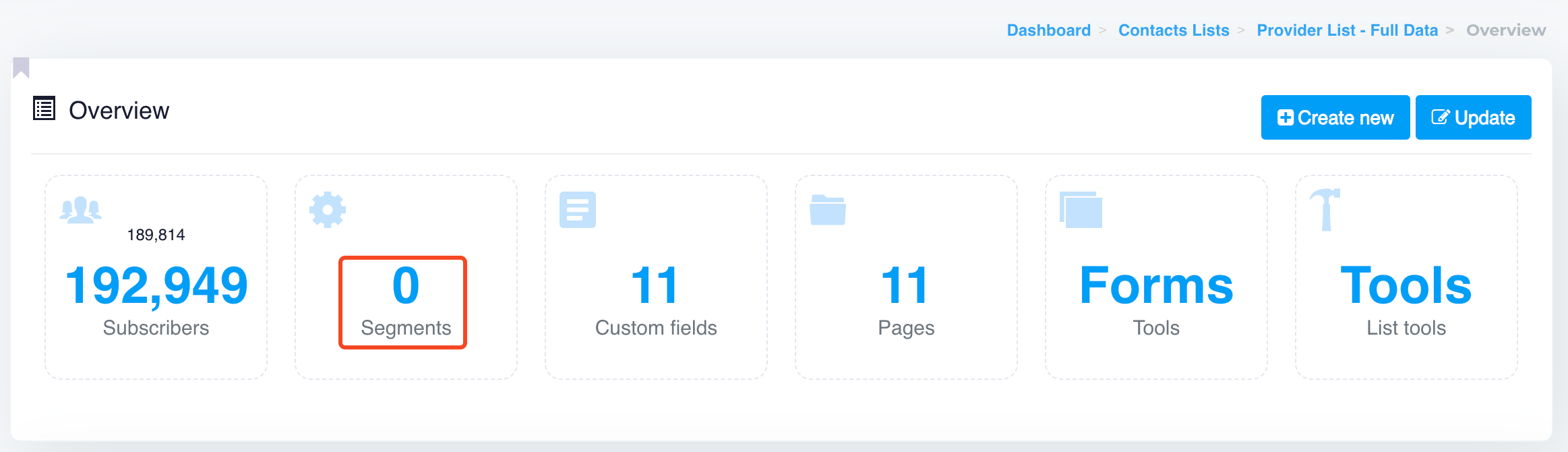
<figure><img src="https://content.gitbook.com/content/CsAjpmz65H9Xnhoe0Z91/blobs/hUkJe1XQORdQ59OP7ieW/image.png" alt=""><figcaption></figcaption></figure>

<figure><img src="https://content.gitbook.com/content/CsAjpmz65H9Xnhoe0Z91/blobs/elZf0L0UL7jmFBKAwIBJ/image.png" alt=""><figcaption></figcaption></figure>

<figure><img src="https://content.gitbook.com/content/CsAjpmz65H9Xnhoe0Z91/blobs/wmgf1FxNxVPnpknKR6we/image.png" alt=""><figcaption></figcaption></figure>

### 1. Name Your Segment

* **Name**: Provide a name for your segment to easily identify it later. This is mandatory.

### 2. Define Operator Match

* **Operator Match**: Choose between **any** or **all** conditions.
  * **Any** means that contacts will be included if they meet at least one of the conditions.
  * **All** means contacts must meet all specified conditions to be part of the segment.

### 3. Set Conditions for Custom Fields

Under "Conditions that apply to your list custom fields," you can define filters based on specific fields within your list:

* **Field**: Choose the field to filter by (e.g., Email, Name, or any custom field).
* **Operator**: Select the comparison operator (e.g., "is," "contains," "starts with").
* **Value**: Enter the value for the field (e.g., a specific email address or part of a name).
* **Action**: You can add or remove conditions using the plus (+) and trash bin icons, respectively.

### 4. Set Conditions for Campaigns

Under "Conditions that apply to the campaigns sent to the list this segment belongs to," you can define conditions based on your campaign data:

* **Campaign Action**: Choose the action from the campaign data (e.g., Open, Click, Non-).
* **Campaign**: Select the specific campaign or choose "Any list campaign."
* **Comparison**: Choose how you want to compare the results (e.g., "Less than or equal to").
* **Time Value**: Set a numerical time value (e.g., 60).
* **Time Unit**: Choose the time unit (e.g., Days, Hours).

You can also add or remove conditions using the plus (+) and trash bin icons.

### 5. Save Your Segment

Once all conditions are set, click on **Save changes** to create and save the segment. The system will now segment your contact list based on the specified criteria.

***


# Custom Fields

Personalize your email campaigns with custom fields. Learn how to create, manage, and use custom fields to collect and utilize subscriber data effectively.

Custom fields allow you to capture additional data for your contacts, and you can easily add or manage these fields in your contact lists. Here's how to create a new list custom fields using the available options.

Go to the **Contacts** <img src="https://docs.senderwiz.com/~gitbook/image?url=https%3A%2F%2F3105319611-files.gitbook.io%2F%7E%2Ffiles%2Fv0%2Fb%2Fgitbook-x-prod.appspot.com%2Fo%2Fspaces%252FC0itf53N6qCT1XIxmRvh%252Fuploads%252FUpsvKmu73sunmqbwlB19%252Fimage.png%3Falt%3Dmedia%26token%3D603acf72-fb2c-4cd5-9554-8f03c59f7d12&#x26;width=117&#x26;dpr=4&#x26;quality=100&#x26;sign=5ba18e2d&#x26;sv=1" alt="" data-size="line"> section, select the desired contact list

Then click on the **Custom Fields** tab.
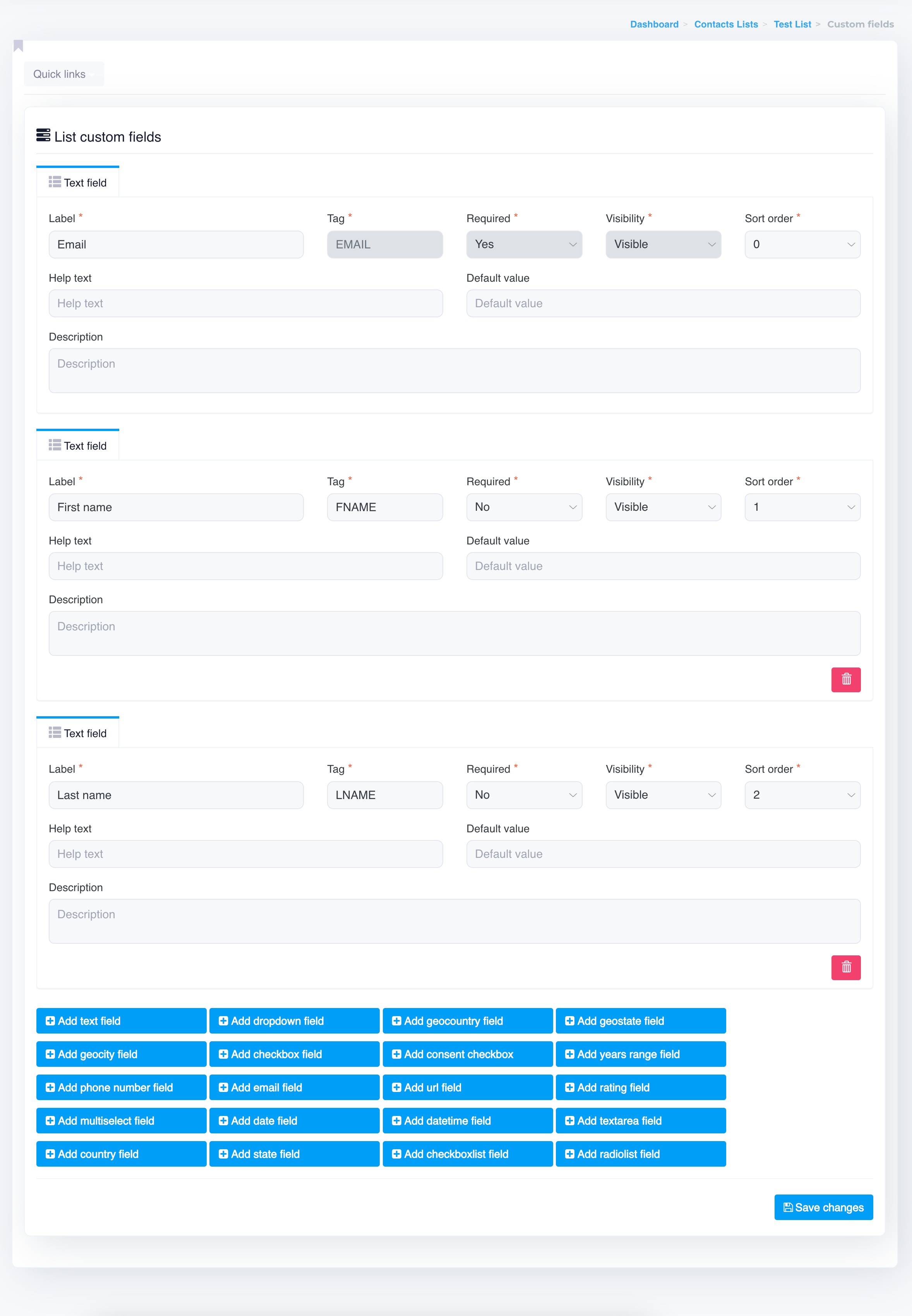
<figure><img src="https://content.gitbook.com/content/CsAjpmz65H9Xnhoe0Z91/blobs/zcPr3v8TwQmWOvkOWXtc/image.png" alt=""><figcaption></figcaption></figure>

### 1. Existing Custom Fields

Each existing custom field is displayed with the following details:

{% hint style="info" %}
By default, three custom fields are created: **Email**, **First name**, and **Last name**. \
The **Email** field is mandatory and cannot be deleted. The other fields can be added, updated, or deleted as needed. You can also choose to make them required based on your preferences.
{% endhint %}

*

```
<figure><img src="/files/IdJkxHL5KV8NYEhxauQf" alt=""><figcaption></figcaption></figure>
```

* **Label**: The name of the field that is visible to the user (e.g., "Email," "First name," "Last name").
* **Tag**: The system identifier used to reference the field (e.g., "EMAIL," "FNAME," "LNAME"). This is what you'll use when personalising your emails.
* **Required**: Indicates whether the field is mandatory for subscribers (Yes/No).
* **Visibility**: Defines if the field is visible (e.g., Visible or Hidden) when a user interacts with forms.
* **Sort Order**: Determines the order in which the fields will appear in forms or lists (e.g., 0, 1, 2). Lower numbers are displayed first.
* **Help Text**: (Optional) A short description to guide users on what to enter in the field.
* **Default Value**: (Optional) A pre-filled value that appears in the field, useful for fields that often have the same value.
* **Description**: (Optional) A longer explanation of the field, visible to your internal team for clarification.
* **Add or Remove Fields**: Use the **+ (Add)** button to create additional fields, and the **Trash Bin** icon to delete fields that are no longer needed.

### 2. Adding New Custom Fields

At the bottom of the interface, there are a variety of custom field types you can add to your contact list. You can choose the appropriate field type based on the data you need to collect:

<figure><img src="https://content.gitbook.com/content/CsAjpmz65H9Xnhoe0Z91/blobs/7F2C8JvsGr9dpYQqpxND/image.png" alt=""><figcaption></figcaption></figure>

* **Add text field**: Allows input of any text data.
* **Add dropdown field**: Creates a dropdown menu for predefined options.
* **Add checkbox field**: Provides a checkbox for simple yes/no or true/false responses.
* **Add phone number field**: Designed specifically for phone number input.
* **Add date field**: Allows users to enter a date.
* **Add geolocation fields**: Options like country, state, and city fields to gather geographic information.
* **Add consent checkbox**: Useful for GDPR compliance, providing a checkbox for users to give consent.
* **Add email field**: Captures email addresses in a specific format.
* **Add date-time field**: Allows users to enter a date and time.
* **Add years range field**: Collects age ranges or other year-based data.
* **Add checkbox list** and **Add radio list**: Creates a list of checkboxes or radio buttons for multiple options.
* **Add text area field**: Provides a larger input box for detailed text responses.

### 3. Save Changes

After you’ve added, updated, or removed fields, click on the **Save changes** button to apply the updates to your contact list.

### CSV Imports: Column Names Must Match Custom Field Tags

When importing a CSV file into your contact list, it's essential to ensure that the column names in your file match the tag names of the custom fields in the contact list. This ensures smooth data mapping and accurate importing of information.

<figure><img src="https://content.gitbook.com/content/CsAjpmz65H9Xnhoe0Z91/blobs/wu6vVwj5Ec9Iv0VIVLZY/image.png" alt="" width="563"><figcaption></figcaption></figure>

<figure><img src="https://content.gitbook.com/content/CsAjpmz65H9Xnhoe0Z91/blobs/wbPrSB1TqWJh6h250FOy/image.png" alt=""><figcaption></figcaption></figure>

#### Description:

Each custom field in your contact list has a tag, such as **FNAME** for First Name, **LNAME** for Last Name, and **EMAIL** for the Email field. To import data correctly from a CSV file, the column headers in your CSV must exactly match the tag names of the corresponding custom fields in the system. This helps the system correctly map the data from your file to the right fields.

#### Example:

As shown in the image above, your CSV file should be structured as follows:

* **FNAME**: The first column header for First Name.
* **LNAME**: The second column header for Last Name.
* **EMAIL**: The third column header for Email.

Each of these column names corresponds to a tag in the contact list's custom fields. In the CSV file:

* Column **A** contains the first names (FNAME).
* Column **B** contains the last names (LNAME).
* Column **C** contains the email addresses (EMAIL).

#### Important Note:

If the column headers in your CSV file do not match the custom field tags exactly, the system will not be able to map the data correctly. You must ensure that your CSV file uses the exact tag names defined in the custom fields of your contact list.

By following this approach, you’ll ensure a seamless import process and that all contact data is accurately mapped to the correct fields in your list.

***

This interface gives you flexibility in customizing the data you collect from your subscribers, helping you create more personalized and targeted email campaigns.


# Pages

Customize your subscription experience with contact list pages. Learn how to edit and personalize forms, confirmation emails, and profile update pages.

Each contact list comes with a set of customisable pages that control the experience your subscribers have at different stages of the subscription process. These pages allow you to create a consistent, branded experience from the moment someone signs up until they receive confirmation emails or unsubscribe.

### Available Pages

When you navigate to a contact list's **Pages** section, you'll see a dropdown menu like in the image above. The following pages are available for customisation:

<figure><img src="https://content.gitbook.com/content/CsAjpmz65H9Xnhoe0Z91/blobs/ZL98S2FPROQNQM0PZpem/image.png" alt="" width="288"><figcaption></figcaption></figure>

### 1. Subscribe Form

This is the form where users can sign up for your list. You can customize the form’s content and appearance to fit your brand. Fields like \[LIST\_FIELDS] and \[SUBMIT\_BUTTON] are used to automatically generate the input fields and submission button.

<figure><img src="https://content.gitbook.com/content/CsAjpmz65H9Xnhoe0Z91/blobs/y44NRRkJsKfSLyHTNu0a/image.png" alt=""><figcaption></figcaption></figure>

The subscription form appears like this on the web.

<figure><img src="https://content.gitbook.com/content/CsAjpmz65H9Xnhoe0Z91/blobs/pVX2LDQV7Pwji66WVEaj/image.png" alt="" width="563"><figcaption></figcaption></figure>

### 2. Pending Subscribe

This page appears after a user submits the subscription form but before they confirm their email (if double opt-in is enabled). It's a great place to thank the user and instruct them to check their email for a confirmation link.

### 3. Subscription Confirmed

Once the user confirms their subscription, they will be taken to this page. You can customize this page to welcome them to your list and provide further instructions or information.

### 4. Update Profile

This page allows subscribers to update their personal information or preferences. It’s essential for keeping your subscriber data accurate.

### 5. Unsubscribe Form

This is where users can choose to unsubscribe from your list. You can customize the message to provide feedback or give users an option to update their preferences instead of unsubscribing.

### 6. Unsubscribe Confirmation

After the user submits the unsubscribe request, they are directed to this confirmation page. You can use this page to confirm that their request has been processed and offer a chance for re-engagement.

### 7. Subscribe Confirm Email

This email is sent to users after they fill out the subscribe form,


# Forms

Create and manage subscribe and unsubscribe forms. Discover how to embed forms on your website and capture essential subscriber information effortlessly.

You can generate and manage subscribe and unsubscribe forms for your contact lists. These forms can be embedded on your website or used as standalone pages to capture subscriber data or process unsubscribe requests.

### 1. Subscribe Form

The subscription form is the gateway for users to sign up for your mailing list. It contains fields that match your contact list’s custom fields, such as email, first name, and more. These forms are customisable and can be embedded into your website to streamline the signup process.

Here’s a basic example of a subscription form:

```html
<form action="https://app.example.com/lists/{list_id}/subscribe" method="post" accept-charset="utf-8">
    <div class="form-group">
        <label>Email <span class="required">*</span></label>
        <input type="text" class="form-control" name="EMAIL" placeholder="Please type your email address" required />
    </div>
    <div class="clearfix"></div>
    <div class="actions pull-right">
        <button type="submit" class="btn btn-primary btn-flat">Subscribe</button>
    </div>
    <div class="clearfix"></div>
</form>
```

In this example, the **EMAIL** field is required for subscription. This basic HTML form captures the user's email and sends it to the specified URL.

#### iFrame Version for Embedding

For easier integration, you can also use the iframe version of the subscription form. This allows you to embed the form directly into your webpage without needing custom HTML code.

```html
<iframe src="https://app.example.com/lists/{list_id}/subscribe?output=embed&width=400&height=200" width="400" height="200" frameborder="0" scrolling="no"></iframe>
```

### 2. Unsubscribe Form

The **Unsubscribe Form** enables users to opt out of your mailing list. You can provide this form on your website or within your emails to make the unsubscribe process straightforward.

Here’s an example of the unsubscribe form based on the image:

```html
<form action="https://app.example.com/lists/{list_id}/unsubscribe" method="post" accept-charset="utf-8" target="_blank">
    <div class="form-group">
        <label>Email <span class="required">*</span></label>
        <input type="text" class="form-control" name="EMAIL" placeholder="Please type your email address" required />
    </div>
    <div class="clearfix"></div>
    <div class="actions pull-right">
        <button type="submit" class="btn btn-primary btn-flat">Unsubscribe</button>
    </div>
    <div class="clearfix"></div>
</form>
```

In this example, the **EMAIL** field is required for unsubscription. The form action directs the request to the specific list's unsubscribe page.

#### iFrame Version for Unsubscribe Form

Similar to the subscription form, the unsubscribe form can also be embedded using an iframe for easier integration into your website.

```html
<iframe src="https://app.example.com/lists/{list_id}/unsubscribe?output=embed&width=400&height=200" width="400" height="200" frameborder="0" scrolling="no"></iframe>
```

### 3. Customising Forms

You can fully customise these forms by editing the HTML or using CSS to match your brand’s style and design. The key elements like **\[EMAIL]** or **\[SUBMIT\_BUTTON]** can be used to ensure data is captured and processed correctly.

### Why Use Forms?

* **Seamless Integration**: Embed subscription and unsubscribe forms directly into your website to streamline the user experience.
* **Data Collection**: Capture essential subscriber information using custom fields.
* **User-Friendly**: Simplify the process for both subscribing and unsubscribing, keeping your contact lists clean and up-to-date.

By using forms, you create a direct and seamless way for your users to manage their subscription preferences with your mailing list.


# Tools

Manage your contact lists efficiently with tools. Learn how to import, export, and copy subscribers across lists with easy-to-use features.

**Tools** options provides essential features to help you manage your contact lists more effectively. These tools enable you to **import**, **export**, and **copy** subscribers across different lists, making contact list management seamless and efficient.

<figure><img src="https://content.gitbook.com/content/CsAjpmz65H9Xnhoe0Z91/blobs/gov3mZb3DmPO5mST5Z9y/image.png" alt=""><figcaption></figcaption></figure>

### 1. Import

The **Import** tool allows you to add new subscribers to your contact list by uploading a CSV file. During the import process, you'll map the CSV columns to the corresponding custom fields in your list, ensuring that the data is properly assigned.

#### Key Features:

* Supports CSV format for importing contacts.
* Automatically detects duplicate records to prevent duplicates.
* Allows mapping of CSV columns to custom fields in your contact list.

This tool is essential for bulk-adding new subscribers or transferring contacts from other sources into your current list.

### 2. Export

The **Export** tool allows you to download a CSV file of your current list of subscribers. You can choose to export all fields or just specific fields like email addresses, depending on your needs.

#### Key Features:

* Export entire contact lists with their columns (or custom fields).
* Useful for backing up your data or analysing subscriber information.
* Can be used to export filtered data, such as active subscribers, unsubscribes, or bounces.

This tool is ideal for analysing your list or moving data to another platform or tool.

### 3. Copy

The **Copy** subscribers tool allows you to duplicate subscribers from one list to another. This is useful when you want to move or copy subscribers between lists without reimporting them.

#### Key Features:

* Easily copy subscribers between lists.
* Helps maintain organisation and segmentation across multiple lists.
* Avoids the need to manually export and re-import subscribers.

This tool simplifies list management when working with multiple contact lists and segmentation strategies.

***

Using these tools, you can efficiently manage your contact lists, ensuring that your subscriber data is organised, up-to-date, and easily transferable between different systems or lists.


# Blacklist

Learn how to manage blacklisted contacts. Easily create, import, and update blacklists to improve email deliverability and prevent unwanted recipients from receiving your emails.

### Introduction

The **Blacklist** feature allows you to manage email addresses that should never receive emails from your system. This helps maintain compliance and ensures better email deliverability by avoiding problematic recipients.

<figure><img src="https://content.gitbook.com/content/CsAjpmz65H9Xnhoe0Z91/blobs/1g6snivbmWJtCCFEsnVY/image.png" alt=""><figcaption></figcaption></figure>

### Overview

In the Blacklist section, you can:

* Create new blacklist entries.
* Import a blacklist from an external file.
* Refresh the list to reflect any updates.

#### Accessing the Blacklist

To access the Blacklist section:

1. From the dashboard, navigate to **Blacklist**.
2. You will be presented with options to manage your blacklist.

The main screen will display the following options:

#### **1. Create New**

* Use this button to manually add an email to your blacklist.
* This ensures that any future campaigns will not send emails to the listed addresses or domains.

<figure><img src="https://content.gitbook.com/content/CsAjpmz65H9Xnhoe0Z91/blobs/z0gft7oRN2hJ8ul5Rt6z/image.png" alt=""><figcaption></figcaption></figure>

#### **2. Import**

* If you already have a list of email addresses that you wish to blacklist, you can use the **Import** feature.
* Upload a file containing the email addresses in a supported format (`.csv`).
* Once imported, the entries will be added to your blacklist, and future email campaigns will exclude these recipients.

<figure><img src="https://content.gitbook.com/content/CsAjpmz65H9Xnhoe0Z91/blobs/dTET5pbzBhajgv51hPUC/image.png" alt=""><figcaption></figcaption></figure>

#### Managing Your Blacklist

The blacklist helps you ensure that problematic or unwanted recipients are never added to your campaigns. Recipients in the blacklist:

* Will not receive any future emails.
* If any contact is added to the blacklist, the status of that contact will be updated to **Blacklist** in your contact list.&#x20;
* It will prevent that contact from being added to any of your existing contact lists.

This is particularly useful for preventing emails from being sent to unsubscribed users, emails marked as spam, or email known for hard bounces.


# Campaigns

Optimize email marketing with Campaigns: automate workflows, schedule, segment, and personalize campaigns for targeted audience engagement.

<div align="left"><figure><img src="https://content.gitbook.com/content/CsAjpmz65H9Xnhoe0Z91/blobs/3JH4hF4dtpTj2PdYunAI/image.png" alt=""><figcaption></figcaption></figure></div>

### Campaigns

The **Campaigns** section is designed to simplify the process of managing and executing various email marketing strategies. From setting up single campaigns to automating complex workflows, this section provides the tools to create engaging, effective, and highly targeted email communications. Here’s a breakdown of each feature available in the Campaigns menu.

<table data-view="cards"><thead><tr><th></th><th></th><th data-type="content-ref"></th><th data-card-target data-type="content-ref"></th><th data-hidden></th></tr></thead><tbody><tr><td><strong>Email Campaign</strong></td><td>Create and send one-time email campaigns to your audience. Learn about creating, designing, and personalizing messages to enhance engagement.</td><td></td><td><a href="/cloudapp/popular-topics/campaigns/email-campaign">Email Campaign</a></td><td></td></tr><tr><td><strong>Send Groups</strong></td><td>Organize recipients into specific groups for targeted messaging. This feature allows for managing separate groups with customized content or schedules.</td><td></td><td><a href="/cloudapp/popular-topics/campaigns/send-groups">Send Groups</a></td><td></td></tr><tr><td><strong>Advanced Recurring</strong></td><td>Set up recurring campaigns for regular engagement, like weekly newsletters or updates. Define schedules and frequency to maintain continuous communication.</td><td></td><td><a href="/cloudapp/popular-topics/campaigns/advanced-recurring">Advanced Recurring</a></td><td></td></tr><tr><td><strong>Autoresponder</strong></td><td>Automatically send a series of emails to new subscribers or specific user segments. Ideal for nurturing leads or onboarding new customers.</td><td></td><td><a href="/cloudapp/popular-topics/campaigns/autoresponder">Autoresponder</a></td><td></td></tr><tr><td><strong>Automation</strong></td><td>Build automated workflows that trigger emails based on user behavior or events, streamlining communication for a more personalized experience.</td><td></td><td><a href="/cloudapp/popular-topics/campaigns/automation">Automation</a></td><td></td></tr><tr><td><strong>Email Scheduling</strong></td><td>Schedule campaigns to be sent at optimal times. This feature helps improve open rates and engagement by delivering emails when they’re most likely to be read.</td><td></td><td><a href="/cloudapp/popular-topics/campaigns/email-scheduling">Email Scheduling</a></td><td></td></tr><tr><td><strong>Rotation</strong></td><td>Utilize rotation features to vary email elements like the sender’s name, email address, or subject line, making each email feel unique and personal to recipients.</td><td></td><td><a href="/cloudapp/popular-topics/campaigns/rotation">Rotation</a></td><td></td></tr><tr><td></td><td></td><td></td><td></td><td></td></tr><tr><td></td><td></td><td></td><td></td><td></td></tr></tbody></table>

***

#### Conclusion

The Campaigns section equips you with the essential tools to create, manage, and optimize your email marketing efforts. Whether sending one-time campaigns or setting up automated workflows, these features allow you to connect meaningfully with your audience and drive engagement effectively.


# Email Campaign

Learn to create, design, and personalize effective email campaigns. Boost engagement and reach your audience with impactful messaging and automation tools.

This guide explains how to create, configure, and manage an email campaign.&#x20;

<figure><img src="https://content.gitbook.com/content/CsAjpmz65H9Xnhoe0Z91/blobs/rAYA8jLw8gJ9VkmBclwK/image.png" alt=""><figcaption></figcaption></figure>

Follow each step to build and execute your email campaigns effectively.

***

## **Create Email Campaign**

### Step 1: Create a New Campaign

<figure><img src="https://content.gitbook.com/content/CsAjpmz65H9Xnhoe0Z91/blobs/sHu96RCcnGkf731Ah3rV/image.png" alt=""><figcaption></figcaption></figure>

1. **Campaign Name**: Choose a descriptive name for your campaign. Example: *Weekly Digest Subscribers*.
2. **List**: Choose the mailing list to which the campaign will be sent. Lists are crucial for targeting the right audience.
3. **Send Group**: (Optional) [**Send Groups**](https://docs.senderwiz.com/popular-topics/campaigns/send-groups) help prevent duplicate emails when sending campaigns to multiple lists by ensuring each contact receives the email only once.
4. **Segment**: (Optional) Select a specific [**segment**](/cloudapp/popular-topics/contacts/segment) within your list to further refine your audience.

Once you've filled in these fields, click **Save and Next** to proceed.

***

### Step 2: Campaign Setup

<figure><img src="https://content.gitbook.com/content/CsAjpmz65H9Xnhoe0Z91/blobs/9y6gviWAwBqshW4Muqxa/image.png" alt=""><figcaption></figcaption></figure>

1. **From Name**: Set the name that will appear in the recipient's inbox as the sender of the email.
2. **From Email**: Specify the email address that will be used as the sender. You can rotate the From email address if required.
3. **Reply-To Email**: (Optional) If the Reply-To email is the same as your From email, you can leave this field blank. Otherwise, provide a different email address where you want replies to be sent.
4. **Subject Line**: Craft an engaging subject line by using dynamic content. You can toggle available tags to personalize your subject with variables like the recipient's name, for example: *"How are you, \[FNAME] \[LNAME]?"*.
5. **Rotation Options**: (Optional) Enable rotation for From Name, From Email, and Subject to randomize these fields for each recipient, enhancing personalization.

#### Campaign Tracking Options

<figure><img src="https://content.gitbook.com/content/CsAjpmz65H9Xnhoe0Z91/blobs/LQFyjLeE3KbC9QVaKokT/image.png" alt=""><figcaption></figcaption></figure>

* **Open Tracking**: Enable tracking to monitor if recipients open your emails.
* **URL Tracking**: Track whether recipients clicked links within your email.
* **Open track from URL**: In case open tracking is disabled, or the open tracking pixel cannot be loaded, we can try to record the open when one of the links inside the campaign is clicked. This only works if URL tracking is enabled. We only track unique opens this way, one open per subscriber.
* **Open/URL excl. Crawlers**: This feature allows you to exclude crawlers, bots, and proxies from affecting your open/click rate metrics. By activating this option, only opens/clicks by actual subscribers are tracked, which mean your open/click rates will be much lower than usual, but most likely more accurate. This ensures your campaign performance data reflects genuine subscriber engagement.

#### Campaign Delivery Server

<figure><img src="https://content.gitbook.com/content/CsAjpmz65H9Xnhoe0Z91/blobs/WAYtftaKoYZOzjQTQZbB/image.png" alt=""><figcaption></figcaption></figure>

Select the **delivery server** that will be used to send the email. Make sure your delivery server is properly configured for the best deliverability.

If a specific delivery server is selected, that server will be used to send emails. You can choose any combination of servers based on your needs.

{% hint style="info" %}
By default, no specific server is selected for a new campaign; if left unselected, all available delivery servers will be used to send the email campaign.\
\
Additionally, when you copy a previous campaign, all settings, including the selected delivery server, are carried over.
{% endhint %}

#### Previous opened/unopened campaigns

<figure><img src="https://content.gitbook.com/content/CsAjpmz65H9Xnhoe0Z91/blobs/zyVdXhAcbxyMmLKBKHLk/image.png" alt=""><figcaption></figcaption></figure>

{% hint style="info" %}
The **Previous Opened/Unopened Campaigns** section is only visible when you are sending a new campaign to the same list used in any previous campaigns.
{% endhint %}

The **Previous Opened/Unopened Campaigns** feature allows you to take specific actions based on how recipients interacted with previous campaigns. This feature provides the ability to re-engage with contacts based on their previous behavior (whether they opened or didn’t open an earlier campaign).

**Options**:

1. **Action**:
   * **Open**: This option targets contacts who opened a previous campaign. You can choose to send a follow-up or a different message to those who showed interest by opening the previous email.
   * **Unopen**: This option targets contacts who didn’t open the previous campaign. You can use this to re-target or resend the campaign with adjustments to try and get them to engage.
2. **Previous Campaign**:
   * Select the previous campaign you want to reference. This is where the action (open or unopen) will be evaluated, and contacts who match the selected behavior will be targeted.

**Example Usage**:

* If you ran a **promotional campaign** last week, and now you want to follow up with those who didn't open the email, you would select:
  * Action: **Unopen**
  * Previous Campaign: **Promotional Campaign**

By using this feature, you can ensure that your follow-up actions are more personalized and effective, engaging recipients based on their prior interaction with your emails.

{% hint style="info" %}
To access and configure these following options, simply click **Show more options** button<img src="https://content.gitbook.com/content/CsAjpmz65H9Xnhoe0Z91/blobs/m4wYbqBYLkw1rtxr715G/image.png" alt="" data-size="line"> during the campaign setup process. This expands the available settings and allows for more granular control over how you manage subscriber interactions
{% endhint %}

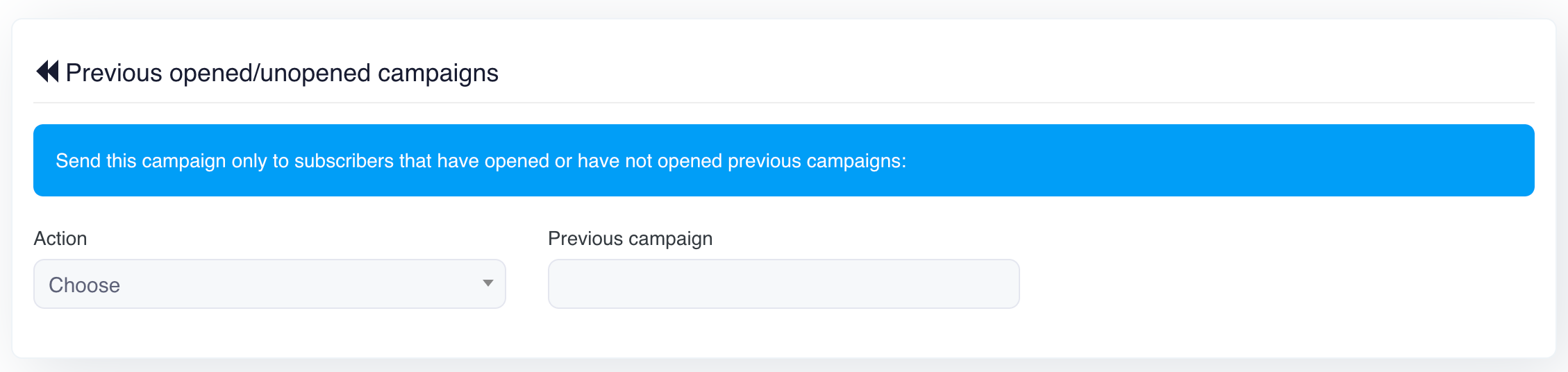
#### Campaign Options

<figure><img src="https://content.gitbook.com/content/CsAjpmz65H9Xnhoe0Z91/blobs/Ags3TwfFl4XclJBGlt8f/image.png" alt=""><figcaption></figcaption></figure>

1. **Plain Text Email**: Choose if you want to send the email in plain text.
2. **Max Subscribers**: Limit the number of subscribers the campaign will be sent to.
3. **Randomize Subscribers**: By default, subscribers are selected in the order they were uploaded to the list. Enabling this option will select subscribers randomly from the list, instead of following the sequential order.
4. **Email Stats Delay (Days)**: This sets how many days to wait before sending the second email with campaign statistics. The first stats email is sent immediately after the campaign finishes sending.
5. **Email Stats**: Specify the email address where campaign statistics will be sent once the campaign is completed. Leave this field empty if you do not wish to receive the stats.
6. **Preheader**: A preheader is a short summary text that appears after the subject line when viewing an email in the inbox. It provides a preview of the email content and is commonly displayed by mobile, desktop, and web email clients to give recipients an idea of what the email contains before they open it.
7. **Forward to Friend Subject**: This is the subject line for the email that is sent when a subscriber forwards the campaign to a friend. If left empty, the default subject will be used: "Hey, check out this URL, I think you will like it."

#### Custom Actions

<figure><img src="https://content.gitbook.com/content/CsAjpmz65H9Xnhoe0Z91/blobs/ZQ3VyVVfHVgWhuIu06Nq/image.png" alt=""><figcaption></figcaption></figure>

* **Change Subscriber Custom Field upon Open**: Modify subscriber information when they open your email.
* **Change Subscriber Custom Field upon Send**: Update fields when the campaign is sent.
* **Actions against Subscribers upon Open**: Trigger automated actions, like copy or moving subscribers to another list when they open the email.
* **Actions against Subscribers upon Sent**: Trigger automated actions, like copy or moving subscribers to another list when the campaign is sent.

***

### Step 3: Template

<figure><img src="https://content.gitbook.com/content/CsAjpmz65H9Xnhoe0Z91/blobs/Ed8wbBxQhZogOl1KXnnC/image.png" alt=""><figcaption></figcaption></figure>

#### **Template Name**

You can assign a name to the template for easy reference and reuse in future campaigns. It’s useful to give it a descriptive name based on the campaign's purpose (e.g., *Weekly Newsletter Template*).

#### **Only Plain Text**

Option: Yes/No

* This option allows you to choose whether the template will be plain text only. Plain text emails don’t include any images or HTML formatting.
* If set to **No**, the email will be sent as an HTML email, allowing for rich formatting, images, and other design elements.

#### **Auto Plain Text**

Option: Yes/No

* If this is set to **Yes**, it will automatically generate a plain-text version of your HTML email. This is useful for recipients whose email clients do not support HTML emails, ensuring they still receive a readable version.

#### **Content Editor**

The **Content Editor** is the central workspace where you create and design the body of your email. This area allows you to directly type, paste, or format your email content. You can build your email from scratch or modify pre-existing templates by adding text, images, links, and other elements that align with your campaign's objectives.

Within the content editor, you can also utilize **Available Tags** for dynamic personalization, such as inserting the recipient's first name (\[FNAME]) or other custom fields. This enhances engagement by making each email feel tailored to the individual recipient.

{% hint style="info" %}
Alternatively, you can use the **Change/Select Template** button to switch to a pre-existing template, allowing you to quickly reuse or customize saved designs for your campaign.
{% endhint %}

#### **Rotation Option**

By checking the **Rotation** option below to the Template Name field, our Email App will rotate the content for different recipients. This makes each email unique, helping with deliverability and reducing the chances of being flagged as spam.

#### **Buttons and Options**

* **Import HTML from URL**: Import content directly from a web page.
* **Upload Template**: Allows you to upload an HTML template that you have already created. The system only accepts a ZIP file that contains both the HTML file and the associated images for the template.
* **Change/Select Template**: Switch to another pre-made template or a previously saved template.
* **Test Template**: Send a test email to see how it looks before sending it to your whole list.
* **UTM Tags**: Add UTM parameters to track the performance of the links in your email for analytics.
* **Show Plain Text Version**: Display the plain text version of your email.
* **Random Content**: Allows you to insert random content based on your rotation rules.
* **Save Content**: Save your current email design and content for later use.

***

### Step 4: Confirmation

<figure><img src="https://content.gitbook.com/content/CsAjpmz65H9Xnhoe0Z91/blobs/r5leNNQ5uf67shBYeoJ7/image.png" alt=""><figcaption></figcaption></figure>

1. **Send At**: Set the exact date and time for the campaign to be sent.
2. **Advanced Recurring**: If enabled, you can schedule the campaign to recur at regular intervals.
3. **Day of Week**: Choose the days the campaign will be sent (e.g., Monday through Friday).
4. **Start and Stop Times**: Set the daily time range when emails will be sent (e.g., start at 9:00 AM and stop at 5:00 PM).
5. **Campaign Summary**: Review your campaign settings, including:
   * Campaign name
   * List/Segment
   * From name and email address
   * Reply to address
   * Subject
   * Date added & Last update
   * Recipient count

After reviewing, click **Save Changes and Send** to launch your campaign.

***

### Step 5: Monitoring and Reports

Once your campaign is live, monitor the performance through the analytics section. Track open rates, click-through rates, and bounce statistics to optimize future campaigns.

***

## **Update Email Campaign**

To update a **running campaign**, follow these steps:

### Step 1: Pause the Running Campaign

Before making any updates, the campaign must be paused.

1. **Go to the Campaigns Page**
   * Navigate to **Campaigns** from the dashboard.
2. **Find the Running Campaign**
   * Locate the campaign currently in **Sending** status.
3. **Pause the Campaign**
   * Click the **Pause button** <img src="https://771200576-files.gitbook.io/~/files/v0/b/gitbook-x-prod.appspot.com/o/spaces%2FCsAjpmz65H9Xnhoe0Z91%2Fuploads%2FHucgMKCEQI2ShKpUGyAw%2Fimage.png?alt=media&amp;token=b63f7eff-1df4-4e25-a632-da25afcb8a30" alt="" data-size="line"> in the **Options** column next to the campaign.
   * Wait for the status to update to **Paused** before proceeding.

### Step 2: Update the Campaign

Once the campaign is paused, you can edit its details.

1. **Open the Campaign**
   * Click on the **Campaign Name** or the **Edit button** <img src="https://771200576-files.gitbook.io/~/files/v0/b/gitbook-x-prod.appspot.com/o/spaces%2FCsAjpmz65H9Xnhoe0Z91%2Fuploads%2FowSW8LPx98XDuAGNlHVg%2Fimage.png?alt=media&amp;token=eb07bd43-a844-416e-80c3-72b6dfb41078" alt="" data-size="line">  in the **Options** column.
2. **Modify Campaign Details**\
   You can now update various campaign settings such as:
   * **Subject Line**
   * **Email Content** (Modify or replace the email template)
   * **From Name, From Email, & Reply-To Email**
   * **Delivery Server**
3. **Save the Changes**
   * Click **Save & Update** to apply the changes.

### Step 3: Resume the Campaign

After updating, you need to restart the campaign.

1. **Go Back to the Campaigns Page**
   * Locate the campaign with the **Paused** status.
2. **Resume/Send the Campaign Again**
   * **Option 1:** On the **Confirmation Page**, click **Send Campaign** to restart sending.
   * **Option 2:** Click the **Unpause sending button** <img src="https://771200576-files.gitbook.io/~/files/v0/b/gitbook-x-prod.appspot.com/o/spaces%2FCsAjpmz65H9Xnhoe0Z91%2Fuploads%2FRetd8vzEI0qJQ4yQX22I%2Fimage.png?alt=media&amp;token=64c74d07-867a-4404-a850-51e6b893f41f" alt="" data-size="line"> in the **Options** column to resume sending instantly.

3. **Monitor the Campaign**
   * Check the **delivery progress and analytics** to ensure the updates are correctly applied.

{% hint style="info" %}
🔹 **You Cannot Change the Contact List or Segment**

* While updating a running campaign, **you cannot modify the assigned contact list or segment**. The campaign will continue sending to the originally selected contacts.

🔹 **Changes Apply Only to Remaining Emails**

* Any updates made (e.g., subject line, email content, sender details) **will only affect the remaining contacts yet to receive the email**. Emails that have already been sent **will not be changed**.
* The campaign will **resume from the exact point where it was paused**, ensuring no duplicate sends.
* While updating a running campaign, **you cannot modify the assigned contact list or segment**. The campaign will continue sending to the originally selected contacts.
  {% endhint %}

By following these steps, you can **pause, update, and resume** a running email campaign without losing progress. 🚀


# Send Groups

Avoid duplicate emails with Send Groups. Manage multiple lists easily and ensure contacts only receive your campaign once, boosting deliverability.

### Introduction

When sending the same campaign to multiple lists, it's common to encounter situations where the same contact is present in more than one list.&#x20;

For instance, if you're running a campaign targeting both **List A** and **List B**, and both lists include the email `john.doe@example.com`, that contact would receive the campaign twice – once for each list. This can lead to duplicate emails being sent to the same person, which could annoy recipients and affect your campaign’s performance.

To prevent this issue, our Email App offers the **Send Group** feature. By assigning your campaign to a Send Group, it ensures that contacts are only sent the email once, even if they appear in multiple lists. This way, no matter how many lists a contact is in, they will receive only one email from the campaign.

#### Example:

Let’s say you have the following lists:

* **List A** (with 1000 contacts)
* **List B** (with 1500 contacts, including some overlaps with List A)

Without using a Send Group, if a contact like **<john.doe@example.com>** is in both **List A** and **List B**, he would receive the same campaign twice, which may appear unprofessional and redundant.

However, by assigning the campaign to a **Send Group**, our Email App automatically identifies contacts that are in both lists and ensures they only receive the email once. **<john.doe@example.com>** will now receive just one email from the campaign, even though he’s on both **List A** and **List B**.

#### How to Use Send Groups to Avoid Duplicate Emails:

1. **Create a Send Group**:\
   Go to **Create Campaigns**, and enter your group name in the **Send Group** field, then save it to create a new group. Be sure to name it something relevant to your campaign, such as "Monthly Newsletter Group."
2. **Assign the Send Group**:\
   When you create a campaign and want to send it to multiple lists, select the **Send Group** you created in the campaign setup process. This ensures that our Email App will remove duplicate contacts across all selected lists.
3. **Send the Campaign**:\
   Now, when the campaign is sent to both **List A** and **List B**, anyone in both lists, like **<john.doe@example.com>**, will only receive one email.

#### Key Benefits of Using Send Groups:

* **Prevent Duplicate Emails**: Ensures that no contact receives the same campaign more than once, even if they’re on multiple lists.
* **Improve User Experience**: Reduces the risk of annoying your recipients with multiple emails for the same campaign.
* **Streamlined Campaign Management**: Helps you organize and manage your email sending effectively, especially when dealing with overlapping contact lists.

***

### Conclusion

Using the **Send Group** feature is essential for maintaining a clean, professional email marketing strategy, especially when sending campaigns to multiple lists. By de-duplicating contacts across lists, you ensure that each recipient gets the email only once, making your campaigns more efficient and less intrusive for your audience.


# Advanced Recurring

Easily schedule recurring email campaigns. Set precise daily, hourly, or weekly frequencies and control the timing and number of repetitions for optimized delivery.

### Introduction

The **Advanced Recurring** feature allows you to set up recurring email campaigns with various timing and frequency options, ensuring flexible control over your campaign scheduling.

<figure><img src="https://content.gitbook.com/content/CsAjpmz65H9Xnhoe0Z91/blobs/QbxkCTewVrhTyUdTylGG/image.png" alt=""><figcaption></figcaption></figure>

### Options Explained

#### 1. **Advanced Recurring**

* **Enable** this option to allow your campaign to send repeatedly at specified intervals.

#### 2. **Frequency**

* Choose how often your campaign should run. Options include:
  * **Minute**: Send at intervals of a few minutes.
  * **Hour**: Send hourly.
  * **Day**: Daily campaign repetition.
  * **Week**: Weekly campaign schedule.
  * **Month**: Monthly sending.
  * **Year**: Yearly recurrence.

#### 3. **Time Interval**

* After selecting the frequency (e.g., Hour, Day, or Week), choose the exact time you want the campaign to run. For example, you could set it to run **every hour at 10 minutes past the hour** or **every day at 8:00 AM**. This allows you to customize both the frequency and the specific time the campaign will be sent, ensuring precise scheduling for your email campaigns.

#### 4. **Max Runs**

* This controls the maximum number of times the campaign will be sent.
* **Setting -1** allows for unlimited sends, meaning the campaign will repeat indefinitely until manually stopped.

### Example Use Case

<figure><img src="https://content.gitbook.com/content/CsAjpmz65H9Xnhoe0Z91/blobs/A1Ofsdso7BEDiqoTevvf/image.png" alt=""><figcaption></figcaption></figure>

To send a reminder email every day at 8:00 AM for 5 repetitions, set the frequency to "Day," the time interval to "8:00 AM," and the max runs to "5." This configuration will ensure that the email is sent five times, once per day at 8:00 AM.

### Conclusion

The **Advanced Recurring** feature provides powerful automation to handle recurring campaigns at customized intervals. Configure it to match your specific campaign goals.


# Autoresponder

Automate follow-up emails with Autoresponder based on campaign opens or sends. Set triggers for targeted and timely engagement with your audience.

The **Autoresponder** feature automates the sending of follow-up emails based on specific triggers. Unlike regular email campaigns, Autoresponders work based on conditions set during the confirmation phase, allowing for targeted and timely engagement with your subscribers.

<figure><img src="https://content.gitbook.com/content/CsAjpmz65H9Xnhoe0Z91/blobs/rHJLvonTpRXtZ0NvTpzT/image.png" alt=""><figcaption></figcaption></figure>

### How It Works

The process to create an **Autoresponder** is very similar to sending a [regular campaign](/cloudapp/popular-topics/campaigns/email-campaign). However, instead of sending the email immediately or scheduling it for a later time, the Autoresponder sends emails automatically based on the specified conditions.

#### Key Sections and Options in Autoresponder Confirmation

The **Campaign Confirmation** page for Autoresponders has some specific options that control how and when emails are sent:

* **Activate at**: The date and time when the Autoresponder will be activated and begin monitoring for the trigger condition.
* **Autoresponder Event**:&#x20;

  The Autoresponder Event feature allows you to trigger automated emails based on specific actions or events. The available options for these triggers, as seen in the image, include:

  1. **AFTER-SUBSCRIBE** This event triggers the Autoresponder when a new subscriber joins your email list. It is commonly used for sending welcome emails or onboarding sequences to engage new subscribers right after they sign up.
  2. **AFTER-CAMPAIGN-OPEN** This option triggers the Autoresponder once a recipient opens a previous email campaign. It's useful for follow-up emails, such as sending more detailed information or special offers to subscribers who opened the first email, showing interest in the content.
  3. **AFTER-CAMPAIGN-SENT** This event triggers the Autoresponder after a campaign has been sent. It can be used to automate a follow-up email, regardless of whether the recipient opened the initial email or not. It’s a good option for re-engaging recipients or providing more information after the first campaign.&#x20;

  These triggers allow for highly tailored and automated email flows, ensuring that your subscribers receive relevant and timely communications based on their actions or behaviors.
* **Autoresponder Time Value**: The delay before the Autoresponder is triggered. You can set this value to any number, such as "0" for immediate triggering after the event or add a delay.
* **Autoresponder Time Unit**: Defines the unit of time for the delay, such as minutes, hours, or days. In this case, it's set to **Day**, meaning the Autoresponder will trigger 0 days after the event.
* **Send only at/after this time**: Allows you to specify the time window in which the Autoresponder email should be sent. For example, you can choose to send emails only during business hours.
* **Incl. imported subscribers**: This option determines whether imported subscribers should be included in the Autoresponder sequence.
* **Incl. current subscribers**: This option determines whether current subscribers should be included.
* **Send when opening this campaign:** This option allows you to trigger an action when the recipient opens a specific campaign. When **AFTER-CAMPAIGN-OPEN** is selected, the option becomes visible, allowing you to trigger the Autoresponder when the recipient opens the campaign.
* **Send after sending this campaign:** This option triggers the action after the campaign has been sent, regardless of whether the recipient has opened the campaign or not. When **AFTER-CAMPAIGN-SENT** is selected, the option will appears, triggering the Autoresponder after the campaign has been sent, regardless of whether the recipient opens it.

### Usage

Autoresponders are perfect for follow-up emails, onboarding sequences, or any type of triggered email series. For example, if a recipient opens a Black Friday campaign email, an Autoresponder can automatically send them a follow-up email with personalized product recommendations or special offers.

***

This Autoresponder feature streamlines email automation by enabling condition-based triggers, making it easier to send timely and relevant emails to your subscribers.

***


# Automation

Learn how to automate email workflows. Set triggers, actions, and conditions to engage subscribers based on their behavior and schedule campaigns effectively.

We offers a powerful and flexible email automation system that allows you to create complex automation workflows to engage with your subscribers. You can set up triggers, actions, and logic to automate various tasks like sending welcome emails, responding to subscriber actions, and much more.

### Automation Workflow Components

Our Email App automation consists of three primary components: **Triggers**, **Actions**, and **Logic**.

#### 1. Triggers

Triggers define when the automation workflow should start. Here are the available triggers:

* **List subscription**: Welcome automation when a subscriber joins the list.
* **List unsubscribe**: Say goodbye to a customer by triggering an email when they unsubscribe.
* **Webhook (API)**: Trigger from an HTTP call to the automation webhook address.
* **Specific date time**: Start automation based on a specific date, like an appointment or event reminder.
* **Subscriber added date**: Run actions based on the date a subscriber joined the list.
* **Recurring Interval**: Schedule a series of actions based on certain intervals (hourly, daily, weekly, monthly, etc.).
* **Open email**: Trigger automation when a subscriber opens an email or campaign.
* **Click URL**: Trigger when a subscriber clicks a link in a campaign or email.

#### 2. Actions

Actions are the tasks that will be performed once a trigger is activated. Here are the available actions:

* **Wait**: Pause the automation for a specified period before moving to the next step.
* **Send an email**: Send a campaign or autoresponder email to the subscriber.
* **Send campaign**: Add the current subscriber to a campaign or autoresponder and send the campaign.
* **Run a campaign**: Start or run a campaign for all the subscribers in a list.
* **Other campaign actions**: Copy or update campaign status, like duplicating a campaign.
* **Move subscriber**: Move a subscriber to another list based on a condition.
* **Copy subscriber**: Copy a subscriber to another list without removing them from the original list.
* **Update subscriber field**: Update specific fields or tags for a subscriber.
* **Other subscriber actions**: Perform custom actions on the subscriber based on conditions.

#### 3. Logic

Logic components define how and when actions should be executed, based on conditions or subscriber attributes. The available logic options include:

* **Yes/No**: Evaluate to true (yes) or false (no) to perform specific actions based on the outcome.
* **Subscribers**: Perform arithmetic operations or checks based on subscriber counts or other metrics (e.g., if the number of subscribers equals 100).
* **Date/Time**: Perform operations based on date or time logic, like checking if a specific date has passed or setting delays between actions.
* **Open email**: Set logic based on whether a subscriber opens a specific email.
* **Click URL**: Set conditions based on whether a subscriber clicks a URL in a campaign.

### Properties and Settings

On the right side of the workflow builder, you can modify the properties of each automation workflow. You can name your automation, enable scroll assist, and import or export automation settings for reuse.

* **Name**: Set a unique name for each automation workflow.
* **Scroll Assist**: Enable scroll assist to navigate through large automation workflows more easily.
* **Import/Export**: Save your workflow settings or load pre-built workflows through import/export functionality.

### Building Your Automation Workflow

To create an automation workflow:

1. **Select a Trigger**: Choose from the available triggers like List Subscription, List Unsubscribe, or Webhook.
2. **Add Actions**: Define what actions should happen when the trigger is activated, such as sending an email or waiting for a certain period.
3. **Set Logic**: Optionally, add logic to define conditional steps in your workflow, like checking if a subscriber opens an email or clicks a link.
4. **Configure Settings**: Name your automation and adjust properties like scroll assist or import/export settings.
5. **Save and Run**: Once your automation is ready, save the workflow and start engaging with your subscribers automatically.

Our Email App makes it easy to automate repetitive tasks and create personalized experiences for your subscribers, improving your email marketing efficiency.

### Example Automation Workflow – Scenario Explanation:

This workflow diagram automates the communication process with new subscribers based on their behavior, such as opening an email or interacting with the campaign. Let’s go through it step by step with an example scenario:

<figure><img src="https://content.gitbook.com/content/CsAjpmz65H9Xnhoe0Z91/blobs/kVoFXU1k2bimYVjrU962/image.png" alt="" width="561"><figcaption></figcaption></figure>

***

**Scenario:**

**You are planning an upcoming event and want to send reminders to your email list.** You schedule an email to go out to your list at a specific time. If the subscriber opens the email, they receive follow-up content. If they don’t, the automation stops.

***

#### Step-by-Step Workflow:

1. **Trigger: Specific Date Time**
   * The automation starts on a specific date and time, which could be the day you want to send an event reminder or announcement.
   * For example, you schedule the event email to go out on **October 30th at 9:00 AM**.
2. **Action: Run a Campaign**
   * The system sends the **Campaign - Promotion** email to all subscribers as scheduled. This email could include event details or an invitation to register for the event.
3. **Condition: Open Email**
   * The system checks whether the subscriber opens the **Campaign - Promotion** email. This decision point splits the automation into two possible paths:
4. **Branch: Yes (Opened Email)**

   * If the subscriber **opens** the email, they follow the "**Yes**" branch:

   a. **Send an Email**: The system sends a follow-up email (could be additional event details or a thank you for opening the email).

   b. **Wait (2 Days)**: The system waits for 2 days before continuing to the next step. This delay helps space out communications and prevent overwhelming the subscriber with too many emails.

   c. **Send an Email**: After waiting 2 days, the system sends another follow-up email. This could be a reminder to register for the event or a special offer for attending.

   d. **Reply Email Condition**: The system then checks if the subscriber **replies** to this follow-up email (e.g., if the email requested feedback or further communication).

   e. **Branch: Yes (Replied)**: If the subscriber replies, the workflow continues by copying the subscriber to a different list (for example, a list for engaged subscribers).

   f. **Copy Subscriber**: The system copies the subscriber to the **List - Active Leads**, signifying that they are engaged and may need further tailored communication.

   g. **Stop Automation**: The automation ends for this subscriber after they are copied to the list.
5. **Branch: No (Did Not Open Email)**

   * If the subscriber **does not open** the initial email, they follow the "**No**" branch:

   a. **Stop Automation**: The automation ends immediately for this subscriber, and no further emails are sent.

***

#### Summary:

In this scenario, the automation starts by sending an email on a specific date and time. If the subscriber opens the email, they receive a series of follow-up emails spaced out by 2 days. The system also checks if the subscriber responds to any of these follow-up emails and may add them to a more engaged list. If the subscriber doesn’t open the initial email, no further emails are sent, and the automation stops.

This workflow helps ensure that only engaged subscribers receive additional communication, reducing the risk of overwhelming uninterested recipients while allowing follow-ups with those who interact.

***

Our EmailApp email automation feature, helping you streamline your marketing efforts.


# Email Scheduling

Learn email scheduling. Learn how to plan, automate, and send your campaigns at the right time for maximum engagement and effectiveness.

### Introduction

Email scheduling allows you to automate your email campaigns by setting them to trigger at a specific date and time. This feature ensures timely and targeted email delivery.

<figure><img src="https://content.gitbook.com/content/CsAjpmz65H9Xnhoe0Z91/blobs/mIGqY9TmX8wFM1SUmIlO/image.png" alt=""><figcaption></figcaption></figure>

***

### How to Schedule an Email Campaign

#### **Step 1: Campaign Setup**

* Create a new [campaign](/cloudapp/popular-topics/campaigns/email-campaign) or open an existing one.

#### **Step 2: Set Date and Time**

* In the [confirmation stage](/cloudapp/popular-topics/campaigns/email-campaign#step-4-confirmation), under the **Send at** field, choose the desired date and time for the campaign to trigger using the calendar and clock options.
* Avoid manually entering the date and time in the field. Use the provided picker for accuracy.

<div align="left"><figure><img src="https://content.gitbook.com/content/CsAjpmz65H9Xnhoe0Z91/blobs/c4hmhdlJ21BX8hGeOBLP/image.png" alt="" width="372"><figcaption></figcaption></figure></div>

{% hint style="info" %}
Select the date and time using the calendar only, and avoid manually entering it in the "**Send at**" field. \
\
Before scheduling, ensure your timezone is correctly set in your profile for accurate email delivery timing.
{% endhint %}

#### **Step 3: Select Days of the Week**

* Use the **Days of the Week** section to specify the days your campaign should run.
* Click on the desired days (e.g., Monday, Tuesday, etc.) to select them. Selected days will appear highlighted.
* To remove a day, click on it again.

<figure><img src="https://content.gitbook.com/content/CsAjpmz65H9Xnhoe0Z91/blobs/etfg5sPus94Q4zAJPWP9/image.png" alt=""><figcaption></figcaption></figure>

#### **Step 4: Set Start and Stop Time**

* Define the active time range for your campaign using the **Start at** and **Stop at** fields.
* **Start at:** The time when the campaign will begin sending emails on the selected days.
* **Stop at:** The time when the campaign will stop sending emails on those days.
* Both fields use a 12-hour clock format (AM/PM).

<div align="left"><figure><img src="https://content.gitbook.com/content/CsAjpmz65H9Xnhoe0Z91/blobs/yt9HLyYkJ9IgmdMhAuXn/image.png" alt="" width="362"><figcaption></figcaption></figure></div>

#### **Step 5: Save and Confirm**

* After setting the schedule, save your configuration and confirm the campaign to activate scheduling.

{% hint style="info" %}

#### **Important Notes:**

* Ensure your timezone is correctly set in your profile for accurate email delivery timing.
* Campaigns will pause outside the specified days and times.
  {% endhint %}

***

### Benefits of Email Scheduling

* **Automation:** Set it once and forget it. **our Email App** handles the rest.
* **Time Optimization:** Schedule emails to align with recipient time zones or peak engagement hours.
* **Flexibility:** Tailor campaigns for specific days and times to match audience habits.
* **Consistency:** Ensure timely delivery of newsletters, promotions, and announcements.

***

### **Example Scheduling Scenarios**

#### **Scenario 1: Business Hours Campaign**

* **Send at:** November 23, 2024, 1:38 PM
* **Days of the Week:** Monday, Tuesday, Wednesday, Thursday, Friday
* **Start Time:** 8:00 AM
* **Stop Time:** 6:00 PM

This configuration ensures emails are sent only during regular business hours on weekdays.

#### **Scenario 2: Weekend Promotion**

* **Send at:** November 25, 2024, 9:00 AM
* **Days of the Week:** Saturday, Sunday
* **Start Time:** 9:00 AM
* **Stop Time:** 3:00 PM

Perfect for targeting weekend shoppers or event participants.

#### **Scenario 3: 24/7 Campaign**

* **Send at:** November 23, 2024, 12:01 AM
* **Days of the Week:** Monday to Sunday
* **Start Time:** 12:01 AM
* **Stop Time:** 11:59 PM

Ideal for continuous campaigns or global audiences spanning multiple time zones.

***

### **Conclusion**

The **Send at**, **Days of the Week** and **Start/End Time** features provide unmatched flexibility for scheduling your campaigns. By customizing when your emails are sent, you can ensure they reach your audience at the most impactful times, boosting engagement and improving overall campaign success.


# Rotation

Learn how to use the Rotation Feature to personalize email campaigns by rotating sender names, emails, and subject lines for higher engagement.

**Rotation Feature Guide**

The **Rotation Feature** in our email campaign application is designed to enhance personalization and improve deliverability by rotating the "**From name**", "**From email address**", "**Subject line"**, and **"Email templates"**.&#x20;

This feature allows each recipient to experience unique variations in the email content, mimicking a one-to-one email, which can reduce the likelihood of emails being flagged as spam.

### **1. Campaign Setup: Name and Email Rotation**

<figure><img src="https://content.gitbook.com/content/CsAjpmz65H9Xnhoe0Z91/blobs/n84wDAMZ75yXgb0g8VIB/image.png" alt=""><figcaption></figcaption></figure>

#### Setting Up Name and Email Rotation in Campaigns

1. **From Name**: Select a list of sender names to rotate, alternating names for each email.
2. **From Email**: Choose a list of email addresses usernames to rotate, varying the sender's identity.

{% hint style="info" %}
In the "From Email" rotation, you can select the list of usernames for the "From email", while the *@yourdomain.com* portion will be automatically picked up from the selected delivery servers.
{% endhint %}

**How to Enable Rotation**:

* In [**Campaign Setup**](/cloudapp/popular-topics/campaigns/email-campaign#step-2-campaign-setup), check the **Rotation** box next to each field.
* Select the desired rotation lists for "From Name" and/or "From Email."

#### **Using the Rotation Feature in Campaign Setup**

1. **Enabling Rotation**:
   * Check the **Rotation** box <img src="https://content.gitbook.com/content/CsAjpmz65H9Xnhoe0Z91/blobs/aKqLlhBBeUUN67A0fbdI/image.png" alt="" data-size="line"> for "**From Name**" or "**From Email**" to activate rotation, which alternates names and emails in the campaign.
2. **Accessing the Rotation List**:
   * Click on the **\[Rotation list]** <img src="https://content.gitbook.com/content/CsAjpmz65H9Xnhoe0Z91/blobs/YlFqGozN212fC4YQ51ee/image.png" alt="" data-size="line"> link next to "From name rotation" or "From email rotation" fields. This takes you to a page where you can create and upload lists of names and matching email usernames.
3. **Setting Up a Rotation List**:

   * Go to **View Name & Username Rotation Lists** to create a new list.
   * Upload pairs of names and usernames (e.g., "John Doe - john.doe," "Jane Smith - j.smith02").<br>
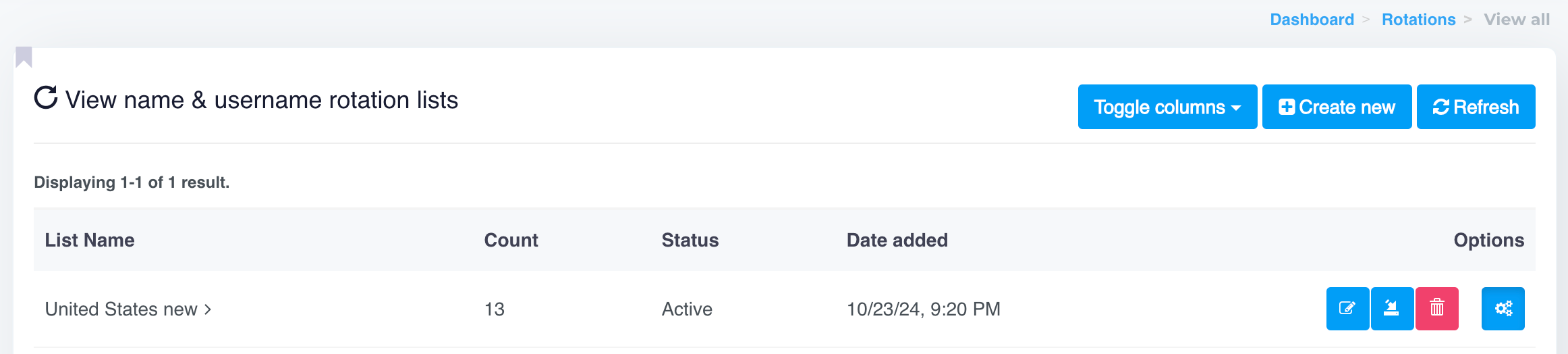
   <figure><img src="https://content.gitbook.com/content/CsAjpmz65H9Xnhoe0Z91/blobs/LE9UoqJqUcq50h8RYZHp/image.png" alt=""><figcaption></figcaption></figure>
4. **Synchronized Rotation**:
   * When both "From Name" and "From Email" checkboxes are enabled, the same list will be used in both dropdowns. Selecting a list for one field automatically updates the other.
   * **Why?** This ensures that the name and email address match (e.g., "John Doe" is always paired with "<john@yourdomain.com>"), creating a consistent sender identity.
5. **Example of How It Works**:
   * With a list named "United States New," emails might rotate as:
     * **1st Email**: From Name - John Doe, From Email - <john.doe@yourdomain.com>
     * **2nd Email**: From Name - Jane Smith, From Email - <j.smith02@yourdomain.com>
     * And so on…

Here is an example of a **CSV file** format for uploading Name and Username data:

{% file src="/files/tgZCST0HbBxtw8t0Z9LF" %}

This setup creates unique combinations for each recipient while ensuring the sender's name and email remain consistent. By enabling rotation, your campaign will automatically use different "From" names and emails with each email sent.

You can upload as much data as you need to your rotation list for rotating names and usernames.

### **2. Subject Line Rotation**

To further personalize and improve engagement, you can rotate subject lines within a single campaign. Different subject lines help to capture attention from recipients and avoid uniformity, which may trigger spam filters.

#### **How to Set Up Subject Line Rotation:**

Under the **Campaign Setup** section, select your **Subject Line Rotation** list. Enable the **Rotation** checkbox next to the subject line field.

* **In Campaign Setup**:
  * In the **Campaign Setup** section, you’ll find an option for **Subject Line Rotation**.
  * Enable the **Rotation** checkbox to activate this feature, allowing each email to use a different subject line from your list.
  * Click on the **\[Subject line list]** link to access or create a list of subject lines that will be rotated through the campaign.

<figure><img src="https://content.gitbook.com/content/CsAjpmz65H9Xnhoe0Z91/blobs/9KMt7kEoewfQeuz4ekIJ/image.png" alt=""><figcaption></figcaption></figure>

* **Creating and Managing Subject Line Lists**:
  * Clicking **\[Subject line list]** opens the **View Subject Line Lists** page (as shown in the second image).
  * Here, you can **Create New** lists and upload as many subject lines as you want, providing a variety for your campaign.
  * Each subject line in the list will be used in rotation, adding diversity to your email subject lines.

<figure><img src="https://content.gitbook.com/content/CsAjpmz65H9Xnhoe0Z91/blobs/s4tA0oFLdFbFiLlupBJP/image.png" alt=""><figcaption></figcaption></figure>

Here is an example of a **CSV file** format for uploading subject line data:

{% file src="/files/3rwI3P9vP279khQwjIiK" %}

With rotation enabled, each recipient will receive the email with a unique subject line, creating a more personalized experience.

### **3. Campaign Template Rotation**

The email template rotation feature allows you to create varied layouts, styles, and messages within a campaign, adding unique touches to each email sent.&#x20;

This variation reduces the likelihood of your emails being flagged as repetitive or spam by ESPs, which helps improve deliverability. By making each email distinct, you keep content fresh and engaging, enhancing the chances of reaching your recipients' inboxes.&#x20;

Ultimately, this feature boosts both the visibility and effectiveness of your campaigns through subtle, impactful variations.

<figure><img src="https://content.gitbook.com/content/CsAjpmz65H9Xnhoe0Z91/blobs/809zuPtd3UBE589Kv27Y/image.png" alt=""><figcaption></figcaption></figure>

#### **How to Set Up Template Rotation:**

1. Navigate to the **Campaign Template** section.
2. Enable the **Rotation** checkbox next to the template field.
3. Choose a **Template Rotation** **Category** from the drop down, containing various templates.

{% hint style="info" %}
When creating an email template, you can assign it to a specific category. This same category can then be selected during the rotation feature, allowing all templates within that category to be rotated accordinglydi
{% endhint %}

This will ensure that each email sent within the campaign can use a different template, improving engagement.

### **4. Managing Rotation Lists**

In the **Dashboard**:

* Go to **View Name & Username Rotation Lists** to see the available rotation lists for "From name" and from "email addresses usernames". Here, you can view existing lists, create new ones, or edit current entries.
* Similarly, check the **View Subject Line Lists** to manage your subject line rotations.

Creating and customizing rotation lists helps keep your campaigns varied and personalized for better engagement and deliverability.

***

**Conclusion**

The Rotation Feature is a powerful tool to enhance email personalization by rotating sender details and subject lines. It creates unique, engaging emails that improve deliverability and engagement, giving your campaigns a competitive edge in inbox placement.


# Templates

Discover powerful tools to create, customize, and manage email templates. Enhance engagement with flexible editors, personalization, and template gallery.

<div align="left"><figure><img src="https://content.gitbook.com/content/CsAjpmz65H9Xnhoe0Z91/blobs/zTvf8c2Ss8SN2pnlP3dw/image.png" alt=""><figcaption></figcaption></figure></div>

## Template Management

Explore various options for creating, customizing, and managing your email templates to enhance your campaigns’ effectiveness. Below, you’ll find tools and guides to help you make the most of the Template feature.

***

<table data-view="cards"><thead><tr><th></th><th></th><th data-type="content-ref"></th><th data-card-target data-type="content-ref"></th><th data-hidden></th></tr></thead><tbody><tr><td><strong>Email Template</strong></td><td>Discover how to design effective email templates tailored to your brand and audience. Learn best practices for layout, styling, and engagement.</td><td></td><td><a href="/cloudapp/popular-topics/templates/email-template">Email Template</a></td><td></td></tr><tr><td><strong>Personalization</strong></td><td>Utilize personalization options to address recipients by name or other custom fields, enhancing engagement and relevance.</td><td></td><td><a href="/cloudapp/popular-topics/templates/personalization">Personalization</a></td><td></td></tr><tr><td><strong>Available Tags</strong></td><td>Discover the range of tags you can use to dynamically insert personalized content, including name, email, and custom fields.</td><td></td><td><a href="/cloudapp/popular-topics/templates/available-tags">Available Tags</a></td><td></td></tr><tr><td><strong>Classic Editor</strong></td><td>A simple editor for quick template creation, featuring basic text styling and image insertion. Ideal for users comfortable with HTML formatting.</td><td></td><td><a href="/cloudapp/popular-topics/templates/classic-editor">Classic Editor</a></td><td></td></tr><tr><td><strong>Pro Editor</strong></td><td>An advanced editor offering customization options like interactive buttons and dividers for visually appealing templates.</td><td></td><td><a href="/cloudapp/popular-topics/templates/pro-editor">Pro Editor</a></td><td></td></tr><tr><td><strong>Unlayer Editor</strong></td><td>A drag-and-drop editor with customizable content blocks for creating mobile-responsive, visually engaging templates.</td><td></td><td><a href="/cloudapp/popular-topics/templates/unlayer-editor">Unlayer Editor</a></td><td></td></tr><tr><td><strong>Unsubscribe Link</strong></td><td>Learn how to manage unsubscribe links effectively to maintain compliance and improve user experience in your emails.</td><td></td><td><a href="/cloudapp/popular-topics/templates/unsubscribe-link">Unsubscribe Link</a></td><td></td></tr><tr><td><strong>Gallery</strong></td><td>Browse the Template Gallery for ready-to-use designs that you can import and customize to suit your campaigns.</td><td></td><td><a href="/cloudapp/popular-topics/templates/gallery">Gallery</a></td><td></td></tr></tbody></table>

***

Template page offers a comprehensive set of tools and guides for creating, customizing, and managing email templates tailored to your audience's needs.&#x20;

With multiple editors, personalization options, and a diverse gallery of ready-made templates, you can effortlessly design visually appealing and engaging emails.&#x20;

By leveraging these features, you’ll streamline your email marketing process, enhance brand consistency, and improve communication effectiveness. Explore each feature to maximize the impact of your email campaigns.


# Email Template

Learn how to create email templates. Follow step-by-step instructions to design professional, branded templates using the Drag & Drop editor options.

### How to Create an Email Template?

Creating well-designed email templates is crucial for any email marketing campaign. Templates save time and ensure that your emails are visually consistent and engaging. You can easily create and customize email templates for various campaigns. This article will guide you through the steps of creating, editing, and optimizing your email templates.

<figure><img src="https://content.gitbook.com/content/CsAjpmz65H9Xnhoe0Z91/blobs/VvSNXaxcPQ3SU7ptXl2E/image.png" alt=""><figcaption></figcaption></figure>

***

### Why Use an Email Template?

Using a pre-designed email template helps maintain brand consistency across campaigns, reduces time spent on formatting each email, and ensures a professional look for your audience. Templates allow you to focus more on content and strategy, rather than design and layout each time you send an email.

### Steps to Create an Email Template

Follow these steps to create a new email template:

#### 1. Access the Templates Section

* From your **Dashboard**, navigate to the **Templates** section.
* Click on **Create New Template** to begin.

#### 2. Choose a Template Format

Ou Email App offers different options for template creation. Choose the format that best suits your needs:

* **Start from Scratch**: Build your template from the ground up if you want full control over the design.
* **Use a Pre-designed Template**: Select from our Email App’s library of pre-designed templates tailored for various purposes.
* **Import HTML**: If you already have an HTML template, you can upload it directly into our Email App.

#### 3. Customize Your Template

Once you select a format, you can start customizing your template. Here’s an overview of options available:

**Adding Content Blocks**

* **Text Blocks**: Add text to communicate your message. Customize font, size, color, and alignment to match your brand.
* **Image Blocks**: Insert images to make your email visually appealing. Ensure that the images are optimized for quick loading.
* **Button Blocks**: Add call-to-action buttons to drive user engagement. Customize button colors, text, and links.
* **Divider Blocks**: Use dividers to organize sections of your email and make it more readable.

**Drag-and-Drop Editor**

Our Email App provides a drag-and-drop editor, making it easy to arrange content blocks. Simply drag elements to your desired position, making it convenient for quick adjustments without any coding.

<figure><img src="https://content.gitbook.com/content/CsAjpmz65H9Xnhoe0Z91/blobs/n42SEgzGwMWbZH20WDIs/image.png" alt=""><figcaption></figcaption></figure>

**Customize Colors and Fonts**

Maintain brand consistency by customizing colors and fonts across your template. Set specific brand colors for text, background, and buttons to ensure a cohesive look in all your emails.

#### 4. Add Personalization Tags

Using [personalization tags](/cloudapp/popular-topics/contacts/custom-fields) allows you to address recipients by their name or other unique details. Our Email App offers standard personalization options, such as `[FNAME]`, `[LNAME]`, `[EMAIL]`, etc. Adding personalization can improve open rates and engagement by making emails feel more relevant to the recipient.

#### 5. Save and Test Your Template

Once you’ve customized your template:

* **Save** your design to prevent losing any changes.
* **Preview** the template to ensure it appears as intended across different devices.
* **Send a Test Email** to check how the template looks in an actual inbox. This helps you spot any design issues and ensures all links work correctly.

#### 6. Use Your Template in Campaigns

After saving your template, it will be available in the **Templates Library**. You can select it for future campaigns directly from the **Campaigns** section. This makes it easy to reuse your design, saving time on setup for every new campaign.

### Choosing the Right Editor for Creating Templates

Our Email App offers multiple editors for designing email templates, giving you flexibility based on your design needs and technical expertise. Here’s an overview of the available editors:

<table data-view="cards"><thead><tr><th></th><th></th><th data-type="content-ref"></th><th data-card-target data-type="content-ref"></th><th data-hidden></th></tr></thead><tbody><tr><td><strong>Classic Editor</strong></td><td>A straightforward editor for quick template creation with basic formatting options.</td><td></td><td><a href="/cloudapp/popular-topics/templates/classic-editor">Classic Editor</a></td><td></td></tr><tr><td><strong>Pro Editor</strong></td><td>An advanced editor with more customization features for visually appealing templates.</td><td></td><td><a href="/cloudapp/popular-topics/templates/pro-editor">Pro Editor</a></td><td></td></tr><tr><td><strong>Unlayer Editor</strong></td><td>A drag-and-drop editor with extensive content block options, ideal for mobile-responsive, engaging templates.</td><td></td><td><a href="/cloudapp/popular-topics/templates/unlayer-editor">Unlayer Editor</a></td><td></td></tr></tbody></table>

Each editor caters to different design requirements, helping you choose the best tool for your email marketing goals. Whether you prefer a simple approach or need advanced design capabilities, Our Email App's editors provide the right tools to enhance your template creation experience.

### Tips for Creating Effective Email Templates

1. **Keep it Simple**: Avoid cluttered designs. A clean and straightforward layout improves readability.
2. **Use Clear Calls-to-Action**: Place buttons or links prominently to guide recipients toward desired actions.
3. **Test Different Designs**: Experiment with variations in design to see what resonates best with your audience. A/B testing can help determine the most effective layouts and elements.

***

Creating email templates is straightforward and provides flexibility for designing effective, branded emails. By using templates, you can maintain a consistent look across campaigns, enhance engagement, and streamline the email creation process. Follow these steps and tips to optimize your templates for better performance in your email marketing efforts.


# Classic Editor

Here's a detailed guide, explaining each element in the classic email template editor and steps to add an unsubscribe link.

### **Create Email Template Page Overview**

This page is designed for creating a new email template, which can be saved and reused for future campaigns or customer communications.

<figure><img src="https://content.gitbook.com/content/CsAjpmz65H9Xnhoe0Z91/blobs/jC8FeSaBGkq5T1pu9kLZ/image.png" alt=""><figcaption></figcaption></figure>

<figure><img src="https://content.gitbook.com/content/CsAjpmz65H9Xnhoe0Z91/blobs/sopzpqVvL2TmWE9GWc94/image.png" alt=""><figcaption></figcaption></figure>

#### **Fields and Options Explained**

* **Name Field**
  * **Purpose**: This is where you name your email template. It's useful for organizing templates and making them easily identifiable later.
  * **Usage**: Enter a clear, descriptive name for your template. For example, "Monthly Newsletter – January" or "Welcome Email for New Subscribers."
* **Category Field**
  * **Purpose**: This allows you to categorize your email templates, which helps in organizing and filtering templates when you have multiple ones saved.
  * **Usage**: Click on "Add Category" to assign a category or create a new one. For instance, you might have categories like "Newsletters," "Promotions," or "Follow-ups."

{% hint style="info" %}
The category name can be used for the content rotation feature. You can create multiple variations of your email template, add them to the same category, and use that category for the email template rotation feature as follows:
{% endhint %}

<figure><img src="https://content.gitbook.com/content/CsAjpmz65H9Xnhoe0Z91/blobs/4t0SlL1GqRAsKXyEFG0X/image.png" alt=""><figcaption></figcaption></figure>

* **Content Editor Section**
  * This is the main area where you compose your email content. It offers a rich text editor with a variety of formatting tools. Let’s go over each option available in this editor.

### **Content Editor Toolbar Explained**

<figure><img src="https://content.gitbook.com/content/CsAjpmz65H9Xnhoe0Z91/blobs/8gFwFXOHviSMGlt6YTvn/image.png" alt=""><figcaption></figcaption></figure>

Here’s an explanation of each toolbar option shown in the image, in order from left to right:

1. **Source**:
   * Allows you to switch to HTML source code view. This is useful if you need to edit or add HTML code directly.
2. **Bold (B)**:
   * Makes the selected text bold, helping to emphasize important information.
3. **Italic (I)**:
   * Italicizes the selected text, often used for emphasis or styling.
4. **Underline (U)**:
   * Underlines the selected text, which can be used for emphasis or to highlight specific terms.
5. **Strikethrough (S)**:
   * Adds a line through the selected text, often used to indicate something that has been removed or changed.
6. **Subscript (x₂)**:
   * Converts selected text to subscript, making it appear slightly below the line. Useful for formulas or footnotes.
7. **Superscript (x²)**:
   * Converts selected text to superscript, making it appear slightly above the line, often used for exponents or mathematical notations.
8. **Ordered List (Numbered)**:
   * Creates a numbered list. Useful for presenting steps or items in a specific sequence.
9. **Unordered List (Bullets)**:
   * Creates a bullet-point list, ideal for listing items without a specific order.
10. **Decrease Indent**:
    * Decreases the indentation of the selected text or list, moving it closer to the left margin.
11. **Increase Indent**:
    * Increases the indentation of the selected text or list, moving it further to the right.
12. **Special Character (Ω)**:
    * Opens a menu to insert special characters, such as symbols or accented letters, that aren’t available on a standard keyboard.
13. **Page Break**:
    * Insert Page break for printing.
14. **Align Left**:
    * Aligns the selected text to the left margin, the default alignment in most content editors.
15. **Center Align**:
    * Centers the selected text horizontally, useful for titles or centered content.
16. **Align Right**:
    * Aligns the selected text to the right margin, useful for aligning specific sections or elements.
17. **Justify**:
    * Aligns text to both the left and right margins, creating a clean, aligned look for paragraphs.
18. **Link**:
    * Allows you to insert a hyperlink. Highlight the text, click this icon, and enter the URL to link the selected text.
19. **Remove Link**:
    * Removes an existing hyperlink from the selected text, converting it back to plain text.
20. **Anchor (Flag Icon)**:
    * Allows you to create an anchor point in the text, which can be linked to other parts of the document for easy navigation.
21. **Insert/Edit Image**:
    * Opens options to insert an image into the content. You can upload an image or link to an external image URL.
22. **Flash**:
    * Allows for the insertion of Flash content, though Flash is generally deprecated and not widely supported.
23. **Table**:
    * Inserts a table into the content. You can specify rows, columns, and configure the table’s appearance and structure.
24. **Horizontal Line**:
    * Inserts a horizontal line (divider) across the content. It’s useful for visually separating sections.
25. **Styles**
    * **Purpose**: This dropdown allows you to apply predefined styles to the text, such as headings, block quotes, or custom styles that may be configured in the editor.
    * **Usage**: Select a style to quickly format text according to the template’s design standards, maintaining consistency across your email content.
26. **Format**
    * **Purpose**: Provides formatting options for the text, such as paragraph styles, heading levels (H1, H2, H3, etc.), and other specialized formats.
    * **Usage**: Choose a format to structure your content, such as using headings for section titles or setting text as a paragraph for regular body text.
27. **Font**
    * **Purpose**: Allows you to select a specific font for the highlighted text.
    * **Usage**: Choose a font that matches your brand’s style or the email’s design. Common fonts like Arial, Times New Roman, and Helvetica may be available depending on the editor’s configuration.
28. **Size**
    * **Purpose**: Enables you to adjust the font size of the selected text.
    * **Usage**: Select a size to make the text larger or smaller. This is particularly useful for headings, subheadings, or emphasizing specific parts of the text.
29. #### **Text Color (A with a color bar)**
    * **Purpose**: Allows you to change the color of the selected text.
    * **Usage**: Choose a color to highlight important text, match branding colors, or make sections stand out in the email.
30. #### **Background Color (A with a background color)**
    * **Purpose**: Changes the background color behind the selected text.
    * **Usage**: Select a color to make certain text pop against the background. This is often used for warnings, highlights, or emphasis within paragraphs.
31. **Help (Question Mark)**
    * **Purpose**: Provides assistance or additional information about the editor.
    * **Usage**: Click on this icon if you need help using the toolbar options or understanding specific features in the editor. This may open a guide, documentation, or FAQ.

### **Adding an Unsubscribe Link in Classic Editor**

To comply with email marketing regulations and give recipients the option to opt out, it's essential to include an unsubscribe link. Here's how to add one in the editor:

* **Step 1**: Click on `[Available tags]` located near the "Content" section title. This typically opens a list of merge tags that can be dynamically replaced with user-specific data during the email sending process.
* **Step 2**: Look for an "Unsubscribe" tag on the top, which may appear as something like `[UNSUBSCRIBE_URL]`.
* **Step 3**: Copy the `[UNSUBSCRIBE_URL]` tag and paste it at the bottom of your email template with a clear call-to-action, such as:

  ```html
  If you would like to stop receiving these emails, please click here to Unsubscribe.
  ```

  To hyperlink the word "unsubscribe" with the `[UNSUBSCRIBE_URL]` tag, follow these steps:

  1. Select the text you want to use as the hyperlink, such as “click here to unsubscribe” or similar.
  2. Click on the link icon at the top of the editor toolbar.
  3. Add the `[UNSUBSCRIBE_URL]` tag as the hyperlink URL.

<figure><img src="https://content.gitbook.com/content/CsAjpmz65H9Xnhoe0Z91/blobs/OneCmclTKEOfvtaHYGcl/image.png" alt=""><figcaption></figcaption></figure>

<figure><img src="https://content.gitbook.com/content/CsAjpmz65H9Xnhoe0Z91/blobs/0kiWnzpYmo5IlaKz1CgF/image.png" alt=""><figcaption></figcaption></figure>

***

This should give you a comprehensive understanding of each tool in the classic editor and how to create a well-structured, compliant email template. Let me know if you need further assistance with any specific feature.


# Pro Editor

Design professional email templates effortlessly with our Pro Editor. Enjoy pre-built layouts, advanced text styling, image insertion, and CTA buttons to create engaging emails.

### **Creating an Email Template**

The Pro Editor provides a streamlined interface for creating visually appealing email templates with various layout and content customization options. The editor has two main sections:

<figure><img src="https://content.gitbook.com/content/CsAjpmz65H9Xnhoe0Z91/blobs/scpXYqnByicgWCtOfk76/image.png" alt=""><figcaption></figcaption></figure>

* **Content Creation Area** (on the left): Where you design the email by adding and editing content.
* **Template/Layout Options** (on the right): A selection of pre-designed content blocks that you can drag and drop into your template.

***

### **Toolbar on the Left Side of Content Area**

This vertical toolbar includes essential text formatting and layout customization tools, allowing you to style your content precisely as needed.

<figure><img src="https://content.gitbook.com/content/CsAjpmz65H9Xnhoe0Z91/blobs/Xx1hrFyfiGVFscCN1myL/image.png" alt=""><figcaption></figcaption></figure>

1. **B (Bold)**: Makes the selected text bold for emphasis.
2. **I (Italic)**: Italicizes the selected text, often used for highlighting specific words or phrases.
3. **A (Formating)**:
   * **U (Underline)**: Underlines the selected text, adding emphasis and drawing attention to it.
   * **S (Strikethrough)**: Applies a line through the selected text, often used to indicate something that is removed or changed.
   * **x² (Superscript)**: Converts the selected text to superscript, placing it slightly above the regular text line. This is commonly used for exponents or mathematical notations.
   * **x₂ (Subscript)**: Converts the selected text to subscript, positioning it slightly below the regular text line. Useful for formulas or footnotes.
   * **Aa (Text Case)**: Provides options to change the text case, such as converting it to all uppercase, all lowercase, or capitalizing the first letter of each word.
4. **Font Size**: Adjust the font size, line spacing, and line height.
5. **O ( Color)**: Please adjust the text, block, or content color, and overall email background colors.
6. **a (Font Family)**: Change the font family of the selected text.
7. **H (Heading)**: Allows you to choose different heading levels (H1, H2, H3, etc.) for structuring your content.
8. **Alignment Options**: Align Left, Center Align, Align Right, and Justify adjust text positioning to the left, center, right, or both margins for balanced formatting.
9. **Ordered List**: Creates a numbered list. Useful for outlining steps or presenting information sequentially..
10. **Link**: Allows you to add a hyperlink to the selected text. Useful for linking to web pages, product pages, or additional resources.
11. **Unlink**: Removes an existing hyperlink from the selected text, returning it to plain text.
12. **Remove Formating**: This option clears all applied formatting from the selected text, returning it to the default style.
13. **Code View (HTML)**: Switches to HTML view, allowing you to edit the source code of the email. This is useful for advanced users who need precise control over the HTML structure.

***

### **Template/Layout Options on the Right Side**

This section offers a variety of pre-designed content blocks to quickly build visually appealing emails. These blocks include text-only layouts, image layouts, and combination layouts with both text and images.

<figure><img src="https://content.gitbook.com/content/CsAjpmz65H9Xnhoe0Z91/blobs/llLMj9SgkZSoYY20vw8j/image.png" alt=""><figcaption></figcaption></figure>

* **Default Layouts**:
  * Basic blocks that combine text and images, suitable for simple newsletters or announcements.
* **Image Blocks**:
  * Blocks specifically for showcasing images. You can drag an image block to the content area and replace the placeholder with your own images. Great for product showcases or visual content.
* **Feature Layouts**:
  * Pre-made sections designed to highlight features, services, or products in a structured format. Includes text headings with supporting visuals or icons, commonly used for marketing emails.
* **Call to Action (CTA)**:
  * These blocks include CTA buttons, designed to draw attention to specific actions you want the reader to take (e.g., "Shop Now," "Learn More").
* **Multi-Column Layouts**:
  * Allows you to add sections with multiple columns, useful for presenting multiple products or services side-by-side.

#### **How to Use**:

* **Drag and Drop**: Select a layout block from the right panel and drag it into the content area. Once added, you can customize each block with your text, images, or links.

***

### **Content Editing Area**

Once a block is added to the content area, you can click on it to modify its contents. The editor allows for in-line text editing, image replacement, and styling adjustments.

* **In-line Editing**: Click on text within a block to directly edit it.
* **Image Replacement**: Click on an image placeholder to upload or link your image.
* **Customization Options**: Customize colors, fonts, and spacing for each element to match your brand or the email’s design theme.

***

### **Bottom Toolbar - HTML Button**

The **HTML** button at the bottom of the editor switches the view to HTML source code. This option is useful for advanced users who need to edit the email's HTML directly, enabling precise control over design and functionality.

<figure><img src="https://content.gitbook.com/content/CsAjpmz65H9Xnhoe0Z91/blobs/dZ8R8AL4iP94cZiIrPUv/image.png" alt=""><figcaption></figcaption></figure>

### **Adding an Unsubscribe Link in Pro Editor** <a href="#adding-an-unsubscribe-link" id="adding-an-unsubscribe-link"></a>

To comply with email marketing regulations and give recipients the option to opt out, it's essential to include an unsubscribe link. Here's how to add one in the editor:

* **Step 1**: Click on `[Available tags]` located near the "Content" section title. This typically opens a list of merge tags that can be dynamically replaced with user-specific data during the email sending process.

<figure><img src="https://content.gitbook.com/content/CsAjpmz65H9Xnhoe0Z91/blobs/5d7ytPl3QCQy0i7iYqo8/image.png" alt=""><figcaption></figcaption></figure>

* **Step 2**: Look for an "Unsubscribe" tag on the top, which may appear as something like `[UNSUBSCRIBE_URL]`.
* **Step 3**: Copy the `[UNSUBSCRIBE_URL]` tag and paste it at the bottom of your email template with a clear call-to-action, such as:

  ```
  If you would like to stop receiving these emails, please click here to Unsubscribe.
  ```

To hyperlink the word "unsubscribe" with the `[UNSUBSCRIBE_URL]` tag, follow these steps:

1. Select the text you want to use as the hyperlink, such as “click here to unsubscribe” or similar.
2. Click on the link icon at the top of the editor toolbar.
3. Add the `[UNSUBSCRIBE_URL]` tag as the hyperlink URL.

<figure><img src="https://content.gitbook.com/content/CsAjpmz65H9Xnhoe0Z91/blobs/3FGaxVcDC6l0Ghwf2tPn/image.png" alt=""><figcaption></figcaption></figure>

<figure><img src="https://content.gitbook.com/content/CsAjpmz65H9Xnhoe0Z91/blobs/hLNEVJrfnCyURUrcSH1i/image.png" alt=""><figcaption></figcaption></figure>

***

Creating effective email templates is essential for successful email marketing. With our **Pro Editor**, you have access to powerful tools that allow you to design visually appealing and personalized emails.&#x20;

From text formatting to image insertion and content rotation, each feature is designed to enhance user engagement and deliverability. Start leveraging these tools to improve your email campaigns today and make a lasting impression with every message.


---

[Next Page](https://docs.bulkemailsetup.com/llms-full.txt/1)